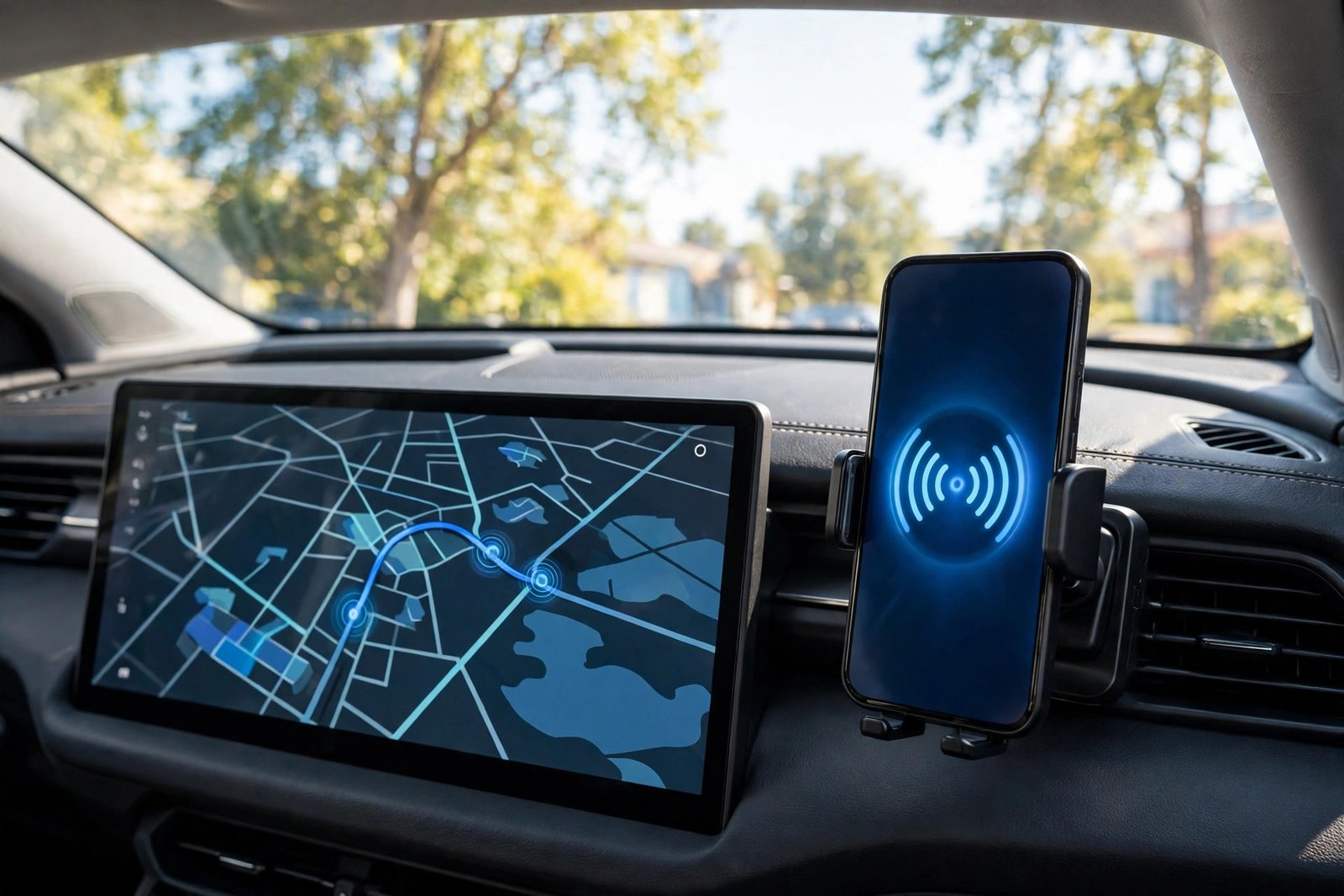
Connecting your smartphone to your vehicle’s infotainment dashboard has revolutionized the modern driving experience. Google’s Android Auto platform seamlessly projects real-time Google Maps and Waze navigation, Spotify and YouTube Music streaming, audible text message reading, and hands-free Google Assistant voice commands directly onto your car’s in-dash touchscreen display. Yet, for millions of drivers worldwide, this experience remains frustratingly anchored to a physical USB charging cable. Fumbling with charging cables while climbing into your driver's seat, dealing with frayed cords that disconnect every time you hit a road bump, and suffering from worn-out phone charging ports diminishes the seamless convenience of modern smart driving.
Fortunately, cutting the cord has never been easier or more reliable. Learning how to use Android Auto wirelessly allows your smartphone to connect to your dashboard automatically the instant you start your engine—leaving your phone resting safely in your pocket, purse, or on a wireless charging pad. Whether your vehicle features a modern factory head unit supporting native wireless connections, or you own an older vehicle equipped only with wired USB ports, you can deploy a compact, plug-and-play wireless Android Auto adapter to bridge the connectivity gap. By understanding the dual Bluetooth Wi-Fi car setup architecture necessary to connect phone car display units wirelessly, you can enjoy cable-free navigation in literally any car on the road in 2026. This comprehensive, research-based masterclass covers wireless protocols, hardware adapter benchmarks, step-by-step setup guides, and advanced latency optimizations.
Hardware Compatibility Notice: To utilize wireless Android Auto, your smartphone must run Android 11.0 or higher with 5GHz Wi-Fi support (standard on virtually all modern smartphones). Your vehicle must possess an infotainment screen that supports Android Auto (either natively wired from the factory, or via an aftermarket head unit from Pioneer, Kenwood, or Alpine). Vehicles that lack any Android Auto support cannot use simple USB wireless dongles without full head unit replacement.
The Dual-Band Architecture: How Wireless Android Auto Operates
A common misconception among drivers is that wireless Android Auto operates over standard Bluetooth. In reality, Bluetooth lacks the data throughput required to stream high-definition interactive video to your car screen.
Wireless Android Auto relies on a sophisticated dual-wireless handshake combining both Bluetooth and high-speed 5GHz Wi-Fi:
- The Initial Bluetooth Handshake: When you start your vehicle, your phone connects to the car's head unit (or wireless adapter) via Bluetooth Low Energy (BLE). The phone and car exchange authentication security tokens, verifying credentials and negotiating network protocols.
- The 5GHz Wi-Fi Direct Handoff: Once authenticated, the car’s head unit (or USB dongle) boots an internal, private, ad-hoc 5GHz Wi-Fi network. The phone automatically disconnects its data transport from Bluetooth and connects to this private Wi-Fi channel.
- High-Bandwidth Projection: The 5GHz Wi-Fi connection provides an immense 400+ Mbps wireless pipe. Your phone renders the Android Auto video frames (60fps H.264/H.265 video), streams high-fidelity uncompressed audio, and receives touch inputs from your dashboard with imperceptible sub-50-millisecond latency.
Crucially, because your phone connects to the car's Wi-Fi for projection only, your phone continues to use its standard cellular 4G/5G mobile data connection to stream Spotify music, calculate live traffic congestion, and process voice searches.
Native Wireless vs Aftermarket USB Wireless Adapters
Depending on your vehicle’s make, model year, and trim level, your path to wireless connectivity follows one of two routes:
- Route 1: Native Factory Wireless (Built-In): Many vehicles manufactured after 2022 (including select models from BMW, Ford, Hyundai, Kia, Honda, GM, and Volkswagen) feature integrated wireless hardware directly from the factory. Setup requires pairing once via Bluetooth, and the vehicle handles the Wi-Fi handoff automatically.
- Route 2: Aftermarket USB Wireless Dongles (For Wired-Only Cars): Tens of millions of vehicles manufactured between 2016 and 2024 feature Android Auto, but strictly require plugging into a physical USB port in the center console. An aftermarket USB wireless adapter plugs permanently into that USB port. The car believes a physical phone is plugged in, while the adapter broadcasts a wireless 5GHz Wi-Fi signal that connects to your phone automatically.
Comprehensive Feature Comparison Matrix: Leading Wireless Android Auto Adapters
The table below provides a structured technical comparison of the premier wireless Android Auto adapters of 2026, comparing their boot times, Wi-Fi bands, form factors, and pricing based on verified hardware specifications and automotive telemetry reviews.
Adapter Name | Wi-Fi Band & Chipset | Average Boot-to-Screen Time | Form Factor & Cable Style | Firmware Companion App | Multi-Phone Switching | Estimated Retail Price |
Motorola MA1 | 5GHz Dual-Core Direct Wi-Fi | ~12 to 15 seconds | Integrated attached USB-A cable + gel pad | No (Pure native Google licensed hardware) | Manual re-pair needed | ~$69 (Check official site) |
AAWireless (TWO / TWO+) | 5GHz Custom ARM Architecture | ~10 to 14 seconds | Ultra-compact puck with detachable USB-C/A cable | Yes (Comprehensive app: DPI, force 2.4GHz, updates) | Yes (Physical multi-device toggle button) | ~$79 (Check official site) |
Ottocast A2-Air Pro | 5GHz High-Throughput Processor | ~18 to 22 seconds | Sleek carbon-fiber look with detachable cable | Yes (OttoPilot app for OTA firmware updates) | Basic auto-connect memory | ~$65 (Check official site) |
Carlinkit 5.0 (2air) | Dual-Band 2.4GHz / 5.8GHz | ~20 to 25 seconds | Ventilated square dongle with detachable cables | Yes (Web browser backend configuration) | Yes (Dual CarPlay & Android Auto support) | ~$59 (Check official site) |
MSXTTLY Android Auto Dongle | 5GHz Compact Dongle | ~22 to 28 seconds | Miniature thumb-drive form factor (Direct plug) | No (Web browser IP update portal) | Single primary phone focus | ~$45 (Check official site) |
Note: Pricing may change — check official manufacturer storefronts and authorized automotive retailers for live promotional discounts.
In-Depth Reviews of the Top 3 Wireless Adapters
1. AAWireless (TWO / TWO+): The Open-Platform Pioneer
Developed by European automotive engineers and originally launched on Indiegogo, AAWireless is widely considered by auto enthusiasts to be the finest aftermarket adapter ever engineered. What makes AAWireless exceptional is its companion mobile app.
While other adapters are closed black boxes, the AAWireless app allows you to customize the video resolution, modify the screen DPI (allowing you to shrink icons to fit more map area or force Android Auto’s "Coolwalk" split-screen layout on small displays), change Wi-Fi channels to avoid regional radar interference, and update firmware over-the-air. The upgraded AAWireless TWO hardware features a physical button on the front of the puck: pressing it instantly cycles connection priority between two paired smartphones (e.g., driver and passenger), eliminating pairing fights. For reliability and customizable control, AAWireless is peerless.
2. Motorola MA1: The Official Google-Licensed Workhorse
The Motorola MA1 was developed through an official partnership with Google, integrating Google's licensed Android Auto software stack directly into the hardware. It is the closest equivalent to a native factory installation.
The MA1 requires zero companion apps and zero manual network configuration. You plug it into your car’s USB-A port, pair your phone to its Bluetooth signal once, and it functions seamlessly in the background. Its boot time is among the fastest tested, establishing full connection to your dashboard within 12 to 15 seconds of starting your ignition. Its only minor downside: the short USB cable is permanently attached to the housing, meaning you must ensure your car’s console space accommodates its fixed layout.
3. Ottocast A2-Air Pro: Sleek Aesthetics and Stable Reliability
Ottocast has established a massive global footprint in in-car connectivity, and the A2-Air Pro represents their most refined dedicated Android Auto hardware. Featuring a slim, carbon-fiber textured casing and a detachable USB-C to USB-A/C cable, it tucks neatly into hidden armrest cubbies.
The A2-Air Pro boasts a customized 5.8GHz transmission module that exhibits remarkable resistance to electromagnetic interference when driving beneath urban power lines or past toll plazas. Its companion OttoPilot app provides clean firmware updates and diagnostic logs. For drivers seeking a plug-and-forget adapter with high wireless stability, Ottocast is an outstanding contender.

Step-by-Step Setup: Connecting to Factory Wireless Android Auto
If your vehicle natively supports wireless Android Auto from the factory (consult your vehicle owner’s manual), follow this standard setup:
- Turn on your vehicle’s engine and shift into Park (P).
- On your vehicle touchscreen, navigate to Phone / Bluetooth settings and select "Add Device".
- On your Android smartphone, open Settings > Bluetooth and tap your car’s listed name.
- Confirm that the 6-digit PIN displayed on your car screen matches the PIN on your phone. Tap Pair.
- Allow Android permission to access contacts and phone calls.
- A system prompt will appear on your car display: "Would you like to use Android Auto wirelessly?"
- Tap Accept / Enable. A simultaneous prompt will appear on your smartphone asking to enable Wi-Fi projection. Tap Continue.
- Within 10 seconds, the Android Auto dashboard will project onto your in-dash screen. On all future drives, the connection will initialize automatically as soon as your phone enters the vehicle.
Step-by-Step Setup: Using an Aftermarket USB Wireless Adapter
If your car only supports wired Android Auto, follow this 60-second setup using a wireless dongle (like the Motorola MA1 or AAWireless):
- Locate the Correct USB Port: Vehicles often have multiple USB ports, but typically only one port connects to the infotainment head unit (usually marked with a smartphone icon, USB trident icon, or labeled "USB 1"). The other ports are strictly for 12V power charging.
- Plug the Adapter In: Insert your wireless adapter into the active Android Auto data port. An LED light on the adapter will begin blinking, indicating it is powered and in pairing mode.
- Pair via Bluetooth: Open Settings > Bluetooth on your Android phone. Look for the adapter’s name (e.g., AndroidAuto-Gateway, MA1-xxxx, or AAWireless-xxxx) under available devices. Tap to pair.
- Confirm Handshake: Accept the pairing request on your phone. The adapter communicates with your phone over Bluetooth, hands off the Wi-Fi credentials, and launches the 5GHz Wi-Fi link.
- Drive Cable-Free: Your car’s screen will automatically switch to the Android Auto interface. Leave the adapter permanently plugged into the console; it will sleep when your car turns off and wake automatically when you start your vehicle.
Troubleshooting: Fixing Disconnections, Lag, and Black Screens
While wireless Android Auto provides daily freedom, wireless radio interference can occasionally cause hiccups. Here is how to resolve common issues:
1. Random Disconnections at Specific Highway Intersections
If your wireless connection reliably drops out at the exact same geographical spot—such as driving past a toll booth, airport radar tower, or military base—this is caused by 5GHz Dynamic Frequency Selection (DFS) interference. Federal radar installations trigger automotive Wi-Fi chips to hop channels, dropping the video stream.
The Fix: If you use an adapter with a companion app (like AAWireless), open settings, navigate to Wi-Fi settings, and switch the channel from automatic/DFS to a fixed, non-DFS channel such as Channel 36, 40, 44, or 48 (5.180 GHz). This permanently eliminates radar-induced dropouts.
2. The "Bluetooth Connected But Screen Won't Launch" Glitch
If your phone connects to the car via Bluetooth but the Android Auto projection fails to start, the Wi-Fi handoff stalled.
The Fix: Open Android Settings > Apps > Android Auto > Storage & cache > tap Clear cache. Next, go to Settings > Apps > Google Play Services > Storage & cache > Clear cache. Restart your phone and cycle your car’s ignition. This flushes corrupt staging tokens and restores clean projection.
3. Managing Wireless Battery Drain and Device Heat
Streaming 60fps video over 5GHz Wi-Fi while running GPS navigation and cellular data places continuous demand on your smartphone processor, consuming roughly 10% to 15% battery per hour.
Best Practice: On daily commutes under 30 minutes, leave your phone in your pocket. On long road trips exceeding an hour, place your phone on an air-conditioned wireless charging cradle or plug in an auxiliary charging cable to ensure your battery stays topped up without thermal throttling.

Frequently Asked Questions (FAQ)
Does wireless Android Auto use up my mobile hotspot data allowance?
No. Although your phone connects to the car's private 5GHz Wi-Fi network, that local Wi-Fi connection does not provide internet access; it functions strictly as a local wireless video cable. All streaming music, navigation data, and voice queries continue to use your standard cellular mobile data plan, consuming zero hotspot data.
Can I still use my phone while wireless Android Auto is running on the dashboard?
Yes. Modern Android Auto allows full concurrent smartphone usage. A passenger can use your phone to search for restaurants, reply to urgent emails, or browse social media without interrupting the navigation map displayed on the car screen.
Will wireless Android Auto drain my phone battery when my car is parked and turned off?
In 95% of vehicles, the console USB port loses electrical power within 60 seconds of turning off the engine and locking the doors, powering down the wireless adapter completely. However, on select vehicles where USB ports remain continuously powered 24/7 (such as certain Ford or commercial trucks), the adapter will stay awake unless unplugged, which can drain your vehicle's 12V car battery over several days. Check if your car's USB port LED turns off when the vehicle is locked.
Can two different drivers pair their phones to the same wireless adapter?
Yes. Adapters can store multiple phone pairings. However, if both drivers get into the car together with Bluetooth enabled on both phones, the adapter will connect to whichever phone it discovers first. Adapters like AAWireless TWO include physical button toggles to manually select which driver takes control of the screen.
Does wireless Android Auto support steering wheel controls and touchscreen gestures?
Yes. Wireless Android Auto retains 100% functionality with your vehicle’s factory physical controls: steering wheel volume and track-skipping buttons, rotary control knobs, voice assistant buttons, and multi-touch screen gestures (such as pinch-to-zoom on Google Maps) respond identically to wired connections.
Can I add wireless Android Auto to a car that doesn't have an infotainment screen?
No. Wireless adapters require an existing car head unit that already supports Android Auto software. If your vehicle has an older radio with an analog CD player or basic display, you must replace the factory radio with an aftermarket touchscreen head unit (from Sony, Pioneer, or Kenwood) that includes Android Auto support.
Conclusion: The Ultimate Daily Driving Upgrade
Eliminating cable clutter from your vehicle is one of the most rewarding automotive upgrades you can make. The freedom of stepping into your car, starting the engine, and having Google Maps navigation and Spotify playlists automatically appear on your dashboard—without ever touching your smartphone—transforms everyday driving into a seamless, modern pleasure.
Whether your car includes factory wireless capabilities or you invest in an acclaimed adapter like the Motorola MA1 or AAWireless, adopting Android Auto wirelessly delivers the perfect balance of convenience, safety, and smart connectivity for every journey throughout 2026.