Our smartphones serve as the central repository of our modern lives. They accompany us everywhere, continuously recording our geographic movements, facilitating private conversations, capturing biometric authentication data, and housing sensitive financial accounts. However, this unmatched convenience comes with significant exposure. Mobile applications, data brokers, and advertising networks constantly seek access to hardware sensors, personal contact lists, browsing telemetry, and background location beacons to build detailed behavioral profiles.
While mainstream media often portrays mobile privacy as an all-or-nothing trade-off, the modern Android operating system—culminating in Android 14 and Android 15—actually incorporates some of the most robust, granular privacy controls in consumer technology. The challenge is that many of these protective barriers are either disabled by default to promote cross-app interoperability or buried beneath dense layers of system menus. Performing a methodical Android privacy audit allows you to reclaim complete digital sovereignty over your personal data without sacrificing the everyday apps and communication tools you rely upon.
Based on official Android security bulletins, mobile operating system architecture documentation, and cybersecurity industry best practices, this comprehensive editorial guide walks you step-by-step through auditing permissions, neutralizing advertising telemetry, hardening network connections, and configuring physical theft protections to fully secure Android phone environments.
Editorial Note: TechVantageAPK publishes strictly educational technical guides. All security measures discussed here utilize native Android settings and verified security practices. We never promote or host unauthorized software, modified APKs, or cracking tools.
Phase 1 — The Master Privacy Dashboard & Sensor Indicators
Before revoking individual app toggles, it is essential to understand what data your device has already transmitted. Android's native Privacy Dashboard provides complete forensic transparency into app behavior over the preceding 24-hour and 7-day windows.
Utilizing the Android Privacy Dashboard Timeline
To access the Privacy Dashboard:
- Open your device Settings app.
- Select Security & privacy (or Privacy on earlier Android versions).
- Tap on Privacy dashboard.
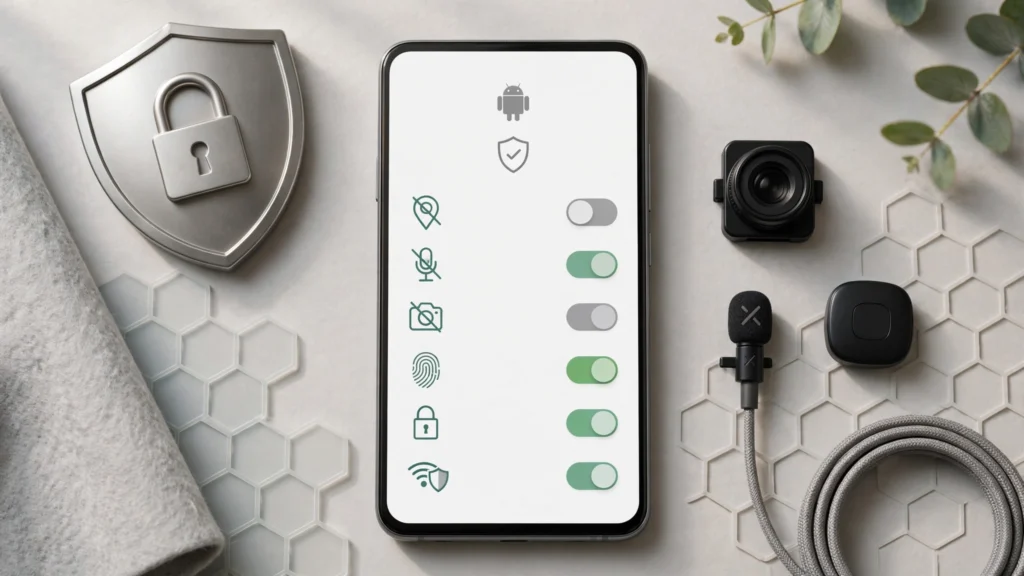
The dashboard displays a clean visual breakdown of the three most sensitive hardware permissions: Location, Camera, and Microphone. Tapping on any category reveals a precise chronological timeline showing every single instance an application accessed that sensor. If you notice a rideshare or weather app pinging your location at 3:15 AM while your phone was idle, or a casual puzzle game accessing your microphone, the Privacy Dashboard provides the documented evidence needed to take immediate corrective action.
Real-Time Camera and Microphone Access Indicators & Quick Tiles
Beginning in Android 12 and standardized across all modern Android devices, the operating system displays a bright green indicator pill in the top-right corner of the status bar whenever any application accesses your camera or microphone. Tapping this green pill instantly reveals which specific app is utilizing the sensor.
Furthermore, Android provides universal hardware sensor kill switches in the Quick Settings shade. Swipe down twice from the top of your screen to inspect your Quick Settings tiles. If you do not see Camera access and Mic access tiles, tap the edit (pencil) icon and drag them into your active grid. Toggling these tiles off cuts software-level access to the camera and microphone system-wide, guaranteeing complete acoustic and visual privacy during sensitive business meetings or private conversations.
Phase 2 — Comprehensive Android App Permissions Guide
Third-party applications frequently request expansive permissions during first launch, often bundling non-essential hardware requests into onboarding flows. Applying a strict Android app permissions guide strategy ensures that applications access only the bare minimum data required to execute their primary purpose.
Critical Permissions: Location, Microphone, Camera, Contacts
To perform an exhaustive permission audit, navigate to Settings > Security & privacy > Permission manager. Review each critical category methodically:
1. Location Permissions
Audit every application categorized under Allowed all the time. As a firm security rule, only dedicated turn-by-turn navigation apps (such as Google Maps) or emergency tracking utilities (like Google Find My Device) should ever possess 24/7 background location access. Move all social media platforms, retail portals, browsers, and streaming apps to Allowed only while in use or Don't allow.
2. Camera and Microphone
Inspect the list of apps holding camera and microphone rights. Video conferencing tools (Zoom, Google Meet) and voice messaging platforms legitimately require these inputs, but flashlight apps, document scanners, and shopping applications should never have ongoing access. Set them to Ask every time or revoke access entirely.
3. Contacts and Call Logs
Many social media platforms request access to your address book under the guise of "finding friends." When you grant contacts permission, you upload not only your friends' names and phone numbers, but also their private email addresses, home addresses, and personal notes stored in your contact cards. Deny contacts access to commercial social networks; you can always search for acquaintances manually by username.
4. Photos and Videos (Photo Picker vs Full Storage)
On Android 13, 14, and 15, applications no longer require access to your entire local storage to upload an image. The native Android Photo Picker allows you to select specific photos or videos to share with an app without granting that application permission to read your entire personal media library. If an app requests All files access (MANAGE_EXTERNAL_STORAGE), refuse the request unless it is an authentic file manager or backup utility.
Precise vs Approximate Location: Granting Only What Is Needed
When an application requests location access, Android displays a split toggle: Precise versus Approximate. Precise location utilizes hardware GPS to pinpoint your coordinates within a few meters. Approximate location uses cellular tower triangulation and Wi-Fi networks to estimate your general area within roughly 1.5 square miles.
For weather forecasts, local news apps, and regional marketplace browsers, approximate location is more than adequate. Disabling the Use precise location toggle prevents commercial platforms from tracking your exact home address, workplace, or physical storefront visits while still delivering relevant local data.
Auto-Reset Permissions for Unused Apps
Android features an automated hygiene setting called Permission auto-reset. If you do not launch an installed application for several months, the operating system automatically strips all granted permissions, clears temporary cache files, and stops background notification delivery. Verify that this feature is active by visiting Settings > Apps > Unused apps and confirming that auto-reset is enabled across your software library.
Special App Access: High-Risk Permission Categories
Beyond standard runtime permissions, Android houses an administrative submenu named Special app access (located under Settings > Apps > Special app access). These permissions carry immense system privilege and should be audited with extreme vigilance:
- Device admin apps: Can lock your screen, wipe device storage, or enforce system passwords. Typically, only Find My Device or enterprise MDM tools should appear here.
- Notification access (Notification Listener): Allows an app to read every incoming notification, including one-time two-factor authentication (2FA) SMS codes and private chat previews. Never grant this permission to casual keyboard apps, wallpaper tools, or games.
- Accessibility services: Intended to assist users with disabilities by reading on-screen elements and intercepting touch events. Malicious software frequently exploits Accessibility access to log keystrokes and siphon credentials. Keep this list strictly limited to verified accessibility tools.
- Install unknown apps: Ensure that your web browsers, messaging clients, and file managers have Allow from this source toggled Off to prevent drive-by installation of unverified software.

Phase 3 — Advertising ID, Telemetry, and How to Disable Google Ad Tracking
Google's revenue model relies heavily on targeted digital advertising. While the Android operating system provides substantial security defenses, its default telemetry configurations are tuned to feed Google's advertising engine. Taking deliberate steps to disable Google ad tracking severs the link between your personal device identity and commercial marketing profiles.
Deleting Your Android Advertising ID (GAID)
Historically, Android assigned every device a static, alphanumeric Google Advertising ID (GAID). Third-party advertising SDKs embedded inside free apps used this identifier to track your movements across different applications, building a cohesive profile of your interests, shopping habits, and political inclinations.
In modern Android versions, you have the power to delete this advertising identifier entirely:
- Open Settings and navigate to Google (or Google Services).
- Select All services and tap on Ads.
- Select Delete advertising ID.
- A warning dialog will explain that you will still see ads, but they will not be tailored to your device profile. Confirm by tapping Delete advertising ID.
Once deleted, any application that attempts to read your advertising identifier receives a string of zeros (00000000-0000-0000-0000-000000000000), breaking cross-app behavioral tracking immediately.
Configuring Privacy Sandbox and Ad Topics
To replace third-party cookies and static IDs, Google has implemented the Privacy Sandbox on Android. While more private than legacy advertising IDs, Privacy Sandbox still categorizes your interests locally on your device based on app usage.
To lock down Privacy Sandbox settings:
- Go to Settings > Google > Ads > Privacy Sandbox.
- Tap Ad topics and toggle the master switch to Off to prevent Android from calculating topic interests (e.g., "automotive", "fitness").
- Tap App-suggested ads and toggle it Off to stop apps from passing behavioral tags to other advertising networks.
- Tap Ad measurement and toggle it Off to block cross-network ad conversion tracking.
Google Account Activity Controls Audit
In addition to on-device telemetry, your phone continuously synchronizes search queries, app launches, and YouTube viewing history with your central Google account. To halt this logging:
- Go to Settings > Google > Manage your Google Account.
- Switch to the Data & privacy tab.
- Under History settings, inspect three core controls:
- Web & App Activity: Turn off or set auto-delete to 3 months. Uncheck Include Chrome history and activity from sites, apps, and devices that use Google services.
- Timeline (formerly Location History): Android now stores Timeline data locally on your device rather than in the cloud. Ensure cloud backup is encrypted and set automatic deletion thresholds.
- YouTube History: Pause tracking or configure automated 3-month deletion.
Phase 4 — Network and DNS Privacy Hardening
Every time your phone opens a web page, streams an audio track, or refreshes an app feed, it issues Domain Name System (DNS) queries. By default, your internet service provider (ISP) or public Wi-Fi operator can log every domain your smartphone contacts.
Configuring Private DNS (Encrypted DNS-over-TLS)
Android includes native support for Private DNS using the encrypted DNS-over-TLS (DoT) protocol. Configuring a privacy-respecting DNS resolver encrypts all outbound domain queries, shielding your browsing habits from local network eavesdroppers and filtering out known tracker domains at the network level.
To enable Private DNS:
- Navigate to Settings > Network & internet.
- Tap on Private DNS.
- Change the selection from Automatic to Private DNS provider hostname.
- Enter a trusted, privacy-focused hostname, such as:
- dns.quad9.net (Quad9: non-profit, privacy-focused, malicious domain blocking)
- one.one.one.one (Cloudflare: high-speed, audited zero-logging resolver)
- dns.adguard-dns.com (AdGuard: privacy resolver that blocks mobile advertising domains and telemetry trackers system-wide)
- Tap Save.
Once configured, all device network traffic encrypts its domain resolution queries, preventing local coffee shop Wi-Fi routers or telecom providers from intercepting your DNS requests.
Disabling Wi-Fi and Bluetooth Scanning Telemetry
Even when Wi-Fi and Bluetooth are turned off in Quick Settings, Android may continue scanning for nearby wireless beacons to assist Google Location Accuracy. This constant background pinging broadcasts unique radio signatures that physical store trackers can record to track foot traffic in retail environments.
To eliminate this background telemetry:
- Go to Settings > Location > Location services.
- Toggle off Wi-Fi scanning.
- Toggle off Bluetooth scanning.
Wi-Fi MAC Address Randomization
Every network interface card carries a unique hardware Media Access Control (MAC) address. If you connect to public Wi-Fi networks using your factory hardware MAC, network operators can correlate your device across multiple physical locations.
Android provides automated MAC address randomization:
- Go to Settings > Network & internet > Internet.
- Tap the gear icon next to your saved Wi-Fi network.
- Tap Privacy and confirm that Use randomized MAC is selected rather than Use device MAC.

Phase 5 — Lock Screen, Notifications, and Physical Access Security
A comprehensive privacy posture must defend against physical inspection as well as remote telemetry. If an unauthorized individual gains physical possession of your phone, lock screen configurations dictate how much personal information is exposed.
Hiding Sensitive Notification Content on the Lock Screen
By default, Android displays notification previews—including incoming text messages, banking alerts, and password reset codes—directly on the locked display. Anyone glancing at your phone can read incoming two-factor authentication tokens without unlocking the device.
To secure your lock screen previews:
- Open Settings > Notifications.
- Tap on Notifications on lock screen.
- Select Hide silent conversations and sensitive notifications or Don't show any notifications.
With this setting active, notification banners display the app icon and the message "Contents hidden" until you authenticate with your fingerprint, face, or secure PIN.
Enabling Android Lockdown Mode
Modern biometric authentication (fingerprint scanning and facial unlock) provides immense convenience, but in certain legal and border crossing scenarios, law enforcement or hostile actors can compel physical biometric presentation. Android features a dedicated safeguard called Lockdown Mode.
When you activate Lockdown Mode:
- Biometric fingerprint and face unlock are instantly disabled.
- Smart Lock / Extend Unlock features are suspended.
- All notifications are wiped from the lock screen.
- The only method to access the phone is by entering your master alphanumeric password or PIN.
To ensure Lockdown is accessible: navigate to Settings > Display > Lock screen and enable Show lockdown option. To trigger Lockdown at any time, press and hold the Power and Volume Up buttons and tap the Lockdown icon in the power menu.
Configuring SIM Card Lock (PIN)
If someone steals your physical phone, they can easily eject your physical SIM card, insert it into another unlocked handset, and receive your incoming SMS two-factor authentication codes to hijack your email and financial accounts. Preventing this attack requires establishing a SIM PIN:
- Go to Settings > Security & privacy > More security settings > SIM card lock.
- Toggle on Lock SIM card.
- Enter your carrier's default SIM PIN (check with your carrier or packaging, typically 1234 or 0000).
- Change the PIN to a unique 4-to-8 digit code.
Whenever your device restarts or the SIM card is moved to another handset, the SIM cannot connect to the cellular network without this PIN.
Phase 6 — Advanced Security: Private Space and Theft Protection
Android 15 introduces cutting-edge privacy and theft defense mechanisms that elevate mobile security to new heights.
Isolating Sensitive Apps with Android 15 Private Space
Android 15's Private Space allows users to create an encrypted, isolated user profile within their primary device. Applications placed inside Private Space (such as banking portals, encrypted messengers, and confidential work files) are completely invisible from the standard app drawer, recent apps view, and notification panel when Private Space is locked.
To configure Private Space on Android 15:
- Navigate to Settings > Security & privacy > Private space.
- Authenticate and follow the setup wizard to assign a separate, dedicated lock PIN different from your main device PIN.
- You can choose to hide Private Space entirely so that it does not even appear in your settings or app drawer unless you type a secret passphrase into the search bar.
AI-Powered Theft Detection Lock and Offline Device Lock
Google has rolled out intelligent physical theft protections across modern Android devices:
- Theft Detection Lock: Uses device accelerometers and machine-learning models to recognize common physical theft gestures, such as someone snatching the phone from your hand and rapidly fleeing on a bicycle or foot. The phone locks its screen automatically the instant this motion is detected.
- Offline Device Lock: Automatically locks the screen if a thief disconnects your phone from cellular data and Wi-Fi networks in an attempt to prevent remote tracking.
- Remote Lock: Enables you to lock your phone's screen using just your verified phone number via Google's official recovery portal (android.com/lock) if your Google account credentials are unavailable.
Enable these protections under Settings > Google > All services > Theft protection.
Step-by-Step Android Privacy Audit Summary Checklist
Audit Step | Settings Path | Recommended Action | Primary Threat Mitigated |
Privacy Dashboard | Security & privacy > Privacy dashboard | Inspect 24-hr camera/mic/location logs | Identifies rogue apps harvesting sensor data. |
Background Location | Security & privacy > Permission manager | Set to "While in use" only | Prevents continuous physical location profiling. |
Sensor Kill Switches | Quick Settings shade | Add Mic and Camera access tiles | Instant hardware-level privacy during meetings. |
Advertising ID | Settings > Google > Ads | Delete Advertising ID completely | Halts cross-app behavioral tracking profiles. |
Privacy Sandbox | Settings > Google > Ads > Privacy Sandbox | Disable Ad Topics and Measurement | Stops on-device advertising interest modeling. |
Private DNS | Network & internet > Private DNS | Set to DNS-over-TLS provider (Quad9/AdGuard) | Encrypts DNS requests and blocks web trackers. |
Radio Scanning | Settings > Location > Location services | Disable Wi-Fi and Bluetooth scanning | Prevents physical beacon tracking in public spaces. |
Lock Screen Previews | Settings > Notifications > On lock screen | Hide sensitive content | Blocks unauthorized viewing of 2FA SMS tokens. |
Lockdown Mode | Settings > Display > Lock screen | Enable Lockdown shortcut in power menu | Instantly disables biometrics in high-risk zones. |
Theft Protection | Settings > Google > Theft protection | Enable Theft Detection and Offline Lock | Secures data instantly if device is physically snatched. |

Frequently Asked Questions (FAQ)
Will revoking app permissions break basic phone functionality?
No. Android's permission model is designed with graceful degradation. If you deny a weather app permission to access your contacts or precise location, the app will continue to function—it will simply ask you to enter your city manually or display generic regional forecasts. If an application genuinely requires a permission to execute a core task (such as camera access for a barcode scanner), it will prompt you at the moment you initiate the feature.
Does deleting my Advertising ID stop ads from appearing in free apps?
Deleting your Google Advertising ID will not reduce the total volume of advertisements displayed in free applications. However, it completely changes the nature of those ads: instead of personalized, targeted ads built upon your browsing history and physical location, you will receive generic, contextual ads based solely on the general theme of the app you are currently using.
Is Private DNS safe to use on cellular data?
Yes. Private DNS works seamlessly across both Wi-Fi networks and mobile cellular connections. Established public resolvers like Quad9 (dns.quad9.net) and Cloudflare (one.one.one.one) are globally distributed, highly resilient, and introduce virtually zero perceptible latency into your daily browsing.
Can Google still track my location if I turn off Location History?
Turning off Location History (Timeline) prevents Google from building a centralized cloud timeline of your daily movements. However, if you use Google Maps for active navigation, or if you keep Web & App Activity enabled, Google services can still record location coordinates associated with specific searches. To achieve comprehensive location privacy, ensure you also configure your Web & App Activity settings and set location permissions to "While in use" only.
What is the difference between Android's Work Profile and Private Space?
A Work Profile is designed primarily for enterprise environments, allowing an IT administrator to manage workplace applications and enforce corporate policies separately from your personal data. Android 15's Private Space is an entirely user-managed consumer feature. It requires no corporate server, allows you to lock personal apps with a private PIN, and enables you to hide sensitive personal utilities completely from view.
How often should I conduct an Android privacy audit?
We recommend performing a brief privacy checkup once every three months, or immediately following any major Android OS update. Operating system updates occasionally introduce new privacy toggles or restructure permission hierarchies, making quarterly audits an excellent digital hygiene habit.
Conclusion: Empowering Your Digital Independence
Protecting your personal privacy on Android does not require deep software engineering expertise or retreating from modern digital conveniences. Google provides an exceptional array of granular security and privacy switches—the key is taking the time to configure them intentionally.
By completing this comprehensive privacy audit—deleting your advertising ID, setting location access to strict runtime boundaries, encrypting outbound network queries via Private DNS, and hardening your lock screen against physical intrusion—you transform your Android smartphone into a fortified personal vault. Take control of your settings today and enjoy the peace of mind that comes with true digital privacy.