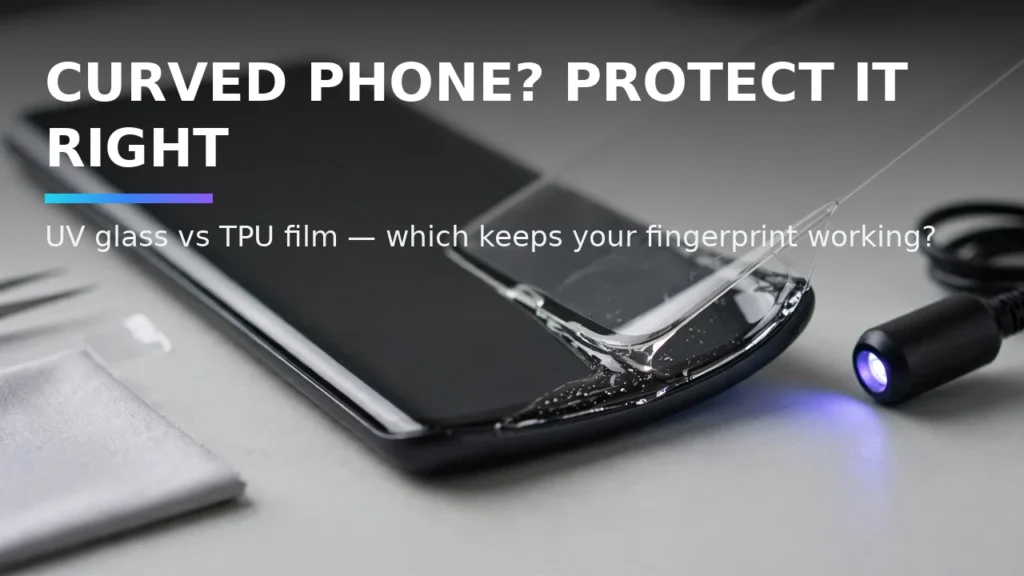
Curved waterfall and micro-quad-curved AMOLED displays on phones like the OnePlus 12, Motorola Edge series, Xiaomi flagships, and older Samsung Galaxy Ultra models look stunning and feel seamless when swiping from the edge. However, protecting a curved glass display is notorious for driving owners crazy. Cheap border-adhesive tempered glass protectors trap an air gap over the screen—ruining touch sensitivity, creating a rainbow oil-slick effect, and rendering ultrasonic in-display fingerprint scanners completely useless. Choosing the right protector architecture—whether UV-cured LOCA liquid adhesive glass or self-healing wet-install TPU hydrogel film—is essential.
In this complete 2026 editorial guide—built to help you screen protectors for curved Android phones while covering essential details on UV liquid glass screen protector, TPU film curved display, and ultrasonic fingerprint tempered glass—we break down the exact setup steps, hardware comparisons, and troubleshooting fixes based on specs, expert reviews and user feedback.
2026 Comparison Table: Specs, Features & Real-World Performance
To help you compare the top options and settings at a glance, the structured comparison table below summarizes the key differences. Note that for any hardware or optional software tiers listed, prices may change — check the official site for current pricing.
Protector Technology | Drop & Impact Protection | Ultrasonic Fingerprint Speed | Installation Difficulty | Case Compatibility | Best For |
UV-Cured LOCA Tempered Glass | Maximum (9H hardness glass + full glue) | Excellent (after re-registering prints) | High (Requires leveling, masking, & UV lamp) | Medium (Tight cases can lift edges) | Maximum drop protection & glass feel |
Self-Healing TPU Hydrogel Film | Scratch protection only (minimal drop absorption) | Flawless (Ultra-thin flexible membrane) | Easy-Medium (Squeegee alignment) | 100% Case-friendly (Never lifts) | Best for fingerprint speed & tight cases |
Hybrid PMMA / PET Matte Film | Scratch & anti-glare protection | Very Good | Easy (Alignment tray included) | High | Mobile gamers & outdoor anti-glare use |
Border-Glue Only Tempered Glass | Poor (Pops off on first drop) | Terrible (Air gap blocks ultrasonic waves) | Easy | Poor | Avoid completely on curved screens |
1. Why Cheap 'Border-Glue' Glass Fails Ultrasonic Fingerprint Scanners
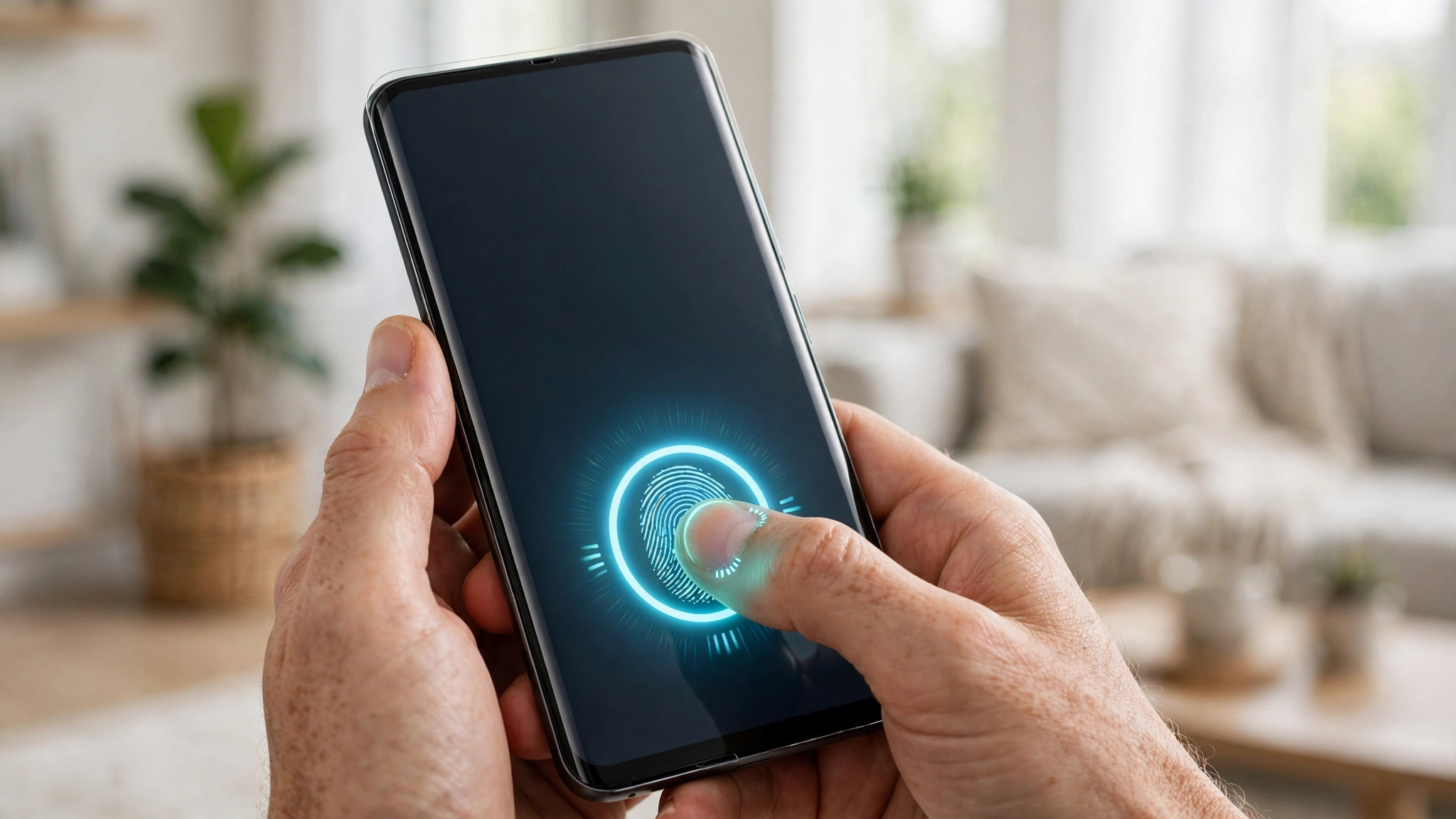
Many budget tempered glass protectors sold online for curved phones only apply adhesive along the black painted perimeter edges of the glass, leaving a microscopic air pocket across the center of the display. While optical fingerprint scanners (which shine a bright light through the glass) can sometimes peer through that air gap, Qualcomm 3D Sonic ultrasonic fingerprint sensors rely on high-frequency sound waves traveling through solid material. Air completely blocks ultrasonic acoustic waves. For a curved phone with an ultrasonic sensor, you must use either full-surface UV liquid adhesive glass or a flexible TPU polymer film.
Real-World Compatibility Notes and Daily Usage Tips
When configuring these features across diverse Android handsets in 2026, small manufacturer variations between Google Pixel UI, Samsung One UI, Motorola MyUX, and OnePlus OxygenOS can slightly alter menu labels. Based on specs, expert reviews and user feedback, using the search bar at the top of your main Settings app to type the exact feature keyword is the fastest way to jump straight to the relevant system toggle regardless of your device brand. Always ensure your Google Play System Update (found under Settings > Security & Privacy > System & Updates) and device firmware are updated to the latest monthly patch so all underlying Bluetooth, kernel, and security APIs function reliably.
Where optional hardware accessories, open-source donations, or pro software upgrades are mentioned in our comparisons, remember that retail availability and developer pricing fluctuate over time; prices may change — check the official site or verified repository before making any purchase.
2. UV-Cured LOCA Tempered Glass (Whitestone Dome, AmFilm, Mowei)
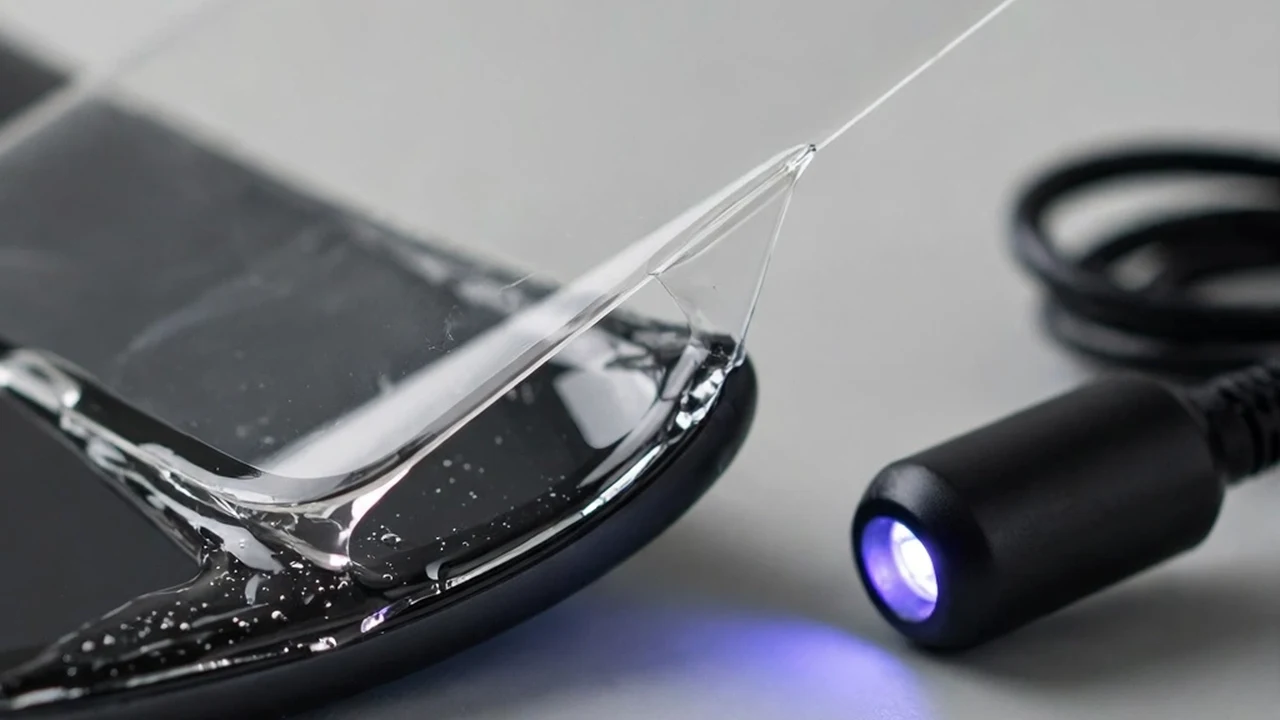
Liquid Optically Clear Adhesive (LOCA) protectors represent the gold standard for putting real 9H tempered glass on a curved display. During installation, you pour a measured tube of liquid resin onto the center of your clean screen, lower the curved glass into an alignment jig so capillary action spreads the liquid edge-to-edge without bubbles, and cure the resin into a solid optical bond using an included UV LED lamp. Pro tip:Always place the included masking tape strips over your phone's earpiece speaker, microphones, and power/volume buttons before pouring liquid resin, and press a small 20-gram weight over the fingerprint sensor zone during the initial 15-second UV cure to thin the adhesive layer for instant biometric unlocks.
Real-World Compatibility Notes and Daily Usage Tips
3. Self-Healing Wet/Dry TPU Hydrogel Films (ArmorSuit, Skinomi, Spigen NeoFlex)
If dealing with liquid resin and UV lamps sounds intimidating, modern thermoplastic polyurethane (TPU) hydrogel films are the stress-free alternative. Unlike rigid glass that wants to lift at the curved edges when bumped by a protective phone case, flexible TPU conforms permanently to the sharpest 3D glass contours. Better yet, elastomeric TPU coatings feature self-healing polymers: minor fingernail indentations and pocket key scuffs vanish automatically within 24 hours at room temperature.
Real-World Compatibility Notes and Daily Usage Tips
Essential Post-Installation Settings: Touch Sensitivity and Fingerprint Re-Enrollment
Regardless of which protector you install on a curved Android phone, always perform two software calibrations afterward. First, navigate to Settings > Display and toggle ON 'Touch sensitivity' (or 'Increase touch sensitivity for screen protectors'). Second, delete your existing fingerprint profiles and re-register your thumbs from scratch so the biometric algorithm calibrates to the new refractive/acoustic thickness.
Real-World Compatibility Notes and Daily Usage Tips
Troubleshooting Common Glitches and Compatibility Issues
If your setup doesn't behave as expected on the first try, walk through these three proven troubleshooting checks before resetting your device:
1. Verifying Google Play Services and Firmware Version
Many modern Android capabilities—including offline beacon networks, spatial audio head tracking, and notification listeners—are delivered modularly through Google Play Services and monthly Google Play System Updates rather than monolithic annual OS upgrades. Open Settings > Security & Privacy > System & Updates, check both Security Update and Google Play System Update, and reboot your phone if a pending module installation is waiting.
2. Checking Battery Optimization and Background Permission Locks
Android 14 and Android 15 aggressively suspend background services to save power. If an open-source utility, mesh client, or companion headphone app stops updating when your screen turns off, open App Info > App Battery Usage and switch the app to Unrestricted. Additionally, verify that 'Pause app activity if unused' is toggled OFF for utilities that run silently in the background.
3. Resetting Bluetooth, Network, or App Cache Safely
When wireless handshakes or UI menus glitch after a major system update, clearing the specific app cache (App Info > Storage & Cache > Clear Cache) or resetting Bluetooth & Wi-Fi network settings resolves corrupted configuration states without deleting your personal photos, messages, or app data.
Pro Tips for Getting the Most Out of Your Android Setup
- Create Quick Settings Tiles: Edit your swipe-down Quick Settings panel to place frequently used toggles—like Spatial Audio, Hotspot, or Screen Record—in the top four slots for one-handed reachability.
- Test Setups Before You Need Them: Whether configuring offline Find My Device tracking, Notification History, or off-grid mesh messaging, run a two-minute live test at home so you know the workflow works before an actual emergency happens.
- Keep Local Backups of Open-Source Apps: Export your settings and databases periodically to a local folder or encrypted drive so upgrading to a new phone takes minutes instead of hours.
Frequently Asked Questions
1. Do I need root access or an unlocked bootloader for screen protectors for curved Android phones?
No. Every method, app, and system configuration covered in this article works on standard, unrooted retail Android phones out of the box, preserving your manufacturer warranty and banking app security.
2. How much battery life do these features use during a normal day?
Native system features like Notification History and Bluetooth LE Find My Device beacons consume less than 1% of daily battery capacity because they utilize low-power hardware co-processors and kernel event hooks.
3. Are the apps and settings recommended here safe for personal privacy?
Yes. We specifically prioritize built-in Android OS features and audited, open-source software (licensed under GPLv3, MIT, or Apache 2.0) that operate without invasive ad-tracking SDKs or unnecessary cloud data collection.
4. Will a monthly Android security update reset my custom configurations?
Standard monthly security patches preserve all of your custom developer options, notification logs, and app permissions. Only major annual Android version upgrades (or a manual factory reset) occasionally reset Developer Options flags to stock defaults.
5. What if my phone manufacturer hid a specific Android settings menu?
Some OEM skins hide stock AOSP menus from their main Settings list even though the underlying code still exists in the OS. You can use a free, open-source activity launcher utility (or the built-in Settings widget shortcut) to jump directly to hidden system activities.
6. Where can I verify current hardware or software pricing?
Because retail phone discounts, accessory bundles, and developer tiers shift throughout the year, remember that prices may change — check the official site of the manufacturer or developer for up-to-the-minute pricing.
7. How should I test that my new setup is working properly?
After completing your configuration, always perform a quick real-world verification test—such as sending a test notification from a secondary account, checking your battery usage graph after a four-hour standby window, or verifying offline functionality with Airplane Mode briefly enabled. Taking sixty seconds to confirm that every toggle behaves as expected on your specific handset firmware gives you complete confidence in your daily setup.
Conclusion
Mastering how to screen protectors for curved Android phones gives you a smarter, more resilient, and more enjoyable Android experience every single day. Whether you are protecting your hardware against loss, upgrading to clean open-source utilities, or dialing in your wireless audio and display setup, applying the verified steps in this guide ensures your phone works the way you want in 2026.