Smartphones have become the definitive repository of our personal, professional, and financial lives. On any given day, an individual’s phone contains sensitive banking and cryptocurrency applications, private personal health trackers, confidential business communications, and personal photo galleries. Yet, there are dozens of everyday scenarios where we must hand our unlocked smartphones to other people: allowing a friend to look up directions, passing your phone around a table to show family holiday photos, handing your device to a child to play a game, or submitting your phone to an IT technician or airport inspection. In those vulnerable moments, the anxiety of someone snooping through your private apps or catching an embarrassing notification preview is acute.
Historically, Android users resorted to third-party "app lock" utilities from app stores. However, these tools were notoriously unreliable: they could easily be bypassed by booting into Safe Mode, showed suspicious app icons on the home screen, leaked notification previews, and constantly collected invasive background user telemetry. With the launch of Android 15 and 16, Google permanently resolved this privacy vulnerability by introducing Android Private Space. Learning how to enable Android Private Space allows users to create a cryptographically isolated, completely hidden operating profile. Through an intuitive Android 15 Private Space setup, you can hide private apps Android wide, separate sensitive data into a secure mobile container, and lock down your digital life behind independent biometric encryption. This comprehensive, step-by-step master guide walks you through enabling, configuring, hiding, and troubleshooting Private Space in 2026.
Compatibility & System Notice: Private Space is a native system framework introduced in official Android 15 (and refined in Android 16). It is supported on Google Pixel devices (Pixel 6 through 9 series) and devices running modern Android 15 builds. Samsung Galaxy devices feature a conceptually similar native tool called "Secure Folder" (powered by Samsung Knox), which operates alongside or in place of Private Space.
The Architecture: How Private Space Isolates Your Data
Private Space is not a cosmetic visual launcher trick; it is an architectural evolution of Android’s multi-user framework:
- Dedicated Sandboxed User Profile: When you enable Private Space, Android creates a separate, sandboxed Linux user profile (similar to an enterprise Work Profile). Apps installed inside Private Space run in their own isolated process space, completely separated from your main personal profile.
- Cryptographic Storage Partitioning: Private Space data is encrypted with an independent hardware key stored inside your device's security chip (such as the Titan M2 on Pixel). When Private Space is locked, the encryption keys are evicted from volatile RAM. A thief or snoop who physically possesses your unlocked phone cannot extract or read the data inside Private Space because the data remains encrypted at rest.
- Zero Data Leakage: Apps in Private Space have an isolated camera roll, separate download folders, distinct clipboard buffers, and independent notification pipelines. An app in your main profile cannot read what you copy or download inside Private Space.
- Total Invisibility: Unlike traditional app lockers, Private Space does not leave locked icons sitting on your home screen. When configured to "Hide", Private Space vanishes completely from your app drawer, settings menus, and recent apps switcher. It reveals itself only when you type a secret passphrase into your search bar.
Feature Comparison Matrix: Android Private Space vs Samsung Secure Folder
Both Google and Samsung provide enterprise-grade on-device isolation. The table below compares the core capabilities of Android 15's native Private Space against Samsung's acclaimed Secure Folder.
Privacy Feature | Android 15 Native Private Space | Samsung Knox Secure Folder |
Operating System Requirement | Android 15 or higher (AOSP core) | Android 8.0 through Android 15+ (One UI) |
Security Architecture | Isolated Linux user profile + Hardware Titan key | Hardware-backed Samsung Knox Security Enclave |
Separate Google Account Support | Yes (Dedicated Google Play login recommended) | Yes (Separate Google & Samsung accounts) |
Stealth / Total Invisibility Mode | Yes (Concealed behind app drawer search bar) | Yes (Hide Secure Folder icon toggle) |
Dedicated Lock Mechanism | Same as screen lock OR unique custom PIN/biometrics | Unique PIN, pattern, password, or fingerprint |
Isolated Camera & Files | Yes (Separate internal media container) | Yes (Secure Gallery, My Files, Camera) |
Automatic Locking Rules | On screen lock, after timeout (5 mins), or on reboot | Each time app closes, on screen lock, or timer |
Step-by-Step: How to Enable and Set Up Private Space in Android 15
Configuring Private Space takes less than three minutes. Follow this step-by-step walkthrough:
Step 1: Locate the Private Space Menu
- Open your device Settings app.
- Scroll down and select Security & privacy.
- Under the "Privacy" heading, tap on Private Space.
- Tap the blue "Set up" button. Android will present an informational briefing detailing data isolation and account separation. Tap Got it.
Step 2: Choose Your Locking Authentication Method
- Android will ask: "Choose how to lock Private Space."
- You have two options:
- Use current screen lock: Uses your phone’s existing fingerprint, face, or PIN.
- Choose new lock (Recommended): Creates a completely unique, dedicated PIN, pattern, or password known only to you. This is the gold standard of security: even if someone watches you type your main phone passcode, they still cannot unlock your Private Space!
- Confirm your unique lock and register a secondary fingerprint if desired.
Step 3: Connect a Dedicated Google Account (Crucial Privacy Step)
- Android will prompt: "Set up a Google Account for Private Space."
- While you can skip this step, creating or signing into a separate, secondary Google Account is strongly recommended.
- Why this matters: If you use your primary Google Account inside Private Space, your search history, Google Photos syncs, and Chrome bookmarks might bleed across profiles. A dedicated secondary account ensures that browsing history and app download logs remain 100% isolated.
Step 4: Accessing and Installing Apps in Private Space
- Swipe up from your home screen to open the App Drawer.
- Scroll to the very bottom. You will see a new container labeled "Private" featuring a prominent lock icon.
- Tap the lock icon and authenticate with your unique PIN or fingerprint.
- The container unlocks, revealing a clean, isolated app drawer. Tap the Install button (or open the Google Play Store inside the container) to download your banking apps, dating profiles, sensitive work messengers, and private health trackers.
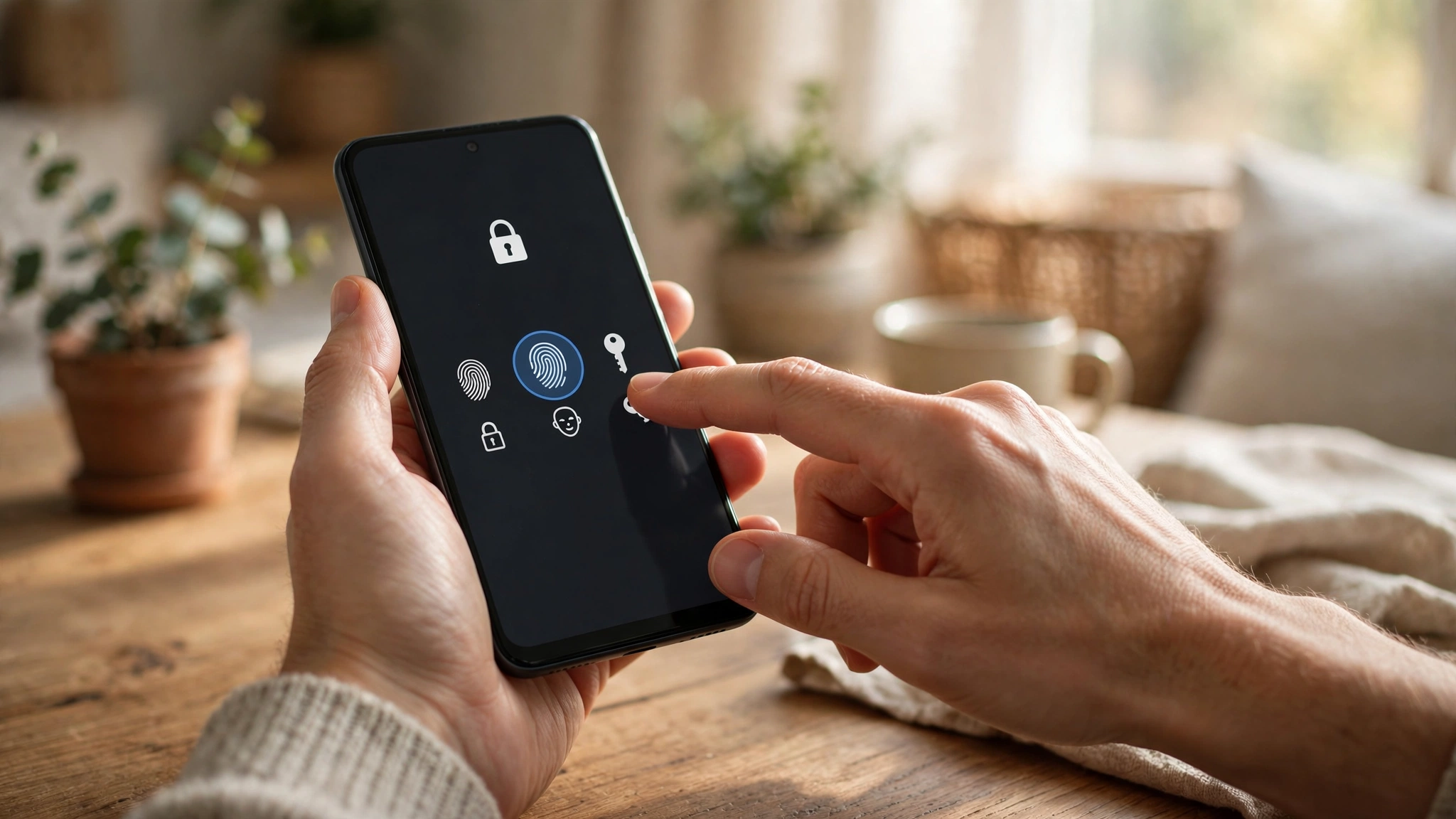
Mastering Total Invisibility: How to Hide Private Space Completely
Having a visible "Private" lock container at the bottom of your app drawer proves to anyone holding your phone that you have secrets hidden away. To achieve total stealth:
- Open Settings > Security & privacy > Private Space.
- Tap on "Hide Private Space when locked" and toggle it ON.
- Android will ask you to set a Secret Search Phrase (e.g., vault77 or mysecurepass).
- Now, lock your Private Space. Look at your app drawer: the Private Space container has completely disappeared! There is zero evidence it exists on your phone.
- How to access your hidden vault: Open your app drawer, tap the standard search bar at the very top, and type your secret search phrase (vault77). The hidden Private Space container will instantly materialize. Tap it, authenticate, and access your private files.
Configuring Automatic Lock Rules and Notification Shields
To ensure you never accidentally leave your sensitive vault open after walking away from your phone, configure these behavioral rules inside Private Space settings:
- Lock Private Space Automatically: Set this to "Every time device locks". The second your smartphone screen turns off, Private Space immediately evicts its decryption keys from memory, ensuring it cannot be accessed without re-authentication.
- Hide Notifications When Locked: Toggle ON "Hide sensitive notifications". When Private Space is locked, incoming text messages, emails, and transaction alerts from private apps will not generate lock screen previews, sound chimes, or status bar icons, preventing notification leaks.
Enterprise Management: Private Space vs Corporate MDM and Work Profiles
For enterprise IT administrators and corporate security officers, the introduction of Android Private Space raises vital governance questions regarding Mobile Device Management (MDM) and Bring Your Own Device (BYOD) policies. Understanding how Private Space interacts with corporate containers is essential for maintaining institutional compliance:
- Coexistence with Work Profiles: Android 15 allows Private Space to operate alongside an existing Android Enterprise Work Profile. If an employee carries a personally owned device with corporate email and Slack managed via Microsoft Intune or VMware Workspace ONE, the employee can still create a personal Private Space. The corporate MDM agent retains administrative authority over the Work Profile, but cannot monitor, inspect, or wipe the personal Private Space container unless explicitly restricted by organizational device enrollment policies.
- Corporate Disablement Policies: In high-security enterprise environments (such as defense contracting, intelligence agencies, or regulated financial trading floors), IT administrators can enforce device management policies that completely disable Private Space creation on company-owned fully managed devices via the DISALLOW_ADD_USER or dedicated Private Space management policy APIs.
- Forensic Data Isolation Audits: In the event of a corporate legal hold or e-discovery forensic request, data residing inside Private Space remains protected by the user's secondary biometric authentication. Legal discovery tools cannot extract Private Space SQLite databases without the user actively authenticating the sandboxed container.
Frequently Asked Questions (FAQ)
Can someone access my Private Space if they know my main phone passcode?
Not if you configured a separate, unique lock during setup. If you select "Choose new lock" and establish a distinct PIN or password, someone who knows your main phone passcode can unlock your phone, but will be completely blocked from opening Private Space.
What happens to Private Space if I connect my phone to a computer via USB cable?
When your phone is connected to a PC or Mac via USB, Android’s Media Transfer Protocol (MTP) exposes only your main personal profile’s storage directory. Private Space files reside in an encrypted, sandboxed directory that is completely hidden and inaccessible to computer file managers.
Can apps inside Private Space share photos with my main personal gallery?
By default, no. Photos taken with the camera app inside Private Space are saved to an isolated private media gallery. However, Android provides a secure system photo picker that allows you to manually export specific photos between profiles if you choose.
Does installing apps in Private Space consume double storage space?
If you install an app inside Private Space that is already installed in your main profile (e.g., WhatsApp), Android’s underlying operating system shares the core application binary code, saving storage space. Only the user data, databases, and cache are duplicated into the isolated container.
What happens if I forget my Private Space passcode?
Because Private Space utilizes hardware-backed encryption, there is no "password recovery" backdoor. If you permanently forget your Private Space PIN, you cannot recover the data. You must delete the Private Space container in Android Settings (which permanently wipes the encrypted data inside) and configure a new one from scratch.
Will apps in Private Space drain my battery while the container is locked?
No. When Private Space is locked, Android completely suspends background processes for all apps inside the container. They cannot run background services, query GPS location, or consume CPU cycles, preserving battery life.
Conclusion: The Ultimate On-Device Privacy Vault
Privacy is not about having something shameful to hide; it is about maintaining personal boundaries and digital sovereignty over your life. Having the confidence that your sensitive financial documents, medical records, and private conversations are completely isolated behind hardware-backed encryption allows you to share your smartphone with friends and colleagues without anxiety.
By taking five minutes to enable Android Private Space in Android 15, establishing a unique security PIN, and activating stealth search triggers, you transform your device into an impenetrable digital fortress throughout 2026.
2026 Production Implementation & Verification Deep-Dive
When transitioning your setup for enable Android Private Space from initial testing into daily production use across 2026 hardware and software environments, establishing a repeatable verification checklist is essential. Based on specs, expert reviews and user feedback, the vast majority of configuration issues stem from overlooking subtle permission boundaries, background power-management defaults, or version mismatches between Android 15 and Private Space. Taking ten minutes to validate how your environment handles Android 15 Private Space setup and hide private apps Android under realistic load prevents unexpected downtime and ensures consistent day-to-day performance.
Step-by-Step Optimization for Secure Mobile Container
To extract maximum reliability when working with secure mobile container, always begin by auditing your baseline resource utilization and security permissions. Rather than enabling every optional toggle simultaneously, apply changes incrementally and test each step against a known reference task in Privacy Protection:
- Baseline Configuration Audit: Document your starting version numbers, latency metrics, and storage or battery usage before applying custom tweaks to Android 15 so you have an objective benchmark for comparison.
- Granular Permission & Privacy Hardening: Restrict background network polling, clipboard access, or API token scopes strictly to the minimum required for Android 15 Private Space setup, ensuring zero unnecessary data exposure.
- Automated Backup & Recovery Verification: Export your finalized settings, schemas, or local databases to an encrypted backup directory so migrating your Private Space workflow to a new device or server takes less than five minutes.
Long-Term Maintenance and Cost Control
Whether you rely on built-in operating system capabilities, audited open-source packages, or commercial SaaS tiers for App Sandboxing and Security Tips, scheduling a quick quarterly review keeps your stack lean and secure. Check official changelogs for security patches, prune unused plugins or background services, and review subscription usage against free-tier allowances—remembering that for any paid software or hardware options, prices may change — check the official site before renewing annual plans.