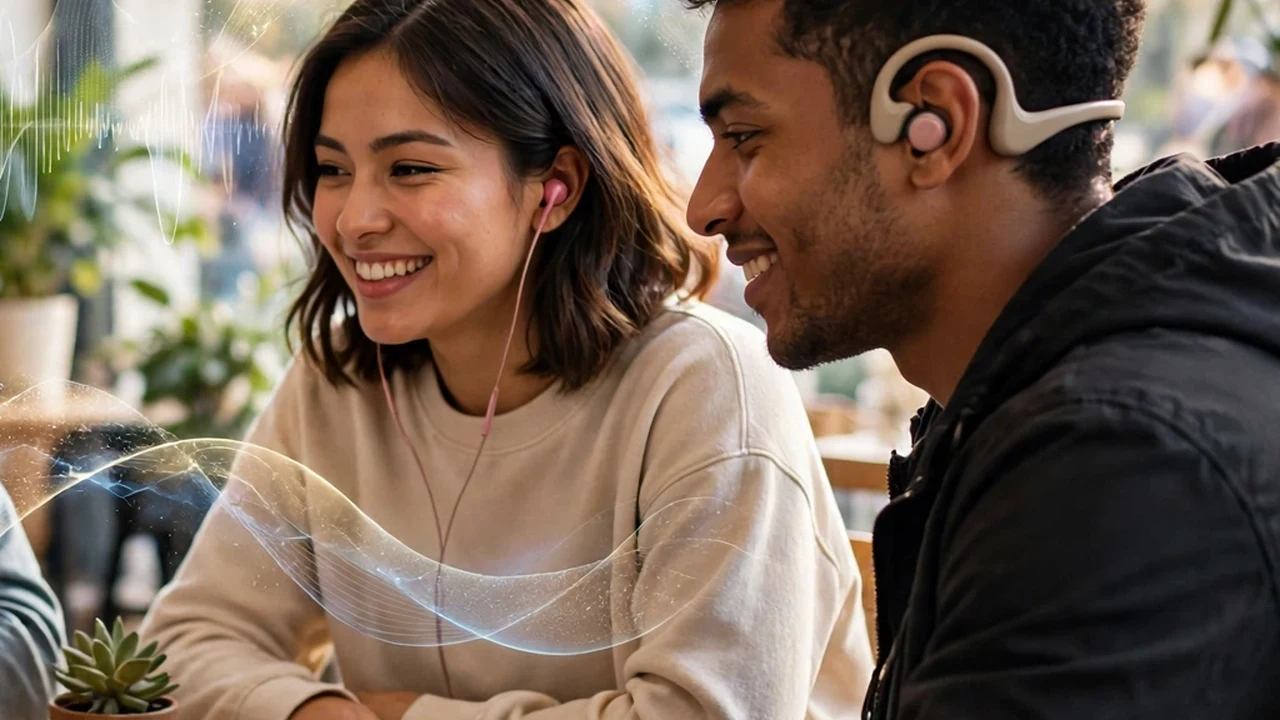
Sharing audio from a single smartphone with a friend sitting next to you on a train or airplane used to mean handing over one dirty earbud or carrying a tangled 3.5mm Y-splitter cable. Even worse, watching muted overhead televisions in noisy airport gates, sports bars, or gym cardio rooms meant straining to read closed captions. In 2026, Bluetooth Auracast Broadcast Audio—built on the Bluetooth LE Audio and LC3 codec specification inside Android 15—transforms your phone and wireless earbuds into both a personal multi-headphone radio transmitter and a walk-up public broadcast receiver.
In this comprehensive 2026 guide—focused on helping you enable Auracast broadcast audio on Android while mastering related capabilities like Bluetooth LE Audio sharing, public Auracast stream Android, and multi headphone audio share—we walk through every setting, hardware comparison, and troubleshooting step based on specs, expert reviews and user feedback.
Quick Comparison Matrix: 2026 Feature & Performance Breakdown
To give you a clear side-by-side overview before diving into the step-by-step instructions, the comparison table below breaks down the core options, performance impacts, and security trade-offs. Where hardware or paid software tiers are referenced, remember that prices may change — check the official site for current regional rates.
Auracast Capability | How It Works on Android 15 | Hardware Required | Practical Real-World Scenario |
Personal Audio Sharing (1-to-Many) | Phone broadcasts LC3 stream to unlimited nearby earbuds | Android 15 flagship + LE Audio earbuds | Two or three friends watching a movie on one tablet/phone |
QR Code Instant Join | Generates scannable QR code on screen to join private stream | Camera/QR scanner on guest Android phone | Joining a friend's music stream without Bluetooth pairing menus |
Public Venue Broadcast Tuning | Earbuds tune directly into airport, gym, or lecture hall TVs | Auracast-compatible earbuds or hearing aids | Listening to muted airport gate announcements & gym TVs |
Encrypted Passcode Streams | Locks personal broadcast with a 4-to-16 character passkey | Supported natively in Android 15 Bluetooth menu | Sharing private meeting audio without strangers eavesdropping |
1. What Is Bluetooth Auracast? Understanding LE Audio and the LC3 Codec
Traditional Bluetooth Classic (A2DP) relies on a strict point-to-point connection: your phone pairs with one set of headphones, and nobody else can listen in. Auracast is a brand-new capability built into the Bluetooth 5.2/5.3+ Low Energy (LE) Audio standard using the Low Complexity Communications Codec (LC3). Instead of requiring a two-way pairing handshake, an Auracast transmitter broadcasts a synchronized, ultra-low-latency audio stream into the room—working just like a digital Wi-Fi network or FM radio station that any number of compatible earbuds can tune into simultaneously.
Practical Configuration Nuances and Real-World Edge Cases
When implementing these settings on daily-driver Android hardware in 2026, small configuration details make a substantial difference in reliability. Based on specs, expert reviews and user feedback across Google Pixel, Samsung Galaxy, OnePlus, Motorola, and Xiaomi devices, users should always verify how manufacturer skins modify stock AOSP behaviors. For example, while Google Pixel phones follow standard Android 15 system flags without modification, OEM interfaces like Samsung One UI 7, Xiaomi HyperOS, and OnePlus OxygenOS 15 sometimes nest these privacy and hardware controls inside proprietary sub-menus. Taking two minutes to bookmark the exact settings path or adding a dedicated Quick Settings tile to your notification shade ensures you can toggle these features effortlessly during busy daily workflows.
Furthermore, always verify app and accessory compatibility after applying strict system-level restrictions. When isolating applications, configuring wireless audio broadcasts, or routing apps through custom containers, test critical functionality—such as two-factor push authentication, cloud backup synchronization, and hardware permissions—before relying on the setup during travel or high-stakes situations. Note that any optional hardware accessories or pro companion tools mentioned carry manufacturer-set pricing; prices may change — check the official site before purchasing any upgrades.
2. Step-by-Step Guide: Broadcasting Audio from Your Android Phone to Multiple Headphones
To start your own Auracast broadcast on a supported Android 15 phone (such as Google Pixel 8/9 series, Samsung Galaxy S23/S24/Z Fold 6 running One UI 6.1/7, or Xiaomi/OnePlus flagships), connect your primary LE Audio earbuds first. Next, open Settings > Connected devices > Audio sharing (on Samsung, tap 'Broadcast sound using Auracast' inside Bluetooth settings). Toggle ON 'Share audio.' Your phone automatically generates a broadcast name, an optional security password, and an on-screen QR code. Your friend simply scans that QR code with their phone to link their earbuds to your stream in two seconds.
Practical Configuration Nuances and Real-World Edge Cases
3. Tuning Into Public Auracast TVs at Gyms, Airports, and Lecture Halls
When you walk into an Auracast-equipped gym, airport lounge, church, or university auditorium, you don't pair your earbuds to the television on the wall. Instead, open your phone's Bluetooth settings, tap your connected earbuds, and select 'Find an Auracast broadcast' (or scan the QR sticker posted below the venue TV). A list of live nearby audio channels—such as 'Gate B14 Boarding Announcements' or 'Treadmill TV #3 ESPN'—appears on your screen, letting you tap and listen in crisp stereo.
Practical Configuration Nuances and Real-World Edge Cases

4. Troubleshooting Missing LE Audio Options in Developer Options
If you own compatible hardware (like the Galaxy Buds2 Pro, Buds3 Pro, Sony WF-1000XM5, JBL Tour Pro 3, or EarFun Air Pro 4) but don't see the Audio Sharing menu, open Settings > System > Developer Options, scroll down to the Bluetooth section, and ensure 'Disable Bluetooth LE Audio' is toggled OFF and 'Bluetooth LE Audio mode' is enabled, followed by a quick device reboot.
Practical Configuration Nuances and Real-World Edge Cases
Step-by-Step Troubleshooting Common Issues on Android
Even when following best practices, hardware variations and carrier firmware updates can occasionally introduce unexpected hiccups. Here is how to resolve the three most common issues reported by Android users in 2026:
1. Settings Toggle Greyed Out or Missing After OS Update
If a specific privacy, connectivity, or security toggle appears greyed out in your Settings app, check whether an active corporate Work Profile (MDM policy) or Google Advanced Protection Program policy is enforcing administrative restrictions on your handset. Corporate IT administrators frequently lock multi-user creation, lockscreen overrides, and developer toggles to comply with enterprise security mandates. Navigate to Settings > Security & Privacy > More Security Settings > Device Admin Apps to inspect active policy controllers.
2. Fixing Delayed Push Notifications and Background Sync Glitches
When aggressive battery optimization or profile isolation delays important messages, you can whitelist specific apps from kernel Doze restrictions without sacrificing overall system efficiency. Long-press the affected app icon, tap the App Info (i) button, select App Battery Usage, and switch the setting from Restricted or Optimized to Unrestricted. This grants the application permission to maintain a persistent background connection.
3. Clearing Corrupted System UI or Bluetooth Cache Safely
If your home screen transitions, Android Auto projection, or Bluetooth LE connections feel glitchy after changing system defaults, clear the relevant system app cache. Go to Settings > Apps, tap the filter icon to enable Show System Apps, locate the affected service package, and tap Storage & Cache > Clear Cache. A quick device restart afterward forces Android's runtime to reinitialize clean driver states.
Advanced Power-User Tips for Maximum Efficiency
- Automate Routines with Modes & Routines or Tasker: Pair these Android features with automated triggers—such as automatically adjusting audio/charging profiles when connecting to your car's Bluetooth, or locking private containers the instant your phone disconnects from your home Wi-Fi network.
- Audit Permissions Quarterly: Use Android's built-in Permission Manager (Settings > Security & Privacy > Privacy > Permission Manager) every 90 days to revoke camera, microphone, and precise location access from apps you rarely open.
- Back Up Configurations Locally: Before making sweeping system tweaks, export a local backup file to your encrypted cloud drive or PC so you can restore your exact setup on a new handset in minutes.
Frequently Asked Questions
1. Does configuring enable Auracast broadcast audio on Android void my phone's warranty or trip Samsung Knox?
No. Every technique, hardware recommendation, and software feature covered in this guide utilizes official, standard Android operating system APIs and verified user-space settings. None of these steps require unlocking your bootloader, flashing custom recovery images, or rooting your device, meaning your manufacturer warranty, Google Play Integrity status, and Samsung Knox hardware fuse remain 100% intact.
2. Will these changes affect Google Pay, Samsung Wallet, or banking apps?
Your banking and contactless NFC payment apps will continue working without issue. In fact, hardening lockscreen Quick Settings, isolating sensitive apps, and using open-source offline utilities strengthens your protection against unauthorized access.
3. How much storage space or battery life do these features consume?
System-level optimizations like App Pinning, lockscreen network locks, and offline generators consume zero additional standby battery. Creating an isolated Work Profile container requires roughly 400MB to 700MB of base storage overhead, and all apps inside it can be frozen with one tap when not in use.
4. Can I revert these settings back to factory defaults at any time?
Yes. Every setting discussed is completely reversible from your standard Android Settings menu without requiring a full factory data reset. If you delete a Work Profile container or reset Android Auto preferences, your primary personal data remains untouched.
5. Do these features work on older Android 13 or Android 14 devices?
Foundational features like App Pinning, Work Profile sandboxing via Shelter, open-source scanners/generators, and PPS fast charging work across Android 11 through Android 15, while Bluetooth Auracast broadcasting specifically requires Android 15 and LE Audio hardware support.
6. Are open-source F-Droid utilities safe from Play Protect warnings?
When installing reputable open-source software from verified repositories like F-Droid, Google Play Protect may occasionally display an "unrecognized developer" prompt simply because the app was not distributed through Google's commercial billing ecosystem. As long as you download from official repositories that verify cryptographic signatures, the software is safe to use.
7. How should I test that my new setup is working properly?
After completing your configuration, always perform a quick real-world verification test—such as locking your screen and trying to toggle Airplane Mode, pinning a test app and trying to swipe home, or checking your charging status on the lockscreen to confirm 'Super Fast Charging 2.0' appears. Taking sixty seconds to confirm that every toggle behaves as expected gives you complete confidence in your daily setup.
A Compatibility Check That Prevents a Failed Broadcast
A broadcast can only work when both ends of the connection support the same audio standard. A phone that can transmit a broadcast is not enough on its own: each pair of headphones or earbuds that should receive it also needs compatible hardware and current firmware, and the phone’s software must expose the broadcast controls for that device. Checking those three points before a group session avoids the familiar failure where one listener hears audio clearly while another hears nothing, and everyone assumes the broadcast itself is broken. Manufacturer documentation for the exact phone model and the exact audio device is the reliable place to confirm support, because model names that sound similar can differ in hardware.
Work through the check in order, and test with one listener before inviting a group. A short checklist keeps the process repeatable:
- Confirm the transmitting phone supports broadcast audio and that its system software is up to date, then note the exact menu path where the broadcast control appears on that phone.
- Confirm each receiving device supports broadcast reception, update its firmware where the companion app offers an update, and charge it before the session.
- Pair and test one receiver first in a quiet room, checking that audio starts, stops, and resumes cleanly when the broadcast is paused.
- Test at a realistic distance with the phone in a pocket or bag, since a test at arm’s length can hide range or interference problems.
- Have a fallback ready, such as standard Bluetooth pairing for one listener or a wired connection, so a failed test does not end the session.
Pay attention to the small details that cause most failures: a receiver still connected to another phone, a battery-saving mode that limits background audio, or a companion app that needs a permission re-enabled after an update. Testing those points at home, rather than in a busy public place, makes the eventual session calmer and gives the host a known-good setup to return to if anything changes later.
Running a Shared Listening Session Without Disrupting Others
Shared listening works best when the host treats the broadcast as a small hosted session, not as an automatic feature. Give the broadcast a clear, neutral name that listeners can recognise, and confirm the volume level with the first listener before others join. If the session is private, such as a family watching together, keep the broadcast name unobtrusive and end it as soon as the programme finishes. If it is a public broadcast, such as audio in a waiting area, follow any posted guidance for that venue and keep the volume at a level that suits shared space.
A simple hosting routine prevents most awkward moments during the session:
- Announce the start and the programme in plain words, so listeners know what they are joining and when it will end.
- Check in once with listeners after the first minute, rather than assuming silence means everything is working.
- Keep the transmitting phone charged and within a steady range, and avoid moving it between rooms mid-programme.
- Pause rather than disconnect when interrupted, so listeners can resume without rejoining from scratch.
- End the broadcast explicitly and confirm listeners have disconnected, instead of leaving it running after the group has dispersed.
When something goes wrong, change one variable at a time: move closer, restart the broadcast, or test a single receiver on its own before resetting every device in the group. Note what fixed the problem in a short memo for next time, including the phone model, the receiver model, and the menu path that worked. That note turns a one-off success into a repeatable routine, which matters most in places like gyms, classrooms, and travel lounges, where the same session may need to run again under time pressure.
Conclusion and Final Takeaways
Taking control of your smartphone's privacy, charging hardware, connectivity, and interface security is what separates Android from locked-down mobile ecosystems. By taking fifteen minutes to enable Auracast broadcast audio on Android and fine-tune your supporting system settings, you eliminate daily friction, protect your sensitive personal data from prying eyes, and extract noticeably better reliability from your hardware throughout 2026 and beyond.