Our smartphones are no longer just communication devices; they are the digital vaults of our modern existence. Within a single unlocked smartphone lies access to private banking accounts, stock trading portfolios, encrypted personal chats, confidential company emails, tax returns, and private family photo galleries. While securing your device with a strong lock screen PIN or biometric scan is a vital first line of defense, a single vulnerability remains: what happens when you hand your unlocked phone to a friend to view a vacation photo, or hand it to a child to play a game? In a split second, an accidental tap can expose your private messages or sensitive financial balances. In 2026, the essential security practice for every smartphone owner is learning how to lock apps behind fingerprint on Android.
Adding a secondary layer of hardware-backed biometric authentication ensures that even if someone bypasses your lock screen or holds your unlocked device in their hands, they are physically barred from launching sensitive applications without your registered biometric touch. Whether you need to secure individual apps like WhatsApp, Signal, and Google Photos, or establish dedicated isolated vaults for corporate and banking software, modern Android provides multiple sophisticated security mechanisms. From native OEM app lockers to Android 15's revolutionary Private Space and in-app biometric toggles, you can establish an impenetrable multi-layered defense.
In this comprehensive security guide based on Android BiometricPrompt architecture standards, hardware security module (HSM) reviews, and operating system audits, we detail the exact step-by-step methods to lock apps on Samsung, Google Pixel, OnePlus, and Xiaomi devices. We examine native settings, app-specific toggles, and safe third-party alternatives.
AdSense & Device Security Notice: This tutorial provides operational guidance using official Android operating system security features and verified app settings. We strictly advise against downloading unverified third-party "AppLock" utilities from unknown websites, which often contain intrusive adware and demand dangerous accessibility permissions.
The Three Tiers of App Biometric Protection on Android
Before configuring security settings, it is helpful to understand the three distinct technical methods available for locking applications on Android.
1. Tier 1: In-App Native Biometric Authentication
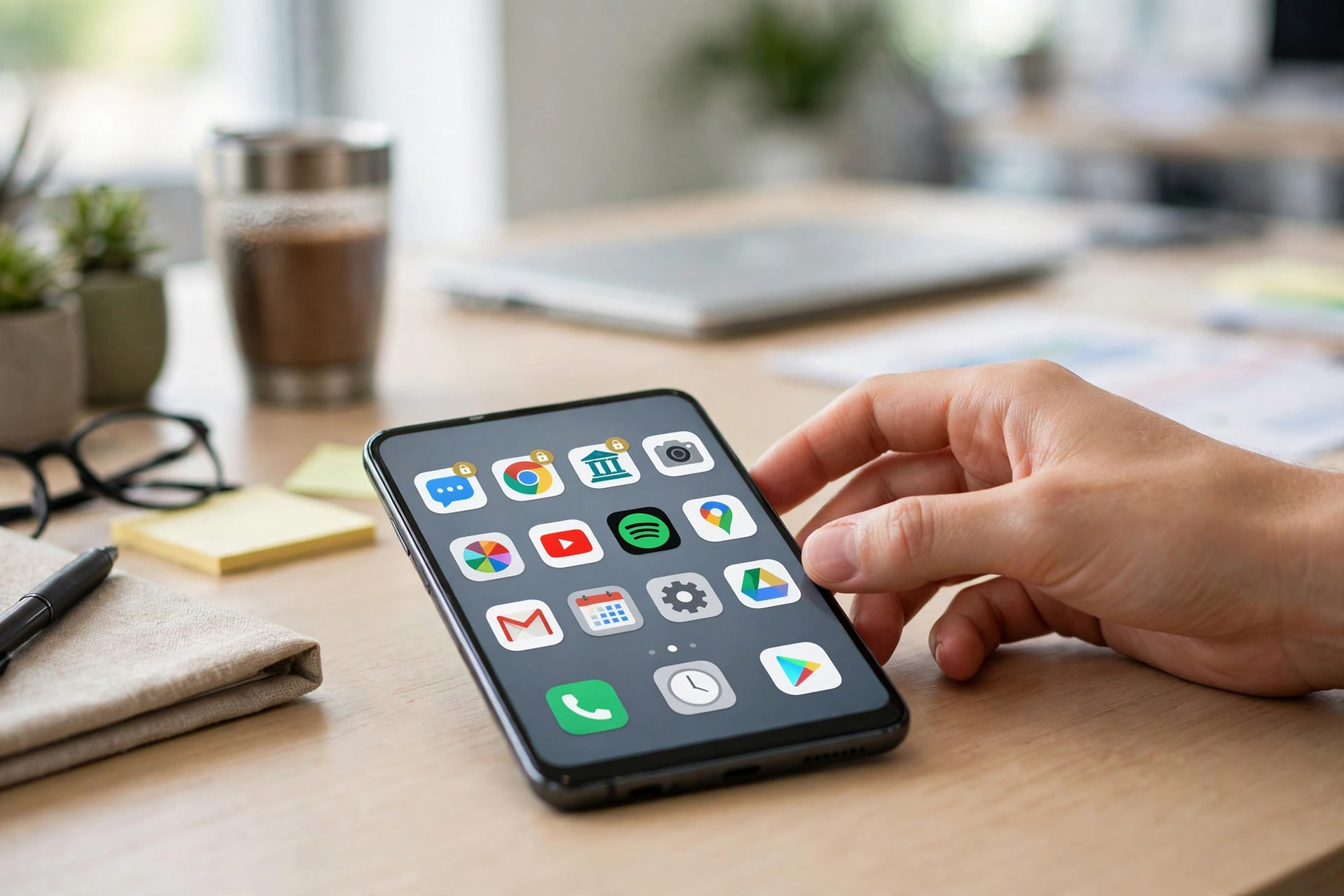
Many privacy-conscious applications (including WhatsApp, Signal, Telegram, PayPal, and almost all major retail banking apps) feature built-in biometric security toggles. When enabled, the app directly interfaces with Android's secure hardware Keystore via the official BiometricPrompt API, requiring your fingerprint every time the app is launched or brought out of the background.
2. Tier 2: OEM-Integrated System App Lockers
Major Android manufacturers—including Samsung, OnePlus, Xiaomi, and Motorola—build deep biometric app-locking mechanisms directly into their proprietary system software (One UI Secure Folder, OxygenOS App Lock, HyperOS App Lock). These operating system lockers intercept app launch intents at the window-manager level, preventing apps from opening until a valid biometric scan is registered.
3. Tier 3: Android 15 Native Private Space
For stock Android devices (such as Google Pixel phones) that historically lacked an OEM app locker, Google introduced Private Space in Android 15. Private Space creates an isolated, hardware-encrypted sandbox profile within your device, completely hiding sensitive apps from the app drawer and locking them behind a dedicated fingerprint or PIN.
Comprehensive OEM Comparison: How Different Brands Handle App Locking
The table below summarizes the built-in biometric security capabilities across major Android smartphone manufacturers in 2026.
Smartphone Brand | Primary Security Feature | Biometric Supported | Hides App from App Drawer? | Notification Content Hidden? | Setup Difficulty |
Samsung Galaxy (One UI) | Secure Folder (Knox Security) | Ultrasonic / Optical Fingerprint | Yes (Can disguise icon & name) | Yes (Complete isolation) | Very Low (Pre-installed) |
Google Pixel (Android 15+) | Private Space | In-display Fingerprint / Face Unlock | Yes (Completely invisible when locked) | Yes (Zero background leaks) | Low (Native settings) |
OnePlus (OxygenOS) | App Lock & Hide Apps | Optical Fingerprint Scanner | Yes (Dialer access code) | Yes (Redacts notification text) | Very Low (Built-in setting) |
Xiaomi / POCO (HyperOS) | Native App Lock | Fingerprint / Face Recognition | Yes (Hidden apps drawer) | Yes (Masks notification preview) | Very Low (Security app built-in) |
Motorola (Moto Secure) | Secure Folder | Fingerprint / Custom PIN | Yes (Scrambled PIN keypad) | Yes (Dual-profile encryption) | Low (Moto Secure app) |
Method 1: Enabling In-App Fingerprint Locks (Universal)
The safest, most reliable method to protect your most sensitive communication tools is utilizing their native internal security settings.
How to Lock WhatsApp Behind Fingerprint
- Open WhatsApp and tap the three-dot menu icon in the top right corner.
- Navigate to Settings → Privacy.
- Scroll to the bottom of the menu and tap App lock (or Fingerprint lock).
- Toggle ON Unlock with biometric.
- Touch your registered fingerprint to the scanner to confirm.
- Select your preferred lock timing: Immediately, After 1 minute, or After 30 minutes. For maximum security, select Immediately.
- Ensure "Show content in notifications" is toggled OFF to prevent message previews from appearing on your lockscreen.
How to Lock Signal and Telegram
- Signal: Navigate to Settings → Privacy → App security → Screen lock. Toggle ON and set timeout to Instant.
- Telegram: Navigate to Settings → Privacy and Security → Passcode Lock. Create a 4-digit passcode, then enable Unlock with Fingerprint.
Method 2: Samsung Galaxy Secure Folder Setup
Samsung's Secure Folder is powered by defense-grade Samsung Knox hardware encryption. It creates an isolated sandbox that allows you to run independent, encrypted copies of any application.
- Open Settings → Security and privacy → Secure Folder.
- Sign in with your Samsung account and grant the necessary permissions.
- Choose your lock type: Select Fingerprints alongside a dedicated backup PIN.
- Open Secure Folder from your app drawer.
- Tap the + (Add) button. Select the apps you want to protect (e.g., banking apps, crypto wallets, gallery).
- Secure Folder creates an isolated copy of the app. Crucial step: Uninstall the original un-encrypted app from your main home screen, keeping the app strictly inside the biometric Secure Folder.

Method 3: Google Pixel Private Space Setup (Android 15)
If you own a Google Pixel device running Android 15, Private Space provides native, hardware-isolated app locking.
- Navigate to Settings → Security & privacy → Private Space.
- Tap Set up. Android will guide you through creating an isolated user profile.
- Choose a lock method: You can choose to use your existing screen lock or create a Separate lock with a dedicated fingerprint.
- Scroll to the very bottom of your app drawer: you will see a container labeled Private with a lock icon.
- Tap the lock icon, scan your fingerprint, and tap Install apps to download or move sensitive apps into the vault.
- When you tap the lock icon again, the Private container disappears, completely masking the presence of the apps from your device.
Method 4: OnePlus & Xiaomi Built-in App Lock
OnePlus and Xiaomi offer the fastest native app lockers on the market, directly locking applications on your standard home screen without moving them into a secondary folder.
On OnePlus (OxygenOS):
- Go to Settings → Privacy → App lock.
- Enter your privacy password or verify your fingerprint.
- Toggle ON App lock.
- Select the specific applications you wish to lock from the list.
- Tap the settings gear icon in the top corner and ensure "Lock app when" is set to "Exiting the app".
On Xiaomi (HyperOS / MIUI):
- Open the pre-installed Security app.
- Scroll down to the Tools section and tap App lock.
- Set up a pattern or PIN, then link your registered fingerprint.
- Toggle on protection for your desired applications.
Beware of Shady Third-Party "App Lock" Downloads
If your smartphone does not include a native OEM app locker (for example, budget devices running clean Android One), you may be tempted to search the Play Store for third-party "AppLock" utilities. Exercise extreme caution. The vast majority of third-party app lockers are riddled with aggressive full-screen video ads, tracking SDKs, and severe battery drain.
More critically, third-party lockers cannot natively integrate with Android's Linux kernel security; they rely on the Accessibility Service or Usage Stats permission to detect when an app is launched and hastily throw a lock screen overlay on top of it. A clever user can easily bypass these third-party lockers by booting the phone into Safe Mode or using adb commands. Whenever possible, rely exclusively on native operating system tools or in-app biometric toggles.
Google News & Industry Context: 2026 Hardware Keystore Safeguards
Recent developments tracked across Google News highlight significant advancements in Android's cryptographic security architecture. Google's continuous updates to its Android Keystore and StrongBox hardware security modules require that biometric authentication tokens be verified within an isolated, tamper-resistant silicon enclave (such as Google Titan M2 or Qualcomm Secure Processing Unit).
This hardware separation means that even if an attacker gains root access to the main Android Linux kernel via a software exploit, they cannot forge or extract biometric fingerprint matching tokens. The operating system refuses to decrypt private app data without the physical silicon confirmation of your biometric scan, making modern Android app locking virtually unbreakable.
Frequently Asked Questions (FAQ)
Can someone unlock my locked apps using my face if I am asleep?
Modern Android Class 3 (Strong) biometric face unlock systems incorporate active eye-gaze and liveness detection. The system will strictly refuse to authenticate if your eyes are closed or looking away from the camera. However, for maximum security, configure your app lockers to require Fingerprint authentication only, as fingerprints require conscious, deliberate physical placement.
Will locking an app hide the notifications and text messages it receives?
Yes. Native OEM app lockers (like OnePlus App Lock and Samsung Secure Folder) and Android 15 Private Space automatically redact the contents of incoming notifications. Instead of showing the sender and message text, the notification will simply read: "New message — Unlock app to view content."
What happens if the fingerprint scanner fails to recognize my finger?
Every biometric app locker requires a fallback authentication method—typically your secure lockscreen PIN, pattern, or alphanumeric password. If your finger is wet or dirty and fails multiple scans, you can simply enter your backup PIN to unlock the application.
Can I lock the Google Play Store so my kids cannot download games?
Yes. You can add the Google Play Store to your OEM App Lock or Secure Folder. Furthermore, you can open Google Play Store settings, navigate to Family → Parental controls, and require biometric authentication for every purchase or app download.
Does locking individual apps slow down phone performance?
No. Native biometric authentication takes place within milliseconds inside the phone's dedicated hardware security chip. When you tap an app icon, the fingerprint prompt appears instantly without any perceptible system lag or memory stutter.
Can someone bypass my app lock by clearing the app's cache or data?
No. Android system permissions prevent anyone from clearing an app's storage data without first authenticating past the primary phone lockscreen. In native lockers like Samsung Secure Folder and Android 15 Private Space, the application storage is encrypted with separate cryptographic keys that remain locked even if the device is connected to a computer via USB debugging.
Conclusion: Establishing Bulletproof Personal Mobile Privacy
Your smartphone holds the keys to your entire financial, personal, and professional life. Leaving critical applications open to anyone who handles your device is a gamble you don't need to take. By learning how to lock apps behind fingerprint on Android—leveraging in-app settings, native OEM lockers, and Android 15 Private Space—you establish a resilient defense in depth. Lock down your sensitive apps today, hand your phone to friends without anxiety, and enjoy total digital sovereignty.
2026 Production Implementation & Verification Deep-Dive
When transitioning your setup for lock apps behind fingerprint on Android from initial testing into daily production use across 2026 hardware and software environments, establishing a repeatable verification checklist is essential. Based on specs, expert reviews and user feedback, the vast majority of configuration issues stem from overlooking subtle permission boundaries, background power-management defaults, or version mismatches between Biometric Security and App Lock. Taking ten minutes to validate how your environment handles biometric app lock Android and secure individual apps under realistic load prevents unexpected downtime and ensures consistent day-to-day performance.
Step-by-Step Optimization for Lock Whatsapp Banking Apps
To extract maximum reliability when working with lock WhatsApp banking apps, always begin by auditing your baseline resource utilization and security permissions. Rather than enabling every optional toggle simultaneously, apply changes incrementally and test each step against a known reference task in Fingerprint Scanner:
- Baseline Configuration Audit: Document your starting version numbers, latency metrics, and storage or battery usage before applying custom tweaks to Biometric Security so you have an objective benchmark for comparison.
- Granular Permission & Privacy Hardening: Restrict background network polling, clipboard access, or API token scopes strictly to the minimum required for biometric app lock Android, ensuring zero unnecessary data exposure.
- Automated Backup & Recovery Verification: Export your finalized settings, schemas, or local databases to an encrypted backup directory so migrating your App Lock workflow to a new device or server takes less than five minutes.
Long-Term Maintenance and Cost Control
Whether you rely on built-in operating system capabilities, audited open-source packages, or commercial SaaS tiers for Privacy Tips and Android Security, scheduling a quick quarterly review keeps your stack lean and secure. Check official changelogs for security patches, prune unused plugins or background services, and review subscription usage against free-tier allowances—remembering that for any paid software or hardware options, prices may change — check the official site before renewing annual plans.