In millions of households worldwide, drawer graveyards contain discarded older smartphones. When consumers upgrade to a new flagship device, their previous Android handset—often equipped with a capable 12-to-48-megapixel camera sensor, high-speed Wi-Fi 5/6 radios, microphone hardware, and powerful multi-core processors—is cast aside, accumulating dust in a drawer. At the same time, consumer demand for home security monitoring, pet tracking cameras, baby monitors, and front-door parcel surveillance has never been higher. Yet purchasing dedicated commercial security cameras (from brands like Ring, Nest, or Arlo) requires spending hundreds of dollars on hardware, accompanied by expensive recurring cloud subscription fees to store recorded footage.
Fortunately, you can breathe new life into discarded technology. Learning how to turn an old Android phone into a security cam is one of the most rewarding, sustainable, and cost-effective DIY tech projects you can execute. By building a DIY home security camera Android setup, you can repurpose old smartphone hardware into a high-definition wireless security monitor. You gain encrypted real-time video streaming, automated AI motion detection alerts sent directly to your primary smartphone, two-way audio intercom communication, and local or cloud video recording—all for free or a fraction of the cost of commercial security hubs. This comprehensive, step-by-step master guide outlines software options, hardware mounting requirements, battery safety protocols, and privacy safeguards in 2026.
Hardware & Electrical Safety Notice: Operating an older smartphone as a 24/7 continuous video streaming camera means the device will remain permanently connected to a wall power charger. To prevent lithium-ion battery swelling, thermal overheating, or fire hazards, you must implement battery management protections, place the device in a well-ventilated location away from direct sunlight, and utilize smart plugs or timer routines.
Why Repurposing an Old Android Phone Beats Commercial Cameras
Repurposing an existing smartphone delivers several decisive operational advantages over buying cheap commercial IP security cameras:
- Superior Optical and Audio Hardware: Even a four-year-old mid-range Android phone houses an optical camera sensor and microphone array vastly superior to the cheap 1080p sensors fitted into budget $30 commercial smart cameras. Smartphone cameras offer superior autofocus, wider dynamic range, and clearer microphone audio.
- Integrated Battery Backup (Uninterrupted Power): If an intruder cuts your home’s electrical power, or if a storm causes a blackout, standard commercial security cameras go offline instantly. A repurposed smartphone has its own internal battery: it continues recording footage and transmitting cellular or local alerts for hours during a power outage.
- Total Privacy and Data Sovereignty: Commercial camera companies have repeatedly suffered public security breaches where corporate employees or hackers accessed private indoor camera feeds. By deploying open-source or local RTSP streaming utilities, your camera video stays strictly on your local home network, never touching third-party corporate cloud servers.
- Zero E-Waste and Zero Hardware Cost: Upcycling prevents hazardous lithium-ion batteries and silicon chips from entering landfills, while saving you upwards of $150 to $300 in hardware purchases.
Software Comparison Matrix: Best Apps for Turning Android into a Camera
The software you install dictates whether your camera streams over encrypted cloud apps, operates as an open-source local network feed, or integrates with smart home hubs. The table below compares the leading applications available in 2026.
Application Name | Architecture Style | Cloud Remote Viewing (Off-Home) | Motion Detection & Alerts | Two-Way Audio Talk | Local RTSP / Home Assistant Support | Pricing Model |
Alfred Home Security Camera | Cloud Hosted (Turnkey Consumer) | Yes (Stream via app or web browser anywhere) | Yes (AI person & pet detection) | Yes (Walkie-talkie style) | No (Proprietary cloud ecosystem) | Free basic (Ad-supported); Premium ~$5.99/mo |
IP Webcam (Pro) | Local Network & RTSP Broadcast | Yes (Requires port forwarding or VPN) | Yes (Motion triggers and sound sensors) | Yes (Two-way audio via browser) | Yes (Flawless RTSP, ONVIF, MJPEG stream) | Free version; Pro ~$3.99 one-time |
Haven: Keep Watch (F-Droid) | Open-Source Forensic Sensor Monitor | Yes (Via encrypted Tor Onion services / Signal) | Yes (Vibration, sound, light, & motion) | No (Forensic snapshot focus) | No (Secure standalone vault) | 100% Free & Open-Source (FOSS) |
Camo (by Reincubate) | High-End Webcam & Studio Stream | Local USB or Wi-Fi to PC/Mac | No (Streaming focus) | Yes (Studio microphone audio) | Direct virtual webcam driver | Free basic; Pro options available |
WardenCam | Cloud Storage (Google Drive / Dropbox) | Yes (Streams to viewer phone via Google ID) | Yes (Records 30s clips on motion) | Yes (Two-way intercom) | No (Cloud storage focused) | Free (Ad-supported); Upgrade ~$4.99 one-time |
Hardware Preparation: Mounts, Lenses, and Battery Management
Before launching your camera software, you must prepare the physical smartphone hardware for continuous 24/7 operation:
1. Preventing Battery Swelling (The Critical Step)
Lithium-ion batteries hate being held continuously at 100% state-of-charge under warm temperatures. If an older phone remains plugged into a charger 24/7 for six months, the battery can swell, pushing the screen off the frame and creating a severe fire hazard.
Protective Solutions:
- Enable Battery Protect Mode: On Samsung, Pixel, and modern Android devices, open Settings > Battery > Protect Battery (or Battery Charging Limits) and toggle on the option to cap charging at 80%. This permanently eliminates overcharge voltage stress.
- Smart Plug Cycling Routine: Plug your phone charger into an inexpensive $8 Wi-Fi smart plug (TP-Link Tapo, Amazon Smart Plug). Configure an automated timer routine in Google Home or Alexa: turn power ON for 2 hours, then turn power OFF for 4 hours. The phone cycles naturally between 30% and 80% battery, keeping the cell healthy for years.
2. Physical Mounting and Positioning
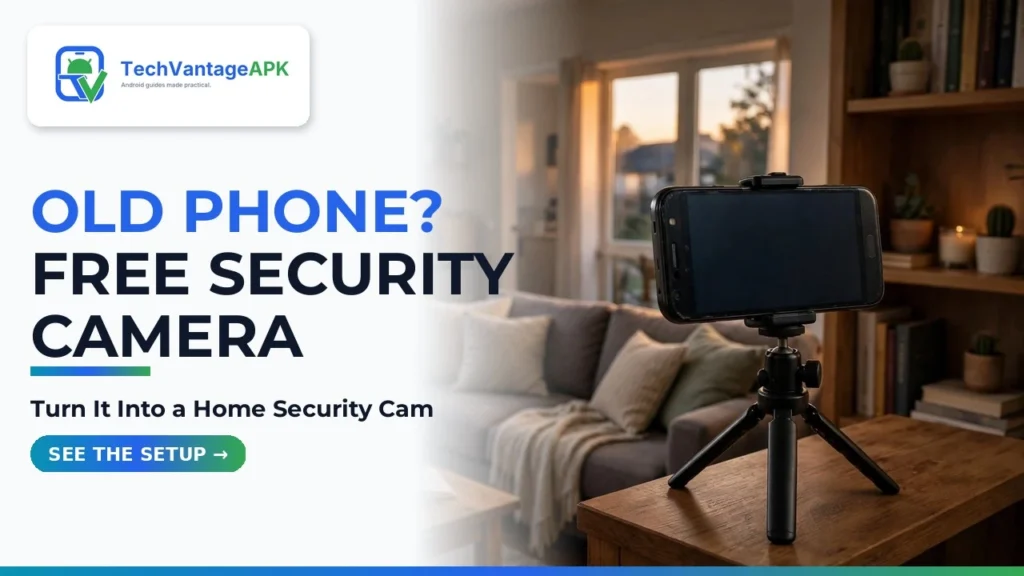
Purchase an inexpensive gooseneck clamp, flexible tripod (GorillaPod), or adhesive magnetic wall mount. Mount the phone near an electrical wall outlet with an unobstructed view of your target surveillance zone (e.g., front entryway, living room, pet feeding station, or garage).

Step-by-Step Setup: The Turnkey Cloud Method (Alfred Camera)
For 90% of users who want an effortless setup that allows them to view their camera feed from work or vacation on their primary phone, Alfred Camera is the easiest solution:
- Prepare the Old Phone (The "Camera"):
- Factory reset the old phone to wipe old apps and free up storage.
- Connect to your home Wi-Fi network.
- Download Alfred Home Security Camera from the Google Play Store.
- Open the app, sign in with your primary Google Account, and select "Camera" when prompted for device role.
- Grant permissions for Camera, Microphone, and Storage.
- Prepare Your Primary Phone (The "Viewer"):
- Install Alfred Camera on your daily smartphone.
- Sign in with the exact same Google Account.
- Select "Viewer" as your role.
- Your old phone will immediately appear on your screen as an active camera tile.
- Enable Motion Detection and Audio:
- In the Viewer app, tap the settings icon on your camera tile.
- Toggle ON Motion Detection and adjust sensitivity to "Medium".
- Enable Motion Notifications: whenever someone walks past your old phone, it will record a video clip and send an instant push notification alert to your daily smartphone.
- Tap the live feed anytime to listen to real-time audio, talk through the two-way speaker, or trigger an emergency audible siren alarm.
Step-by-Step Setup: The Private Local RTSP Method (IP Webcam)
For privacy purists who refuse to route video through third-party cloud servers, IP Webcam turns your old phone into a standalone open-standard network streaming camera compatible with Home Assistant, VLC media player, and Network Video Recorders (NVRs):
- Install IP Webcam from Google Play.
- Scroll down to Video preferences: set resolution to 1920×1080, quality to 60% (to prevent overheating), and select the rear camera.
- Under Connection settings > Local broadcasting, configure a secure login username and password.
- Scroll to the very bottom and tap "Start server".
- The camera feed launches, displaying an internal IP address on your screen (e.g., http://192.168.1.45:8080).
- Open a web browser on any computer, tablet, or phone connected to your home Wi-Fi, enter that IP address, and log in. You have a full desktop surveillance dashboard with pan/zoom, motion detection, and local recording capabilities!
Crucial Maintenance Tips for Long-Term 24/7 Operation
To ensure your repurposed smartphone operates reliably without crashing over months of unattended use:
- Turn Display Brightness to Minimum: Once the camera server starts, dim the smartphone display brightness to 0% (or enable IP Webcam's "Streaming in background / Turn screen off" mode). Keeping the OLED display powered off eliminates heat and prevents screen burn-in.
- Enable Developer Option "Stay Awake": Open Android Settings > System > Developer options > toggle ON "Stay awake" (screen will not sleep while charging). This prevents aggressive Android power management from killing the camera process.
- Remove the Protective Case: Heavy rubber or leather phone cases trap heat. Strip the case off the phone to allow ambient air to cool the aluminum and glass chassis naturally.

Frequently Asked Questions (FAQ)
Does the old Android phone require an active cellular SIM card?
No! An old phone without a SIM card connects to your home Wi-Fi network and streams video seamlessly. A SIM card is only required if you plan to deploy the security camera in an off-grid location (like a remote hunting cabin or construction trailer) that lacks home Wi-Fi.
Can an old phone see in the dark (Night Vision)?
Smartphone cameras lack physical infrared (IR) night-vision illumination LEDs. However, apps like Alfred and IP Webcam include a "Low-Light Mode" that boosts digital sensor gain and lowers shutter speed to brighten dim rooms. Alternatively, you can install an inexpensive $10 external plug-in motion-activated nightlight near the camera to illuminate the room when motion occurs.
Can I turn an old Android phone into a baby monitor?
Yes. Apps like Dormi – Baby Monitor or Alfred Camera function as exceptional baby monitors. They support continuous background audio streaming, sensitivity alerts when crying occurs, and two-way soothing talkback over your home Wi-Fi.
Will my old phone overheat if it runs the camera continuously?
If you leave the screen on maximum brightness inside a thick case in direct sunlight, yes. To ensure cool, reliable operation: set video resolution to 1080p at 30fps (never 4K), remove the protective case, dim the display to zero, and position the phone away from heating vents and direct window sunlight.
Can I integrate my repurposed Android camera into Home Assistant?
Yes! By using IP Webcam, the phone outputs a standard MJPEG/RTSP stream. Home Assistant automatically discovers the camera via the IP Webcam integration, allowing you to incorporate the phone's camera, battery level, light sensor, and motion detector into your automated smart home routines.
What is Haven, and how does it protect against physical tampering?
Created by Edward Snowden and Freedom of the Press Foundation, Haven is an open-source security tool that utilizes your phone’s physical sensors (accelerometer, ambient light sensor, microphone, and camera). If you leave your phone on a hotel desk or safe, Haven detects if someone moves the device, opens a door, or turns on a light, capturing photos and sending encrypted alerts via Signal to your primary phone.
Conclusion: The Ultimate Sustainable Smart Home Upgrade
Technology obsolescence is often an illusion created by marketing departments. An older smartphone with a functional camera and Wi-Fi chip possesses more computing power than dedicated commercial security hubs sold for hundreds of dollars.
By learning how to turn an old Android phone into a security cam, you prevent electronic waste, save substantial capital on hardware and recurring subscriptions, and deploy an adaptable, high-definition surveillance monitor that protects your home, pets, and loved ones throughout 2026.
2026 Production Implementation & Verification Deep-Dive
When transitioning your setup for turn an old Android phone into a security cam from initial testing into daily production use across 2026 hardware and software environments, establishing a repeatable verification checklist is essential. Based on specs, expert reviews and user feedback, the vast majority of configuration issues stem from overlooking subtle permission boundaries, background power-management defaults, or version mismatches between Home Security and Repurpose Old Phone. Taking ten minutes to validate how your environment handles DIY home security camera Android and repurpose old smartphone under realistic load prevents unexpected downtime and ensures consistent day-to-day performance.
Step-by-Step Optimization for Wireless Security Monitor
To extract maximum reliability when working with wireless security monitor, always begin by auditing your baseline resource utilization and security permissions. Rather than enabling every optional toggle simultaneously, apply changes incrementally and test each step against a known reference task in Android Camera:
- Baseline Configuration Audit: Document your starting version numbers, latency metrics, and storage or battery usage before applying custom tweaks to Home Security so you have an objective benchmark for comparison.
- Granular Permission & Privacy Hardening: Restrict background network polling, clipboard access, or API token scopes strictly to the minimum required for DIY home security camera Android, ensuring zero unnecessary data exposure.
- Automated Backup & Recovery Verification: Export your finalized settings, schemas, or local databases to an encrypted backup directory so migrating your Repurpose Old Phone workflow to a new device or server takes less than five minutes.
Long-Term Maintenance and Cost Control
Whether you rely on built-in operating system capabilities, audited open-source packages, or commercial SaaS tiers for DIY Tech and Smart Home, scheduling a quick quarterly review keeps your stack lean and secure. Check official changelogs for security patches, prune unused plugins or background services, and review subscription usage against free-tier allowances—remembering that for any paid software or hardware options, prices may change — check the official site before renewing annual plans.