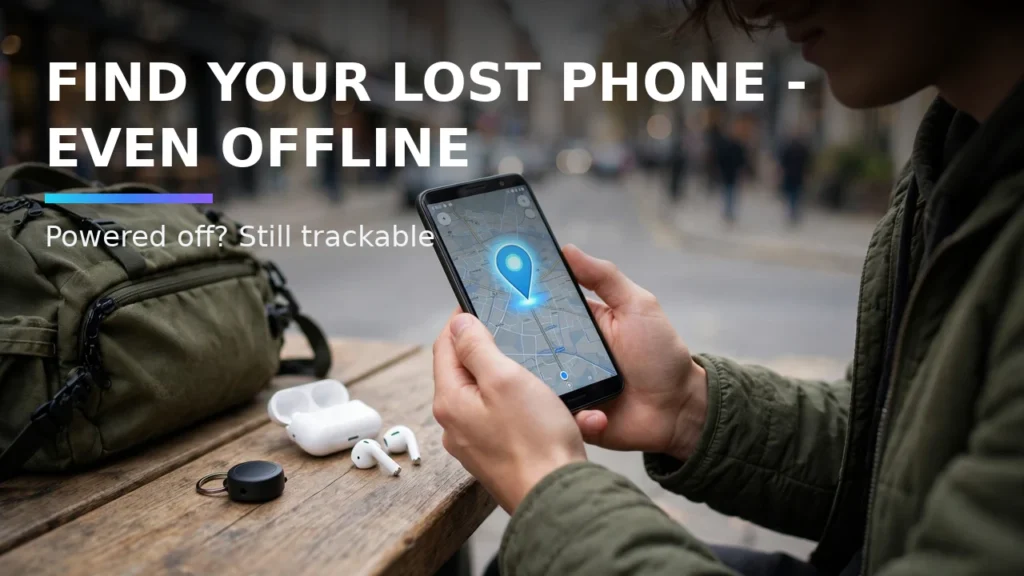
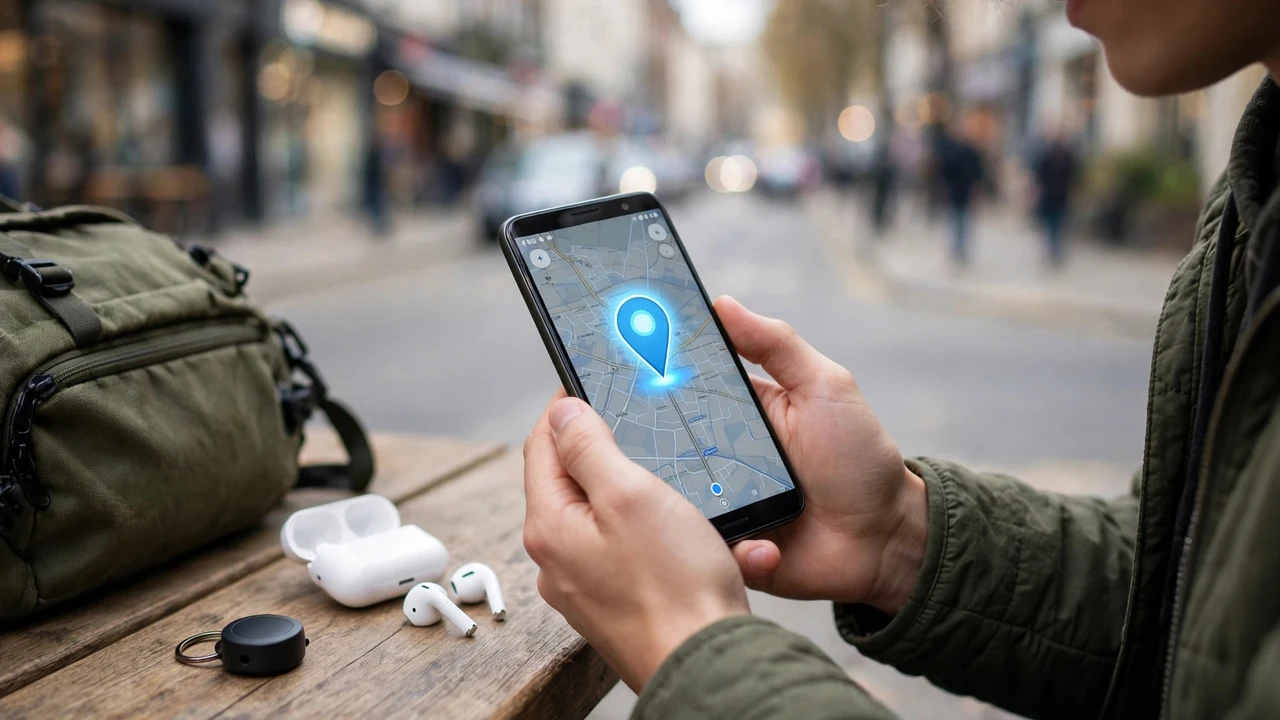
Losing your smartphone at a crowded airport, music festival, or transit hub used to mean that if the thief immediately toggled on Airplane Mode or powered the handset off, your tracking map went completely dead. In 2026, Google's crowdsourced Find My Device network has leveled the playing field with Apple's AirTag ecosystem—leveraging over a billion active Android devices worldwide as encrypted Bluetooth Low Energy (BLE) relay nodes to pinpoint missing phones, tablets, headphones, and luggage trackers even when they have zero cellular or Wi-Fi connectivity.
In this complete 2026 editorial guide—built to help you use Android Find My Device offline network while covering essential details on track lost Android phone powered off, Bluetooth tracker tags Android, and Find My Device network setup—we break down the exact setup steps, hardware comparisons, and troubleshooting fixes based on specs, expert reviews and user feedback.
2026 Comparison Table: Specs, Features & Real-World Performance
Network Setting Tier | How Crowdsourced Relay Works | Privacy & Encryption Level | Recommended User Profile |
Off | Crowdsourced Bluetooth beacon disabled; requires live Wi-Fi/Cell | Maximum offline isolation | Not recommended (cannot locate offline devices) |
Without Network | Only locates device while connected to internet or last known GPS | Standard Google account encryption | Basic fallback; fails if SIM is removed |
With Network in High-Traffic Areas Only (Default) | Relies on multiple nearby Android devices detecting beacon simultaneously | End-to-end encrypted + multi-node aggregation | Default balance of privacy & urban tracking |
With Network in All Areas | A single passing Android phone in a remote area relays location immediately | End-to-end encrypted with hardware PIN key | Best setting for travelers, hikers, & flagship owners |
Powered-Off Pixel Finding | Dedicated Bluetooth controller stays powered after battery depletion | Hardware-isolated cryptographic key | Supported on Pixel 8, Pixel 9, and newer flagships |
Why You Must Change the Default 'High-Traffic Only' Setting Immediately
Out of the box, Google sets your phone's Find My Device participation to 'With network in high-traffic areas only.' Under this conservative default, if you drop your phone or Chipolo/Pebblebee tracker on a quiet suburban sidewalk, a hiking trail, or a small café, a single passing Android user will NOT trigger a location update—Google waits until several distinct Android devices detect your beacon in the same window. To ensure maximum recovery odds, navigate to Settings > Security & Privacy > Device Finders > Find My Device > Find your offline devices, and switch the setting to 'With network in all areas.'
How Powered-Off Tracking Works on Supported Flagships
On supported hardware like the Google Pixel 8, Pixel 9, and select flagship chipsets equipped with specialized Bluetooth power routing, your phone can still broadcast encrypted Find My Device beacons for several hours after the main operating system shuts down or the battery hits 0%. A tiny reserve capacitor powers the Bluetooth controller independently of the main processor, allowing nearby Android devices to triangulate your dead handset's exact room or street location.
Real-World Compatibility Notes and Daily Usage Tips

Pairing Third-Party Bluetooth Tracker Tags (Chipolo, Pebblebee, Moto Tag)
Google's offline network natively supports third-party Bluetooth tags engineered for the Find My Device specification, including the Pebblebee Clip/Card, Chipolo ONE Point, and Motorola Moto Tag. Thanks to Fast Pair integration, holding a new tag next to your unlocked Android phone triggers an instant pairing card on screen. Once registered, you can share a luggage tag's live location with a spouse or travel companion directly inside the Find My Device app.
Unknown Tracker Alerts: Protecting Yourself Against Unwanted Stalking
Because powerful Bluetooth trackers can be abused by bad actors, Android 15 includes mandatory cross-platform Unknown Tracker Alerts. Your phone continuously scans for unfamiliar Apple AirTags, Samsung SmartTags, and Find My Device tags moving with you over time. If an unknown tag is detected traveling alongside you, your phone sends an urgent notification, maps where the tag first joined you, and lets you trigger a loud chime on the hidden tag without alerting the tag's owner.
3. Resetting Bluetooth, Network, or App Cache Safely
Pro Tips for Getting the Most Out of Your Android Setup
- Create Quick Settings Tiles: Edit your swipe-down Quick Settings panel to place frequently used toggles—like Spatial Audio, Hotspot, or Screen Record—in the top four slots for one-handed reachability.
- Test Setups Before You Need Them: Whether configuring offline Find My Device tracking, Notification History, or off-grid mesh messaging, run a two-minute live test at home so you know the workflow works before an actual emergency happens.
- Keep Local Backups of Open-Source Apps: Export your settings and databases periodically to a local folder or encrypted drive so upgrading to a new phone takes minutes instead of hours.
Conclusion
Mastering how to use Android Find My Device offline network gives you a smarter, more resilient, and more enjoyable Android experience every single day. Whether you are protecting your hardware against loss, upgrading to clean open-source utilities, or dialing in your wireless audio and display setup, applying the verified steps in this guide ensures your phone works the way you want in 2026.