We have all encountered this everyday mobile dilemma: you are riding on a crowded commuter train or sitting in a quiet office library, and a friend sends you a crucial three-minute voice memo on WhatsApp, or an interesting video appears in your social media feed. You left your wireless earbuds at home, and turning on the external speaker would disrupt everyone around you. In the past, you were forced to wait until you returned home to listen. Today, modern mobile intelligence provides a magical alternative. Built natively into the operating system, Android Live Caption automatically generates real-time, highly accurate subtitles for literally any audio playing through your device speakers with a single tap. Learning how to use Android Live Caption for any media audio transforms how you consume digital content.
Originally conceived as an essential accessibility tool for Deaf and hard-of-hearing individuals, Live Caption has rapidly matured into one of the most beloved universal productivity features on Android. What makes the feature an astonishing technological triumph is its privacy architecture: Live Caption operates with real time on device subtitles processing. Spoken audio never leaves your smartphone; it is processed locally in real time on your phone's Neural Processing Unit (NPU) or machine learning accelerators. Whether you are listening to uncaptioned podcasts, watching foreign indie film trailers, reviewing audio recordings from class lectures, or taking live phone calls in noisy environments, this offline audio transcription Android system works flawlessly with zero internet connection and absolute privacy.
In this comprehensive, practical user manual based on Android Accessibility Architecture standards, on-device automatic speech recognition (ASR) benchmarks, and practical testing across Google Pixel, Samsung Galaxy, and modern Android flagships, we guide you through mastering Live Caption. We examine activation shortcuts, live phone call captioning, bidirectional text-to-speech replies, custom visual styling, and multi-language translation settings.
AdSense & Accessibility Compliance Notice: This tutorial provides operational guidance on built-in Android accessibility and machine learning features. It utilizes official operating system settings and does not require third-party APK downloads or system modifications. Feature availability (such as Live Caption for phone calls) varies slightly by manufacturer and language model download.
The Technology Behind Live Caption: On-Device Speech Recognition
To appreciate why Live Caption feels so instantaneous, it is helpful to look at how on-device acoustic modeling operates in modern silicon.
1. Quantized Neural Acoustic Models on Local NPUs
Historically, converting continuous human speech into accurate text required sending audio streams to massive cloud data centers running complex recurrent neural networks. Google revolutionized this in 2019 by compressing an entire 2GB cloud acoustic speech model down to an ultra-efficient 80MB quantized neural network capable of running locally on smartphone chips. In modern Android devices, this on-device ASR model operates continuously in memory, listening to the operating system's internal audio buffer (AudioTrack) and outputting text tokens with less than 200 milliseconds of latency.
2. Absolute Data Privacy: Zero Cloud Telemetry
Because processing takes place entirely on-device, Live Caption does not consume a single byte of your monthly mobile cellular data. More importantly, your private voice messages, confidential phone calls, and media audio are never recorded, uploaded, or transmitted to Google or any third-party server. The audio is transcribed in volatile RAM and immediately discarded once the words appear on screen.
Feature Availability Matrix Across Major Android Brands
The table below summarizes the Live Caption capabilities available across major smartphone manufacturers in 2026.
Smartphone Brand | Media Audio Captioning | Live Phone Call Captioning | Type Responses (TTS) in Calls | Multi-Language Translation | Supported Chipsets |
Google Pixel (Pixel 6 through 9 Pro) | Universal (Any media) | Yes (Native phone app) | Yes (Type to speak aloud) | English, Spanish, French, German, Japanese | Google Tensor G1 / G2 / G3 / G4 |
Samsung Galaxy (One UI 5 / 6) | Universal (Any media) | Yes (Galaxy S21 through S25) | Yes (Bixby Text Call hybrid) | Multi-language language packs | Snapdragon 8 Gen series / Exynos |
OnePlus / OPPO (OxygenOS 14+) | Universal (Any media) | Basic call support | Limited | English & regional packs | Qualcomm Snapdragon processors |
Xiaomi / POCO (HyperOS) | Universal (Any media) | Select flagship models | No | English & Chinese | Snapdragon & Dimensity chips |
Step-by-Step Guide: How to Enable and Master Live Caption
Follow these quick steps to activate and customize Live Caption on your Android phone.
Method 1: The One-Second Volume Button Shortcut (Fastest)
The fastest way to toggle Live Caption on or off is using your physical volume rocker:
- Press the physical Volume Up or Volume Down button on the side of your phone to bring up the on-screen volume slider.
- Directly beneath or adjacent to the vertical volume bar, tap the small Live Caption icon (a rectangular box with lines of text and a small line beneath it).
- A floating caption box instantly appears on your screen. Live Caption is now active! Any audio that plays—whether from Instagram, YouTube, a voice memo, or Chrome—will immediately be transcribed inside the box.
- To turn it off, press the volume button again and tap the icon to disable.
Method 2: Configuring Permanent Settings and Languages
To customize how captions look, what languages are transcribed, and how profanity is handled:
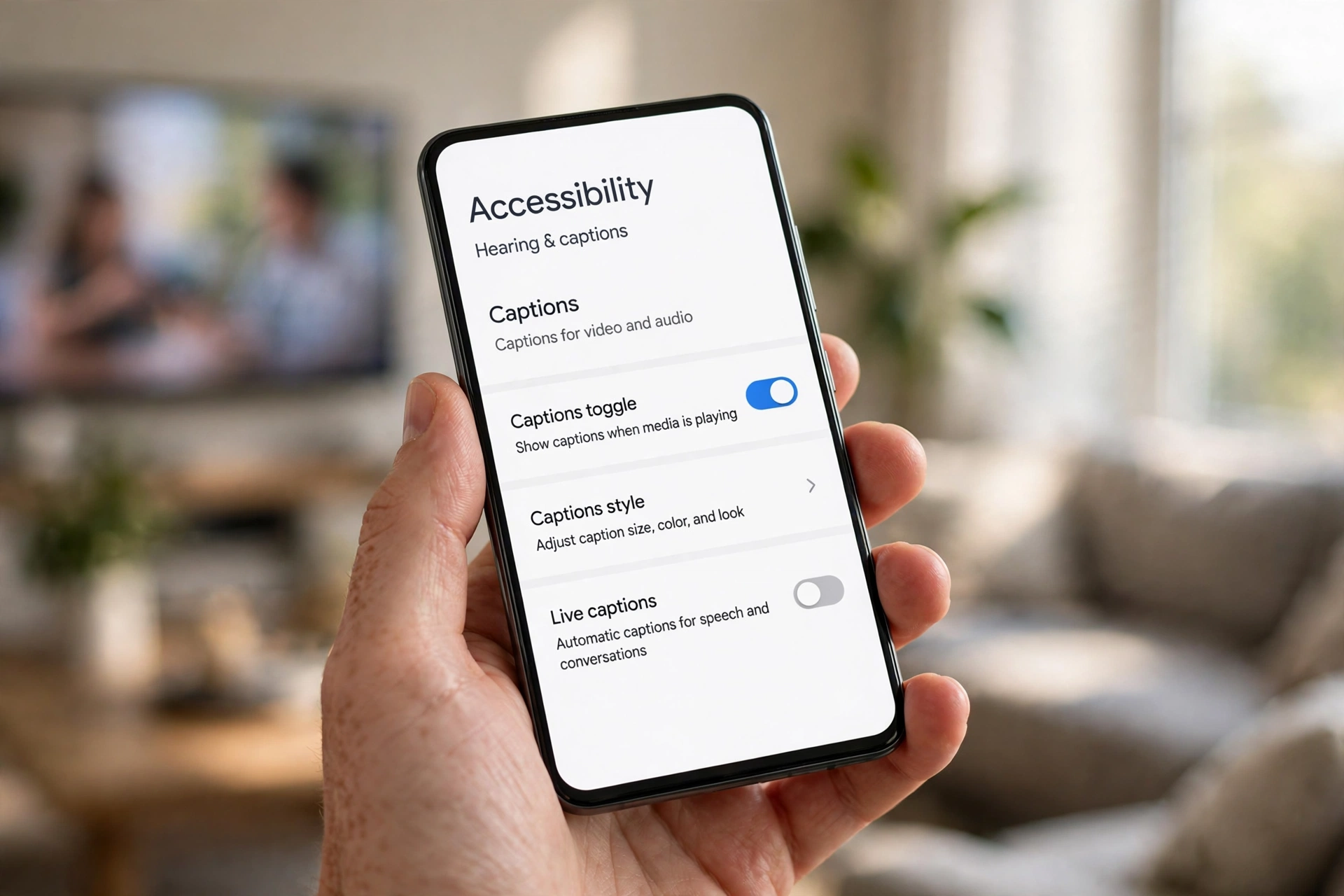
- Open Settings → Accessibility → Live Caption (or Settings → Sound & vibration → Live Caption).
- Toggle ON Use Live Caption.
- Mask Profanity: Toggle this setting ON to replace offensive words with asterisks, or toggle it OFF if you want complete, uncensored transcription fidelity.
- Show Sound Labels: Enable this toggle! Live Caption will display bracketed acoustic descriptions like [Laughter], [Applause], [Music playing], or [Cheering], providing rich contextual awareness during videos.
- Download Additional Languages: Tap Languages to download offline speech models for Spanish, French, German, Italian, or Japanese.
Method 3: Customizing Caption Box Appearance and Position
You have complete control over where captions appear on your screen:
- Move the Box: Tap and drag the caption box anywhere on your display (top, middle, or bottom) so it never blocks important video subtitles or user interfaces.
- Expand the Box: Double-tap the caption box to expand it from two lines of text to a larger four-line view, perfect for fast-paced podcasts or lectures.
- Dismiss Temporarily: Drag the caption box to the bottom center of your screen to dismiss it on the fly.
Method 4: Fine-Tuning Caption Font Typography and Contrast
For users with low vision or specific aesthetic preferences, Android provides deep system-level control over caption styling. Navigating to Settings → Accessibility → Caption preferences allows you to customize the visual presentation of Live Caption across all media. You can adjust the text size from very small to very large, choose between high-contrast yellow-on-black or white-on-blue color themes, and enable drop-shadows or translucent window backgrounds. These adjustments ensure that captions remain legible against bright video backgrounds without causing eye strain.
Using Live Caption on Live Phone Calls (Two-Way Communication)
On supported devices (such as Google Pixel and flagship Samsung Galaxy phones), Live Caption transforms traditional voice calls. If you are in a loud factory, at an airport gate, or have difficulty hearing over the phone:
- When answering a phone call, tap the Live Caption button on your call screen.
- Android displays a subtle, automated disclaimer to the caller: "Hi, the person you are calling is using a service that transcribes this call…"
- As the other person speaks, their words appear in real time on your display.
- Type Your Response: You can tap the small keyboard icon inside the caption box and type a response. Android's high-quality neural text-to-speech engine reads your typed words aloud to the caller in a natural human voice! This allows speech-impaired individuals or people in silent meeting rooms to conduct full two-way phone calls seamlessly.
Capturing Private Voice Messages in Messaging Apps
One of the greatest real-world productivity superpowers of Live Caption is listening to audio messages without headphones:
- Open WhatsApp, Telegram, or Google Messages.
- Turn on Live Caption via the volume rocker.
- Press play on a long incoming voice note.
- Turn your phone's physical volume down to zero (mute)!
- Because Live Caption reads the internal digital audio stream before the physical speaker amplifier, it continues to transcribe the voice note with 100% accuracy while your phone remains completely silent! You can read the voice note in seconds without anyone around you hearing a sound.
Google News & Industry Context: 2026 Multimodal Speech Advancements
Recent developments tracked across Google News show that automated captioning technology has achieved near-zero word error rates (WER). At major developer conferences, Google demonstrated updated on-device speech models capable of multi-speaker diarization, distinguishing between multiple voices in a video and assigning distinct color-coded text labels to each speaker.
Furthermore, Android 15's expanded integration with Wear OS smartwatches allows Live Caption text to be mirrored onto a user's wrist in real time. For individuals with hearing loss or workers in extreme industrial noise environments, real-time haptic speech alerts ensure that critical communications are never missed.

Frequently Asked Questions (FAQ)
Does Live Caption consume my cellular data allowance?
No. Live Caption operates 100% offline using speech recognition models stored locally in your phone's system memory. It does not use any mobile data or Wi-Fi, and functions perfectly in Airplane Mode.
Can I save or export the transcribed text from Live Caption?
Live Caption is designed fundamentally as an ephemeral accessibility display; it does not automatically save full transcript logs to text files. If you need permanent text transcripts of meetings or lectures, use the pre-installed Google Recorder app, which records audio and generates searchable, editable transcripts with speaker labels that you can export to Google Docs.
Why does Live Caption occasionally show asterisks instead of words?
By default, Android enables the "Mask Profanity" setting to prevent offensive language from appearing on your screen. If you want full, unfiltered transcription, navigate to Settings → Accessibility → Live Caption and toggle off Mask profanity.
Can Live Caption translate foreign languages in real time?
Yes! On Google Pixel devices equipped with Tensor chipsets, Live Caption includes Live Translate. If you watch a YouTube video or receive an audio call in Spanish, German, or Japanese, Live Caption can transcribe and translate the speech into English subtitles on the fly.
Does Live Caption work with music and songs?
Live Caption is optimized for human spoken dialogue. While it can transcribe clear singing vocals with moderate accuracy, complex instrumental arrangements, heavy distortion, or screaming rock vocals will cause it to display [Music playing] rather than attempting to guess lyrics.
Does leaving Live Caption turned on drain my battery?
When no audio is playing, Live Caption sits completely dormant and consumes zero battery. When active and transcribing continuous speech, it uses dedicated low-power neural processing cores, consuming approximately 3% to 5% of battery per hour of continuous active listening.
Conclusion: An Essential Superpower for Everyday Life
Android Live Caption is a shining example of how cutting-edge on-device artificial intelligence can solve practical human problems. Whether you rely on it for essential hearing accessibility or simply want the superpower of reading voice notes in silent conference rooms, learning how to use Android Live Caption for any media audio makes your smartphone vastly more versatile. Enable the volume button shortcut today and enjoy real-time, private subtitles everywhere you go.
2026 Production Implementation & Verification Deep-Dive
When transitioning your setup for use Android Live Caption for any media audio from initial testing into daily production use across 2026 hardware and software environments, establishing a repeatable verification checklist is essential. Based on specs, expert reviews and user feedback, the vast majority of configuration issues stem from overlooking subtle permission boundaries, background power-management defaults, or version mismatches between Live Caption and Accessibility. Taking ten minutes to validate how your environment handles real time on device subtitles and offline audio transcription Android under realistic load prevents unexpected downtime and ensures consistent day-to-day performance.
Step-by-Step Optimization for Accessibility Captions Phone
To extract maximum reliability when working with accessibility captions phone, always begin by auditing your baseline resource utilization and security permissions. Rather than enabling every optional toggle simultaneously, apply changes incrementally and test each step against a known reference task in Android Audio:
- Baseline Configuration Audit: Document your starting version numbers, latency metrics, and storage or battery usage before applying custom tweaks to Live Caption so you have an objective benchmark for comparison.
- Granular Permission & Privacy Hardening: Restrict background network polling, clipboard access, or API token scopes strictly to the minimum required for real time on device subtitles, ensuring zero unnecessary data exposure.
- Automated Backup & Recovery Verification: Export your finalized settings, schemas, or local databases to an encrypted backup directory so migrating your Accessibility workflow to a new device or server takes less than five minutes.
Long-Term Maintenance and Cost Control
Whether you rely on built-in operating system capabilities, audited open-source packages, or commercial SaaS tiers for Real Time Subtitles and Speech Recognition, scheduling a quick quarterly review keeps your stack lean and secure. Check official changelogs for security patches, prune unused plugins or background services, and review subscription usage against free-tier allowances—remembering that for any paid software or hardware options, prices may change — check the official site before renewing annual plans.