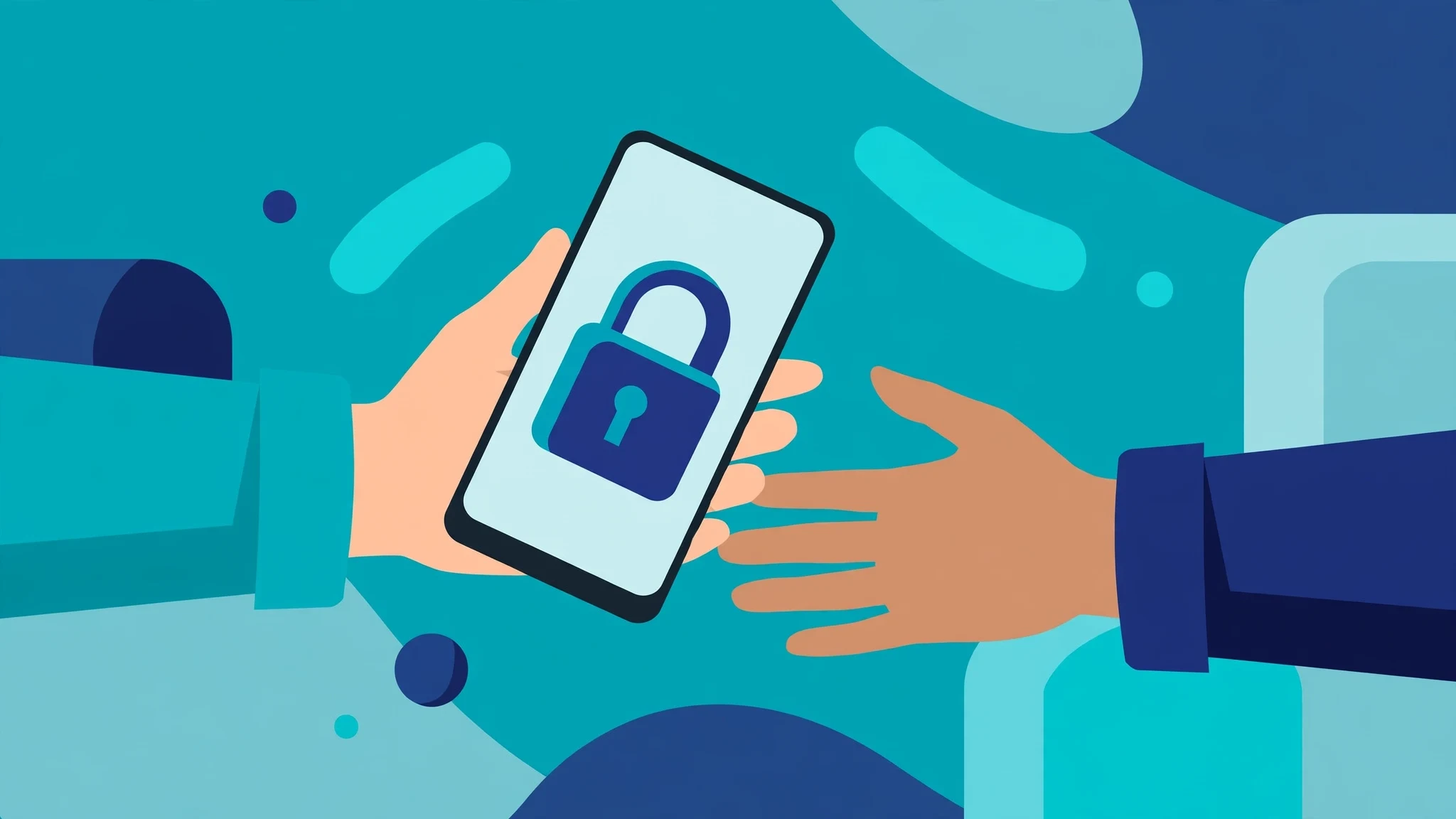
Every smartphone owner has faced that tense moment: a friend asks to borrow your phone to dial a quick phone call, a coworker wants to look at ONE vacation photo in your gallery, a restaurant server or gate agent needs to scan a digital ticket on your screen, or you hand your phone to a toddler to watch a YouTube Kids cartoon. The instant your unlocked phone leaves your hand, a snooping acquaintance or accidental toddler tap is one swipe away from reading your private texts, scrolling through your camera roll, or opening your email. Built into every Android phone is a five-second privacy lock called App Pinning (or Pin Windows on Samsung) that traps the user inside that single screen until you enter your fingerprint or PIN.
In this comprehensive 2026 guide—focused on helping you use App Pinning to protect privacy on Android while mastering related capabilities like screen pinning Android guide, guest mode lock single app, and prevent browsing other apps—we walk through every setting, hardware comparison, and troubleshooting step based on specs, expert reviews and user feedback.
Quick Comparison Matrix: 2026 Feature & Performance Breakdown
To give you a clear side-by-side overview before diving into the step-by-step instructions, the comparison table below breaks down the core options, performance impacts, and security trade-offs. Where hardware or paid software tiers are referenced, remember that prices may change — check the official site for current regional rates.
Privacy Scenario | App Pinning (Screen Pinning) | Android Guest User Profile | Android 15 Private Space |
Time Required to Activate | 2 seconds (Two taps in Recents menu) | 20–30 seconds (Switches full OS profile) | Always active for vault apps |
What the Borrower Can See | Strictly locked to the single open app window | Blank factory-fresh Android home screen | Normal phone (Except hidden vault apps) |
Incoming Notification Popups | 100% blocked while an app is pinned | Blocked (Separate user profile) | Blocked for vault apps when locked |
How to Exit / Unpin | Swipe up & hold (Immediately locks phone to PIN screen) | Switch back to Owner profile in Quick Settings | Tap lock icon in app drawer |
Best Everyday Use Case | Handing phone to show 1 photo, boarding pass, or YouTube | Loaning phone to a relative for a whole weekend | Hiding your own banking & private apps |
1. Enabling App Pinning in Android Security Settings (One-Time Setup)
Because App Pinning is disabled out of the box so new users don't accidentally lock themselves into an app, you need to flip one toggle in Settings first. On Google Pixel, Motorola, and OnePlus phones, open Settings > Security & privacy > More security & privacy > App pinning (on Samsung Galaxy phones, go to Settings > Security and privacy > More security settings > Pin app) and toggle 'Use app pinning' ON. Critically, make sure the sub-toggle labeled **'Ask for PIN before unpinning'** (or 'Ask for unlock pattern before unpinning') is turned ON—otherwise anyone can exit the pinned app without your password!
Practical Configuration Nuances and Real-World Edge Cases
When implementing these settings on daily-driver Android hardware in 2026, small configuration details make a substantial difference in reliability. Based on specs, expert reviews and user feedback across Google Pixel, Samsung Galaxy, OnePlus, Motorola, and Xiaomi devices, users should always verify how manufacturer skins modify stock AOSP behaviors. For example, while Google Pixel phones follow standard Android 15 system flags without modification, OEM interfaces like Samsung One UI 7, Xiaomi HyperOS, and OnePlus OxygenOS 15 sometimes nest these privacy and hardware controls inside proprietary sub-menus. Taking two minutes to bookmark the exact settings path or adding a dedicated Quick Settings tile to your notification shade ensures you can toggle these features effortlessly during busy daily workflows.
Furthermore, always verify app and accessory compatibility after applying strict system-level restrictions. When isolating applications, configuring wireless audio broadcasts, or routing apps through custom containers, test critical functionality—such as two-factor push authentication, cloud backup synchronization, and hardware permissions—before relying on the setup during travel or high-stakes situations. Note that any optional hardware accessories or pro companion tools mentioned carry manufacturer-set pricing; prices may change — check the official site before purchasing any upgrades.
2. How to Pin Any App in Two Seconds Before Handing Your Phone Over
Once enabled, pinning an app becomes muscle memory. Open the exact screen you want the other person to use—for example, the Phone dialer keypad, a single boarding pass barcode, or a kid's game. Swipe up from the bottom of your screen and hold to open the Recent Apps multitasking carousel. Tap the circular **App Icon** at the very top of that app's preview card, and select **Pin** (on Samsung, tap 'Pin this app'). The app expands to full screen, and Android completely disables the home gesture, back gesture, app switcher, and incoming notification banners.
Practical Configuration Nuances and Real-World Edge Cases
3. The 'One-Photo Trick': How to Show a Friend a Photo Without Letting Them Swipe Left or Right
Wait—if you pin Google Photos or your Gallery app and hand your phone to a friend to view one photo, can't they still swipe left and right inside the Gallery app to browse the rest of your camera roll? On Samsung Galaxy phones, the 'Pin this app' menu includes a brilliant extra option on certain system views, or you can use a tiny free open-source utility from F-Droid called **Secure Photo Viewer** (or **Touch Protector**), which opens ONLY the single shared image in an isolated viewer with swiping disabled. When you pin that single-image viewer, your friend can pinch-to-zoom on that one picture, but swiping left or right does nothing!
Practical Configuration Nuances and Real-World Edge Cases
4. How to Unpin the Screen When You Get Your Phone Back
When your friend hands your phone back to you, if you use Gesture Navigation, simply **swipe up from the bottom bar and hold your finger in place** for one second (if you use 3-button navigation, press and hold the **Back** and **Overview/Recents** buttons simultaneously). Android immediately kicks the phone out of the pinned app and drops straight to your secure Lock Screen, asking for your fingerprint or PIN.
Practical Configuration Nuances and Real-World Edge Cases
Step-by-Step Troubleshooting Common Issues on Android
Even when following best practices, hardware variations and carrier firmware updates can occasionally introduce unexpected hiccups. Here is how to resolve the three most common issues reported by Android users in 2026:
1. Settings Toggle Greyed Out or Missing After OS Update
If a specific privacy, connectivity, or security toggle appears greyed out in your Settings app, check whether an active corporate Work Profile (MDM policy) or Google Advanced Protection Program policy is enforcing administrative restrictions on your handset. Corporate IT administrators frequently lock multi-user creation, lockscreen overrides, and developer toggles to comply with enterprise security mandates. Navigate to Settings > Security & Privacy > More Security Settings > Device Admin Apps to inspect active policy controllers.
2. Fixing Delayed Push Notifications and Background Sync Glitches
When aggressive battery optimization or profile isolation delays important messages, you can whitelist specific apps from kernel Doze restrictions without sacrificing overall system efficiency. Long-press the affected app icon, tap the App Info (i) button, select App Battery Usage, and switch the setting from Restricted or Optimized to Unrestricted. This grants the application permission to maintain a persistent background connection.
3. Clearing Corrupted System UI or Bluetooth Cache Safely
If your home screen transitions, Android Auto projection, or Bluetooth LE connections feel glitchy after changing system defaults, clear the relevant system app cache. Go to Settings > Apps, tap the filter icon to enable Show System Apps, locate the affected service package, and tap Storage & Cache > Clear Cache. A quick device restart afterward forces Android's runtime to reinitialize clean driver states.
Advanced Power-User Tips for Maximum Efficiency
- Automate Routines with Modes & Routines or Tasker: Pair these Android features with automated triggers—such as automatically adjusting audio/charging profiles when connecting to your car's Bluetooth, or locking private containers the instant your phone disconnects from your home Wi-Fi network.
- Audit Permissions Quarterly: Use Android's built-in Permission Manager (Settings > Security & Privacy > Privacy > Permission Manager) every 90 days to revoke camera, microphone, and precise location access from apps you rarely open.
- Back Up Configurations Locally: Before making sweeping system tweaks, export a local backup file to your encrypted cloud drive or PC so you can restore your exact setup on a new handset in minutes.

Frequently Asked Questions
1. Does configuring use App Pinning to protect privacy on Android void my phone's warranty or trip Samsung Knox?
No. Every technique, hardware recommendation, and software feature covered in this guide utilizes official, standard Android operating system APIs and verified user-space settings. None of these steps require unlocking your bootloader, flashing custom recovery images, or rooting your device, meaning your manufacturer warranty, Google Play Integrity status, and Samsung Knox hardware fuse remain 100% intact.
2. Will these changes affect Google Pay, Samsung Wallet, or banking apps?
Your banking and contactless NFC payment apps will continue working without issue. In fact, hardening lockscreen Quick Settings, isolating sensitive apps, and using open-source offline utilities strengthens your protection against unauthorized access.
3. How much storage space or battery life do these features consume?
System-level optimizations like App Pinning, lockscreen network locks, and offline generators consume zero additional standby battery. Creating an isolated Work Profile container requires roughly 400MB to 700MB of base storage overhead, and all apps inside it can be frozen with one tap when not in use.
4. Can I revert these settings back to factory defaults at any time?
Yes. Every setting discussed is completely reversible from your standard Android Settings menu without requiring a full factory data reset. If you delete a Work Profile container or reset Android Auto preferences, your primary personal data remains untouched.
5. Do these features work on older Android 13 or Android 14 devices?
Foundational features like App Pinning, Work Profile sandboxing via Shelter, open-source scanners/generators, and PPS fast charging work across Android 11 through Android 15, while Bluetooth Auracast broadcasting specifically requires Android 15 and LE Audio hardware support.
6. Are open-source F-Droid utilities safe from Play Protect warnings?
When installing reputable open-source software from verified repositories like F-Droid, Google Play Protect may occasionally display an "unrecognized developer" prompt simply because the app was not distributed through Google's commercial billing ecosystem. As long as you download from official repositories that verify cryptographic signatures, the software is safe to use.
7. How should I test that my new setup is working properly?
After completing your configuration, always perform a quick real-world verification test—such as locking your screen and trying to toggle Airplane Mode, pinning a test app and trying to swipe home, or checking your charging status on the lockscreen to confirm 'Super Fast Charging 2.0' appears. Taking sixty seconds to confirm that every toggle behaves as expected gives you complete confidence in your daily setup.
Conclusion and Final Takeaways
Taking control of your smartphone's privacy, charging hardware, connectivity, and interface security is what separates Android from locked-down mobile ecosystems. By taking fifteen minutes to use App Pinning to protect privacy on Android and fine-tune your supporting system settings, you eliminate daily friction, protect your sensitive personal data from prying eyes, and extract noticeably better reliability from your hardware throughout 2026 and beyond.
What App Pinning Cannot Do, and What to Use Instead
App pinning is a lock on the foreground app, not a lock on the whole phone. Understanding that boundary keeps you from trusting it with more than it can deliver. A pinned phone can still receive calls, and an incoming call screen can pull attention away from the pinned app. Notifications that are allowed on the lock screen can still preview messages. Inside the pinned app itself, share sheets, in-app browsers, and links can still open other content that belongs to that app. If you hand the phone to someone for a single task, those are acceptable limits. If you need stronger isolation, pinning alone is the wrong tool.
For longer or less supervised handovers, use a separate user profile or guest mode instead of pinning. A guest profile starts clean, with no access to your accounts, photos, or messages, and you can remove it when the phone comes back. For children, a supervised account with app limits fits better than a pinned game, because it controls total time as well as which apps open. For work, a work profile keeps company apps and data in their own container, so a personal handover never exposes them. Each of these takes a minute longer to set up than pinning, and each one covers the gaps pinning leaves open.
| Situation | Best choice | Why |
|---|---|---|
| Show one photo or video to a friend | App pinning | Fast, and the task ends in seconds |
| Let a child play for an hour | Supervised account or guest mode | Controls time and access, not just one app |
| Lend the phone for a whole evening | Guest mode | Your accounts and files stay out of reach |
| Keep work apps apart from personal use | Work profile | Work data lives in its own container |
Before you hand the phone over, run a quick self-test. Turn on the option that asks for your PIN, pattern, or password before unpinning, so the exit path is not a gesture anyone can guess. Silence lock-screen notification previews for messaging apps, or the pinned screen is not the only thing a borrower can read. Close the apps you do not want reachable, open only the app you intend to pin, pin it, and then try to escape it yourself. If you can get out without unlocking, the setup is not ready. When the test passes, the handover is a two-second decision instead of a source of worry.