

How to Remove Unwanted Objects from Photos on Android (Magic Eraser and More)
Introduction: Elevating Your Mobile Photography

In the era of high-resolution mobile sensors, capturing the perfect shot is often just the beginning. Even with the best composition, stray pedestrians, unsightly trash cans, or power lines can ruin an otherwise pristine frame. Fortunately, learning how to remove objects from photos android devices is now easier than ever, thanks to rapid advancements in generative AI. You no longer need a desktop computer or professional design software to clean up your shots; a few taps on your smartphone screen can transform a cluttered scene into a professional-grade image.
Refining your gallery is essential for maintaining a clean aesthetic for social media or personal archives. Whether you are a photography enthusiast or just someone who wants their vacation photos to look polished, mastering these editing tools is a game changer. By leveraging the latest AI-driven features built directly into your phone’s operating system, you can eliminate distractions and reclaim the focus of your images. This guide will walk you through the essential techniques for cleaning up your digital collection.
Understanding How to Remove Objects from Photos Android
The landscape for mobile photo editing has shifted significantly over the past two years. Once a feature reserved for desktop software like Photoshop, object removal is now a standard utility on many modern smartphones. Understanding how to remove objects from photos android requires knowing which tools are available within your device’s ecosystem versus when to reach for a third-party solution.
Most major Android manufacturers have integrated AI-powered “Eraser” tools directly into their default gallery applications. These tools function by analyzing the surrounding pixels and “inpainting” the area where the unwanted object once stood, effectively stitching the background together so the removal appears seamless. While these native features are incredibly convenient, there are times when high-end manual tools provide better precision. Whether you are using a Pixel, a Samsung Galaxy, or a OnePlus device, the underlying technology—generative fill and intelligent masking—remains largely consistent across the board.
Using Google Photos Magic Eraser
Google Photos popularized the concept of AI object removal with the Magic Eraser, which is now available on most Android devices through the Google One subscription or by default on Pixel phones. If you are wondering how to remove objects from photos android using the most accessible tool, this is your primary starting point.
- Open the Image: Launch the Google Photos app and select the photograph you wish to edit.
- Enter Edit Mode: Tap the Edit button located at the bottom of the screen.
- Select Tools: Scroll through the bottom menu and tap on Tools.
- Activate Magic Eraser: Select the Magic Eraser icon. The software will automatically scan the photo and highlight suggested distractions.
- Circle or Brush: If the AI doesn’t automatically detect the object, simply draw a circle around the unwanted item or use the brush tool to paint over it.
- Review and Save: Once the AI processes the removal, tap Done and select Save copy to retain your original file.
How to Use Samsung Object Eraser in the Gallery App
Samsung Galaxy users have access to a robust version of this technology built directly into the One UI Gallery app. Samsung’s Object Eraser is highly efficient for quick edits, and it is a favorite for those who want to know how to remove objects from photos android without downloading extra software.
- Launch Gallery: Open the Samsung Gallery app and locate the photo you want to edit.
- Access Editor: Tap the Pencil icon (Edit) at the bottom of the screen.
- Find the Menu: Tap the three-dot menu (More options) in the bottom right corner.
- Enable Object Eraser: Select Object eraser from the pop-up list.
- Remove Distractions: Tap on the objects you want to remove, or use your finger to trace around them. The app will highlight your selection.
- Apply and Save: Tap the Erase button. If you are satisfied with the result, tap Done followed by Save in the top right corner.
Pro-tip: If the first attempt looks slightly off, you can undo the action and try selecting a slightly different area to give the AI more context for the background reconstruction.
Mastering the Basics: How to Remove Objects from Photos Android
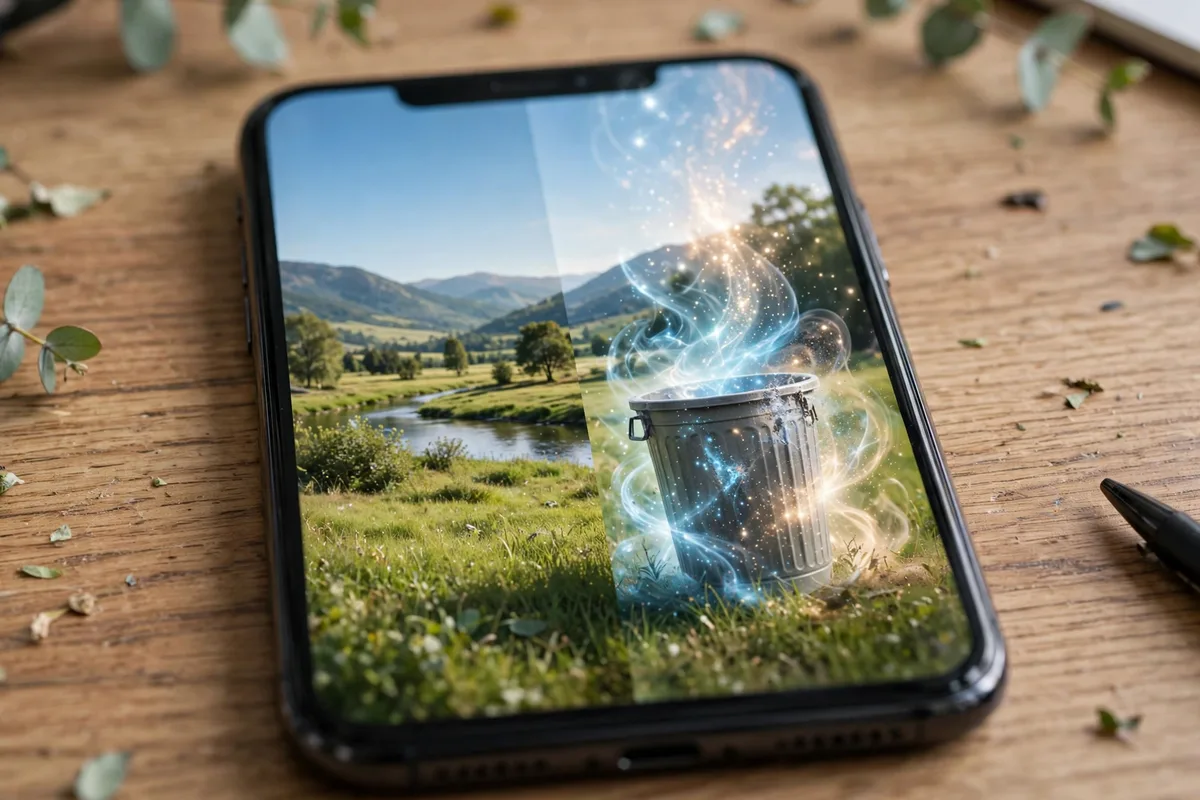
When you are looking for the most efficient way to clean up your image compositions, understanding the native ecosystem of your smartphone is the first step. Knowing how to remove objects from photos android relies heavily on the specific AI implementation your manufacturer provides. While the underlying technology—generative fill and content-aware patching—is similar across brands, the user interface and accessibility vary significantly.
To give you a clearer picture of which features are available at your fingertips, refer to the table below:
| Feature | Primary Integration | Best For |
|---|---|---|
| Magic Eraser | Google Photos | Pixel & Google One users |
| Object Eraser | Samsung Gallery | Samsung Galaxy ecosystem |
| AI Eraser | OxygenOS (Photos) | OnePlus devices |
| Healing Tools | Third-party apps | Advanced/Universal control |
Because these tools are now built into your default gallery, you rarely need to rely on complex software to achieve a professional finish. If you’ve accidentally deleted a project file while experimenting, you might need to check out these reliable tips to recover deleted photos before diving into deep editing.
Leveraging OnePlus AI Eraser
OnePlus has made significant strides in generative AI, and their integrated AI Eraser is surprisingly capable for quick touch-ups. To use it:
- Open your Gallery app and select the photo you want to edit.
- Tap the Edit (pencil icon) button located at the bottom of the screen.
- Locate the AI Eraser icon in the toolbar.
- Use your finger to highlight the object or person you wish to remove. The AI will automatically detect the edges.
- Tap Remove and wait a few seconds for the model to fill in the background.
- If the result looks good, hit the checkmark to save; otherwise, tap Undo to try a more precise selection.
Best Third-Party Alternatives for Object Removal
Sometimes, the native tools on your device might struggle with complex backgrounds or intricate textures. If you find that the built-in AI doesn’t yield the clean results you expect, it is time to turn to professional-grade tools. You can explore a variety of these solutions in our guide on the best photo editing apps for Android to find a workflow that suits your style.
For users who need advanced control over object removal, Snapseed (Google’s pro-level editor) and Adobe Lightroom offer more granular tools:
- Snapseed (Healing Tool): Open your image, go to Tools, and select Healing. Simply tap or swipe over the object. Unlike AI tools that replace the area with generated data, Snapseed uses surrounding pixels to “patch” the gap, which is often better for simple textures like grass or sand.
- Adobe Lightroom (Remove Tool): This is a powerful, AI-driven option available in the Lightroom mobile app. Select your image, tap the Remove button (often under the ‘Heal’ tab), and adjust the brush size. Brush over the object precisely. Lightroom is particularly effective at maintaining shadows and lighting transitions that native tools might flatten.
- Adobe Firefly/Express: If you have an Adobe Creative Cloud account, the dedicated mobile apps provide access to industry-standard generative fill, allowing you to remove objects and let the AI generate entirely new background elements to fill the void.
Learning how to remove objects from photos android effectively requires a bit of experimentation with these different brush types. If you are struggling with poor results, remember that smaller, iterative strokes are often superior to one large, sweeping selection. Learning to use small, careful strokes instead of one big selection keeps the original shot intact while the distractions disappear — it is the difference between an edit nobody notices and one that screams ‘photoshopped.’ By understanding exactly how to remove objects from photos android through both native and third-party means, you ensure that your portfolio remains crisp, professional, and entirely free of unwanted clutter.
Using Google Photos Magic Eraser
Google Photos has revolutionized mobile editing by bringing sophisticated generative AI directly to our fingertips. If you are wondering how to remove objects from photos android users with a Pixel device or a Google One subscription can leverage the Magic Eraser tool to instantly scrub photobombers, power lines, or unwanted clutter from their shots.
To get started, ensure your Google Photos app is updated to the latest version via the Google Play Store. Follow these steps to clean up your image:
- Open your image: Launch the Google Photos app and tap on the photo you wish to edit.
- Access the Editor: Tap the “Edit” button located at the bottom of the screen.
- Select Tools: Navigate to the “Tools” tab in the bottom menu.
- Choose Magic Eraser: Tap the “Magic Eraser” icon. The software will automatically analyze your image and suggest objects that look like distractions.
- Erase or Circle: You can either tap the suggested highlights to remove them instantly or manually circle or brush over the unwanted areas using your finger.
- Refine: Once you are satisfied with the removal, tap “Done” and then “Save copy” to preserve your original image while keeping the new, polished version.
The magic of this feature lies in its context-aware fill. It doesn’t just cut out the object; it analyzes the surrounding texture, lighting, and patterns to “paint” over the gap, making it look as if the object was never there in the first place. For more advanced tips on managing your device’s capabilities, check out our Android Hidden Features List: 20 You Should Try in 2026.
Troubleshooting Common Issues
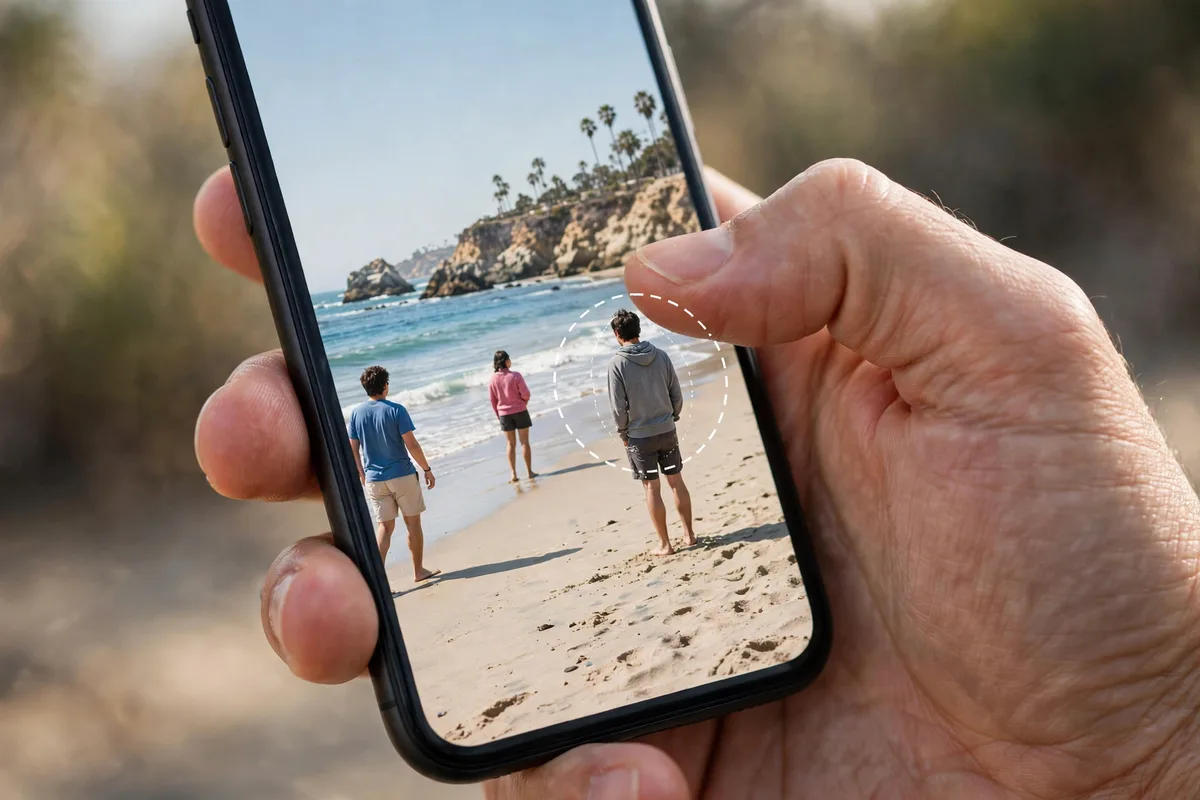
Even with advanced AI, perfect results aren’t guaranteed every time. If you struggle with how to remove objects from photos android users encounter, keep these tips in mind:
- Ghosting/Artifacting: If the tool leaves behind a blurry “ghost” of the object, try erasing in smaller, incremental sections rather than one large sweep.
- Resolution Loss: AI-processed images can sometimes suffer from pixelation. Ensure you are working with the original high-resolution file rather than a compressed social media download.
- Complex Backgrounds: If the background is highly intricate (like a chain-link fence or a detailed pattern), the AI may struggle. For these, manual cloning tools in apps like Adobe Lightroom are often better.
- Lighting Mismatches: If the AI fill looks too dark or bright, try using a secondary “Healing” or “Retouch” brush to blend the edges of the repaired area manually.
FAQ
Does using Magic Eraser reduce the resolution of my photo?
While minor compression is sometimes necessary for AI processing, the primary impact on quality comes from how you save the file. When you save as a copy, Google Photos typically maintains the original resolution. Learning how to remove objects from photos android devices properly means always working from a high-quality source file to minimize any potential quality loss during the AI render.
Is Magic Eraser limited to Pixel phones?
Historically, this feature was exclusive to Pixel hardware, but it is now available to any Android or iOS user with a Google One subscription. You can manage your subscription details through the official Google One Support page.
Can I remove moving objects like cars or people from a photo?
Yes, the AI is specifically trained to detect and remove moving subjects from static backgrounds. It is one of the most effective ways to understand how to remove objects from photos android editors can utilize, especially when you are trying to capture a clear shot of a tourist landmark without the crowd.
Does my data get uploaded to the cloud for processing?
On most modern Pixel devices, the basic Magic Eraser processing happens locally on your device’s NPU (Neural Processing Unit). However, for more complex AI edits, some data may be processed via Google’s cloud servers. Always review your privacy settings within the Google Photos app if you are concerned about your data.
Conclusion: Mastering Mobile Photo Editing
Mastering these built-in AI tools is a game changer for mobile photographers who want to achieve professional results without needing a desktop computer. Whether you are using a Pixel, a Samsung Galaxy, or a OnePlus device, the underlying technology is designed to make complex editing tasks feel intuitive and fast. By incorporating these features into your workflow, you can ensure your gallery remains a collection of clean, stunning images that look like they were captured by a pro.
We encourage you to spend some time experimenting with these tools on your own photos today. Don’t be afraid to test the limits of the software; sometimes, the best results come from trial and error. As you become more comfortable with these digital brushes, you will find that your photography style evolves, allowing you to focus on capturing the moment while knowing you have the power to fix any imperfections later.




What do you think?
Share your experience or ask a question. A useful conversation starts with you.
Join the discussion