
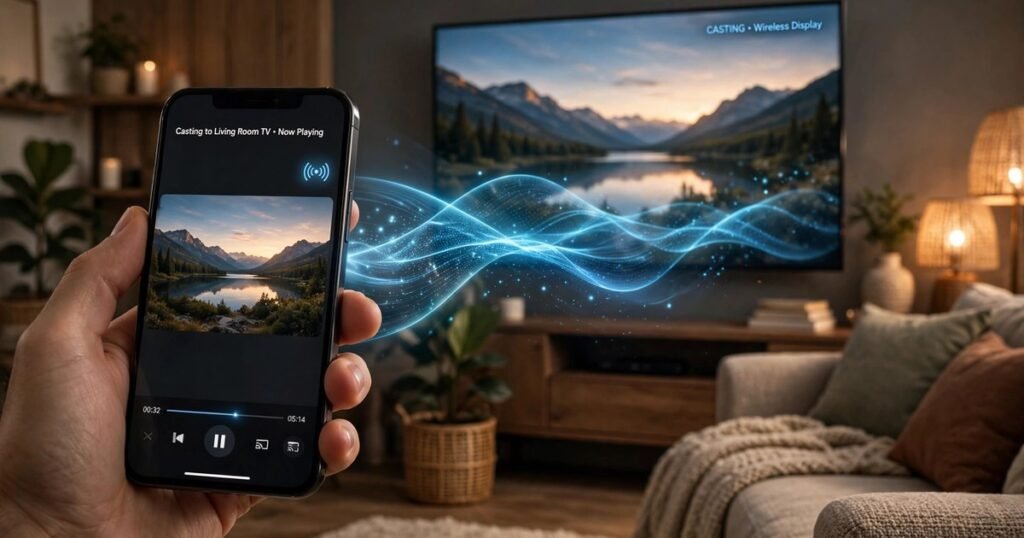
Learning how to chromecast from phone to tv is one of the easiest upgrades you can make to your home entertainment setup. Instead of squinting at a five-inch screen, you can send movies, photos, music, and even your entire phone display to the big screen in seconds — no cables, no confusing menus, and no technical degree required.
Whether you own a classic Chromecast dongle, a TV with Chromecast built in, or one of the newer Google TV devices, the process is nearly identical. In this guide, you will learn how to chromecast from phone to tv step by step on both Android and iPhone, how to cast from popular apps like YouTube, Netflix, and Spotify, the difference between casting and screen mirroring, and how to fix the most common problems people run into. By the end of this guide on how to chromecast from phone to tv, you will be able to get anything from your phone onto your TV with confidence.
What You Need to Chromecast from Phone to TV
Before you start, gather these essentials. If you already have a Chromecast plugged in and set up, you can skip ahead to the casting steps — but if this is your first time, check that you have everything below. These requirements cover every scenario in this guide, so once you have them you are fully ready to learn how to chromecast from phone to tv on any device.
- A Chromecast receiver. This can be a Chromecast dongle (any generation), a Chromecast with Google TV, the newer Google TV Streamer, or a smart TV with Chromecast built in. Many TVs from Sony, TCL, Hisense, and Philips ship with Chromecast built in, so check your TV’s specs before buying a dongle.
- A smartphone. Both Android phones and iPhones work with Chromecast. You will need the free Google Home app installed to finish the initial setup.
- A Wi-Fi network. Your phone and your Chromecast must be connected to the same Wi-Fi network. This is the single most important requirement — almost every “my phone can’t find my Chromecast” problem comes down to the two devices being on different networks.
- A TV with an HDMI port. Only needed if you are using a Chromecast dongle rather than a TV with Chromecast built in.
- A Google account. Recommended for setup and for the smoothest experience with the Google Home app.
One quick note on hardware in 2026: Google has shifted its lineup toward the Google TV Streamer, which replaced the Chromecast with Google TV. Both devices support exactly the same casting features described in this guide, so the steps below apply no matter which one you own. If you are still using an older Chromecast dongle from years ago, it will also work — the casting protocol has stayed consistent.
Once everything is in place, the whole process of learning how to chromecast from phone to tv takes about ten minutes the first time, and only seconds every time after that. And here is a bonus tip for later: once your phone is connected to your TV, you can also use your Android phone as a TV remote for any brand — handy for those nights the physical remote disappears into the couch.
How to Set Up Your Chromecast with the Google Home App
If your Chromecast is brand new (or was factory reset), you need to set it up once with the Google Home app. This one-time setup connects the Chromecast to your Wi-Fi and your Google account. These are the only setup steps you will ever need for learning how to chromecast from phone to tv — you do them once, and never again. Here is how to do it:
- Plug in your Chromecast. Connect the Chromecast dongle to an HDMI port on your TV, then plug its power cable into a wall outlet using the included adapter. Avoid powering it from your TV’s USB port — the dongle can behave unreliably when it does not get enough power.
- Switch your TV to the right input. Use your TV remote to select the HDMI input you plugged the Chromecast into. You should see the Chromecast welcome screen.
- Install the Google Home app. Download it from the Google Play Store (Android) or the App Store (iPhone) and sign in with your Google account.
- Add the device. In Google Home, tap the + button, then Set up device, then New device. Choose the home you want to add it to (create one if you do not have one yet).
- Let the app find your Chromecast. The app will scan for nearby devices. When your Chromecast appears, tap it. A code will appear on both your phone and your TV — confirm they match, then tap Yes.
- Connect to Wi-Fi. Choose your Wi-Fi network and enter the password. Make sure it is the same network your phone is on. This is the network you will use every time you cast.
- Name your device and finish up. Give the Chromecast a recognizable name like “Living Room TV,” pick which room it is in, and complete the remaining prompts (software updates may install automatically).
That is it — setup is done. From now on, your phone will detect the Chromecast automatically whenever both are on the same Wi-Fi network, and the day-to-day process of how to chromecast from phone to tv takes only seconds. If anything goes wrong during setup, Google’s official Chromecast setup help covers error codes and edge cases in detail.
How to Chromecast from Phone to TV on Android
Android phones have the most seamless Chromecast experience, because casting is built into the operating system. There are two ways to do it: casting from inside an app, and mirroring your entire screen.
Method 1: Cast from an app (recommended)
This is the best way to learn how to chromecast from phone to tv for everyday use. Instead of sending your whole screen, your phone tells the Chromecast to stream the video directly from the internet — which means better quality and less battery drain.
- Connect your Android phone to the same Wi-Fi network as your Chromecast.
- Open a cast-enabled app such as YouTube, Netflix, Spotify, or Google Photos.
- Tap the Cast icon (a rectangle with Wi-Fi waves in the corner). It is usually at the top of the screen.
- Select your Chromecast from the list of available devices.
- Pick the video, song, or photo you want to play. It will start playing on your TV while your phone acts as the remote.
To stop casting, tap the Cast icon again and choose Disconnect or Stop casting. This app-first approach is the fastest way to learn how to chromecast from phone to tv, and it is the method you will use most often.
Method 2: Mirror your entire Android screen
If you want to show something that does not have a Cast button — a web page, a presentation, or a game — mirror your whole screen instead:
- Swipe down from the top of your screen to open Quick Settings.
- Look for Screen Cast, Cast, or Smart View (the exact name varies by manufacturer — Samsung calls it Smart View, Pixel phones call it Screen Cast).
- Tap it, then select your Chromecast from the device list.
- Tap Start now when prompted. Everything on your phone now appears on your TV.
To stop mirroring, open Quick Settings again and tap the Cast tile to disconnect. Full-screen mirroring is the fallback option for content without a Cast button, and it rounds out your knowledge of how to chromecast from phone to tv on Android.
One tip: when mirroring, your notifications and messages appear on the TV too. Turn on Do Not Disturb before you start mirroring if you are sharing your screen with other people in the room.
How to Chromecast from Phone to TV on iPhone
iPhone users can absolutely use Chromecast — you just cast from inside apps rather than from a system-level menu. Here is how to chromecast from phone to tv on an iPhone:
- Connect your iPhone to the same Wi-Fi network as your Chromecast.
- Open a cast-enabled app. Good options include YouTube, Netflix, Spotify, Google Photos, and many more — look for the Cast icon inside the app.
- Tap the Cast icon and choose your Chromecast from the list.
- Start playing your content. It will appear on the TV, and your iPhone becomes the remote — you can pause, skip, and adjust volume from the app.
To disconnect, tap the Cast icon again and select Disconnect. Once you have done it a single time, you will find that how to chromecast from phone to tv on iPhone is just as quick as it is on Android.
A quick note on full-screen mirroring from iPhone: iOS does not include built-in Chromecast screen mirroring the way Android does (Apple’s own screen mirroring uses AirPlay instead). You can still mirror an iPhone to a Chromecast using a reputable third-party mirroring app from the App Store, but for most people, casting directly from apps covers everything they need — movies, music, photos, and presentations all work without full mirroring. For everyday use, knowing how to chromecast from phone to tv at the app level is all you need.
How to Cast from Your Favorite Apps: YouTube, Netflix, and Spotify
Most of the time, learning how to chromecast from phone to tv really means learning how to cast from the apps you already use. Mastering the three apps below covers most of what people want from learning how to chromecast from phone to tv. The pattern is the same everywhere — open the app, tap the Cast icon, pick your TV — but each app has a few useful extras worth knowing.
YouTube
YouTube has one of the best casting experiences. After tapping the Cast icon and selecting your TV, you can queue up multiple videos to play in order, control playback from your phone, and even let friends add videos to the queue from their own phones when they are on your Wi-Fi. You can also use voice search on the YouTube app and the results will play on the TV. Building and managing a queue is one of the handiest tricks once you know how to chromecast from phone to tv.
Netflix
Open Netflix on your phone, tap the Cast icon, and select your TV. Browse and pick a show on your phone — it streams directly to the Chromecast in full quality. Your phone becomes a private remote, which is great because nobody else sees your browsing or your “continue watching” list on the big screen. Subtitles and audio tracks can be changed from the phone while the video plays on the TV. Keeping your browsing private on the phone while everyone watches the TV is a perfect example of why learning how to chromecast from phone to tv beats passing a single shared remote around.
Spotify
Spotify casting works a little differently: tap the Devices Available icon (a speaker with a screen in front of it) at the bottom of the now-playing screen, then choose your Chromecast or Google TV device. Music keeps playing on the TV even if you take a call or switch apps, because the stream runs directly on the Chromecast. This also works great for parties — guests on your Wi-Fi can connect and add songs without touching your phone. Once you see how effortlessly music follows you around the house, you will understand why so many people search for how to chromecast from phone to tv in the first place.
The same Cast icon pattern applies to dozens of other apps, including Google Photos (perfect for showing vacation pictures on the big screen), Hulu, Disney+, Plex, and most major streaming services. If an app supports Chromecast, you will find the Cast icon somewhere near the top of the screen. Once you recognize that icon, you effectively know how to chromecast from phone to tv in any app that supports it.
Screen Mirroring vs. Casting: What’s the Difference?
People often use “mirroring” and “casting” interchangeably, but they are technically different — and knowing the difference helps you pick the right method. This is one of the most misunderstood parts of how to chromecast from phone to tv, so here is a clear breakdown.
| Casting | Screen mirroring | |
|---|---|---|
| What it does | Sends a video, song, or photo stream directly to the TV | Duplicates your phone’s entire display on the TV |
| How to start | Tap the Cast icon inside an app | Use Quick Settings (Android) or a mirroring app (iPhone) |
| Video quality | Full quality — the Chromecast streams it directly | Limited by your phone’s screen and Wi-Fi speed |
| Battery impact | Low — your phone just acts as a remote | High — your phone renders everything in real time |
| Multitasking | Yes — use your phone freely while content plays | No — everything you do appears on the TV |
| Best for | Movies, shows, music, photos | Presentations, games, apps without Cast support |
Rule of thumb: if the app you are using has a Cast button, use it — that is the golden rule of how to chromecast from phone to tv. Casting gives you better quality, saves battery, and lets you keep using your phone privately. Only fall back to screen mirroring when you need to show something that has no Cast option. Keep this table in mind and you will always pick the right method when deciding how to chromecast from phone to tv for a given task.
How to Fix Common Chromecast Problems
Even a simple device runs into hiccups. Here are the fixes for the four problems people report most often when figuring out how to chromecast from phone to tv. Buffering is the most annoying of them, but it is also the most fixable — start with your Wi-Fi signal:
Your phone can’t find the Chromecast
This is the number one issue, and it is almost always a network problem. Work through these fixes in order and you will resolve nearly every missing-device case you encounter while learning how to chromecast from phone to tv:
- Check that both devices are on the same Wi-Fi network. If your router has separate 2.4 GHz and 5 GHz networks with different names, your phone and Chromecast must be on the same one.
- Restart everything. Unplug the Chromecast for 30 seconds, restart your phone, and reboot your router. This resolves a surprising number of discovery issues.
- Turn off your VPN. A VPN on your phone hides it from local devices, which prevents Chromecast discovery entirely.
- Enable Bluetooth and location services. The Google Home app uses Bluetooth to find new devices during setup, and Android requires location permission for Wi-Fi scanning.
- Check your router’s AP isolation / client isolation setting. Some routers (especially guest networks) block devices from talking to each other. Turn this off for your main network.
Video lags, buffers, or looks blurry
- Move closer to the router, or move the router closer to the TV. Weak Wi-Fi is the top cause of buffering.
- Switch to the 5 GHz band if your Chromecast supports it — it is faster and less congested than 2.4 GHz.
- Lower the playback quality in the app temporarily to see if the stream stabilizes.
- Close background apps on your phone and pause large downloads on other devices using the same network.
- Restart the Chromecast. Unplug it for 30 seconds and plug it back in — this clears temporary glitches.
If your phone itself feels sluggish while casting, the problem might not be the Chromecast at all. A slow phone can make the whole experience feel laggy, so check out our guide on how to fix a slow Android phone — freeing up storage and stopping background apps often makes casting noticeably smoother too.
There’s no sound on the TV
Sound problems are less common than connection problems when learning how to chromecast from phone to tv, and they almost always have a simple cause:
- Check that the TV is not muted and the volume is turned up (it sounds obvious, but it is the most common cause).
- If you use a soundbar or AV receiver, make sure it is set to the correct input.
- Try a different app — if YouTube has sound but Netflix does not, the issue is with that app, not the Chromecast.
- Restart both the app on your phone and the Chromecast itself.
- In the app’s audio settings, try switching between stereo and surround output.
The Chromecast keeps disconnecting
- Use the wall adapter, not the TV’s USB port. Underpowered Chromecasts drop connections randomly — this single change fixes most disconnect issues for anyone learning how to chromecast from phone to tv.
- Update everything. Check for Chromecast firmware updates in the Google Home app (device settings), and update your phone’s apps.
- Reduce Wi-Fi interference. Microwaves, baby monitors, and crowded apartment Wi-Fi can all cause drops. Switching your router to a less congested channel helps.
- Factory reset as a last resort. Hold the button on the Chromecast for about 25 seconds until the light flashes, then set it up again with the Google Home app. After the reset, run through this guide’s setup steps once more and you will be back to knowing exactly how to chromecast from phone to tv.
Chromecast vs. Miracast vs. AirPlay: Which One Should You Use?
Chromecast is not the only wireless display technology. Here is how it compares to the two other major options, so you can be sure you picked the right one.
| Chromecast | Miracast | AirPlay | |
|---|---|---|---|
| Made by | Wi-Fi Alliance (open standard) | Apple | |
| Works with | Android, iPhone, Chrome browser, many smart TVs | Mostly Windows and some Android devices | iPhone, iPad, Mac, Apple TV |
| Needs Wi-Fi network? | Yes | No — direct device-to-device connection | Yes |
| App-level casting | Yes — the best in class | No — mirroring only | Yes, within the Apple ecosystem |
| Screen mirroring | Yes (Android; limited on iPhone) | Yes | Yes |
| Typical devices | Chromecast, Google TV, Nest speakers | Windows PCs, some smart TVs and dongles | Apple TV, AirPlay-compatible smart TVs |
Which should you choose? If you have a mix of Android and iPhone devices in your household, Chromecast is the most flexible option — it is the only one of the three that both platforms support well at the app level. If everyone in your home uses Apple devices, AirPlay is slightly more integrated. Miracast is worth considering mainly for Windows laptop-to-TV mirroring without a Wi-Fi network. That flexibility is exactly why guides explaining how to chromecast from phone to tv remain so popular years after the first dongle launched. For most living rooms in 2026, Chromecast remains the simplest and most universal choice, which is why learning how to chromecast from phone to tv is such a useful skill regardless of which phone you own. No matter which ecosystem your household leans toward, the steps for how to chromecast from phone to tv stay the same.
Privacy Tips for Casting from Your Phone
Casting is convenient, but it is worth knowing what you are sharing — especially when other people are in the room. Anyone learning how to chromecast from phone to tv should understand the privacy difference between app casting and full mirroring:
- App casting only shares that app’s content. When you cast from YouTube or Netflix, only the video appears on the TV. Your texts, photos, and other apps stay private on your phone.
- Screen mirroring shares everything. Notifications, incoming calls, and anything you open will appear on the big screen. Always enable Do Not Disturb before mirroring in front of others.
- Use Guest Mode for visitors. Chromecast’s Guest Mode lets visitors cast without joining your Wi-Fi — they just enter a PIN shown on the TV. This keeps your network password private.
- Sign out of shared TVs. If you cast to a TV at a hotel, office, or friend’s house, disconnect when you are done and remove the device from your Google Home app if you added it.
- Review who can control playback. In the Google Home app’s device settings, you can control whether other people on your Wi-Fi can pause or change what you are casting. Tighten this if you share your network with roommates or guests.
- Clear your casting history. The Google Home app keeps a record of devices you have connected to — periodically review it and remove TVs you no longer use.
- Double-check before you cast. A quick glance at the device name in the Cast menu confirms you are sending content to the right TV — an easy habit for anyone who knows how to chromecast from phone to tv in a house full of smart TVs.
These habits take seconds and prevent the classic embarrassment of a private notification popping up on the TV during movie night.
Frequently Asked Questions
Can I Chromecast without Wi-Fi?
Chromecast needs a Wi-Fi network to work in most cases, because your phone and the Chromecast find each other over the local network. However, Guest Mode lets visitors cast without joining your Wi-Fi — the Chromecast displays a PIN on the TV, and the guest’s phone connects directly using that PIN. If you are traveling, a portable travel router or your phone’s mobile hotspot can also create the Wi-Fi network both devices need. This is the one real limitation to keep in mind when learning how to chromecast from phone to tv on the go.
Does Chromecast work with iPhone?
Yes. Any cast-enabled app on iPhone — YouTube, Netflix, Spotify, Google Photos, and many others — can cast to a Chromecast. The only limitation is full-screen mirroring: iOS does not offer built-in Chromecast mirroring the way Android does, so iPhone users who want to mirror their entire screen need a third-party mirroring app from the App Store.
Why is my Chromecast not showing up on my phone?
In almost every case, the phone and the Chromecast are on different Wi-Fi networks — or the phone is on a VPN. Put both devices on the same network, turn off any VPN, and restart the Chromecast by unplugging it for 30 seconds. If it still does not appear, check that your router is not isolating devices from each other (look for “AP isolation” or “client isolation” in the router settings and turn it off). Bookmark these steps — they resolve the vast majority of device-not-found cases for anyone learning how to chromecast from phone to tv.
Do I need a Google account to use Chromecast?
You need a Google account to complete the initial setup in the Google Home app. After setup, guests can cast to your Chromecast without signing in — either by joining your Wi-Fi and using any cast-enabled app, or through Guest Mode with a PIN. Having an account also unlocks personalized features on Google TV devices, making the one-time sign-in worth it before you start learning how to chromecast from phone to tv.
Does casting use my phone’s mobile data?
No — and this is one of the best things about it. When you cast a video, the Chromecast streams it directly from the internet over Wi-Fi. Your phone just sends the command and acts as a remote, so it uses almost no mobile data. That said, if your Chromecast is connected to your phone’s mobile hotspot instead of home Wi-Fi, the stream will use your mobile data plan — something to watch out for when traveling. Anyone researching how to chromecast from phone to tv for hotels or road trips should keep this in mind.
Conclusion
Now you know exactly how to chromecast from phone to tv: set up the device once with the Google Home app, keep your phone and Chromecast on the same Wi-Fi network, and tap the Cast icon in any supported app. For full-screen needs, Android’s Quick Settings mirroring has you covered, and the troubleshooting steps above will get you past the rare hiccups like buffering or missing devices.
Casting is one of those rare technologies that is genuinely simpler than the problem it solves — no cables to hunt for, no inputs to memorize, just a tap. Whether you are hosting movie night, sharing vacation photos, or putting a presentation on the big screen, knowing how to chromecast from phone to tv turns your phone into the most powerful remote in the house. Set it up once, and you will wonder how you ever lived without it.
Just unboxed the phone you’ll be casting from? Our complete guide on how to set up a new Android phone walks through the whole process step by step.


What do you think?
Share your experience or ask a question. A useful conversation starts with you.
Join the discussion