

Every “Hey Google” you have ever said may be sitting on Google’s servers as an audio recording. Google stores Assistant voice interactions to improve its services, and unless you change the settings, it keeps collecting them indefinitely. If that makes you uncomfortable, you can delete Google Assistant recordings both retroactively and going forward. This complete guide shows how to delete Google Assistant recordings everywhere they hide.
This guide shows you how to delete Google Assistant recordings in bulk, remove individual clips, disable future voice storage, and audit what Google has on you, plus what deletion does and does not accomplish.
Stopping Future Voice Collection Entirely
If the whole system bothers you, the off switch is real: Google app > Settings > Google Assistant > “Hey Google” > turn it off. Without the hotword listener running, the microphone never activates for Assistant and nothing is recorded — there is nothing to delete because nothing is collected. You lose hands-free activation but keep everything else: you can still long-press home or tap the mic icon to talk to Assistant on demand, and those deliberate interactions are the only ones that could ever be stored. For most people this is the right tradeoff — voice commands a few times a day, zero ambient listening, nothing to audit.
Voice Recording FAQ
Does Google record everything I say? No — the hotword listener discards audio continuously until it detects “Hey Google.” Only deliberate commands and false activations are stored, and you can see every one at My Activity.
Can I delete just the embarrassing ones? Yes — My Activity lets you delete individual clips. Bulk-delete by date range too. No need to wipe everything to remove a few.
Do other assistants do the same? Yes — Alexa, Siri, and Bixby all store voice recordings with similar controls. Audit each one you use; the settings are per-platform.
Will turning it off break my smart home? No — voice commands still work; they just are not saved. Automations, routines, and device control are unaffected.
What about voice typing in Gboard? Separate system — Gboard voice typing on Pixel 6+ is on-device and never uploaded. Older phones may use cloud transcription; check Gboard settings for the offline voice pack.
What Voice Recordings Google Keeps (and For How Long)
When “Voice & Audio Activity” is enabled, Google stores your Assistant commands, voice searches, and “Hey Google” false activations as audio clips attached to your account. These live at myactivity.google.com under the Voice & Audio filter, where you can listen to each one — most people are surprised by the false activations captured during TV shows or conversations. With auto-delete set to 3 months, clips expire automatically; with it off, they accumulate indefinitely. Google states these recordings train speech models, and human reviewers may listen to anonymized samples unless you opt out.
Deleting is straightforward but has two layers. Deleting individual clips at My Activity removes those recordings; turning off the “Voice & Audio Activity” toggle stops future collection. But transcripts of your commands may persist in Web & App Activity separately — the text “set a timer for 10 minutes” can remain even after its audio is deleted. For complete coverage, address both toggles, and consider switching “Hey Google” detection off entirely (Google app > Settings > Google Assistant > Hey Google) if you rarely use voice commands — no listener, no recordings, no question.
False Activations: Why Your Phone Records Without Being Asked
Your speaker mishears things constantly — independent testing has repeatedly found that smart speakers falsely activate on everyday speech, sometimes many times per day depending on the brand and environment. Each false activation records a few seconds of ambient audio and uploads it. You can reduce this: retrain the voice model in a quiet room (Google Home app > Assistant settings > Hey Google > Voice Match > Retrain), lower the speaker’s microphone sensitivity if the option exists, and move the device away from TVs. Check your Voice & Audio history monthly for the first few months — the false-activation rate tells you whether retraining helped.
Where Your Voice Recordings Live

Google stores Assistant activity in My Activity (myactivity.google.com), alongside your searches, YouTube history, and location data. Voice interactions appear as “Assistant” entries, and depending on your settings, each may include the actual audio clip.
Whether audio is stored depends on the “Include voice and audio activity” setting in your Google account. If it was on (it has been the default at various times), Google kept the recordings. If off, Google kept only transcripts or nothing at all.
How to Delete Google Assistant Recordings: Bulk Methods
Method 1: Delete All Assistant Activity
- Go to myactivity.google.com (or Google app, profile, Search history).
- Tap Delete, All time.
- Filter to Assistant if you want to keep other history: tap the filter, select Assistant, then delete.
- Confirm. Google begins removing the data; full deletion from backups can take up to two months per Google’s policy.
Method 2: Auto-Delete on a Schedule
- In My Activity, go to Activity controls.
- Find Web & App Activity (which includes Assistant).
- Set auto-delete to 3 months or 18 months.
- This is the set-and-forget option: old recordings expire automatically.
Method 3: From the Assistant Settings
- Open the Google app, tap your profile, Settings, Google Assistant.
- Your data in the Assistant: review and delete activity from here.
How to Delete Individual Recordings
Sometimes you just want one embarrassing or sensitive clip gone:
- Say “Hey Google, delete my last conversation” to remove the most recent interaction.
- Or “Hey Google, delete everything I said to you this week.”
- For surgical removal, go to My Activity, find the specific Assistant entry, tap the three dots, Delete.
Voice commands for deletion are convenient but confirm in My Activity that the entries actually disappeared.
Stop Google Saving Future Voice Recordings
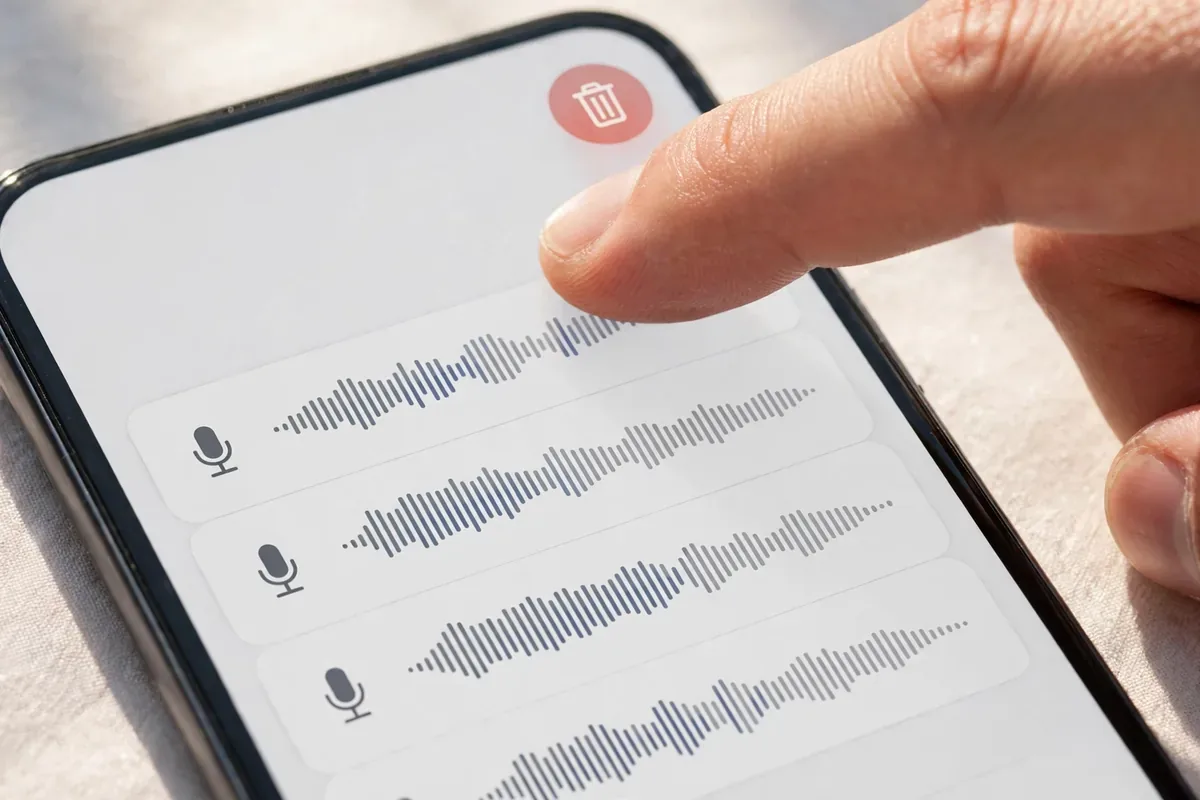
Deleting the past means little if collection continues:
- Go to Google Account, Data & privacy.
- Under History settings, tap Web & App Activity.
- Uncheck “Include voice and audio activity.”
- Going forward, Google stores transcripts of Assistant interactions (needed for functionality) but not the audio clips.
Note the tradeoff: disabling voice storage slightly reduces Google’s ability to personalize voice recognition to your voice, but Assistant keeps working normally.
Verify the Setting Stuck
Settings sometimes revert after major updates or when signing into new devices. After you delete Google Assistant recordings and disable future collection, verify monthly for a while:
- Revisit Data & privacy, Web & App Activity and confirm the voice toggle is still off.
- Check My Activity for any new Assistant audio entries.
- After buying a new phone or speaker, walk through the setup screens carefully: express setups sometimes re-enable data collection with a single “accept.”
Treat voice settings like smoke alarms: check them when you change the clocks.
What Deletion Does and Does Not Do
Deletion removes: the stored audio clips and activity entries from your account’s visible history and, over weeks, from Google’s active systems.
Deletion does not:
- Remove anonymized or aggregated data Google may have derived (improvement datasets are typically de-identified).
- Undo human review that may already have occurred (Google has used contractors to review anonymized clips; policies have tightened since reporting on this).
- Delete transcripts kept separately for service functionality unless you delete that activity too.
- Affect recordings stored by third parties (smart speaker makers, car systems) under their own policies.
Deletion is meaningful privacy hygiene, not a time machine. The best protection is preventing collection in the first place.
Which Deletion Method Should You Use?
Different goals call for different tools. Pick based on what you are trying to accomplish:
| Method | Best when | What it covers | Limitation |
|---|---|---|---|
| Voice command (“delete my last conversation”) | You want one recent clip gone, fast | The most recent interaction | Only the latest; confirm in My Activity |
| My Activity bulk delete | Cleaning up months or years of history | All Assistant audio in a date range | Transcripts in Web & App Activity may persist separately |
| Auto-delete (3 or 18 months) | You want ongoing hygiene without effort | Future accumulation expires automatically | Does nothing about the existing backlog |
| Voice & audio toggle OFF | You want collection to stop entirely | No new audio clips, ever | Assistant keeps working; transcripts still stored for functionality |
| “Hey Google” detection OFF | You rarely use voice commands | Nothing to record in the first place | Loses hands-free activation |
For a complete reset, combine them in order: bulk-delete the past, enable auto-delete, turn off the voice-and-audio toggle — and if you barely use voice commands, switch off “Hey Google” detection too.
Delete Google Assistant Recordings on Smart Speakers and Displays
Your phone is not the only device feeding Google’s voice storage. Nest speakers, smart displays, Android TV, and Wear OS watches all route through the same Assistant activity:
- Nest speakers/displays: recordings land in the same My Activity feed; the bulk-delete methods above cover them.
- Downtime and Digital Wellbeing filters do not affect recording storage; only the voice-and-audio toggle does.
- Guest Mode on Nest devices pauses personalization but check whether it pauses storage for your threat model.
- Third-party Assistant devices (headphones, cars, TVs from other makers): check the manufacturer’s privacy policy, since their handling may differ from Google’s.
If you are doing a full cleanup, delete Google Assistant recordings from My Activity after unplugging or auditing every Assistant device in the home, so nothing re-syncs old data back into view.
Voice Data and Children
If kids use Assistant on shared devices, their voice interactions are stored under the supervising account. Through Family Link, review and delete children’s Assistant activity separately, and consider enabling the stricter data protections Google offers for supervised accounts. Children’s voice data deserves the most conservative settings in the house.
Audit What Google Has: The Full Checkup
While you are in privacy mode, run the complete audit:
- My Activity: review Assistant, Search, and YouTube entries.
- Timeline: check location history and consider our guide on How to Delete Google Location History on Android.
- Ad settings: limit profiling with How to Turn Off Personalized Ads on Android 2026.
- Does Google listen? For the full picture of when your mic is actually active, read Does Google Listen to Your Conversations? The Truth 2026.
The Accidental-Trigger Problem
Many stored recordings are not deliberate commands at all. Assistant mishears similar-sounding phrases and starts recording, capturing background conversation. If your My Activity shows clusters of short, seemingly random clips, accidental triggers are the cause. Reduce them:
- Retrain Voice Match so Assistant recognizes only your voice accurately.
- Lower speaker sensitivity on Nest devices if they trigger constantly.
- Review the clips to confirm they are accidental, then delete them with the bulk methods above.
Fewer accidental triggers means fewer stray recordings to clean up later.
Official references: Assistant privacy controls at support.google.com and your data at myactivity.google.com.
FAQ
How do I delete Google Assistant recordings?
Go to myactivity.google.com, filter to Assistant activity, and delete by range or all time. You can also say “Hey Google, delete my last conversation” or set auto-delete to 3 or 18 months. For a complete purge, combine all three: bulk-delete the past, enable auto-delete for the future, and turn off the voice-and-audio storage toggle so new clips never accumulate.
Does Google keep my voice recordings forever?
By default, Web & App Activity (including Assistant) may be kept indefinitely unless you set auto-delete or turn off the “include voice and audio activity” option.
Can I stop Google from saving my voice?
Yes. In Google Account, Data & privacy, Web & App Activity, uncheck “Include voice and audio activity.” Assistant continues working; only audio clip storage stops.
Will deleting recordings break Google Assistant?
No. Assistant works normally without stored audio. Voice match and personalization may be marginally less tuned, but functionality is unaffected.
How long does Google take to fully delete my data?
Google states deletion from active systems is prompt, with residual copies in backup systems expiring within about two months.
Do deleted recordings really disappear?
From your account and Google’s active systems, yes. Anonymized data used for product improvement is de-identified and not tied back to you; that is standard across the industry.
Should I delete Google Assistant recordings regularly?
If you keep voice storage enabled, yes: schedule a quarterly cleanup or rely on auto-delete. Better still, disable the voice-and-audio toggle once and confirm it stays off; then there is nothing to clean. The users with the tidiest My Activity pages are not the ones who delete most often but the ones who stopped the collection at the source. Pair this habit with the same quarterly review for location history and ad personalization, and your Google account stays lean year-round with minimal effort.
Conclusion
To delete Google Assistant recordings, use My Activity for bulk deletion, voice commands for quick removal, auto-delete for the future, and the “voice and audio activity” toggle to stop new audio collection. Fifteen minutes of settings work ends years of silent accumulation.
Your voice is biometric data. Treating it as worth protecting is not paranoia; it is the correct default in 2026. Run through this guide once to delete Google Assistant recordings from the past, flip the toggles to protect the future, and put voice privacy on the same checklist as your passwords and lock screen. Small settings today prevent large regrets tomorrow.




What do you think?
Share your experience or ask a question. A useful conversation starts with you.
Join the discussion