How to Securely Wipe Your Android Before Selling It (2026)
Selling or trading in your Android phone? A simple factory reset is not always enough to protect your data. Photos, messages, login tokens, and even deleted files can sometimes be recovered from a wiped phone if you skip critical steps. To securely wipe Android before selling, you need to remove accounts, encrypt the storage, reset properly, and verify the result. This guide walks through how to securely wipe Android before selling in the right order so nothing of yours survives the transfer.
This guide gives you the complete checklist in the right order, explains why each step matters, and covers what to do for Samsung, Pixel, and other Android phones.
Secure Wipe FAQ
Does “Erase SD card” appear on every phone? The exact wording varies, but every manufacturer includes an SD-card wipe option in the reset flow. If you miss it, wipe the card separately on a computer — do not skip this.
What about dual-SIM phones? Remove both SIMs and delete all eSIM profiles. A forgotten eSIM with an active plan can keep receiving calls and texts after the sale.
Should I sign out of WhatsApp first? Yes — unlink linked devices (WhatsApp > Settings > Linked devices) and consider deleting the account if abandoning the number, so the new number owner does not inherit your profile.
Is encryption on by default? On virtually every phone sold since 2018, yes. Verify under Settings > Security > Encryption if you are unsure — an unencrypted older phone needs the overwrite pass.
What if I am trading in, not selling privately? Same checklist. Trade-in programs resell or refurbish the phone; your data deserves the same protection regardless of who gets the device next.
What a Factory Reset Leaves Behind
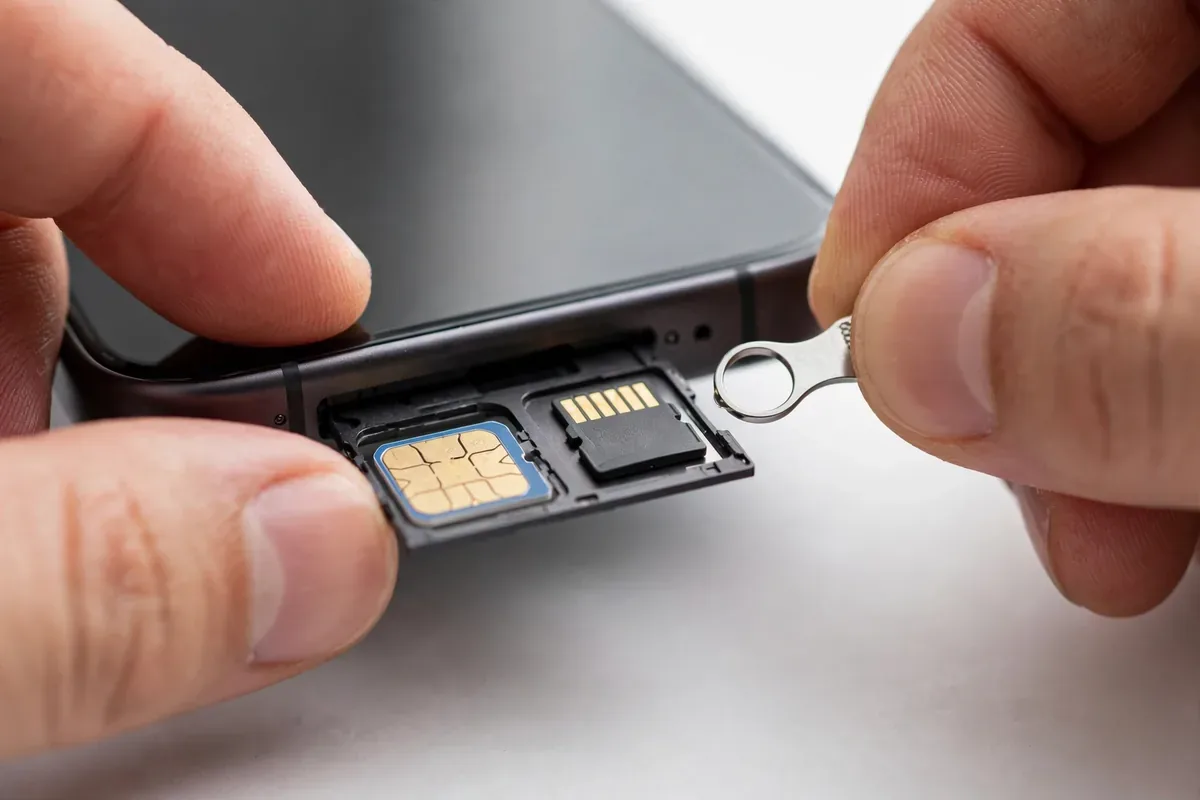
A standard factory reset wipes the user data partition, but three things routinely survive. First, the SD card: Android’s reset does not touch external storage unless you explicitly check “erase SD card” during the reset flow — pull the card and wipe it separately on a computer. Second, the SIM card and any eSIM profiles stay active; remove the physical SIM and delete eSIMs under Settings > Network & internet > SIMs before handing the phone over. Third, your Google account’s device registration: remove the phone at myaccount.google.com > Security > Your devices, or the buyer will hit Factory Reset Protection and you will get support emails.
For sensitive data, one reset is not enough on older phones. Devices without file-based encryption (roughly, Android 9 and older) can have deleted files carved from storage with forensic tools. The fix is free: after the reset, fill the storage completely with large video files, then reset again. This overwrites the old data blocks. Modern phones with file-based encryption (Android 10+) make this unnecessary — wiping the encryption keys during reset renders old data cryptographically unrecoverable.
The 10-Minute Pre-Sale Checklist
Work through this in order: 1) Back up photos and chats. 2) Remove your Google account (Settings > Passwords & accounts) — this disables Factory Reset Protection. 3) Remove screen lock. 4) Delete eSIM profiles and remove the SIM. 5) Encrypt the phone if not already (Settings > Security > Encryption — most modern phones are encrypted by default). 6) Factory reset with SD card erase checked. 7) Remove the device from your Google account online. Skip step 2 and the buyer cannot use the phone; skip step 7 and you keep getting security alerts for a phone you no longer own.
Why a Plain Factory Reset Is Not Enough
securely wipe android before selling illustration
Modern Android phones encrypt storage by default, which means a factory reset destroys the encryption keys and renders the data unreadable. In theory, that is sufficient. In practice, complications arise:
SD cards are often not encrypted and are not wiped by factory reset.
Accounts left signed in can let the buyer access your cloud data or trigger Factory Reset Protection headaches.
Older or misconfigured devices may not have encryption enabled.
Backups and linked devices retain your data even after the phone is clean.
The checklist below handles all of it.
Step 1: Back Up Everything Important
Before you wipe anything, preserve what matters:
Google backup: Settings, Google, Backup: ensure it is on and run a manual backup.
Photos and videos: confirm Google Photos has synced everything (check photos.google.com from a computer).
WhatsApp and messaging: run encrypted chat backups.
Authenticator apps: transfer or export codes; losing these locks you out of accounts.
Files: copy documents, downloads, and recordings to a computer or cloud storage.
Step 2: Remove Accounts and Disable Protection Locks
This step prevents both data leaks and buyer headaches:
Remove your Google account: Settings, Passwords & accounts (or Accounts), tap your Google account, Remove account. This disables Factory Reset Protection tied to your account.
Sign out of banking, email, and social apps individually for good measure.
Remove the device from Find My Device and your Google account’s device list.
Unpair Bluetooth devices and forget Wi-Fi networks (optional but tidy).
Skipping account removal is the number-one cause of “I bought a used phone and it’s locked to someone else’s account” problems.
Step 3: Encrypt the Phone (If Not Already)securely wipe android before selling illustration
Check Settings, Security, Encryption (or search “encrypt”). On Android 6+, encryption is on by default and cannot be turned off. If your device shows as encrypted, proceed. If not (rare on modern phones), enable encryption and wait for it to complete before resetting. Encryption ensures the factory reset destroys the keys, making residual data unrecoverable.
Step 4: Remove the SD Card (or Wipe It Too)
Factory reset does not wipe external SD cards reliably:
Best practice: remove the SD card and keep it or destroy it.
If selling with the card: format it in the phone first (Settings, Storage, SD card, Format), preferably after encrypting it as internal storage, then format again.
Do not leave a memory card full of photos in a phone you sell. This is one of the most common data-leak mistakes.
Step 5: Perform the Factory Reset
securely wipe android before selling illustration
Go to Settings, System, Reset options (on Samsung: Settings, General management, Reset).
Tap Erase all data (factory reset).
Confirm. The phone will wipe and reboot to the setup screen.
For extra assurance on older devices, some experts recommend filling the storage with large files (videos) after the first reset, then resetting again, to overwrite residual data. On modern encrypted phones this is unnecessary, but harmless.
Step 6: Verify the Wipe
After the reset completes:
Do not sign in. The phone should show the fresh setup wizard.
Check that no accounts remain by proceeding just far enough to see the sign-in screen, then power off.
Remove the SIM card (the buyer uses their own).
Clean the phone physically and include the original accessories if you have them.
If you are trading in by mail, photograph the phone’s condition and the reset screen for your records.
What About the Buyer Recovering Your Data?
On a modern encrypted Android phone wiped with accounts removed, data recovery is not practically feasible. The encryption keys are destroyed, and without them the storage is random noise. This is a major improvement over a decade ago, when unencrypted phones could yield recoverable data with free tools.
The residual risks are all in what the reset does not touch: the SD card (handled above), your cloud accounts (change passwords if you are cautious), and linked services (revoke the device’s access in Google, Samsung, and banking apps).
What About the Buyer Recovering Your Data?
On a modern encrypted Android phone wiped with accounts removed, data recovery is not practically feasible. The encryption keys are destroyed, and without them the storage is random noise. This is a major improvement over a decade ago, when unencrypted phones could yield recoverable data with free tools.
The residual risks are all in what the reset does not touch: the SD card (handled above), your cloud accounts (change passwords if you are cautious), and linked services (revoke the device’s access in Google, Samsung, and banking apps).
Securely Wipe Android Before Selling: Special Cases
Broken-screen phones. If the screen is dead, you may not be able to navigate the wipe menus. Options: use Find My Device’s remote erase from a computer (requires the phone to be online and signed in), connect to an external display via USB-C to HDMI on supported phones, or have a repair shop perform the wipe while you watch. Never sell a broken phone with data intact; the buyer could repair the screen and access everything.
Phones with custom ROMs. If you installed a custom ROM, the standard reset may behave differently. Reflash the stock firmware first if you want the buyer to have a normal experience, then run the standard wipe. At minimum, wipe data, cache, and internal storage from the custom recovery.
Company-owned phones. If the phone was enrolled in MDM, have IT release it before wiping. A personal wipe of a managed device can leave enrollment artifacts that brick the phone for the next user.
Giving the phone to family. The stakes are lower, but the checklist still applies: remove your accounts so the recipient is not entangled with your identity, and back up first. Family hand-me-downs are the most common source of “my kid can see my photos” surprises.
Recycling dead phones. If the phone does not power on at all, physical destruction of the storage is the only guarantee. For modern encrypted phones, an unbootable device with intact encryption is effectively safe, but if the data is extremely sensitive, professional destruction services exist.
Selling Checklist: Quick Reference
Step
Done?
Full backup verified
☐
Google and Samsung accounts removed
☐
Banking/social apps signed out
☐
Encryption confirmed on
☐
SD card removed or wiped
☐
Factory reset completed
☐
Setup wizard shows no accounts
☐
SIM card removed
☐
If You Are Trading In or Recycling
Carrier and manufacturer trade-in programs have the same requirements: accounts removed, reset completed. Some programs inspect the phone’s reset state on receipt and will return or devalue devices still tied to accounts. Recycling programs (like Google’s or Samsung’s) also require the wipe; a phone with your data is a liability for them too.
On modern encrypted Android phones, yes, effectively: the encryption keys are destroyed, making the data unrecoverable. Remove accounts and the SD card separately, as the reset does not fully handle those.
Should I remove my Google account before factory reset?
Yes, absolutely. Removing it disables Factory Reset Protection for the next owner and ensures your account is disassociated. Do this before resetting, not after.
Can someone recover photos after a factory reset?
On encrypted modern phones, no, not practically. On very old unencrypted devices, possibly with forensic tools. Encryption is the difference.
Do I need to wipe the SD card separately?
Yes. Remove it and keep it, or format it thoroughly. Factory reset does not reliably wipe external storage.
What if I forgot to remove my accounts before selling?
Contact the buyer if possible, or use Find My Device / your Google account’s device management to remotely wipe and remove the device. Change your Google password immediately.
Is it safe to sell a phone with banking apps installed?
Only after the full wipe checklist. Never sell a phone with accounts still signed in; a wipe without account removal still leaves FRP and potential token issues.
Conclusion
To securely wipe Android before selling is a twenty-minute checklist: back up, remove accounts, confirm encryption, handle the SD card, factory reset, and verify. Each step closes a specific gap that a bare reset leaves open.
Do it in order, do not skip the account removal, and your old phone becomes what it should be: a clean device with zero trace of your digital life.
Qamar Abbas is the founder and CEO of Qamar Digital Ventures LLC, a New Mexico-based web design and SEO agency. He writes hands-on, research-backed guides about Android apps, APK guides and mobile how-tos for a US audience, tested on real devices and updated regularly.





What do you think?
Share your experience or ask a question. A useful conversation starts with you.
Join the discussion