
Learning how to backup Android phone data the right way takes about fifteen minutes, and it is the single most important maintenance task on any device. Your phone holds photos, messages, contacts, documents, and app logins — losing it all to a broken screen, theft, or a failed update is a nightmare that is entirely preventable. When you backup Android phone content correctly, everything keeps running automatically in the background. This complete 2026 guide explains how to backup Android phone files with Google One (what is included and what is not), photos and WhatsApp backups, Samsung Cloud, local backup to a PC, what to verify before a factory reset, and how to restore everything on a new phone.

What Android Backs Up Automatically
Before diving into settings, it helps to understand the full picture. Android’s backup system is made of several pieces that work together:
- Google One / Google Drive backup — app data, call history, contacts, device settings, SMS messages (on Pixel and many others).
- Google Photos — photos and videos (separate toggle, separate storage).
- WhatsApp — chat history and media (its own backup to Google Drive).
- Samsung Cloud — an alternative/extra layer on Samsung phones.
- Manual/local backup — files, documents, and media copied to a computer or external drive.
No single toggle covers everything, which is why people get burned: they assume “backup is on” means their photos are safe, when photos need their own setting. Work through each section below and you’ll be fully covered.
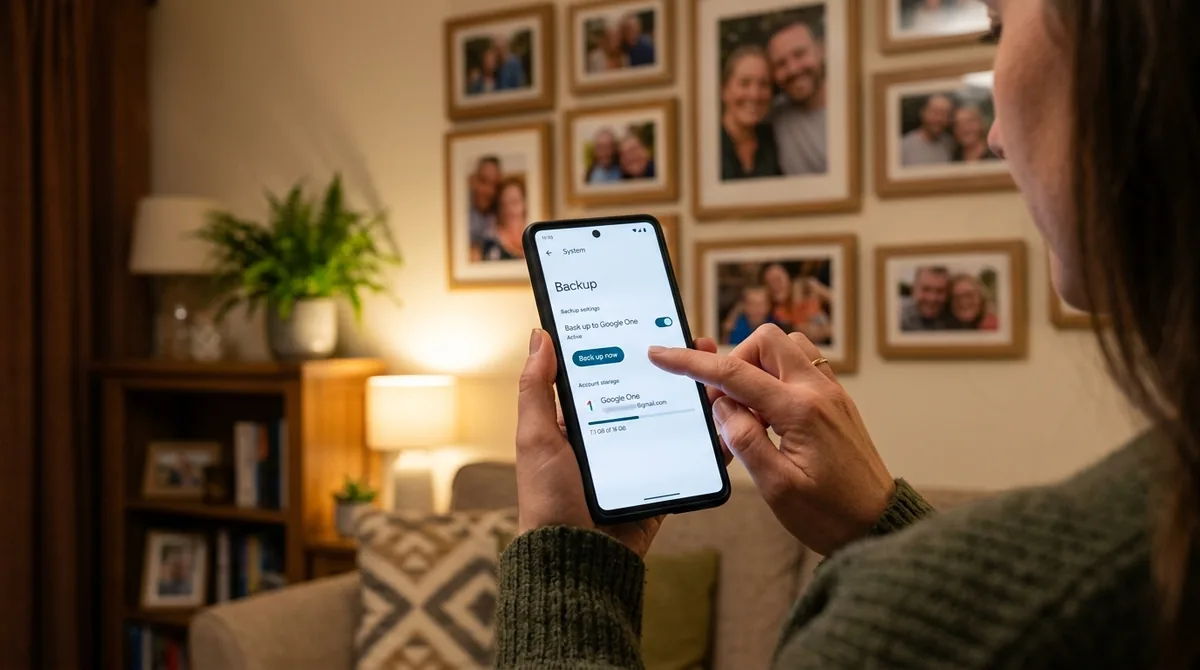
Step 1: Enable Google One Backup
Pro tip: after enabling backup, tap Back up now once and watch it complete — a backup Android phone owners trust is one they have seen succeed at least once. Screenshot the last-backup timestamp so you can compare it later; if a future backup Android phone check shows a stale date, you will catch the problem before it matters.
This is the foundation — the backup that restores your apps, settings, and messages on a new phone.
What’s included
- App data — settings and data for apps that support Android’s backup framework (most major apps do; some games and banking apps opt out for security).
- Call history — your recent calls list.
- Contacts — synced to your Google account.
- Device settings — Wi-Fi passwords, wallpaper, display and accessibility settings.
- SMS text messages — on Google Pixel phones and many others (some manufacturers handle this via their own backup instead).
How to turn it on
- Open Settings on your Android phone.
- Tap System > Backup (on Samsung: Settings > Accounts and backup > Back up data).
- Turn on Back up by Google One (wording varies: “Backup to Google Drive” on older versions).
- Make sure the correct Google account is selected.
- Tap Back up now to run the first backup immediately.
Storage and pricing
Google One backups count against your Google account storage. Every Google account includes 15 GB free, shared across Gmail, Google Drive, and Google Photos. If your backup exceeds that, Google offers paid Google One plans with more storage — prices and tiers change over time, so check Google One’s official site for current plans. Most people with moderate photo libraries fit comfortably in the free tier if photos are set to “Storage saver” quality (see below).
Verify the backup actually ran: go back to Settings > System > Backup and check the “last backup” timestamp. A backup that’s “enabled” but hasn’t run in weeks isn’t protecting you.
Step 2: Back Up Photos and Videos with Google Photos
Photos are the most irreplaceable thing on your phone — and they’re not included in the Google One device backup. They need Google Photos backup enabled separately.
- Open the Google Photos app.
- Tap your profile picture, then Photos settings > Backup.
- Turn on Back up this device.
- Choose Backup quality:
- Storage saver — slightly compressed photos (still excellent quality for viewing and printing at normal sizes), uses less of your storage quota. The right choice for most people.
- Original quality — full-resolution files, uses more quota. Choose this if you’re a photographer or print large.
- Under Mobile data usage, set backup to Wi-Fi only if you have a limited data plan.
- Wait for “Backup complete” — the first backup of a large library can take hours or even days; leave the phone on Wi-Fi and charging overnight.
Confirm your photos are actually safe
Don’t just trust the toggle. Open photos.google.com on a computer, sign in, and scroll through — if your photos are there, the backup is real. This two-minute check is the difference between assuming and knowing.
For related help managing photo storage, see our storage cleanup guide for keeping photos while freeing space.
Step 3: Back Up WhatsApp Chats
WhatsApp keeps its own backup, separate from everything above. If you use WhatsApp daily, this is essential — chat history doesn’t come back without it.
- Open WhatsApp and tap the three-dot menu, then Settings.
- Go to Chats > Chat backup.
- Under Google account, select the account to back up to (use the same one as your phone backup).
- Choose backup frequency: Daily is safest; Weekly is fine for light users.
- Decide whether to include videos — videos balloon backup size dramatically; many people leave them off.
- Choose Back up over: Wi-Fi (recommended) or Wi-Fi/cellular.
- Tap Back up to run one now.
Note the backup size shown on this screen — if it’s several gigabytes and your Google storage is nearly full, consider excluding videos or upgrading storage. WhatsApp backups are tied to your phone number and Google account; both must match when restoring.
Step 4: Samsung Cloud (Samsung Phones)
Samsung phones offer Samsung Cloud as an additional backup layer alongside Google’s. It can back up things Google’s backup sometimes misses on Galaxy devices, including certain Samsung app data, home screen layout, and (on some models) more complete message history.
- Go to Settings > Accounts and backup > Samsung Cloud.
- Sign in with your Samsung account (create one if needed).
- Tap Back up data, select the categories you want, and tap Back up now.
- Consider enabling Auto back up for continuous protection.
Samsung Cloud includes a modest amount of free storage; check Samsung’s official site for current limits. Running both Google and Samsung backups is redundant in the best way — if one restore misses something, the other often catches it.
Step 5: Local Backup to a PC (Belt and Suspenders)
Cloud backups are convenient, but a local copy on your computer protects you against account lockouts and gives you full-resolution originals with no storage-quota math. Do this a few times a year, or before any major change.
Copy photos, videos, and documents via USB
- Connect your phone to your computer with a USB cable.
- On the phone, tap the USB notification and select File transfer / MTP.
- On the computer, open the phone’s storage and copy the DCIM (camera photos/videos), Download, and Documents folders to a folder on your computer or an external drive.
What a local backup covers (and doesn’t)
- Covers: all your files, photos, videos, downloads, and documents at full original quality.
- Doesn’t cover: app data, settings, SMS history, or WhatsApp chats — those live in the cloud backups above.
Label the backup folder with the date (e.g., “Phone backup 2026-10”) so you know how fresh it is. An external hard drive or a second copy in cloud storage makes this a true 3-2-1 backup: three copies, two media types, one offsite.
What to Check Before a Factory Reset
Factory resets are the moment backups matter most — and the moment people discover gaps. Run through this checklist before you tap “Erase all data”:
| Check | How to verify | Why it matters |
|---|---|---|
| Google One backup is current | Settings > System > Backup — check the timestamp | Restores apps, settings, call history |
| Google Photos backup complete | photos.google.com on a computer — spot-check recent photos | Photos aren’t in the device backup |
| WhatsApp backup ran | WhatsApp > Settings > Chats > Chat backup — check date | Chat history is separate from everything else |
| Authenticator codes transferred | Open your authenticator app’s export/transfer feature | Losing these can lock you out of accounts |
| Local files copied | Check your PC backup folder for DCIM, Downloads, Documents | Anything not in cloud or local copy is gone |
| You know your Google account password | Sign in on another device to confirm | You’ll need it to restore the new setup |
| Photos of important documents | Confirm IDs, receipts, etc. are in Google Photos or Drive | Easy to forget loose document photos |
Also: if you’re selling or giving away the phone, remove your Google account first (Settings > Passwords & accounts, tap the Google account, Remove account) before the factory reset. This disables Factory Reset Protection, which would otherwise lock the next owner out — or lock you out if you forget which account was on the phone.
Restoring on a New Phone

When you sign in to a new (or reset) Android phone with the same Google account, restoration is largely automatic:
- During setup, connect to Wi-Fi and sign in to your Google account.
- When asked to copy apps and data, choose restore from your old device’s backup (cloud backup option).
- Select the most recent backup. Your apps will reinstall, and settings, contacts, call history, and messages restore.
- Open Google Photos and confirm your library is syncing.
- Install WhatsApp, verify your number, and tap Restore when it detects your Google Drive backup.
- Sign in to banking apps, password managers, and authenticator apps manually — these intentionally don’t restore automatically for security.
Full restoration takes time: apps download in the background, and photo thumbnails populate over several hours on Wi-Fi. Give it a night before judging whether anything is missing. If you’re moving from an iPhone specifically, our iPhone to Android transfer guide covers the platform-switch details.
How to Backup Android Phone Data on a Schedule
Once configured, Android backups run automatically — but “automatically” still deserves an occasional glance:
- Google One backup: runs automatically when the phone is charging, idle, and on Wi-Fi. Check the timestamp monthly.
- Google Photos: continuous once enabled. Glance at the backup status weekly if you take lots of photos.
- WhatsApp: daily or weekly per your setting. Confirm after any phone change.
- Local PC copy: manual — do it quarterly, and always before a reset, repair, or sale.
- Before travel: run manual backups of everything. Losing a phone abroad with no backup is the worst-case scenario.
Common Backup Mistakes to Avoid
- Assuming “backup is on” covers photos. It doesn’t — Google Photos backup is a separate toggle. This is the #1 cause of lost photos.
- Backing up to a Google account you can’t access. If the backup goes to an old account whose password you’ve forgotten, it’s useless. Use your primary account.
- Ignoring the storage-full warning. When Google storage fills up, backups silently stop. Keep an eye on your quota at one.google.com.
- Forgetting authenticator apps. Google Authenticator and similar apps need their own transfer step — they don’t ride along with the device backup.
- Not testing restores. A backup you’ve never verified is a hope, not a plan. The photos.google.com check takes two minutes.
- Wiping the old phone too soon. Keep the old device (or its backup) until the new phone is fully verified — contacts, photos, chats, logins, all of it.
One detail many guides skip: a proper backup Android phone routine must be verified, not just switched on. Open Settings > Google > Backup once a month and confirm the last-backup timestamp is recent — a backup Android phone setup with a stale timestamp is the same as no backup at all. If you use two Google accounts, make sure the backup is tied to the account you will sign in with on your next phone.
Google documents the current backup options and storage limits in the official Android Help Center, which is worth bookmarking because backup behavior changes with new Android releases. Pair that reference with the steps above, and your backup Android phone plan will survive lost phones, broken screens, and botched updates alike.
Frequently Asked Questions — How To Backup Android Phone
Does Google backup include my text messages?
On Google Pixel phones and many other Android devices, yes — SMS messages are part of the Google One device backup. Some manufacturers (notably Samsung) handle messages through their own backup system instead. Check your messaging app after a restore; if texts are missing, your manufacturer’s cloud backup (e.g., Samsung Cloud) is the place to look.
How much Google storage do I need for a full backup?
It varies widely: a light user might need 2–5 GB, while someone with years of photos and videos could need 50 GB or more. Every account starts with 15 GB free shared across Gmail, Drive, and Photos. Using “Storage saver” quality in Google Photos and excluding videos from WhatsApp backup keeps most people within the free tier. Check your usage at one.google.com.
Will a backup restore my apps exactly as they were?
Mostly. Apps reinstall automatically and many restore their data and logins, but banking apps, password managers, and authenticator apps intentionally require fresh sign-in for security. Home screen layout restores on Pixel phones and Samsung devices (via Samsung Cloud), though widgets sometimes need re-adding.
Can I back up my Android phone without a Google account?
Partially. You can copy all files, photos, and documents to a PC via USB without any account, and Samsung users can use Samsung Cloud. But the automatic app-data and settings backup requires a Google account — there’s no built-in alternative. For a full safety net, a Google account is effectively required.
How do I back up before selling my phone?
Run through the pre-reset checklist above: confirm Google One, Google Photos, and WhatsApp backups are current; copy files to a PC; transfer authenticator codes; then remove your Google account (to disable Factory Reset Protection) and do the factory reset via Settings > System > Reset options > Erase all data. Keep your cloud backups — they’ll restore onto your next phone.
Is Samsung Cloud better than Google backup?
Neither is strictly better — they cover slightly different things. Google’s backup is universal and restores to any Android phone; Samsung Cloud captures more Samsung-specific data (home screen layout, Samsung app data, Secure Folder contents on some models) but only restores to Samsung phones. On a Galaxy device, run both.
How often should I backup Android phone data?
Daily automatic backups over Wi-Fi are the default and are enough for most people. Manually check that Google Photos is syncing if your pictures matter to you, and always backup Android phone data right before a system update or factory reset. A ten-second monthly glance at your backup timestamp catches silent failures early.
Does a backup Android phone plan cover my apps too?
Yes — when you backup Android phone content with Google One, your apps reinstall automatically on the new device and supported apps restore their data. Some games and banking apps opt out of cloud backup for security, so export anything critical inside those apps before switching phones.
Keep reading: a solid backup Android phone routine pairs well with these guides: How to Transfer Data From iPhone to Android: The Complete Guide, How to Free Up Storage Space on Android (Keep Your Photos), and How to Recover Deleted Photos on Android.
Conclusion — How To Backup Android Phone
Backing up your Android phone in 2026 comes down to four layers: Google One backup for apps and settings, Google Photos for your irreplaceable pictures and videos, WhatsApp’s own backup for chats, and an occasional local copy on your PC for full-resolution originals. Set all four up once, glance at them occasionally, and run the pre-reset checklist before any factory reset. Fifteen minutes of setup today is the difference between a minor inconvenience and a catastrophe the next time a phone is lost, broken, or traded in.
New phone on the way? Pair this guide with our iPhone to Android transfer guide or our storage cleanup guide to arrive organized — and if notifications misbehave on the new device, our notification troubleshooting guide has you covered.




What do you think?
Share your experience or ask a question. A useful conversation starts with you.
Join the discussion