

You can free up storage space Android phones desperately need without deleting a single precious photo. The storage-full warning almost never means your memories are the problem — it is cached junk, forgotten downloads, WhatsApp media duplicates, and apps you opened once in 2023. This 2026 guide shows you how to free up storage space Android devices waste: auditing what is actually full, clearing caches safely, using Files by Google, offloading photos to the cloud, taming WhatsApp, and moving files to SD — plus what never to delete, and the habits that keep storage healthy so you only free up storage space Android clutters once.
Whether your phone is warning you that storage is full, your camera refuses to save new photos, or apps are crashing for no obvious reason, the fixes below will help. We’ll start by finding out exactly what’s eating your space, then clear it category by category — safely, reversibly, and without losing anything important.

Step 1: Check What’s Actually Using Your Storage
Pro tip: screenshot your storage breakdown before cleaning — it is satisfying to compare after. Most people who free up storage space Android guides help reclaim 5–15 GB in twenty minutes, and repeating the free up storage space Android audit every few months keeps the warning away for good — set a quarterly reminder to free up storage space Android clutter again.
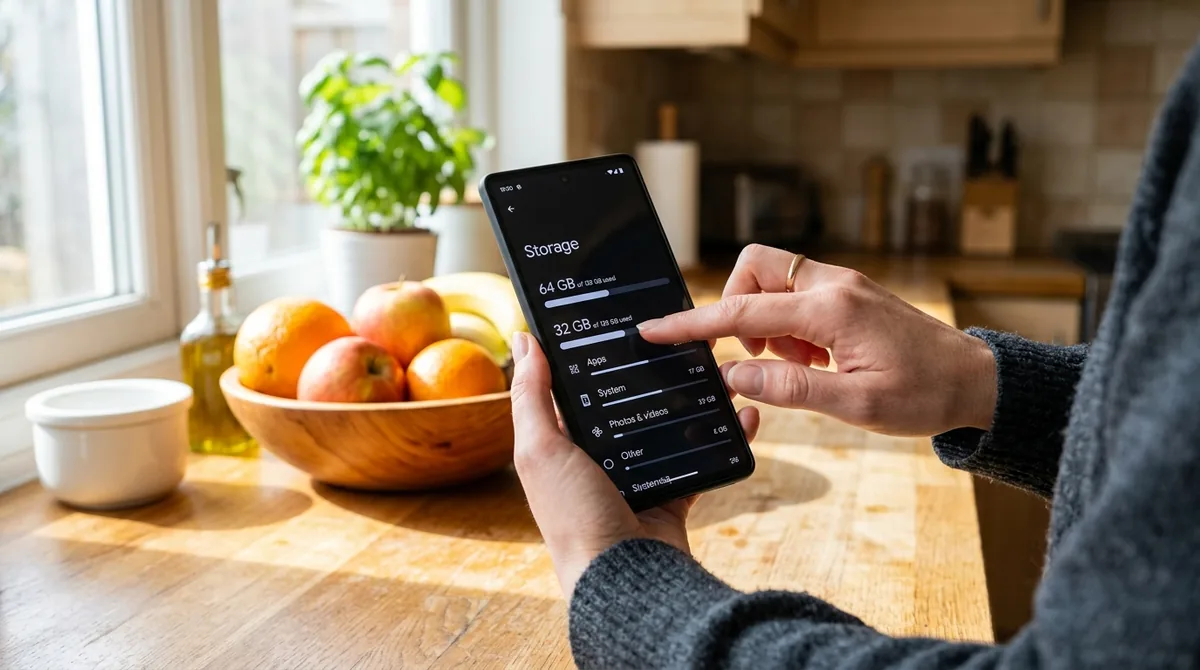
Before deleting anything, look at the breakdown. Android’s storage manager shows exactly where your gigabytes are going, which keeps you from guessing — and from deleting the wrong things.
- Open Settings on your Android phone.
- Tap Storage (on Samsung phones: Settings > Battery and device care > Storage).
- Wait a few seconds for the categories to load: Images, Videos, Audio, Documents, Apps, System, and Cached data.
- Tap any category to see which apps or files are using the most space.
On most phones you’ll find a similar story: photos and videos take the biggest share, followed by apps (especially games and social media apps with large caches), then downloads and messaging app media. Knowing this breakdown tells you where to focus. If apps are the problem, head to the app-clearing section; if it’s photos and videos, the Google Photos free-up trick is your fastest win.
Quick tip: Many Android phones also offer a “Free up space” shortcut right on this screen or inside the Files app. It’s worth running through the suggestions there first — they’re designed to remove only safe-to-delete items.
Step 2: Clear Cached and Temporary Files
Apps store temporary files — thumbnails, previews, offline snippets — so they load faster. Over time, caches can balloon to several gigabytes, especially in social media and browser apps. Clearing them is safe: it doesn’t delete your logins, settings, or saved content, and apps simply rebuild what they need.
Clear cache for individual apps
- Go to Settings > Apps (or Settings > Applications).
- Tap the app that’s using a lot of space — social media apps, browsers, and shopping apps are the usual suspects.
- Tap Storage & cache.
- Tap Clear cache. Do NOT tap Clear storage / Clear data unless you want to wipe the app’s logins and settings.
Clear cache for all apps at once
Some phones let you wipe all app caches in one go. In Settings > Storage, look for Cached data and tap it — older Android versions will offer to clear everything. On newer Android versions (11 and later), this option was removed, so the Files by Google app or the per-app method is your best route.
If you’d like a deeper explanation of what app cache is and when clearing it actually helps, see our guide on how to clear app cache on Android. Related: how to stop apps running in the background can also reduce background data buildup.
Step 3: Use Files by Google to Find Junk Automatically
Google’s free Files by Google app (available on the Google Play Store) is the single most effective storage-cleanup tool for Android. Its Clean tab scans your phone and groups safe-to-delete items: junk files, duplicate photos, large files, old downloads, unused apps, and memes or screenshots you probably don’t need.
- Install Files by Google from the Google Play Store if it’s not already on your phone.
- Open the app and tap the Clean tab at the bottom.
- Review each suggestion card — the app shows exactly how much space each one will free.
- Tap Select files on a card, uncheck anything you want to keep, then tap Delete (or Move to trash).
The “duplicate files” and “large files” cards are especially valuable — a few forgotten videos often account for several gigabytes. Deleted files go to the trash for 30 days, so you have a safety net if you remove something by mistake.
Step 4: Free Up Space Without Deleting Photos (Google Photos)
This is the big one for most people. Photos and videos are usually the largest storage category, but you don’t have to delete them — you can back them up to the cloud and remove the local copies.
Back up your photos first
- Open the Google Photos app.
- Tap your profile picture and select Photos settings > Backup.
- Turn on Back up this device (upload to your Google account).
- Choose a backup quality: Storage saver (slightly compressed, unlimited within your Google storage quota) or Original quality (full resolution, uses more of your quota).
- Wait for the backup to complete — look for the message “Backup complete” at the top of the app. This can take a while on large libraries, so do it on Wi-Fi.
Remove local copies with “Free up space”
- In Google Photos, tap your profile picture.
- Select Free up space.
- The app shows how many items are already backed up and how much space will be recovered.
- Tap Free up to confirm.
This deletes only the copies already safely backed up — your photos remain in Google Photos and are accessible on any device. It’s common to recover 5–20 GB in one step. Just double-check that backup is truly complete before confirming; the app only offers the option once everything is synced.
Step 5: Clean Up WhatsApp Media
WhatsApp silently stores every photo, video, voice note, and document you send and receive — often duplicated in your gallery. Group chats alone can add several gigabytes a year. Here’s how to trim it without losing your chats.
Stop the auto-download flood
- Open WhatsApp and tap the three dots menu, then Settings.
- Go to Storage and data.
- Under Media auto-download, set When using mobile data and When connected on Wi-Fi to only the file types you want — or uncheck everything except what matters to you.
- Also turn off Media visibility under Settings > Chats if you don’t want every received photo saved to your gallery.
Review and delete heavy chats
- In WhatsApp, go to Settings > Storage and data > Manage storage.
- You’ll see a list of chats ranked by how much space they use, plus a section of files larger than 5 MB.
- Tap a chat to preview its media, select items you don’t need, and delete them. Your messages stay intact.
Back up WhatsApp before cleaning
Before deleting large amounts of media, make sure your chat backup is current: Settings > Chats > Chat backup, then tap Back up to Google Drive. This protects your message history and any media you choose to include in the backup.
Step 6: Empty the Downloads Folder and Delete Old Files
The Downloads folder is a graveyard of PDFs, installation files, memes, and documents you opened once and forgot. It’s worth a manual sweep.
- Open Files by Google (or your phone’s built-in file manager).
- Go to Browse > Downloads.
- Sort by size or date to spot the biggest offenders first.
- Select files you no longer need and delete them. When in doubt, move them to the trash rather than permanent deletion.
While you’re in the file manager, check the Documents folder too — old office files, scanned PDFs, and exported documents accumulate there quietly.
Step 7: Offload or Uninstall Unused Apps
Unused apps don’t just occupy space with their installation files — they also accumulate cache, offline data, and background updates. A game you haven’t opened in six months can easily hold a gigabyte or more.
Find the apps you never use
- Go to Settings > Apps.
- Sort by size (tap the sort icon or look for a “size” filter).
- For any app you haven’t used in months, tap it and choose Uninstall.
In the Google Play Store, you can also go to Profile > Manage apps & device > Manage and sort by Least used to find forgotten apps quickly.
Offload instead of uninstalling (Android 14+)
Newer Android versions offer app archiving — a middle ground between keeping and deleting. Archived apps have their code removed (freeing most of their space) while keeping your data and home-screen icon, so reinstalling is one tap.
- Open the Google Play Store and tap your profile picture.
- Go to Manage apps & device > Manage.
- Select an app you rarely use and tap Archive (or enable automatic archiving under Play Store settings: Settings > General > Automatically archive apps).
Step 8: Move Files to an SD Card (If Your Phone Has One)
If your phone has a microSD card slot, you can move photos, videos, music, and documents to the card, freeing internal storage where apps need it most.
- Open Files by Google or your file manager.
- Select photos, videos, or other large files.
- Tap Move to and choose your SD card.
You can also set the camera app to save new photos directly to the SD card (check the camera’s settings menu). Note that apps themselves generally can’t run from an SD card on modern Android — this trick is for media and documents only. And use a quality card (Class 10 / UHS-I or better) from a reputable brand; cheap cards are slow and can corrupt files.
Step 9: Use Cloud Storage for Documents and Media
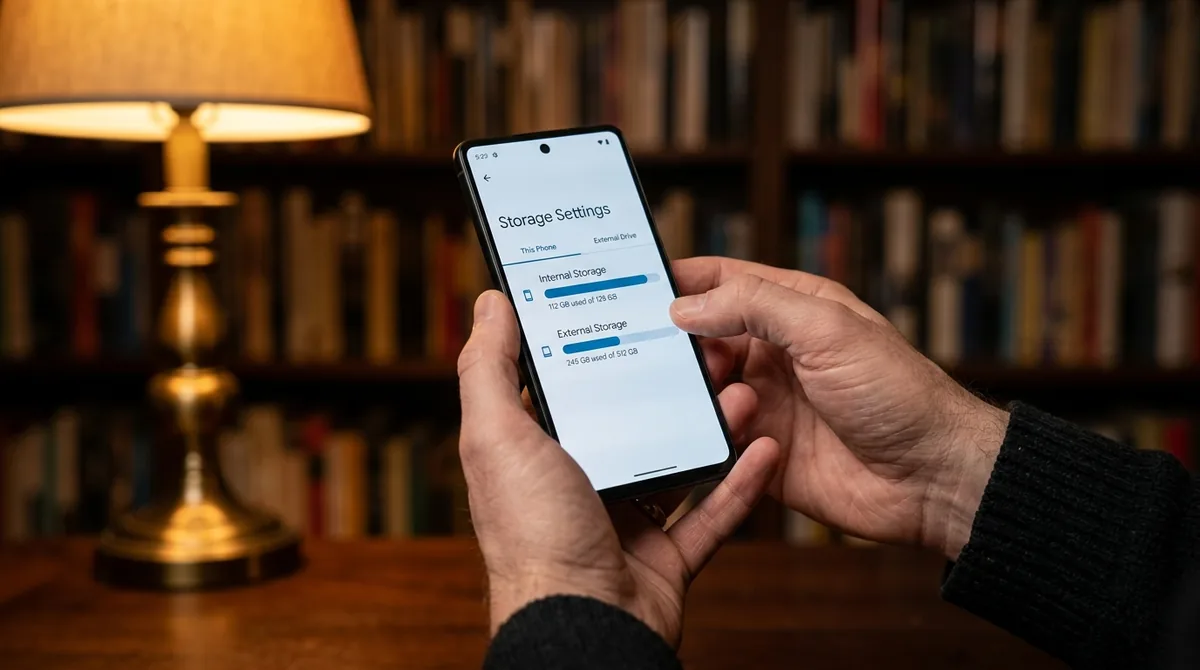
For files you need to keep but rarely open on the phone — old documents, project files, video archives — cloud storage is cheaper than buying a new phone.
| Service | Free tier | Best for |
|---|---|---|
| Google Drive | 15 GB (shared with Gmail and Photos) | Documents, PDFs, general files |
| Google Photos | Shares Google account storage | Photos and videos backup |
| OneDrive | 5 GB | Microsoft Office users |
| Dropbox | 2 GB | Simple file sync |
Once files are uploaded, delete the local copies. Keep the cloud app installed so you can access them anytime with an internet connection. Prices for paid plans change over time, so check each provider’s official site for current storage tiers and pricing.
What NOT to Delete
Storage cleanup is safe when you know the danger zones. Never delete:
- System files or the “System” category in storage settings — Android needs these; removing them can break updates or boot.
- Files you don’t recognize in the Android/data or Android/obb folders — these belong to apps and games.
- Your only copy of photos or videos — confirm the cloud backup is complete before using “Free up space.”
- App data (not cache) for apps where it matters — clearing Clear storage / Clear data logs you out and wipes saved content like offline playlists or game progress.
- Files with a third-party “cleaner” app that demands excessive permissions — many cleaner apps are adware or collect data. Stick with Files by Google or your manufacturer’s built-in tools.
Free Up Storage Space Android: Keep It Under Control
Freeing space once is good; staying free is better. A few habits prevent the storage-full warning from coming back:
- Keep Google Photos backup on and run “Free up space” every month or two.
- Review downloads monthly — a two-minute sweep prevents the folder from ballooning.
- Audit apps quarterly using the Play Store’s “Least used” sort.
- Limit WhatsApp auto-download as described above — group chats are the biggest repeat offender.
- Stream instead of saving — use Spotify/YouTube downloads sparingly; offline media is one of the fastest ways to fill a phone.
- Restart your phone weekly — it clears temporary system files and can resolve sluggishness too (see our guide if your apps keep crashing).
One warning: never free up storage space Android system files occupy. Cleaner apps that promise to delete system junk or hidden cache often remove files your apps need, causing crashes worse than the storage warning. To free up storage space Android devices offer safely, stick to the built-in storage manager and Files by Google — both only suggest files that are genuinely safe to remove.
Google’s Android Help Center documents the current storage-management screens, which move around between Android versions. If a setting here looks different on your phone, check there — then continue to free up storage space Android clutter with confidence.
Frequently Asked Questions — How To Free Up Storage Space On Android
Why is my storage full even after deleting apps?
Because apps are only part of the picture. On most phones, photos, videos, and messaging-app media (especially WhatsApp) take far more space than the apps themselves. Check Settings > Storage for the breakdown, then use Google Photos “Free up space” and WhatsApp’s Manage storage screen — those two steps usually recover more than uninstalling a dozen apps.
Will clearing cache delete my photos or logins?
No. Clearing cache removes only temporary files like thumbnails and previews. Your photos, messages, accounts, and settings stay untouched. The option you want to avoid is “Clear storage” or “Clear data,” which resets the app as if freshly installed.
Is it safe to use “Free up space” in Google Photos?
Yes, as long as the backup is complete. The option only appears for photos and videos already uploaded to your Google account. The app tells you exactly how many items and how much space are involved before you confirm. If you’re unsure, open Google Photos on a computer first and verify your photos are there.
How much free space should I keep on my Android phone?
Aim to keep at least 10–15% of total storage free (roughly 6–10 GB on a 64 GB phone). Android needs breathing room for system updates, app updates, and temporary files. Phones that stay nearly full tend to slow down, and you’ll start seeing “storage full” errors during camera use and app updates.
Can I move apps to my SD card?
On modern Android versions, generally no — Google removed the “adoptable storage / move to SD” feature for most apps years ago. You can move photos, videos, music, and documents to an SD card, but apps must stay on internal storage. That’s why uninstalling unused apps and archiving them (Android 14+) matters.
My phone has no SD card slot. What are my options?
Cloud storage is the answer: Google Photos for media, Google Drive for documents. Combined with regular cache clearing, unused-app removal, and WhatsApp media management, most people can keep a 128 GB phone comfortable indefinitely without an SD card. If you consistently run out despite all this, your next phone should have more base storage — 128 GB is the practical minimum in 2026.
How can I free up storage space Android photos consume?
Use Google Photos’ Free up space button — it removes device copies already backed up, often reclaiming gigabytes instantly. That one tap lets you free up storage space Android galleries hog without losing a single memory, since originals stay in the cloud.
Is it safe to free up storage space Android cache files use?
Yes — cached data rebuilds itself as you use apps. Clearing cache is the safest way to free up storage space Android devices waste; just avoid clear data or clear storage, which wipes logins and settings along with the junk.
Keep reading: storage freedom continues: How to Clear App Cache on Android (Without Losing Data), How to Stop Apps Running in Background on Android, and How to Back Up Your Android Phone: The Complete 2026 Guide — back up first, then free up storage space Android junk occupies fearlessly.
Conclusion — How To Free Up Storage Space On Android
Learning how to free up storage space on Android comes down to a simple routine: check the breakdown, clear caches with Files by Google, back up photos and use “Free up space,” tame WhatsApp media, sweep downloads, and remove apps you never open. Done once, these steps can recover tens of gigabytes — and done occasionally, they keep the “storage full” warning away for good. Your photos stay safe in the cloud, your apps keep working, and your phone gets the breathing room it needs to run smoothly.
Still having problems? A full phone can cause other symptoms too — check our guide on push notifications not working.




What do you think?
Share your experience or ask a question. A useful conversation starts with you.
Join the discussion