

Split screen Android multitasking lets you run two apps side by side on one display — no app-switching, no lost context. Whether you want to take notes while watching a lecture, compare prices across two stores, or reply to messages without pausing a video, learning split screen Android mode takes less than a minute and pays off every single day. This 2026 guide shows you how to use split screen Android on Pixel and stock Android, Samsung One UI, and other manufacturers, plus app-pair ideas, pop-up view, picture-in-picture, and fixes for when the option goes missing.

What Split Screen Is (and Isn’t)
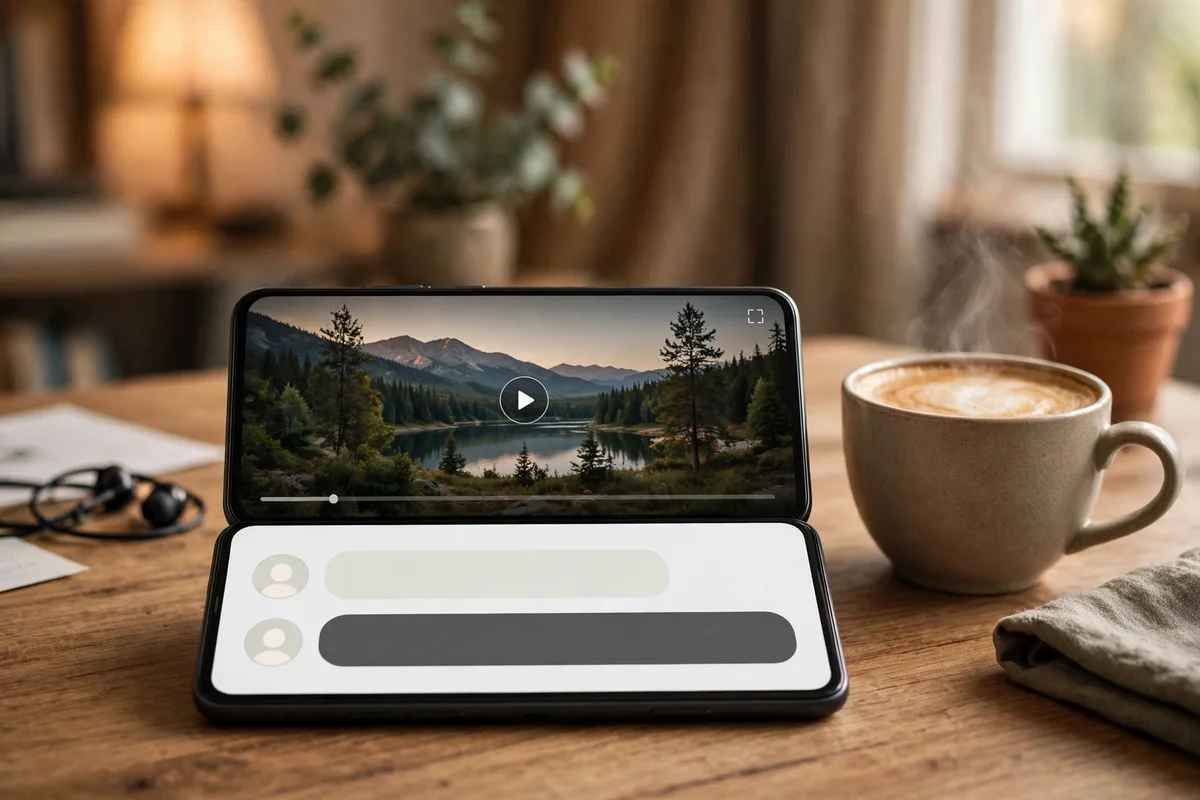
Split screen — officially called multi-window mode — divides your display between two running apps. In portrait orientation the apps stack top and bottom; rotate to landscape and they sit side by side. You can drag the divider to give one app more space, tap either app to interact with it, and both apps stay live: a video keeps playing in one half while you take notes in the other.
A few things to understand up front:
- Both apps remain interactive. Unlike picture-in-picture (a floating mini-player), split screen gives each app a full usable interface — you can scroll, type, and tap in either half.
- Not every app supports it. Most mainstream apps do, but some — particularly certain games, banking apps, DRM-heavy video apps, and camera apps — opt out or behave oddly. We cover workarounds below.
- Performance impact is modest on modern phones, but running two demanding apps (say, a game plus video) can heat up older devices and drain battery faster. If your phone feels sluggish while multitasking, our guide to stopping apps running in the background helps you reclaim headroom.
- Split screen is different from pop-up view (floating window), which Samsung and some other manufacturers offer as a separate feature — covered in its own section below.
How to Use Split Screen on Stock Android (Pixel, Motorola, Nokia)
Pro tip: on Pixel phones, swipe up to the recent-apps view and tap any app icon — the Split top option is the fastest path into split screen Android mode. Once you use split screen Android daily, pin your two most-used apps as an app pair (Samsung) or home-screen shortcut so the combo is always one tap away.
On phones running stock or near-stock Android (Google Pixel, Motorola, Nokia, and most unlocked devices), the gesture-based method is the standard:
- Open the first app you want in split screen.
- Open the Recents view: swipe up from the bottom edge and hold (gesture navigation), or tap the Recents/overview button (three-button navigation).
- Tap the app icon at the top of the first app’s preview card (not the card itself — the small icon above it).
- Select Split screen (on some versions it appears as Split top).
- The first app snaps to the top half. Now tap the second app — either from the Recents list or by tapping its icon on the home screen or app drawer.
- Both apps are now live. Drag the divider between them to resize, tap either app to interact with it, and double-tap the divider (on some versions) to swap the apps’ positions.
To exit split screen: drag the divider all the way to the top or bottom edge of the screen. The app you dragged toward fills the screen and the other closes (it remains in Recents).
Quick-launch tip: On Pixels, you can also long-press an app icon on the home screen, tap Split screen from the shortcut menu if offered, then pick the second app. Availability of this shortcut varies by Android version.
These system gestures are part of a broader set of capabilities most users never discover — our roundup of hidden Android features covers more of them.
How to Use Split Screen on Samsung (One UI)

Samsung’s One UI offers the richest multitasking toolkit on Android, with several ways to enter split screen plus exclusive extras like saved app pairs. The core method:
- Open the first app.
- Open Recents (swipe up and hold, or tap the Recents button).
- Tap the app icon at the top of the app’s preview card.
- Select Open in split screen view.
- Choose the second app from the app list that appears.
Samsung-exclusive extras:
- Edge Panel app pairs: Open the Edge Panel (swipe in from the edge handle), and under the Apps panel you can launch pre-configured app pairs directly into split screen.
- Save app pairs: With two apps in split screen, tap the divider, then tap the star/favorite icon (or the app-pair icon) to save the combination. Launch it anytime from the Edge Panel or Recents — perfect for routines like “Maps + Spotify” or “Chrome + Notes.”
- Drag and drop between apps: In split screen, you can drag text and images from one app to the other (for example, dragging a photo from Gallery into a messaging app). Long-press the content, drag it across the divider, and drop it.
- Swipe for split screen (gesture): On some One UI versions, Settings > Advanced features > Multi window offers a “Swipe for split screen” toggle — swipe up from the bottom with two fingers to instantly split the current app.
- Multi window tray: The same Advanced features menu lets you enable a tray for quick app-pair launching.
To exit: drag the divider to the top or bottom edge, or tap the divider and hit the X on the app you want to close.
Split Screen on Other Manufacturers
OnePlus / OPPO / Realme (OxygenOS / ColorOS): Open Recents, tap the three-dot menu (or the app icon) on the app card, and choose Split screen. Many versions also support a three-finger swipe-up gesture to enter split screen — enable it under Settings > Special features or Settings > Accessibility > Split screen depending on version.
Xiaomi / Redmi / POCO (MIUI / HyperOS): Open Recents, long-press the app preview (or tap the icon/menu on the card), and select Split screen. Alternatively, enable the split-screen shortcut under Settings > Additional settings > Button shortcuts.
Older Android (long-press Recents button): On Android 7 through 8-era devices with three-button navigation, long-pressing the Recents/overview button toggled split screen directly. If you are on a very old phone, try that.
Menu names shift slightly between software versions, but the pattern is universal: Recents → app icon/menu on the card → Split screen option. If you cannot find it, the troubleshooting section below will help.
App Pairs: Combinations That Actually Boost Productivity
Split screen shines when the two apps feed each other. Here are pairings worth saving:
- Browser + Notes (Chrome + Google Keep or Samsung Notes): research on one side, capture on the other. Drag text or images straight across on Samsung. Our comparison of Google Keep vs Samsung Notes can help you pick the right notes app for the job.
- Maps + Music (Google Maps + Spotify/YouTube Music): navigation up top, playback controls below — no more switching away from turn-by-turn directions.
- Video call + Document (Meet/Zoom + Docs): reference your notes during a call without screen-sharing gymnastics.
- Calculator + Banking/shopping app: run numbers while you shop or budget.
- Email + Calendar: schedule meetings while reading the thread that requested them.
- Recipe + Timer: cooking instructions on one side, a timer or conversion calculator on the other.
- Language learning + Translator: practice in one app, look up words in the other.
- Social feed + Messaging: share what you find without losing your scroll position.
Pro tip: On Samsung, save your two or three most-used pairs (tap the divider → star icon). On Pixel and stock Android, pin the apps you pair most often to your home screen’s dock so both are one tap away when setting up split screen.
Pop-Up View: The Floating Window Alternative
Samsung’s Pop-up view (and similar floating-window modes on Xiaomi, OnePlus, and others) shrinks an app into a movable, resizable floating window on top of whatever else you are doing — like picture-in-picture, but for any app, fully interactive.
To open an app in pop-up view on Samsung:
- Open Recents and tap the app icon on the app’s card.
- Select Open in pop-up view.
- Drag the window by its top bar to move it; drag a corner to resize; tap outside it to interact with the app behind it.
- Minimize it to a floating bubble icon via the window’s controls when you need the full screen temporarily.
Pop-up view is ideal when one app needs only occasional attention — a chat you check between paragraphs, a calculator you tap a few times, a video you glance at. For sustained two-app work, true split screen’s fixed layout is usually more comfortable.
Xiaomi’s floating windows work similarly: open Recents, long-press an app card, and choose the floating window option. OnePlus offers Floating Window under its multitasking features as well.
Picture-in-Picture: The Hands-Off Alternative
For video and navigation, picture-in-picture (PiP) is often better than split screen: the video shrinks to a small floating window while you use another app full-screen. Most video apps trigger it automatically when you navigate away mid-playback.
To manage PiP permissions:
- Go to Settings > Apps > Special app access > Picture-in-picture (on Samsung: Settings > Apps > three-dot menu > Special access > Picture-in-picture).
- Toggle PiP on or off per app.
Using PiP: start a video in YouTube, Netflix, or a video call in Meet/WhatsApp, then swipe to the home screen — the floating window appears. Drag it to reposition, tap it for controls (play/pause, close, expand back to full screen).
When to choose which: PiP wins for passive watching while doing something else full-screen; split screen wins when both apps need real interaction (typing, scrolling, tapping). They can even combine — PiP floating over a split-screen pair — on phones that support it.
Apps That Don’t Support Split Screen (and Workarounds)
Some apps refuse split screen, usually for technical or business reasons:
- Certain games: many lock orientation or need the full screen for touch controls.
- Camera apps: the viewfinder generally requires full-screen access.
- Some banking apps: a few disable multi-window as a (debatable) security posture.
- DRM video apps: some restrict playback when the app is not in the foreground to satisfy content licenses.
- Older or poorly maintained apps: apps targeting very old Android versions may not declare multi-window support.
Workarounds:
- Try pop-up view instead — some apps that block split screen still allow floating windows.
- Try picture-in-picture for video apps.
- On Samsung, Good Lock’s MultiStar module includes an option to force all apps into multi-window mode (“Multi window without pausing” and enabling unsupported apps). Results vary — some apps crash or render incorrectly when forced, so test with low-stakes apps first.
- Check for app updates: developers add multi-window support over time, and an update may unlock it.
Troubleshooting: When the Split Screen Option Is Missing
“I don’t see a Split screen option on the app card.” First, confirm the app actually supports multi-window (see above). Then check that you are tapping the app icon at the top of the Recents card, not the card itself — the menu hides behind the icon on modern Android. On some versions you must tap the icon twice or long-press it.
“Split screen worked before an update and now it’s gone.” Major Android version upgrades occasionally move the entry point. Re-check the Recents → app icon path, and look under Settings > System > Gestures (Pixel) or Settings > Advanced features > Multi window (Samsung) for related toggles that may have reset.
“The divider won’t move / one app keeps pausing.” Some apps pause when not in focus — this is app behavior, not a system bug. Samsung’s MultiStar module has a “keep apps running in multi window” style option that can help. Also make sure battery optimization is not aggressively killing the backgrounded half: check Settings > Apps > [app] > Battery and set it to Unrestricted if needed.
“My phone is too laggy in split screen.” Two apps genuinely use more RAM and CPU. Close other background apps first, and consider whether one of the pair can be replaced with a lighter alternative (a Lite app or the mobile website). Persistent sluggishness across the whole phone is a broader issue — our guide to hidden Android features includes performance-related settings, and a periodic cache cleanup (see how to clear app cache) keeps the system lean.
“Split screen is grayed out in landscape.” A few apps only support split screen in portrait. Rotate back to portrait, set up the pair, then rotate — Android will usually keep the pair in side-by-side landscape layout.
Split Screen Android Power-User Tips
- Rotate for side-by-side: Portrait gives you stacked top/bottom; landscape gives true side-by-side. For reading + writing, landscape with a 60/40 split is the sweet spot.
- Double-tap the divider (where supported) to instantly swap which app is on top/left.
- Drag content across: On Samsung and newer Pixels, drag text, links, and images from one app directly into the other — faster than copy/paste.
- Combine with Do Not Disturb: When doing focused split-screen work, enable DND so notifications do not steal the foreground. If you ever find notifications misbehaving afterward, our push notifications troubleshooting guide sorts out the common causes.
- Use split screen with a Bluetooth keyboard: On tablets and large phones, split screen plus a keyboard approaches laptop productivity for writing, email triage, and research.
- Accessibility bonus: Larger text and display sizes (Settings > Display > Display size and text) make split-screen halves far more readable on smaller phones.
Comparison: Multitasking Modes at a Glance
| Mode | Layout | Interaction Level | Best For |
|---|---|---|---|
| Split screen | Fixed halves (stacked or side-by-side) | Full — both apps usable | Active two-app work: research + notes, chat + browsing |
| Pop-up view | Floating resizable window | Full — in the window | Occasional-glance apps: calculator, quick chats |
| Picture-in-picture | Small floating mini-player | Minimal — play/pause/close | Passive video/calls while using another app full-screen |
| App pairs (Samsung) | Saved split-screen combo | Full | Repeated routines launched in one tap |
A detail worth knowing: not every app honors split screen Android mode. Banking apps, some games, and DRM video players may refuse to share the display — that is an app restriction, not a phone bug. When an app will not enter split screen Android view, try pop-up view instead; floating windows accept apps that reject the split layout.
Google’s official Android Help Center documents the current gesture and button paths for multitasking, which shift slightly between Android versions. Bookmark it alongside this guide so your split screen Android workflow survives the next system update.
Frequently Asked Questions — How To Use Split Screen Android
Can I use split screen with any two apps?
Almost any — but not every app supports multi-window mode. Games, camera apps, some banking apps, and certain DRM video apps may opt out. If the Split screen option does not appear for an app, that app likely does not support it; try pop-up view or picture-in-picture instead.
How do I get out of split screen mode?
Drag the divider bar all the way to the top or bottom of the screen (or to either edge in landscape). The app you drag toward fills the display; the other app closes but stays in your Recents list. On Samsung you can also tap the divider and hit the X on one app.
Does split screen drain the battery faster?
Yes, somewhat — two active apps use more CPU, RAM, and screen-on time than one. The impact is modest for light pairs (notes + browser) and more noticeable for heavy ones (game + video). It is normal behavior, not a defect.
Why does one app pause when I tap the other in split screen?
Some apps are coded to pause when they lose focus, even in multi-window mode. Video apps usually keep playing; many games and some media apps do not. Samsung’s Good Lock MultiStar module offers an option to keep apps running in multi-window, with mixed results depending on the app.
Can I use split screen in landscape mode?
Yes — rotate your phone and the stacked layout becomes side-by-side automatically. This is often the better layout for reading documents, comparing content, or typing with a Bluetooth keyboard.
Is split screen available on tablets and foldables?
Yes, and it is even better there. Tablets support the same split-screen mode with more room, and Samsung foldables and tablets add a third option: three apps at once in multi-window on large screens. The gestures are the same Recents → app icon → Split screen flow.
Why is split screen Android missing on my phone?
First, confirm your phone runs Android 7 or newer — split screen Android requires it. On some Samsung phones the option hides under Labs or Advanced features, and a few budget launchers disable it entirely. Updating your system software and switching to the default launcher usually brings the split screen Android option back.
Can I use split screen Android with any two apps?
Almost — but not quite. Most mainstream apps support split screen Android mode, while some banking apps, games, and DRM video players refuse to share the display. If an app will not split, try pop-up view or picture-in-picture as a workaround instead of fighting the restriction.
Keep reading: once split screen Android clicks, these guides go further: Android Phone Hidden Features: 20 You Should Try, Hidden Android Features Worth Enabling in 2026, and Google Keep vs Samsung Notes: Hands-On Comparison.
Conclusion — How To Use Split Screen Android
Split screen is one of Android’s most underused power features: two live apps, one screen, zero app-switching. Master the basic gesture — Recents, tap the app icon, choose Split screen — learn your manufacturer’s extras like Samsung’s saved app pairs, and keep pop-up view and picture-in-picture in your back pocket for the moments each fits best. Set up two or three go-to pairs for your daily routines, and the phone in your pocket starts feeling a lot more like the workstation on your desk.


What do you think?
Share your experience or ask a question. A useful conversation starts with you.
Join the discussion