
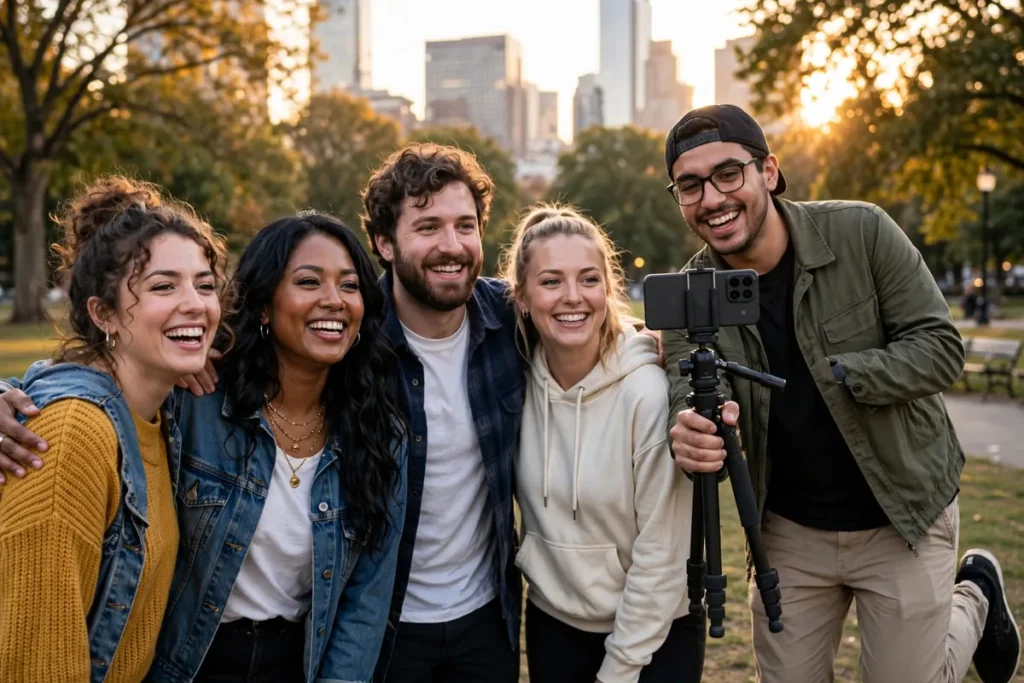
Group photos have two eternal problems: someone always blinks, and the photographer is never in the picture. Pixel’s Best Take and Add Me solve both with computational photography that feels like magic. Best Take lets you swap individual faces from a burst of shots, so everyone looks their best. Add Me composites two photos so the person behind the camera appears in the frame. This guide covers how both features work, the step-by-step for each, and the pro tips that make them shine. Google documents the camera features in the Google Photos help center.
Device notes, verified against Google: Best Take is available on Pixel 6 and later, per Google’s own product page. Add Me launched with the Pixel 9 series (Pixel 9, 9 Pro, 9 Pro XL, 9 Pro Fold) and newer — it is not available on Pixel 8 or earlier.
Best Take: How It Works
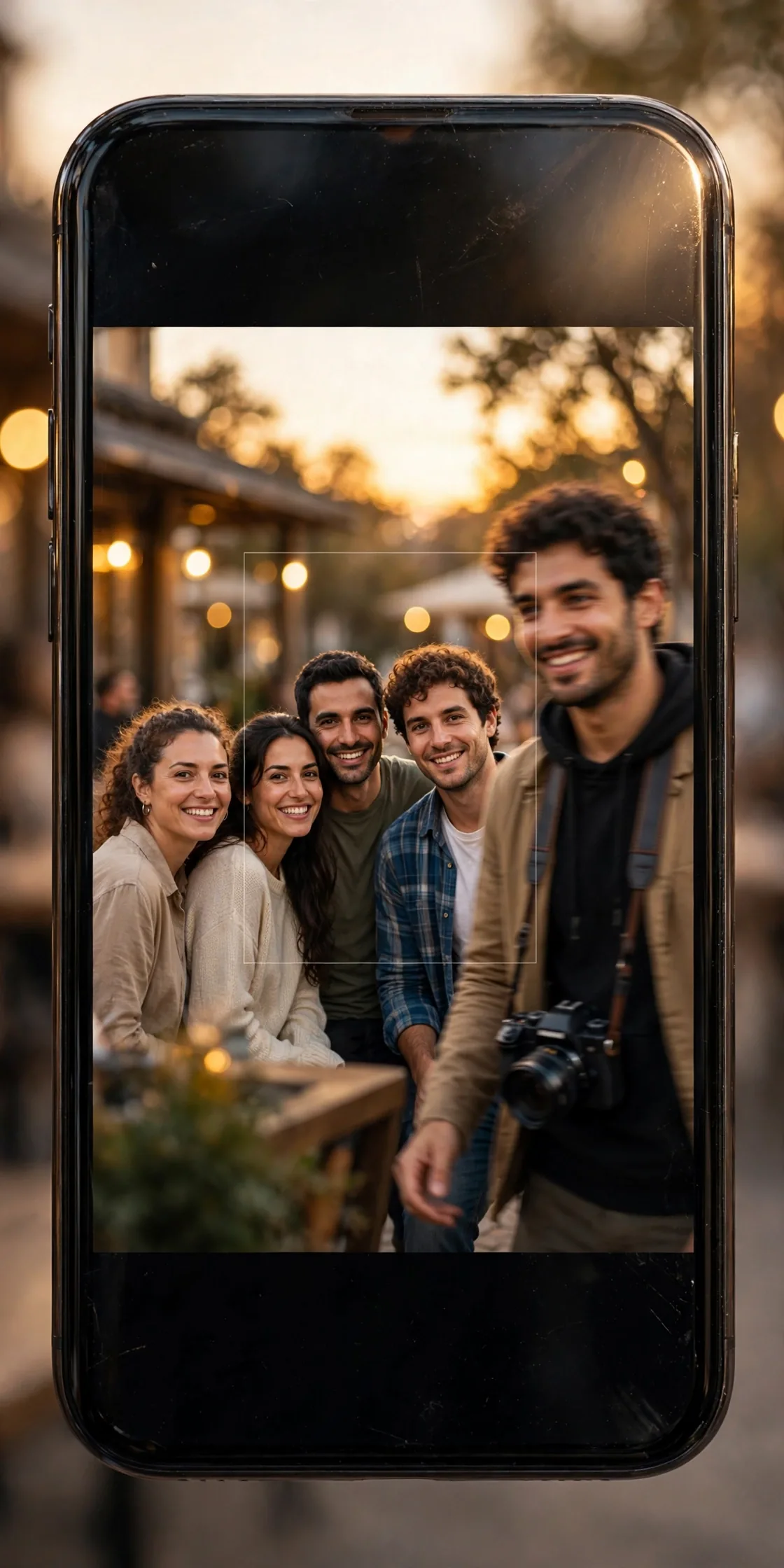
Best Take captures a burst of frames and lets you mix and match faces.
The Technology
- Burst capture: when you take a group photo, the Pixel captures multiple frames around the shutter press.
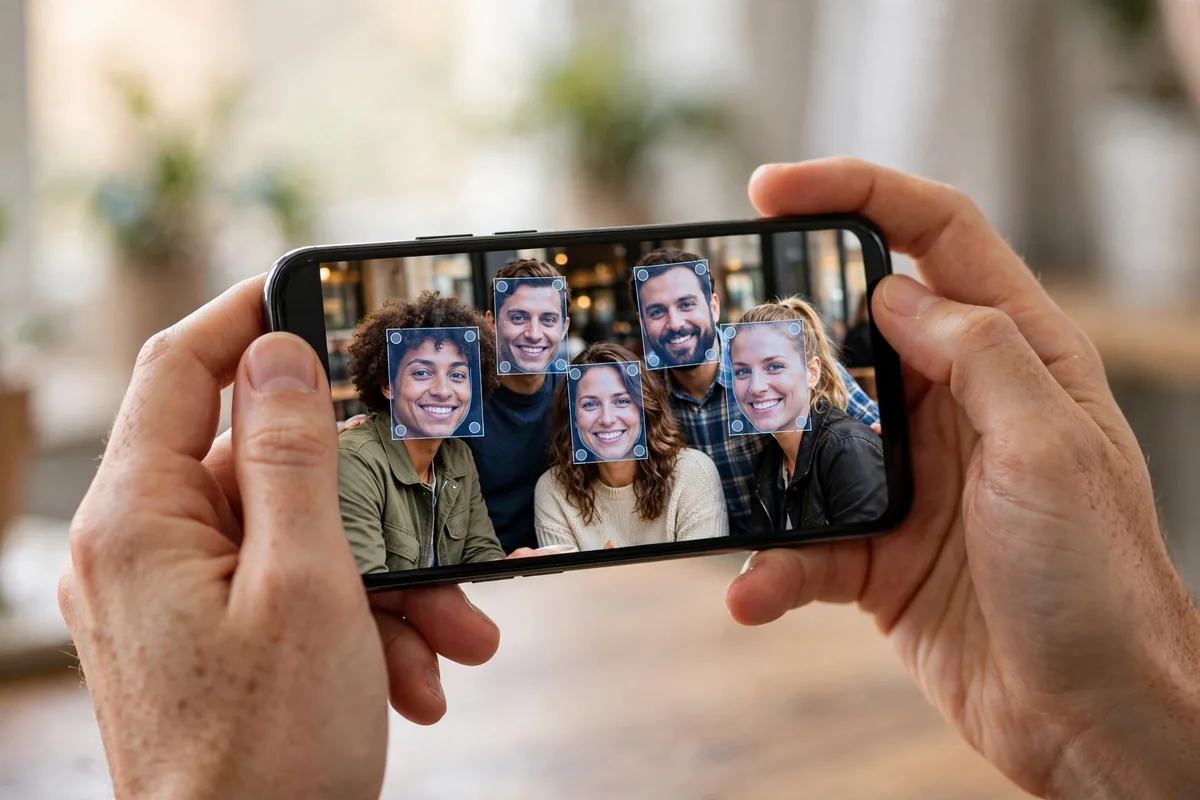
- Face detection: each person’s face is identified across frames.
- Face swapping: tap any face to cycle through that person’s expressions from different frames.
- Clean blending: the chosen faces composite into one natural-looking photo.
The result is a photo where everyone is smiling, eyes open, looking at the camera — even if no single frame captured all of that.
Best Take: Step-by-Step
- Take a group photo with the Pixel camera.
- Open the photo in Google Photos and tap Edit.
- Tap Tools (or the Best Take suggestion if it appears).
- Tap any face to see alternative expressions from the burst.
- Choose the best version of each person and save.
Pro Tips
- Take the photo normally: Best Take works on regular shots; no special mode needed.
- More frames, more options: hold still for a second after the shutter for a richer burst.
- Subtle is better: choose expressions close to the original for the most natural results.
Add Me: Include the Photographer
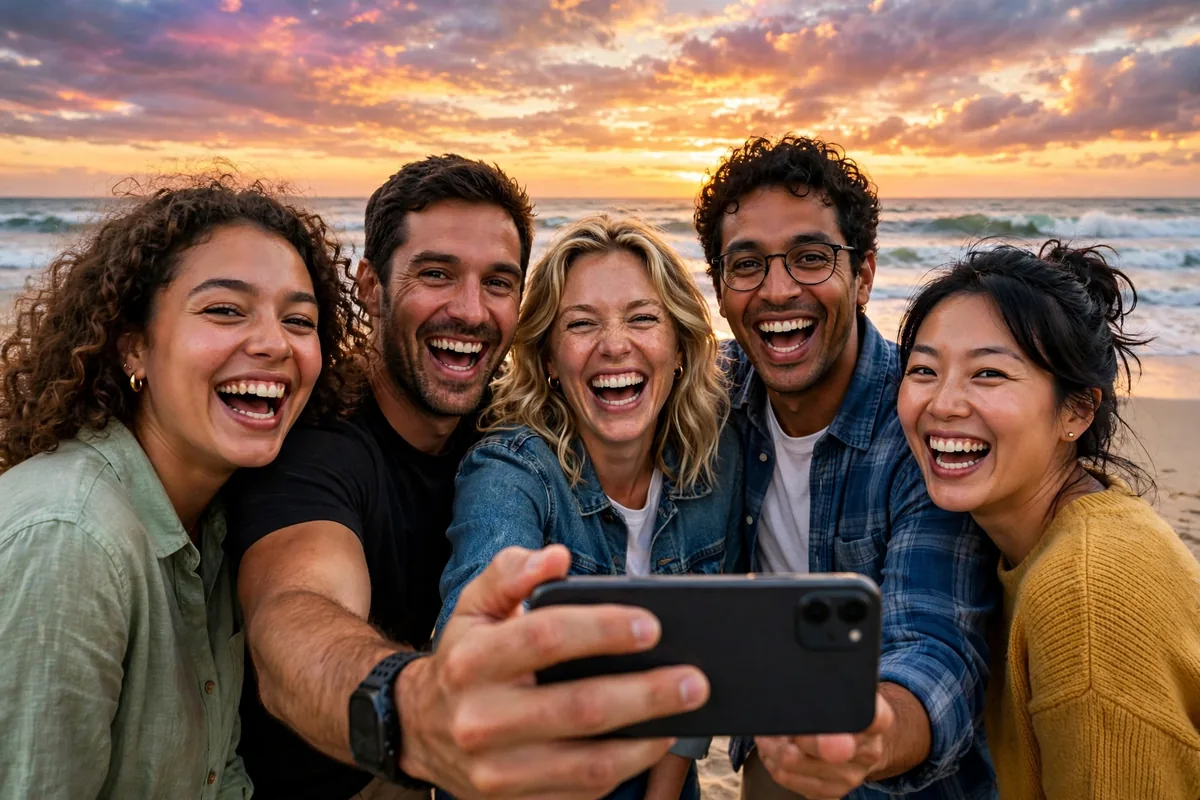
Add Me solves the photographer’s dilemma with a clever two-shot composite.
How It Works
- Open the camera and select Add Me mode.
- Take the first photo of the group (you behind the camera).
- Hand the phone to someone in the group; an AR ghost overlay shows where to stand and frame.
- Take the second photo with you in it.
- The Pixel composites both into one photo with everyone present.
The AR guidance aligns the two shots so the composite looks like a single photo.
Pro Tips
- Keep the camera steady: use the same position for both shots; a tripod helps.
- Overlap awareness: leave space in the first shot for the photographer to stand in the second.
- Lighting consistency: take both shots quickly so the light does not change.
- Check the seam: zoom in on the composite boundary; retake if it looks unnatural.
Best Take vs. Add Me: Quick Comparison
| Feature | Best Take | Add Me |
|---|---|---|
| Problem solved | Bad expressions | Missing photographer |
| Input | Single burst | Two photos |
| Works in | Google Photos edit | Camera Add Me mode |
| Best for | Groups, kids, pets | Couples, families |
| Needs | Pixel 6 or newer | Pixel 9 or newer |
Combine Both Features
The ultimate group photo uses both:
- Use Add Me to capture the full group including the photographer.
- Apply Best Take to the result to perfect everyone’s expressions.
This two-step workflow produces photos that were impossible before computational photography. For editing beyond that, our photo editing apps guide covers the strongest Android editors.
Best Take vs Add Me: Which to Use When
Both fix group photos, but they solve different moments. Use this as a decision guide:
| Scenario | Reach for | Why it fits |
|---|---|---|
| Someone blinked or pulled a face | Best Take | One normal shot is enough — swap just that face from the burst. |
| The photographer is missing from the photo | Add Me | The two-shot composite with AR alignment puts you in the frame. |
| Everything is perfect except one person | Best Take | Fixes individual faces without reshooting the whole group. |
| Couple or family photo, no tripod, no stranger to ask | Add Me | Hand the phone to someone in the shot; the ghost overlay lines it up. |
| Kids, pets, or general chaos | Best Take | Burst frames catch the one good moment; Add Me needs everyone still twice. |
| You want the full group and perfect faces | Both — Add Me first, then Best Take | Composite the group, then polish expressions on the result. |
Device check: Best Take needs a Pixel 8 or newer; Add Me needs a Pixel 9 or newer. If your phone qualifies for only one of them, that decides it for you.
Real-World Scenarios
Weddings and milestones
Best Take ensures the entire wedding party looks perfect in the formal shots, and Add Me lets an assistant appear in a thank-you photo with the couple. For graduations and family reunions — the rare full-family photo — the extra effort pays off precisely because these moments don’t repeat.
Travel groups
Add Me means no more asking strangers to take your photo, and the wider composition beats an arm’s-length selfie. Best Take fixes the inevitable blink in landmark photos.
Work and team photos
Best Take perfects company team shots without reshoots. Real-estate agents use Add Me to appear in property photos; solo creators use it for “with audience” shots. For professional or journalistic use, disclose computational edits.
Kids, pets, and chaos
The hardest subjects benefit most: Best Take rescues photos where children look everywhere except the camera, and burst frames capture the one moment the dog looked up. Have someone hold a treat near the lens during the burst — Best Take finds the single good frame.
Low light
Pair Night Sight with Best Take for dark restaurants and evening events, and hold steady longer in low light for more face options. For Add Me at night, keep both shots quick to avoid exposure shifts between them.
Magic Editor and Storage Tips
Best Take is just the start; Magic Editor extends the possibilities — reframe subjects within the photo, then perfect composition after faces. Run Unblur on slightly soft faces before swapping.
One practical note: Best Take edits save as new files by default while your original burst stays untouched in Google Photos. That doubles storage for every group photo. Monthly, search “Best Take” in Google Photos and delete originals you no longer need; keep them only for once-in-a-lifetime shots. When sharing, export at full resolution rather than letting a messaging app compress the file — and remember edited copies count against the same 15 GB Google storage quota as everything else.
If you ever delete a keeper by accident, our photo recovery guide walks through getting it back.
Editing Group Photos After the Fact
Best Take and Add Me handle the capture, but Google Photos gives you a full second pass afterward — and the order you do things in matters.
Revisit and refine Best Take
Best Take swaps are not one-and-done. Reopen any edited photo, tap Edit, and go back into the Best Take tool to try different expressions — the burst data stays with the photo, so you can change your mind days later. If a swap looked fine on the phone screen but odd on a bigger display, this is your fix.
Fix composition with Magic Editor
Once faces are right, fix the frame: Magic Editor can reposition subjects within the shot, straighten a tilted horizon, or expand the background so a cropped elbow comes back into view. It is the tool for “great faces, awkward framing.” Availability varies — it is built into recent Pixels and offered more broadly through Google Photos, so check your editor’s Tools tab.
Clean up the details
- Photo Unblur: run it on slightly soft faces before a Best Take swap so the replacement face is sharp.
- Portrait and blur: on group portraits, adjust background blur strength after the fact.
- Light and color: the Adjust tab’s brightness, contrast, and warmth sliders fix mixed lighting — common when half the group is in shade.
- Crop first: straighten and crop before face swaps, since changing the geometry afterward can shift your carefully chosen faces.
All of this is non-destructive: Google Photos keeps your original, and you can revert any edit from the edit history. When you are happy, use Save copy to keep both the original and the polished version.
Privacy: Group Photos and Face Data
Features built on face detection deserve a clear-eyed look at what happens to face data.
Face grouping controls
Google Photos groups similar faces so you can search a name and find that person. You control this under Photos > your profile picture > Photos settings > Privacy > Face grouping: turn it off to stop new grouping, and remove individual face groups from the People section. Deleting a photo removes it from face groups as well.
What Best Take actually does with faces
Best Take detects faces across burst frames to offer you swaps — that matching happens as part of editing in Google Photos, and using it does not publish your burst frames or face data anywhere new. It is an editing tool, not a sharing feature.
Other people’s faces
Your library will happily group the faces of friends, coworkers, and strangers who never agreed to be catalogued. That is worth remembering before you share albums broadly: shared albums let others download full-resolution copies. And if someone asks you to remove their face group or a photo, honor it — consent matters more with other people’s likeness than your own.
A note on kids
Nothing about Best Take changes the usual caution around posting children’s photos publicly. The technology is neutral; the audience is the decision.
Troubleshoot Issues
Best Take option not appearing
The photo needs detectable faces and burst data. Very old photos or screenshots lack the needed frames. Make sure the photo was taken on a supported Pixel (6 or newer).
Add Me composite looks wrong
The two shots were misaligned. Retake with the phone in exactly the same position; the AR overlay guides this.
Faces look unnatural
You chose expressions too different from the original frame. Pick alternatives close in angle and lighting to the base photo.
Add Me not in camera modes
Update the camera app and Google Photos. Add Me requires Pixel 9 or newer — it will not appear on older models.
Privacy and Ethics
Face-swapping raises fair questions worth addressing:
- Your own photos: using these on your own group photos is uncontroversial.
- Disclosure: for professional or journalistic use, disclose computational edits.
- Consent: swapping someone’s expression changes their likeness; keep it flattering and honest.
FAQ
Can Best Take change facial expressions dramatically?
It swaps between real captured expressions, not synthetic ones. The range is limited to what the burst captured; it cannot invent a smile that never happened.
Does Add Me work with the front camera?
Add Me uses the rear camera for quality. For front-camera group shots, the wide-angle selfie mode is the alternative.
Which Pixel models support Best Take and Add Me?
Best Take is available on Pixel 6 and later, per Google. Add Me launched with the Pixel 9 series (9, 9 Pro, 9 Pro XL, 9 Pro Fold) and newer.
Do Best Take photos look fake?
When used subtly, no. The blending is excellent for small expression changes. Dramatic swaps across very different frames can look slightly off.
Can I use Best Take on photos from other phones?
If the photo is in Google Photos and has burst-like data, sometimes. Generally it works best with Pixel-captured photos that include the multi-frame metadata.
Does Add Me work for large groups?
Yes, but alignment gets harder with more people. Keep the group compact and the camera position fixed for best results.
Are the original photos preserved?
Yes, edits are non-destructive in Google Photos. You can revert to the original at any time from the edit history.
Can Best Take fix closed eyes in every case?
It needs at least one frame with eyes open. If the person blinked through the entire burst, there is nothing to swap in; take another photo.
Can I redo a Best Take edit later?
Yes. The burst data stays attached to the photo, so reopen it in Google Photos, go to Edit, and pick different expressions any time. Edits are non-destructive.
Does Best Take work if someone is looking away from the camera?
Only if at least one burst frame caught them looking at the camera. Best Take swaps real captured expressions — it cannot invent eye contact that never happened.
Is Add Me available on the Pixel 8?
No. Add Me needs a Pixel 9 or newer and will not appear in the camera modes of older models, even with updated apps.
Do Best Take edits use up my Google storage?
Edited copies count toward the same 15 GB Google storage quota as everything else. The original burst stays unless you delete it, so each edited group photo can temporarily use double the space.
Conclusion
Best Take and Add Me eliminate the two great tragedies of group photography: the blinked photo and the missing photographer. Best Take perfects expressions from burst frames; Add Me composites the photographer into the scene. Together they guarantee group photos where everyone looks great and everyone is present. Practice both before your next event — the best camera is the one whose tricks you actually know how to use.


What do you think?
Share your experience or ask a question. A useful conversation starts with you.
Join the discussion