Content creators and social media managers are constantly searching for the perfect mobile editor that balances power with simplicity. While third-party apps often dominate the conversation, the official Instagram Edits app—often integrated directly within the Instagram ecosystem or utilized via the standalone Meta-designed creative suite—contains a powerhouse of utility that many users overlook. The primary draw for many is the ability to produce high-quality vertical content without the intrusive watermarks that plague other free editors like CapCut or TikTok.
Understanding the full depth of the Instagram Edits interface is the difference between a video that looks “amateur” and one that feels professionally curated. Beyond basic trimming and filters, this platform offers sophisticated tools ranging from AI-assisted beat matching to advanced project organization. This guide breaks down nine specific features that are frequently missed by casual users, providing the technical steps to find them and the strategic use-cases to elevate your content strategy.
1. The Integrated Teleprompter Mode
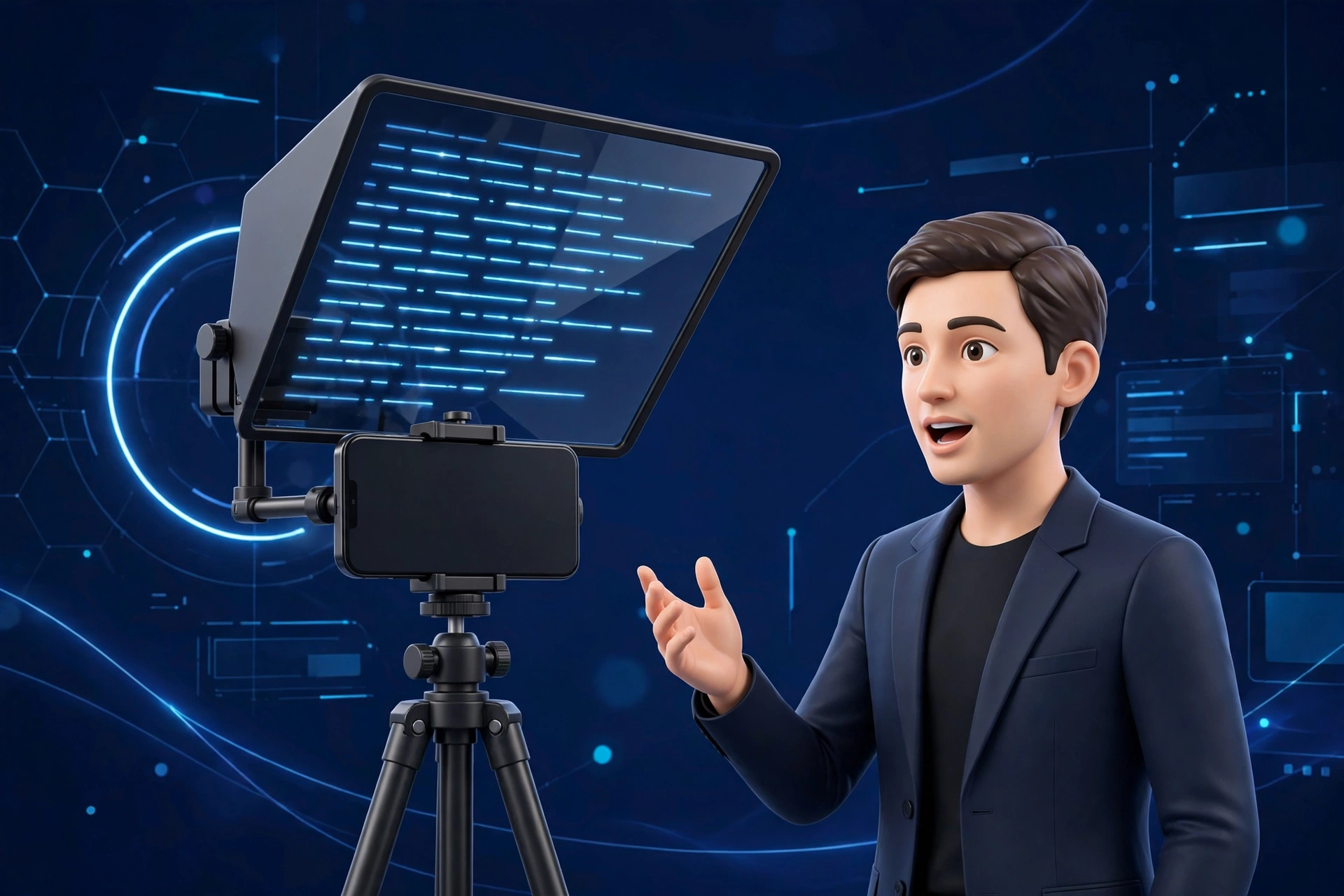
One of the most significant barriers to creating engaging talking-head videos is the struggle to remember a script while maintaining eye contact with the lens. The Instagram Edits app includes a built-in teleprompter mode that many creators completely bypass in favor of external, paid apps. This feature overlays your script directly on the recording screen, allowing you to read while looking at the camera.
To find this feature, enter the camera interface within the creator suite and look for the “Teleprompter” icon on the left-hand sidebar or within the “More” menu. Once activated, you can paste your script, adjust the font size, and set the scrolling speed. This tool is invaluable for educational creators or those filming product reviews. Instead of multiple takes due to forgotten lines, you can nail your delivery in a single pass. The text does not appear in the final exported video, ensuring a clean, professional look that focuses on your performance rather than your memory.
2. Per-Clip Skip-Rate Analytics (Draft Analysis)
While most users are familiar with post-performance analytics, the Instagram Edits ecosystem provides a unique “Draft Analysis” tool for certain account types. This feature allows you to see how previous similar clips performed at specific timestamps. It isn’t just about how many people watched the video; it is about identifying the exact second viewers dropped off in previous projects.
When working within the project timeline, you can toggle a “Performance Overlay” if you have a professional creator account. This highlights sections of your timeline where viewers typically lose interest. For example, if your intro is too long, the data will suggest a “trim point.” By analyzing these skip-rates per clip before you hit publish, you can tighten your storytelling. If the data shows a sharp drop at the three-second mark, you know your hook needs more visual movement or a stronger verbal “grabber.”
3. Stacked and Multi-Track Timeline Tricks
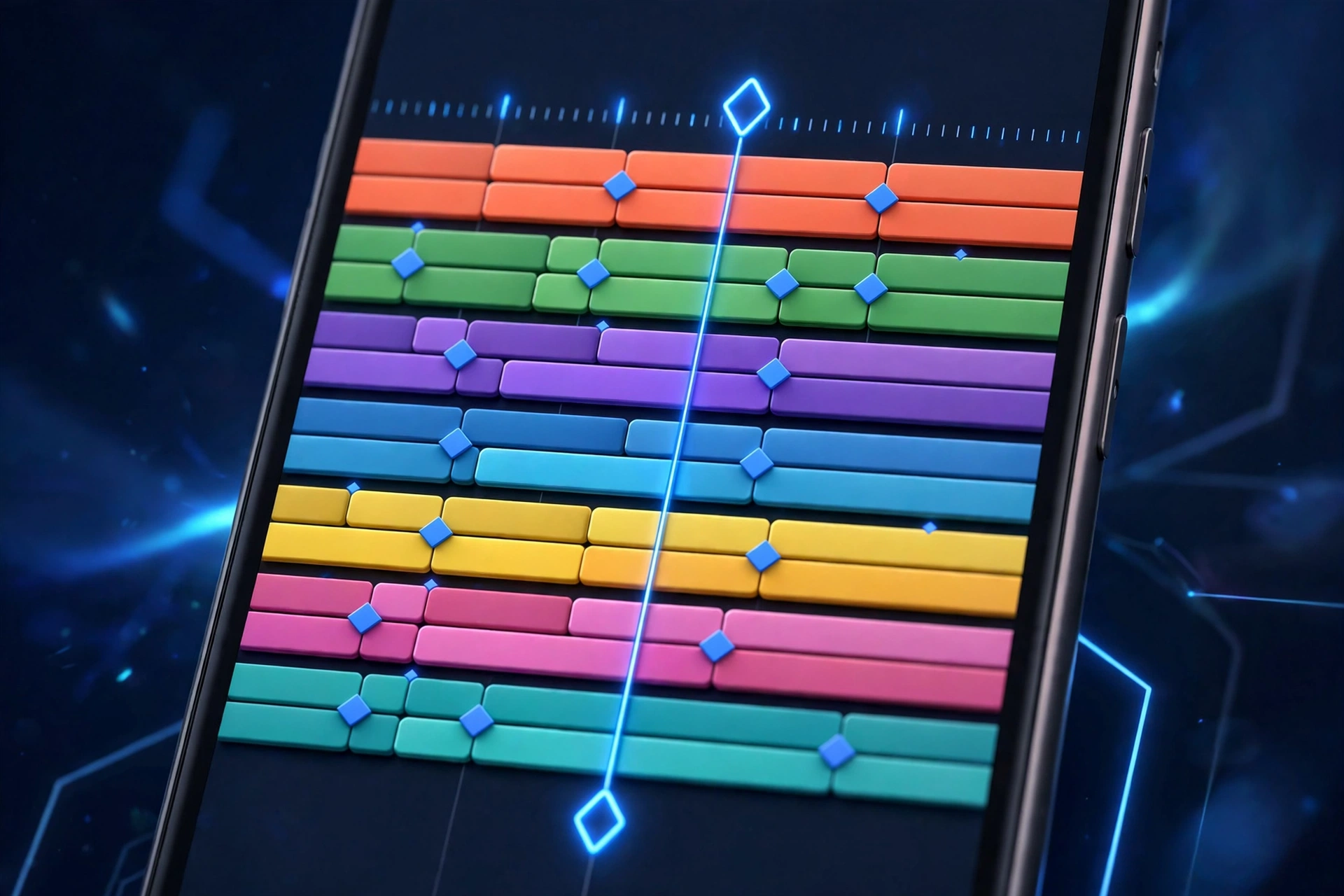
Most beginners treat the Instagram Edits timeline as a single linear track. However, the app supports a sophisticated stacked timeline that allows for complex layering of video, audio, and text. This is where “hidden” professional techniques like B-roll overlays and “J-cuts” (where the audio from the next clip starts before the video) become possible.
To access the multi-track view, you must use the “Overlay” or “Add Media” button while an existing clip is already on the timeline. This places the second clip on a track above the first. You can then pinch-to-zoom to resize the overlay, creating a picture-in-picture effect, or use it to cover a cut in your primary footage. Mastering the stacked timeline allows you to hide mistakes in your primary take by layering relevant B-roll on top, maintaining the flow of the narrative without jarring visual jumps.
4. Advanced Saved Drafts Workflow
The “Drafts” folder is often viewed as a graveyard for unfinished ideas, but the Instagram Edits app allows for a much more robust workflow. A little-known feature is the ability to “Batch Export” drafts or “Template” a draft for future use. This is essential for creators who want to maintain a consistent visual brand across multiple posts.
Instead of starting from scratch, you can create a “Master Draft” containing your specific color grades, text fonts, and music transitions. When you are ready to make a new video, you open the master, swap the footage, and “Save as New.” This preserves the original template. This workflow significantly reduces editing time. If you are looking for more ways to streamline your mobile production, you might also be interested in our guide on the best video editing apps for Android to see how Instagram’s tools compare to standalone professional software.
5. The “Green Screen” and Background Segmentation
The Green Screen effect is often associated with cheesy backgrounds, but the Instagram Edits app uses sophisticated AI segmentation that allows for much more creative applications. You do not actually need a physical green screen; the app’s “Cutout” tool can remove your background with surprising accuracy in real-time or post-production.
In the “Effects” or “Stickers” menu, search for “Green Screen.” You can then select any photo or video from your camera roll to serve as the background. A concrete use-case for this is “Reaction” videos or “Tutorials” where you want to show a website or an app interface behind you while you explain it. Because the app handles the edge detection automatically, you can create high-quality composite shots without needing a desktop-class chroma-key setup.
6. Precision Beat Markers and Auto-Sync
Nothing ruins a high-energy Reel faster than transitions that are slightly off-beat. The Instagram Edits app features an “Auto-Sync” capability, but the truly “hidden” feature is the manual beat marker tool. This allows you to tap out the rhythm of a song and have the app automatically snap your clip cuts to those specific points.
When you select a music track, look for the “Sync” or “Beats” icon. If the auto-sync doesn’t match your vision, you can enter the manual mode. As the music plays, you tap the screen to place markers. Once finished, your video clips will magnetically snap to these markers. This ensures that every transition happens exactly when the bass drops or the melody shifts, providing that “satisfying” professional feel that keeps viewers engaged through the entire duration of the clip.
| Feature | Instagram Edits App | Standard Free Apps | Pro Creator Benefit |
|---|---|---|---|
| Watermark Policy | No Watermark on Export | Branded Watermark at End | Cleaner brand presentation |
| Audio Integration | Full Licensed Library | Limited/Copyright Risk | Safe for monetization |
| Teleprompter | Built-in & Free | Usually a Paid Add-on | Faster script delivery |
| AI Segmentation | Real-time background removal | Requires static background | Dynamic location changes |
7. Professional Voice Effects and Audio Cleaning
Audio quality is often more important than video quality. The Instagram Edits app includes a suite of voice effects and an “Audio Enhance” feature that uses AI to reduce background noise. Many users ignore these, thinking they are just for “funny” voices like “Helium” or “Giant,” but the “Studio” effect is a standout for mobile creators.
The “Studio” voice effect applies compression and equalization to your voice, making it sound like it was recorded on a high-quality condenser microphone rather than a smartphone. To find this, select your video clip, go to “Audio,” and then “Voice Effects.” Applying the “Studio” or “Enhance” filter can remove the “tinny” sound of a room and make your narration sound warm and professional. For those focusing on high-end audio-visual content, checking out the top Android apps for content creators can provide additional tools to complement these built-in features.
8. Advanced Project Organization and Folders
As you create more content, managing your files becomes a nightmare. The Instagram Edits app has introduced a structured way to organize projects that many people miss because they simply keep everything in the main “Drafts” tab. You can now categorize drafts by “Campaign” or “Series” depending on your region and app version.
By long-pressing a draft, you can often move it into a specific folder or label it. This is crucial for creators who are working on multiple content pillars simultaneously—such as “Monday Motivation” vs. “Product Launches.” Keeping these organized prevents the accidental deletion of important assets and allows you to quickly find footage from a few weeks ago that you might want to repurpose into a “Throwback” or a compilation video.
9. Direct-to-Reels Export (No Watermark)
The “Holy Grail” of mobile editing is exporting a video that doesn’t have a watermark. While TikTok adds a bouncing logo to every download, the Instagram Edits app (and the associated Meta Business Suite) allows you to save your finished projects directly to your camera roll without any branding. This makes it the perfect “hub” for creating content that you intend to post across multiple platforms like YouTube Shorts or Pinterest Idea Pins.
To do this correctly, you must use the “Download” icon at the top of the editing screen *before* you hit the final “Share” button. This saves the high-resolution file to your phone’s gallery. Since there is no watermark, the video looks native to whichever platform you upload it to next. This “clean export” is the primary reason many professional social media managers prefer the Instagram Edits workflow over third-party alternatives that charge a subscription fee to remove their logo.
The Strategic Verdict: Which Feature Should You Use?
Not every feature is necessary for every creator. Your choice of tools should depend on your specific niche and the type of “vibe” you want to project to your audience. Below is a breakdown of which features to prioritize based on your creator profile.
| Creator Type | Priority Feature 1 | Priority Feature 2 | Why it Works |
|---|---|---|---|
| Educators/Coaches | Teleprompter | Audio Enhance | Ensures clarity and authority in speech. |
| Lifestyle/Vloggers | Beat Markers | Stacked Timeline | Creates cinematic, rhythmic montages. |
| Business/Brands | Saved Templates | No-Watermark Export | Maintains brand consistency across platforms. |
| Comedy/Skit Makers | Green Screen | Voice Effects | Enables high-production value characters. |
For the Educational Creator, the combination of the Teleprompter and Audio Enhance is the most powerful. These tools remove the friction of production, allowing you to focus on the value of your information rather than the technical difficulties of recording. You can produce five “tips” videos in the time it used to take to produce one.
For the Aesthetic Vlogger, mastering the Stacked Timeline and Beat Markers is essential. These features allow you to create the fast-paced, high-energy edits that are currently trending. By snapping your clips to the music, you create a psychological “hook” that keeps viewers watching through the entire video, which in turn signals the algorithm to push your content to a wider audience.
Finally, for the Multi-Platform Strategist, the No-Watermark Export is the single most important feature. It allows for a “Create Once, Distribute Everywhere” (CODE) strategy. You can spend two hours perfecting a video in the Instagram Edits app and then distribute that same high-quality, unbranded file to TikTok, Reels, and Shorts, maximizing your reach without extra effort.
Frequently Asked Questions
Does the Instagram Edits app reduce video quality when exporting?
By default, the app may compress videos to save data, but you can override this. Before exporting, ensure you have “Upload at Highest Quality” toggled on in your account settings under “Data Usage.” When you use the “Download” button within the editor, it typically saves the video at the resolution of your original footage (up to 1080p). It is important to note that recording within the app itself often yields better results than importing highly compressed files from other sources, as it avoids “double compression.”
Can I use the music from the Instagram library if I export to other platforms?
This is a common legal pitfall. While the Instagram Edits app allows you to export videos without a watermark, the music library is licensed specifically for use within Meta’s platforms (Instagram and Facebook). If you export a video with a popular song and upload it to YouTube or TikTok, you may face a copyright strike or have the audio muted. To stay safe, if you plan to use the “No Watermark” export for other platforms, use royalty-free music or the platform-specific library after you upload the unbranded video.
Why can’t I find the Teleprompter feature on my Android device?
Meta rolls out features in phases, often based on the region and the specific model of the Android device. If you don’t see the Teleprompter, ensure your app is updated to the latest version in the Google Play Store. Additionally, some “hidden” features are only available when you access the camera through the “Reels” tab rather than the standard “Story” tab. If it still isn’t appearing, try switching to a Professional or Creator account in your settings, as these accounts often get priority access to advanced editing tools.
How many layers can the stacked timeline handle before lagging?
The performance of the multi-track timeline depends heavily on your device’s RAM and processor. On modern flagship Android devices, the Instagram Edits app can comfortably handle 3-5 layers of high-definition video and multiple audio tracks. However, as you add more layers, you may notice the preview playback becoming choppy. This doesn’t affect the final export quality, but it can make editing difficult. To mitigate this, try to “flatten” your edits by exporting sections and re-importing them if your project becomes excessively complex.
Is the Green Screen feature better than using a physical green screen?
For mobile content, the AI-powered Green Screen in the Instagram Edits app is surprisingly effective and much more convenient than a physical setup. It uses “depth-sensing” and machine learning to cut out the subject. While a physical green screen with professional lighting will always provide the cleanest edges (especially around hair), the app’s built-in tool is more than sufficient for 90% of social media content. The key to a good “digital” cutout is ensuring there is good contrast between you and your actual background and that you are well-lit from the front.
Conclusion
The Instagram Edits app is far more than a simple companion to the main social feed; it is a sophisticated, watermark-free production studio that lives in your pocket. By moving beyond the surface-level filters and embracing features like the teleprompter, multi-track timelines, and AI audio enhancement, you can produce content that stands out in an increasingly crowded digital landscape. The “hidden” nature of these tools means that those who take the time to master them gain a significant competitive advantage. Whether you are a solo creator or managing a brand, these nine features provide the technical foundation needed to turn simple ideas into professional-grade viral content.