

A phone that takes five seconds to open the camera, stutters while scrolling, and keeps reloading apps it just had open was fast once — and in most cases, it can be fast again. If you are searching for how to fix slow android phone performance, you are in the right place. Everything below is organized around one question: how to fix slow android phone speed without root, without paid apps, and without guesswork. The vast majority of slowdowns come from a short list of fixable causes: nearly-full storage, runaway background apps, outdated software, and settings that quietly tax the processor.
This guide walks through 12 proven fixes in the order you should actually try them, from the 30-second restart to the last-resort factory reset. Every step is written for the Android 16 era, so the menus, battery settings, and background-app rules match the phone in your hand. No root, no sketchy “booster” apps, no miracle cures — just the real levers that decide how to fix slow android phone lag, plus how to tell when the problem is hardware instead of software.

Fix 1: Restart Your Phone (Still the Highest-Value 30 Seconds)
Start here, every time. Restarting clears temporary system state, frees RAM, terminates stuck background processes, and resolves transient conflicts between apps. Press and hold the power button (on some phones, power + volume up), tap Restart, and wait for the phone to boot fully before judging the result.
A restart is also a diagnostic tool: if your phone feels fast for a few hours after rebooting and then slows down again, something is gradually consuming resources in the background — which points you straight at Fix 7 (background apps). Noticing that pattern early saves hours when you learn how to fix slow android phone slowdowns systematically. If the slowness never lifts even right after a restart, the cause is more likely storage pressure (Fix 2) or aging hardware (Fix 12).
Make restarting a habit, not just a troubleshooting step. A weekly restart prevents the slow accumulation of stuck processes that makes phones feel progressively more sluggish over months of uptime. It is the simplest possible answer to how to fix slow android phone complaints — and the step everyone skips.
Fix 2: Free Up Storage Space
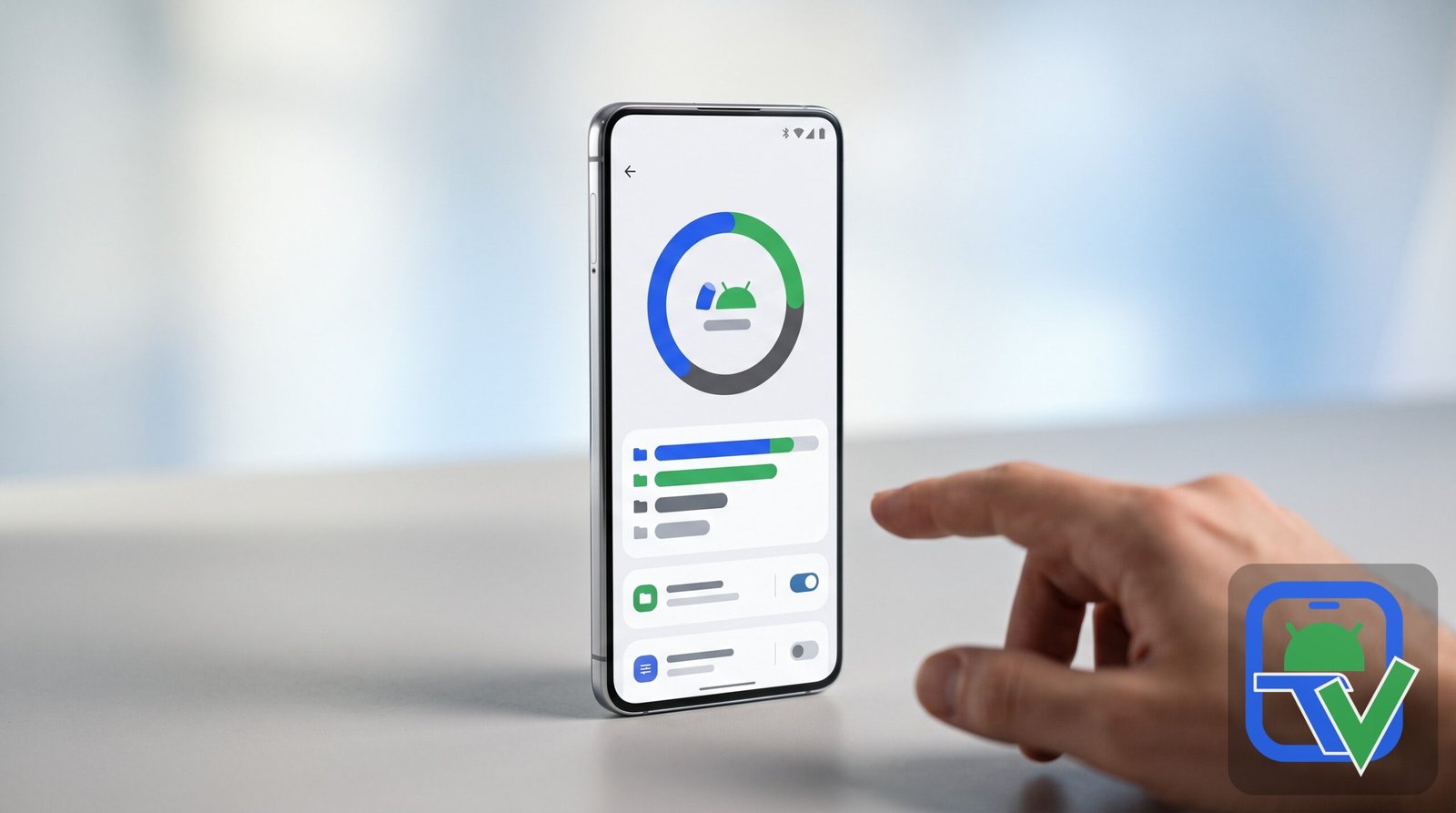
Storage pressure is the single most common reason people search for how to fix slow android phone lag. Android needs free space to function — apps write temporary files, download updates, and expand databases during normal use. When free space drops too low (roughly under 10%), the system starts struggling with basic write operations, and everything from app launches to camera saves slows to a crawl.
Open Settings > Storage to see exactly what is consuming space. Then work through the big wins: — each is a proven step for how to fix slow android phone storage slowdowns:
- Delete what you do not need: old downloads, duplicate photos, blurry shots, and videos you already shared.
- Move photos and videos to the cloud: enable Google Photos backup, wait for it to complete, then use its “Free up space” option to remove local copies safely.
- Uninstall apps you no longer use: check Play Store > Manage apps & device > Manage and sort by least used — the results are usually embarrassing.
- Let Android archive unused apps: current Android versions can automatically archive apps you rarely open, removing the app while keeping your data, so reinstalling later restores everything. Check Settings > Storage or the Play Store’s app management for this option.
- Use Files by Google’s Clean feature: it finds junk files, large files, and old memes cluttering your storage in one place.
Aim to keep at least 10–15% of your total storage free. If you take one lesson from this guide on how to fix slow android phone lag, make it this storage rule. After a serious cleanup, restart the phone so apps can complete the operations that were failing for lack of space. This one fix alone resolves a remarkable share of “my phone got slow” complaints — and it also prevents the app crashes that full storage causes. Readers asking how to fix slow android phone problems that crept in gradually almost always find the answer here.
Fix 3: Clear Bloated App Caches
Cache is supposed to make apps faster — stored thumbnails, preloaded feeds, offline maps. But caches grow without limit, and a bloated or corrupted cache does the opposite of its job. Social media apps, browsers, and streaming apps are the usual offenders, sometimes holding gigabytes of cache each.
To clear an individual app’s cache: long-press the app icon, tap App info, go to Storage & cache, and tap Clear cache. This removes temporary files without touching your logins, settings, or personal data, so it is safe to do any time. For anyone searching how to fix slow android phone issues late at night, this is the safest first thing to try.
A few important distinctions:
- Clear cache ≠ clear storage. “Clear storage” (or “Clear data”) wipes the app back to a fresh-install state — logins, settings, offline downloads gone. Only use it when you are prepared to set the app up again. Mixing these up is a common mistake for anyone learning how to fix slow android phone app issues.
- Do not clear caches obsessively. Wiping every cache daily forces apps to rebuild them constantly, which costs battery and can make apps slower on next launch. Clear caches for the heavy apps, when they are actually heavy.
- Browsers deserve special attention. Dozens of open tabs plus a giant cache is a classic slowdown combo — close tabs you are done with, then clear the cache. For browsers especially, that habit is a small but steady part of how to fix slow android phone browsing lag.
Fix 4: Disable Preinstalled Bloatware
Most phones ship with apps you never asked for — carrier utilities, manufacturer duplicates of Google apps, trial games, shopping apps. Many cannot be uninstalled, but they can be disabled, which stops them from running, removes them from your app drawer, and prevents them from updating in the background.
Go to Settings > Apps, find the app you never use, tap App info, and choose Disable (then confirm). The change is fully reversible — disabled apps can be re-enabled from the same screen, or from the “Disabled” filter in your app list.
Be conservative about which system apps you disable. If you are not sure what an app does, leave it alone — disabling the wrong system component can break features like the camera or phone calls. Caution here pays off: the goal of how to fix slow android phone bloat is to remove cruft, not break features. Safe targets are obvious third-party additions: demo games, carrier account apps, duplicate email or browser apps, and shopping apps you will never open. For apps you installed yourself but rarely use, uninstalling outright (Fix 2) is even better than disabling. Either way, fewer apps running means less competition for RAM — a quiet win in how to fix slow android phone sluggishness.
Fix 5: Update Android and All Your Apps
Outdated software is a quiet performance killer. System updates include performance improvements, memory-management fixes, and security patches; app updates fix the bugs and inefficiencies that made the previous version slow. Running a two-year-old system version with six-month-old apps is asking for sluggishness.
- System: Settings > System > System update — install anything pending, then restart. Outdated system software is a silent contributor to how to fix slow android phone searches every year.
- Apps: Play Store > profile icon > Manage apps & device > Updates available > Update all.
- Automation: turn on auto-update over Wi-Fi in the Play Store settings so you never fall behind again. Automatic updates are the lowest-effort answer to how to fix slow android phone issues caused by stale software.
One caution for very old phones: a major Android version upgrade can feel heavier on aging hardware, because new features expect newer chips. But skipping updates is not the answer — unpatched phones are insecure phones, and most updates genuinely improve efficiency. If your phone is several generations old and every update makes things worse, that is useful information pointing toward Fix 12 (hardware reality check). Tracking that pattern is part of learning how to fix slow android phone problems honestly — sometimes the data points to hardware.
Google documents current system behavior in the official Android Help Center, which is worth bookmarking since menus and background rules shift with each Android release.
Fix 6: Reduce or Turn Off Animations
This is the fastest perceived speed boost on the list. Android’s window transitions, app-opening zooms, and menu animations all take fractions of a second — fractions that add up to a phone that feels sluggish even when the hardware is fine. Reducing them makes everything feel instantly snappier, especially on older devices.
The animation controls live in Developer Options:
- Go to Settings > About phone and tap Build number seven times until you see “You are now a developer.”
- Go to Settings > System > Developer options.
- Find Window animation scale, Transition animation scale, and Animator duration scale.
- Set each to .5x for a subtle speedup, or off for maximum responsiveness.
The change is completely reversible — set them back to 1x any time. For older devices, this single tweak transforms how to fix slow android phone ‘feel’ without changing anything else. (While you are in Developer Options, resist the urge to change anything else; most settings there can destabilize your phone if you do not know exactly what they do.) If you prefer not to enable Developer Options at all, turning on Remove animations under Settings > Accessibility achieves a similar effect. Either route delivers the same result: a phone that responds the instant you touch it, which is half the battle in how to fix slow android phone frustration.
Fix 7: How to Fix Slow Android Phone Lag by Taming Background Apps — What to Stop and What to Leave Alone
Background apps are the most misunderstood part of how to fix slow android phone performance. Here is the truth for the Android 16 era: Android already manages background apps aggressively on its own. The system sorts apps into standby buckets based on how recently and frequently you use them, and restricts background work for apps you ignore. You do not need to micromanage this — but you do need to stop fighting the system and fix the apps that misbehave. Internalizing that principle is the real secret of how to fix slow android phone background drain.
How to find the actual culprits
Go to Settings > Battery > Battery usage. Apps burning significant battery in the background while you were not using them are almost always misbehaving — and background CPU use is background CPU use, whether it shows up as battery drain or sluggishness.
For a specific offender: App info > App battery usage (wording varies by manufacturer) lets you set an app to Restricted, which sharply limits what it can do in the background. This one setting is the most direct lever in how to fix slow android phone resource hogs. You can also toggle off Background data under App info > Mobile data & Wi-Fi for apps that constantly sync.
What to stop
- Social and shopping apps you rarely open but which refresh feeds and send notifications all day — restrict them or uninstall them and use the browser instead.
- Games you finished — they have no business running background services.
- Duplicate apps — two browsers, three photo editors, two file managers. Pick one.
- “Cleaner,” “booster,” and task-killer apps — uninstall them outright. They aggressively terminate processes, which causes the instability and reload-lag you are trying to fix. Android’s built-in memory management is better at this than any third-party utility.
- Free VPNs and sketchy utilities you installed once and forgot — common sources of constant background activity.
What to leave alone
| Leave it alone | Why |
|---|---|
| Messaging apps you rely on (WhatsApp, SMS, etc.) | Restricting them breaks notifications — you will miss messages |
| Alarm clock and reminder apps | They need background access to fire on time |
| Health, fitness, and wearable companion apps | They sync in the background by design |
| VPNs and accessibility services you actively use | Disabling them breaks the feature you installed them for |
| System services and Google Play Services | The phone needs these; leave them be |
| Your launcher and keyboard | Restricting these causes visible glitches |
About “how to stop running apps”Getting this balance right — restricting the hogs while leaving essentials untouched — is the core skill behind how to fix slow android phone speed and battery complaints together.
About “how to stop running apps”
Force-stopping apps from App info > Force stop is a troubleshooting tool for a misbehaving app, not a daily routine. And swiping apps away from the recents screen does not speed up your phone — Android keeps recently used apps in memory precisely so reopening them is fast; killing them forces a slower cold start next time and can cost extra battery. The winning strategy is not killing apps constantly; it is removing or restricting the few bad actors and letting the system manage the rest. That mindset shift separates people who understand how to fix slow android phone slowdowns from people who fight their phone daily.
Fix 8: Switch to Lite Apps and Web Versions
Some apps are simply heavy — full-featured social media apps with autoplay video, animated everything, and constant background sync can overwhelm a phone with 3–4 GB of RAM no matter how well you optimize. You do not have to give up the service; you just need a lighter client.
- Check the Play Store for official “Lite” editions of the apps you use most — several major services publish them specifically for lower-end devices.
- Use the browser version instead of the app for services you check occasionally. A bookmarked mobile site uses a fraction of the resources of a native app that lives in your background forever. For apps you check once a day, that swap alone noticeably improves how to fix slow android phone memory pressure.
- Remove heavy widgets and live wallpapers from your home screen. Each widget is a mini-app refreshing on a timer; a clock and weather widget are fine, but five social widgets plus a live wallpaper add constant background load.
This fix pairs naturally with Fix 4: fewer heavy apps installed means fewer heavy apps running. On phones with limited RAM, this substitution strategy is one of the most effective answers to how to fix slow android phone multitasking struggles.
Fix 9: Factory Reset — the Last Resort (Backup First)
When you have worked through every targeted fix and the phone is still slow, a factory reset rewrites the software cleanly — eliminating corrupted system files, tangled settings, years of accumulated cruft, and deep software conflicts that no individual setting can reach.
Back up everything first. A factory reset erases the phone completely: photos, messages, app data, authenticator codes, all of it. Do not skip this — run through our complete guide on how to backup an Android phone and verify the backup actually completed (check the last-backup timestamp, spot-check photos on a computer) before you touch the reset button. Skipping the backup turns the ultimate how to fix slow android phone solution into a data-disaster story.
Then: Settings > System > Reset options > Erase all data (factory reset) and follow the prompts.
After the reset, install only your essential apps first and use the phone for a day before restoring everything else. If the phone is fast with a minimal setup and slows down only after the full restore, the culprit was something in your backup — an app or a setting — and you have just narrowed the search dramatically. A factory reset cannot fix failing hardware, though: if the phone is slow even with a fresh reset and minimal apps, skip to Fix 12. That result is disappointing but valuable: it tells you exactly where how to fix slow android phone efforts should stop and hardware decisions begin.
Fix 10: Use Safe Mode to Diagnose a Sudden Slowdown
If your phone was fine last week and is slow now, something changed — usually an app you installed or updated. Safe Mode is the fastest way to confirm it: it boots Android with all third-party apps temporarily disabled, so if the phone feels fast in Safe Mode, one of your installed apps is the problem. That single observation narrows how to fix slow android phone investigations from ‘everything’ to ‘one app.’
The short version: hold the power button, then long-press “Power off” until the Safe Mode prompt appears, and tap OK. Use the phone for a while — if the sluggishness is gone, exit Safe Mode with a normal restart and uninstall recently installed or updated apps one by one, starting with cleaners, free VPNs, and anything installed outside the Play Store.
For the complete walkthrough — all three entry methods, what to check while you are in Safe Mode, how to identify the culprit app, and how to get unstuck if the phone keeps booting into Safe Mode — see our dedicated guide: Android Safe Mode: How to Use It for Troubleshooting. It takes minutes to learn and can save you from an unnecessary factory reset. Ten minutes in Safe Mode can pinpoint what hours of guessing cannot — a smart shortcut when learning how to fix slow android phone mysteries.
Fix 11: Check Battery Settings vs. Performance
Battery-saving features trade speed for battery life — which is exactly what you want sometimes, and exactly what makes a phone feel slow when you did not realize it was on.
- Battery Saver: Settings > Battery > Battery Saver. When active, it throttles background activity and can reduce performance. If your phone got slow around the time Battery Saver started kicking in automatically (many phones enable it at low charge), that is your explanation — charge up and turn it off. It is one of the most overlooked answers to how to fix slow android phone complaints that appear ‘out of nowhere.’
- Extreme/Maximum power saving modes go further, limiting apps aggressively. Fine for emergencies, terrible as a daily setting.
- Adaptive Battery is the one to leave on — it learns which apps you actually use and limits the rest, which helps performance over time.
- Performance modes: some manufacturers (especially gaming-oriented phones) offer a Performance or High-Performance mode that prioritizes speed. If your phone has one and you want maximum responsiveness while plugged in, try it — at the cost of battery life and heat.
Also check battery health. On Pixels and many current phones, Settings > Battery > Battery health (wording varies) shows the battery’s condition. A degraded battery can cause the system to throttle performance to avoid unexpected shutdowns — if health is poor and the phone is a few years old, a battery replacement is often cheaper than a new phone and can genuinely restore snappiness. Checking battery health deserves a place in every how to fix slow android phone checklist for phones over two years old.
Fix 12: Recognize When It Is Hardware
Software fixes have limits. Here is how to tell the problem is the phone itself, not its settings:
- Slow even after a factory reset with only essential apps installed — nothing left to blame but hardware. This test is the definitive end of the how to fix slow android phone software playbook.
- Random app crashes and erratic behavior with no pattern, files disappearing, or settings resetting themselves — classic signs of failing internal storage.
- Hot during light use — a phone that overheats browsing the web likely has a battery or board-level problem, not a settings problem.
- 3–4 GB of RAM in 2026 — modern apps and web pages simply expect more memory. No setting gives a budget phone from 2021 the headroom of a current device.
- Worn flash storage — internal storage slows as it ages and fills; on very old phones this is irreversible.
Your realistic options: a battery replacement (cheap, often transformative), professional diagnostics for storage or board issues, or an upgrade. Do the math honestly — if a repair costs half the price of a capable new budget phone with twice the RAM and fresh storage, the new phone is the better performance investment. There is no shame in a phone aging out; there is only the mistake of spending money trying to fix what settings cannot. Recognizing that boundary is the final lesson in how to fix slow android phone dilemmas: fix the software, or replace the hardware.
Apps Crashing Too? How to Fix Slow Android Phone Crashes as Well
Slow phones and crashing apps travel together — both are symptoms of storage pressure, memory pressure, and software conflicts. But crashes have their own diagnostic logic (which app? when? after what change?), and duplicating that whole playbook here would just bloat this guide. For the deep dive, the linked guides cover how to fix slow android phone-adjacent crash problems better than any summary could. Instead, use the two companion guides built for exactly this:
- Why Do My Apps Keep Crashing on Android — the diagnostic guide. It explains the ten underlying causes of crashes and teaches you to match your crash pattern (one app on launch, many apps after an update, crashes plus heat) to the right cause, so you fix the actual problem instead of guessing.
- App Keeps Crashing on Android: 14 Proven Fixes — the hands-on fix list, ordered from the 30-second force stop through cache clearing, permission checks, Safe Mode diagnosis, and the last-resort factory reset.
One overlap worth stating plainly: if you have a “RAM booster,” “phone cleaner,” or task-killer app installed, uninstall it now. These apps aggressively kill background processes, which causes exactly the random app-closing and reload-lag that slow-phone owners describe as both slowness and crashing. Removing one utility can fix two problems at once. Slow performance and crashing share root causes, so those crash guides double as companion reading for how to fix slow android phone instability overall.
Frequently Asked Questions
Why is my Android phone suddenly so slow?
Sudden slowdowns almost always follow a change: a system update, an app update, a newly installed app, or storage filling past the comfort zone. Work backward from the timing — if it started after an update, update everything else and restart; if it started after installing something, test in Safe Mode and uninstall suspects; if your storage is nearly full, that alone explains it. The guide above on how to fix slow android phone issues walks through each scenario in order.
Will clearing the cache speed up my phone?
It can, for specific apps with bloated or corrupted caches — social media, browsers, and streaming apps are the usual beneficiaries. But cache-clearing is not a general speed tonic: wiping every cache daily forces constant rebuilding and can make things worse. Clear caches selectively, for apps that are actually heavy, and pair it with freeing storage space for real results. That combination — selective cache clearing plus storage headroom — is the classic how to fix slow android phone one-two punch.
Do RAM booster or phone cleaner apps actually work?
No — and they frequently make things worse. Android manages its own memory efficiently, and third-party “boosters” fight the system by aggressively killing processes, which causes app reloads, instability, and exactly the lag they claim to fix. The Play Store is full of them because they are profitable, not because they are effective. Uninstall them. If you are serious about how to fix slow android phone performance, removing boosters is step zero.
Should I factory reset my slow phone?
Only after targeted fixes have failed. A factory reset is powerful — it wipes out deep software corruption no setting can reach — but it is also destructive and time-consuming. Try the restart, storage cleanup, cache clearing, updates, and background-app fixes first. If you do reset, back up everything first using our Android backup guide, and test with minimal apps afterward to see whether the slowness was software or hardware. Treat the reset as the nuclear option in how to fix slow android phone software problems — powerful, but never first.
How do I know if my slow phone needs replacing instead of fixing?
The decisive test is a factory reset with minimal apps: if the phone is still slow with fresh software and almost nothing installed, the hardware is the limit — aging storage, too little RAM, or a worn battery. Also consider age honestly: a phone with 3–4 GB of RAM running 2026’s apps is fighting physics. Compare the cost of a battery replacement or repair against a current budget phone before spending money on an old device. That honest math is the last step in how to fix slow android phone questions: repair the software, or replace the hardware.
Conclusion
Learning how to fix slow android phone lag is mostly about working in the right order: restart first, then free storage, clear bloated caches, disable bloatware, update everything, tame animations and background apps, and lighten your app load. Those seven steps resolve the overwhelming majority of slowdowns without touching your data. Master them and you will rarely need to search how to fix slow android phone tips again.
Reserve the heavy tools for when they are earned — Safe Mode when the slowdown was sudden, a verified backup plus factory reset when nothing targeted worked, and an honest hardware assessment when even a fresh reset stays slow. Most “slow phones” are just neglected phones: a half hour of maintenance, applied in the right sequence, gives you back the fast phone you already own. Keep this guide bookmarked: knowing how to fix slow android phone slowdowns is maintenance, not a one-time project.
If crashes came along with the slowness, continue with our crash guides linked above; and before any reset, make sure your backup is complete and verified. Your phone was fast once — now you know exactly how to make it fast again.


What do you think?
Share your experience or ask a question. A useful conversation starts with you.
Join the discussion