

When your Android phone starts crashing, freezing, draining battery at an alarming rate, or behaving strangely right after you installed something, you need a way to figure out whether an app you installed is the culprit — or whether the problem runs deeper. That is exactly what Safe Mode is for, and learning android safe mode how to use it properly gives you one of the most powerful diagnostic tools on the phone.
This guide explains what Safe Mode actually does, how to turn it on (three methods, since manufacturers differ), what to do once you are in it to identify the problem app, how to exit, and the limitations you should know about. No technical background required.
What Is Android Safe Mode?
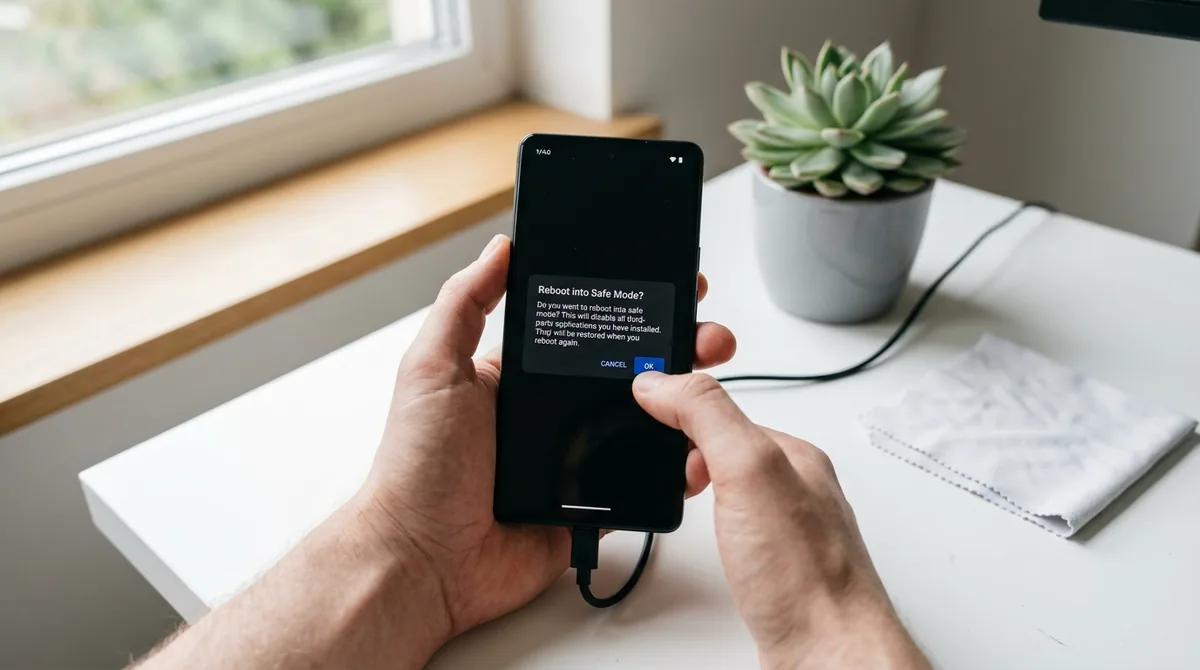
Safe Mode is a diagnostic startup state built into every Android phone. When active, the phone boots with only its essential system software running — all third-party apps you installed are temporarily disabled. They are not uninstalled or deleted; they simply cannot run. Their icons may appear grayed out, and tapping them does nothing until you leave Safe Mode.
Think of it as a controlled experiment: if the problem disappears in Safe Mode, a third-party app is causing it. If the problem persists in Safe Mode, the cause is in the Android system itself, the manufacturer's software, or the hardware — which points you toward very different solutions (system update, settings reset, or professional repair).
One reassurance about android safe mode: it changes nothing permanently. It does not delete data, reset settings, or modify your apps. It is purely a temporary diagnostic environment, and exiting returns everything to normal.
Android Safe Mode: Signs You Should Try It
Safe Mode is the right tool when your phone's problems started — or worsened — around the time you installed or updated apps. Classic symptoms include:
- Frequent crashes or freezes, especially of the system UI or launcher
- Rapid battery drain that began suddenly
- Overheating during light use
- Pop-up ads appearing outside of apps (on the home screen or over other apps) — a strong sign of an adware-laden app
- The phone restarting on its own
- Severe slowdowns that persist after restarting
- Mobile data or Wi-Fi behaving erratically after installing a VPN, firewall, or "optimizer" app
If any of these appeared within a day or two of installing something new, Safe Mode should be your first diagnostic step — before factory resets or repair shop visits.
How to Turn On Safe Mode

There are three common methods to enter android safe mode. Try them in order; one will work on your phone.
Method 1: From the Power Menu (Most Phones)
- Press and hold the power button (on some phones, power + volume up) until the power menu appears.
- Long-press the "Power off" option until a prompt appears asking "Reboot to Safe Mode?"
- Tap OK. The phone restarts into Safe Mode.
You will know it worked when you see a "Safe mode" watermark in the bottom-left corner of the screen after rebooting.
Method 2: With Hardware Buttons During Boot (Samsung and Others)
If the power-menu method does not offer Safe Mode (some Samsung and older phones):
- Power off the phone completely.
- Press and hold the power button to turn it on.
- As soon as the manufacturer's logo appears, press and hold the volume down button and keep holding it until the phone finishes booting.
- Release when you see the "Safe mode" watermark.
Timing matters here — start holding volume down the moment the logo appears, not before. If you miss it, the phone boots normally and you just try again.
Method 3: Via Recovery or Settings (Less Common)
A few manufacturers include a Safe Mode option in the shutdown menu under a "more options" expander, or it can be triggered from recovery mode. If neither method above works, search your phone's Settings for "safe mode" — some brands surface instructions or a toggle there. As a last resort, Google's Android help and your manufacturer's support site will document the exact button combination for your model.
What to Do While in Safe Mode
Getting into Safe Mode is only half the job. Here is how to use the session productively:
Step 1: Test Whether the Problem Is Gone
Use the phone normally for a while — 30 minutes to a few hours depending on the symptom. If crashes, battery drain, or pop-ups were happening frequently before, their absence in Safe Mode is strong evidence. Note that some pre-installed manufacturer apps still run in Safe Mode (only third-party apps are disabled), so this test isolates third-party causes specifically.
Step 2: If the Problem Is Gone — Find the Culprit App
The problem is one of your installed apps. Narrow it down:
- Think about timing. Which apps did you install or update right before the trouble started? Start with the most recent.
- Exit Safe Mode (see below) and uninstall the prime suspect.
- Use the phone normally. If the problem is gone, you found it. If not, uninstall the next suspect.
This one-by-one process is tedious but reliable. To speed it up, prioritize suspicious categories: "phone cleaner"/"booster" apps, free VPNs, apps from outside the Play Store, recently updated apps with new permissions, and apps showing ads outside their own interface.
Step 3: Check Battery and App Info While Still in Safe Mode
Even in Safe Mode, Settings > Battery > Battery usage shows historical drain data — look for any third-party app with disproportionate consumption before the Safe Mode session. Similarly, Settings > Apps lets you review recently installed apps sorted by install date, which helps build your suspect list.
Step 4: If the Problem Persists in Safe Mode
A problem that survives Safe Mode is not caused by your installed apps. Your next steps, in order:
- Check for system updates (Settings > System > System update) — the bug may be a known issue already fixed.
- Clear the system cache partition via recovery mode (this wipes temporary system files without touching your data; the exact steps vary by manufacturer).
- Reset app preferences (Settings > Apps > three-dot menu > Reset app preferences) to undo any broken system-app configurations.
- Back up and factory reset as a final software step.
- If problems continue after a reset, it is likely hardware — battery, storage, or board-level — and time for professional service.
How to Exit Safe Mode

Exiting is simple: restart the phone normally. Press and hold the power button, tap "Restart" (or power off and power back on). The phone boots normally with all your apps re-enabled and the "Safe mode" watermark gone.
If Your Phone Is Stuck in Safe Mode
Occasionally a phone keeps booting into Safe Mode. Fixes, in order:
- Restart again — sometimes it takes two clean reboots.
- Check for a stuck volume button. Since volume-down during boot triggers Safe Mode on many phones, a stuck or damaged volume button (or a tight case pressing it) can force Safe Mode every boot. Remove the case and test the button.
- Check the notification shade — some phones show a persistent "Safe mode is on" notification; tapping it offers a one-tap exit and restart.
- Remove recently installed apps that might be interfering with the boot process.
- As a last resort, back up and factory reset.
What Safe Mode Cannot Do: Limitations
Safe Mode is a diagnostic tool, not a repair tool. Know its boundaries:
- It does not fix anything by itself. It only helps you identify whether third-party apps are the cause. The actual fix — uninstalling the app, updating the system — happens outside Safe Mode.
- Pre-installed manufacturer and carrier apps still run. If bloatware from the manufacturer is the problem, Safe Mode will not reveal it, since those apps are treated as system apps.
- Some features are unavailable. Widgets from third-party apps will not load, custom launchers revert to the stock launcher temporarily, and any app-dependent automation pauses. This is normal.
- It cannot diagnose hardware failures directly. A failing battery or dying storage can cause symptoms that persist in Safe Mode — which is useful information (it rules out apps), but Safe Mode will not tell you which hardware component is failing.
- Malware with device-admin privileges can sometimes resist diagnosis, though genuinely persistent malware is rare on phones that only install from the Play Store.
Safe Mode vs. Similar Features
- Safe Mode vs. Recovery Mode: Recovery Mode is a separate minimal environment outside Android, used for factory resets and system updates — you cannot use your phone normally in it. Safe Mode boots the full Android system with apps disabled.
- Safe Mode vs. airplane mode: Airplane mode only disables radios (cellular, Wi-Fi, Bluetooth). It does nothing about misbehaving apps.
- Safe Mode vs. "Digital Wellbeing" focus modes: Focus modes pause distracting apps for productivity. Safe Mode disables all third-party apps for diagnostics. Different purposes entirely.
Diagnosing Specific Problems in Safe Mode
Different symptoms call for slightly different approaches once you are in android safe mode. Here is how to get the most out of the session for the most common complaints:
For battery drain: Go to Settings > Battery > Battery usage and review the consumption history from before you entered Safe Mode. A third-party app sitting at the top of that list with a large percentage is your prime suspect. Also note the screen-on versus background breakdown — an app burning battery in the background while you were not using it is almost always misbehaving.
For pop-up ads: If intrusive full-screen ads were appearing over your home screen or other apps, their complete absence in Safe Mode confirms an adware-style app is installed. These are frequently disguised as flashlights, cleaners, or wallpaper apps. Check Settings > Apps > Special app access > Display over other apps for the list of apps permitted to draw over your screen — that permission list is a shortlist of suspects.
For crashes and freezes: Pay attention to when crashes happened before. If the launcher itself was crashing, a third-party launcher or icon pack is likely. If crashes happened when opening specific file types, a recently installed viewer or editor app may be at fault. In Safe Mode, try to reproduce the exact action that used to trigger the crash.
For overheating: Feel whether the phone stays cool in Safe Mode during the same usage that previously made it hot. Background crypto miners and runaway sync processes — rare but real — reveal themselves this way. An app constantly using the CPU in the background will also show up as an outlier in battery usage stats.
Document what you observe — a quick note of which symptoms vanished and which remained makes the uninstall-and-test phase much faster once you reboot normally.
FAQ
Will Safe Mode delete my apps or data?
No. Safe Mode temporarily disables third-party apps but does not uninstall, modify, or delete anything. When you restart normally, every app returns exactly as it was, with all data intact. It is one of the safest troubleshooting steps you can take.
How do I know if I am in Safe Mode?
Look for the "Safe mode" watermark text in the bottom-left corner of the screen. You will also notice third-party app icons appear grayed out or missing from the home screen, custom launchers revert to stock, and most widgets do not load.
Can I use the internet in Safe Mode?
Yes. Wi-Fi and mobile data work normally in Safe Mode — only third-party apps are disabled. The built-in browser, system apps, and core phone functions all work, which is useful for researching the problem or downloading a system update while diagnosing.
Why do some apps still work in Safe Mode?
Apps that came pre-installed as part of the system (the manufacturer's apps, Google's core apps, carrier apps) are treated as system software and keep running. Safe Mode only disables apps you installed. If you suspect a pre-installed app, you will need to disable it manually under Settings > Apps.
How long should I stay in Safe Mode?
Long enough to determine whether the symptom occurs. For frequent crashes or pop-ups, 30–60 minutes of normal use is usually conclusive. For battery drain, you may need several hours to compare drain rates. There is no harm in staying longer — but remember that many of your daily apps will not work until you exit.
My phone keeps booting into Safe Mode by itself. What is wrong?
The most common cause is a stuck volume-down button or a phone case pressing it during boot, since that button combination triggers Safe Mode on many phones. Remove the case, check the button moves freely, and restart. If the button is fine, an app interfering with boot or system corruption may be responsible — try uninstalling recently added apps, then consider a factory reset.
Conclusion
Android Safe Mode is the fastest way to answer the most important troubleshooting question: "Is an app I installed causing this?" Power-menu long-press gets you in, the watermark confirms it, normal usage tells you whether the problem survives without third-party apps, and a plain restart gets you out. Work through your suspect apps one by one when the trail points at software, and escalate to system updates or professional repair when it does not. It takes minutes to learn and can save you hours of guesswork — or an unnecessary trip to the repair shop.



What do you think?
Share your experience or ask a question. A useful conversation starts with you.
Join the discussion