
There is a special kind of frustration in seeing every app on your phone notify you normally — except one. If you are wondering why am I not getting notifications from an app while everything else works fine, the problem is almost never your phone. It is something specific to that app: its notification channels, its in-app preferences, its permissions, or the way it registers for push messages.
This guide focuses on exactly that scenario. Instead of phone-wide troubleshooting, we will work through the app-specific layers one by one, from Android's notification channels down to the app's own servers. By the end, you will know precisely which setting was silencing that one app.
Why Am I Not Getting Notifications From an App? Confirm the Scope
Before changing anything, verify that the problem is truly isolated. Ask a friend to send you a test message, or trigger a notification from a second app you know works — your email, for instance. If other apps notify you normally and only one stays silent, you can safely ignore system-wide causes like Do Not Disturb schedules and focus on that app.
It also helps to check Notification history at Settings > Notifications > Notification history. If the silent app's alerts appear there, Android received them and something is hiding them. If the app is entirely absent from the history while other apps appear, its notifications are not reaching your phone at all — which points to registration, battery, or server-side issues for that specific app.
Understand Android Notification Channels
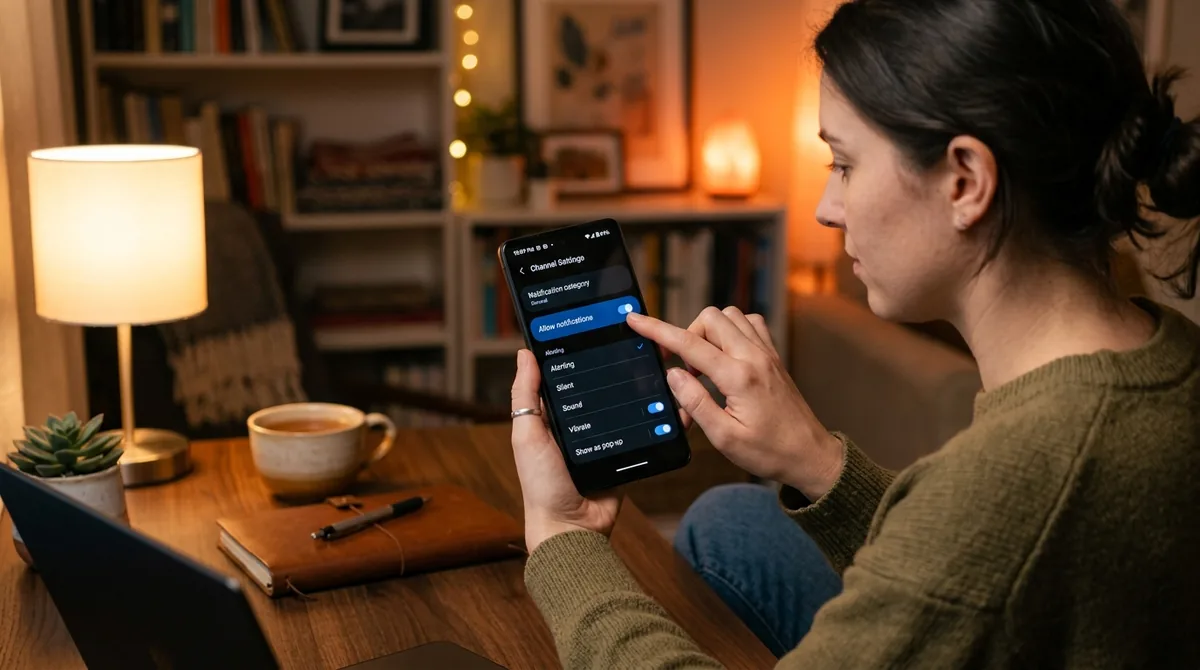
Since Android 8.0, apps do not have a single on/off notification switch. They expose notification channels (called "categories" on Samsung phones) — separate streams like "Direct messages," "Mentions," "Promotions," or "Reminders" — and each channel has its own enable toggle, sound, vibration, and importance level.
This is the most common reason someone is not getting notifications from an app despite the main toggle being on. The app's master switch can be enabled while the one channel you actually care about — say, direct messages — is muted or set to silent.
To inspect them:
- Long-press the app's icon and tap App info.
- Tap Notifications.
- Scroll through every channel listed and tap into the important ones.
- Make sure each is toggled on and its importance is set to an alerting level (such as "Default" or "High"), not "Silent" or "Low."
Pay attention to channels the app may have added recently. After a major app update, new channels sometimes appear with conservative defaults. Messaging apps in particular tend to split notifications into fine-grained channels — message requests, group mentions, calls, and stories may each live in their own channel with its own behavior.
Check the App's Own Internal Settings
Almost every major app has notification preferences inside the app itself, and these work independently of Android's system settings. When you are not getting notifications from an app, the in-app toggle is guilty surprisingly often — especially after updates that reset preferences or after logging out and back in.
Open the app and look for Settings, then a Notifications section. Common traps include:
- A master "Push notifications" toggle inside the app that got turned off.
- Granular in-app toggles (likes, comments, messages) that override the system channels.
- "Quiet hours" or "Pause notifications" features inside the app that you enabled and forgot.
- Sound and vibration controls inside the app set to silent.
Also check whether you are logged into the correct account. If you have multiple accounts in the app, notifications may be configured per account — you could be signed into an account with notifications disabled while expecting alerts for a different one.
Verify the App's Permissions
Notifications depend on a chain of permissions, and a denied permission anywhere in the chain can break delivery.
Notification Permission Itself
On Android 13 and later, apps must explicitly ask for permission to send notifications. If you denied the request when you first installed the app — or tapped "Don't ask again" — the app cannot notify you at all. Go to App info > Notifications and confirm the main toggle is on. On older Android versions this permission was granted by default, so this check matters most if you are on Android 13 or newer.
Related Permissions
Some apps need additional permissions for their notifications to work properly:
- Background location or nearby devices for apps that notify based on place.
- Phone/call permissions for apps that show incoming-call style notifications.
- Alarms and reminders permission for apps that schedule reminder notifications — on Android 12+, denying this can silently break scheduled alerts.
Review App info > Permissions and make sure nothing the app genuinely needs is denied. If you are unsure, the app's own help pages usually list the permissions it requires.
Battery Optimization for This Specific App
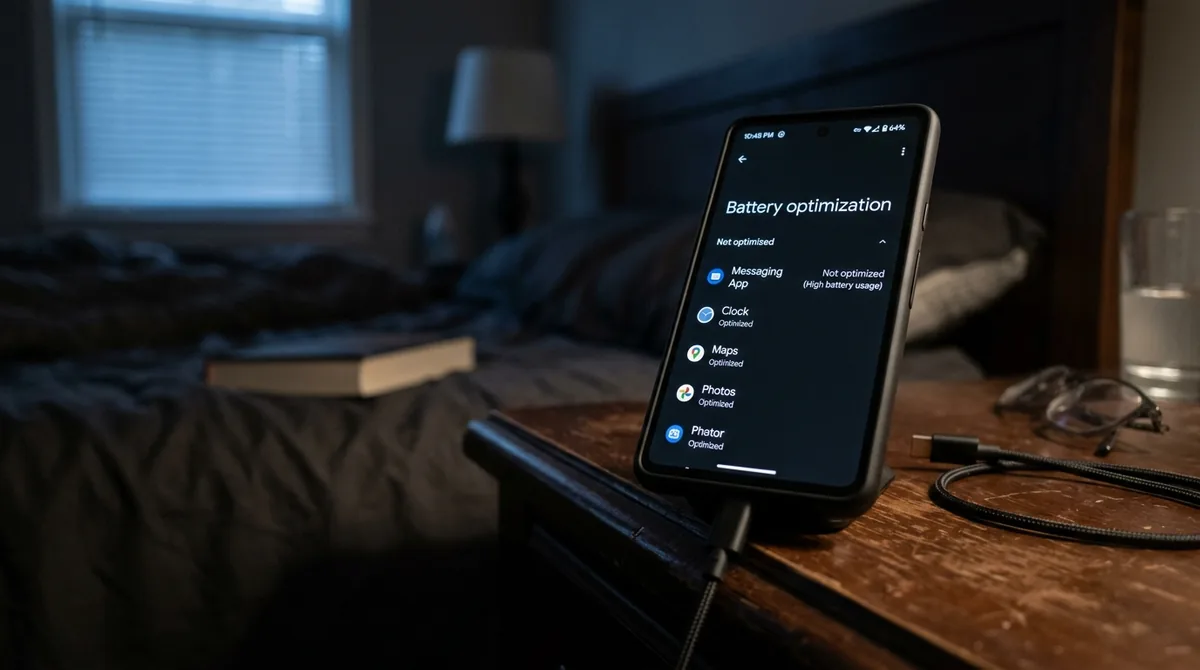
Even when the problem is isolated to one app, battery optimization is still a likely cause. Android's Adaptive Battery learns which apps you open frequently and restricts the rest — so an app you installed but rarely launch can be throttled into silence while your daily apps work fine.
Fix it for the specific app:
- Long-press the app icon, tap App info.
- Tap Battery or Battery usage.
- Select Unrestricted.
If your phone is a Samsung, Xiaomi, OnePlus, Huawei, Oppo, or Vivo, also check the manufacturer's own battery manager. Samsung's "Deep sleeping apps" list, Xiaomi's per-app battery saver, and similar vendor features can each silence an individual app independently of Android's own optimization. Remove the app from any sleeping or restricted list.
The telltale sign that battery optimization is the culprit: notifications arrive in a batch the moment you open the app. That delay-until-launch pattern means the app was asleep and only woke when you tapped it.
Background Data and Network Access for the App
An app that cannot use data in the background cannot receive push notifications while closed. In App info > Mobile data & Wi-Fi, verify that Background data is enabled for the app. If Data Saver is on phone-wide, add the app to the unrestricted list so it can sync regardless.
Also consider whether the app is affected by a VPN, firewall, or DNS filter that blocks some apps but not others. Some firewall apps let you block internet access per app — check that the silent app is not on a block list. If the app works on mobile data but not on your home Wi-Fi (or vice versa), the network is filtering something the app needs, and the fix is network-side rather than on your phone.
Re-register the App for Push Notifications
Apps register with Google's push service (Firebase Cloud Messaging) to receive notifications, and that registration can break — after an app update, after clearing data, after restoring from a backup, or sometimes for no visible reason. When registration breaks, the app's servers have no valid address to send your notifications to, so nothing arrives no matter how perfect your settings are.
The reliable way to force re-registration:
- Open the app and log out of your account if it offers that option, then log back in.
- If there is no logout option, go to App info > Storage & cache > Clear cache (safe), then open the app again.
- As a stronger step, Clear storage/data — but only if you know your login credentials and your data is synced to the app's servers, because this wipes local data.
- The strongest step is uninstalling and reinstalling the app, which guarantees a fresh push registration.
After each step, trigger a test notification — send yourself a message from another device or use the app's own test feature if it has one. Do not assume it worked; verify.
Check Whether the App's Servers Are Down
Sometimes you are not getting notifications from an app because the app's own notification servers are having problems. No phone setting can fix that. Signs of a server-side issue include:
- The app itself is slow, fails to refresh, or shows errors when you open it.
- Friends on different phones and networks report the same missing notifications.
- The app's status page or official social media accounts mention an outage.
Search the web for the app's name plus "notifications down" or check a service-status site. If there is an outage, the only fix is patience — your settings are fine, and notifications will resume when the service recovers. This check saves a lot of pointless settings-tweaking.
Account-Level Issues Inside the App
Beyond servers, your specific account can be the problem:
- Logged out or session expired: Some apps stop delivering pushes when your session expires but still look logged in. Logging out and back in refreshes the session and the push registration together.
- Multiple devices: If you are logged into the same account on two phones, some apps deliver notifications to only the most recently active device.
- Muted conversations or contacts: In messaging apps, you may have muted a specific chat or contact long ago. The app is working perfectly — it is just obeying your mute.
- Blocked or restricted accounts: If the sender is blocked, their messages will not generate notifications.
Review the app's notification settings for per-conversation mutes, and check whether the expected sender might be muted or blocked.
When the App Was Restored From a Backup
Phones restored from a backup — or apps transferred via a phone-cloning tool — are a classic source of single-app notification failures. The app's data comes across, but its push registration token does not survive the transfer cleanly. The app looks identical but is effectively deaf.
If the silent app arrived on your current phone via backup or cloning, reinstall it fresh from the Play Store rather than relying on the transferred copy. Then log in again and grant the notification permission when prompted. This resolves a surprising number of "it worked on my old phone" cases.
FAQ
Why am I not getting notifications from an app even though notifications are turned on?
When the master toggle is on but alerts still do not arrive, the usual suspects are a muted notification channel inside App info > Notifications, an in-app notification toggle that got disabled, battery optimization putting the app to sleep, or a broken push registration. Work through those four in order — one of them is almost always the answer.
Why did notifications from one app suddenly stop?
Sudden single-app failures usually follow an app update (which can reset in-app preferences or add new channels), a logout or session expiry, the app being added to a battery-saver list, or a server-side problem on the app's end. Check the app's internal notification settings first, since updates are the most common trigger.
How do I know if the app or my phone is the problem?
Use the isolation test: if every other app notifies you normally, your phone's system settings are fine and the problem belongs to that app. Notification history adds a second data point — the app's absence from the history while others appear confirms the notification never reached your device.
Should I reinstall the app if notifications are not working?
Reinstalling is a legitimate fix when settings all look correct, because it forces a fresh push-notification registration. Just make sure you know your login credentials and that your data is synced or backed up first, since uninstalling wipes the app's local data.
Why do I get notifications from an app on one phone but not another?
The most common reasons are different battery-optimization settings between the two phones, the app being logged into different accounts, or notifications being delivered only to the most recently active device. Compare the App info > Battery and notification settings on both phones side by side.
Can an app update turn off my notifications?
Yes. App updates can reset in-app notification preferences, add new notification channels with conservative defaults, or break push registration. After any major update to an app you depend on, it is worth spending a minute reviewing both its in-app notification settings and its Android notification channels.
Conclusion
When you are not getting notifications from an app, resist the urge to change phone-wide settings — the answer is almost always inside that app's own configuration. Check its notification channels in App info, its internal notification preferences, its permissions, and its battery and background-data allowances. If all of those look right, force a fresh push registration by logging out and back in or reinstalling, and rule out a server-side outage before you go further.
Single-app notification failures feel mysterious, but they follow a pattern: the app needs permission to notify, a working channel to notify through, freedom to run in the background, and a valid registration with the push service. Verify each link in that chain and the silent app will start talking again.
If you are still asking why am I not getting notifications from an app, broaden the diagnosis with why are my app notifications not working for system-wide causes and push notifications not working on Android for delivery-chain issues. Google’s Android help center covers notification permissions per version.


What do you think?
Share your experience or ask a question. A useful conversation starts with you.
Join the discussion