

If you keep asking yourself why are my app notifications not working, you are not alone. Missed notifications are one of the most common Android complaints: messages arrive late, alerts never appear, or everything goes silent for no obvious reason. The frustrating part is that the cause is rarely a single broken switch. Android manages notifications through several layers — the system, the app itself, battery-saving features, and even the network — and a problem in any one of them can silence your alerts.
The good news is that almost every notification failure can be fixed with the right settings. This guide walks through every major cause in a logical order, starting with the quick checks that take seconds and moving toward the deeper fixes. Work through the sections in order, and you will almost certainly find the culprit before you reach the end.
Start With the System-Level Basics
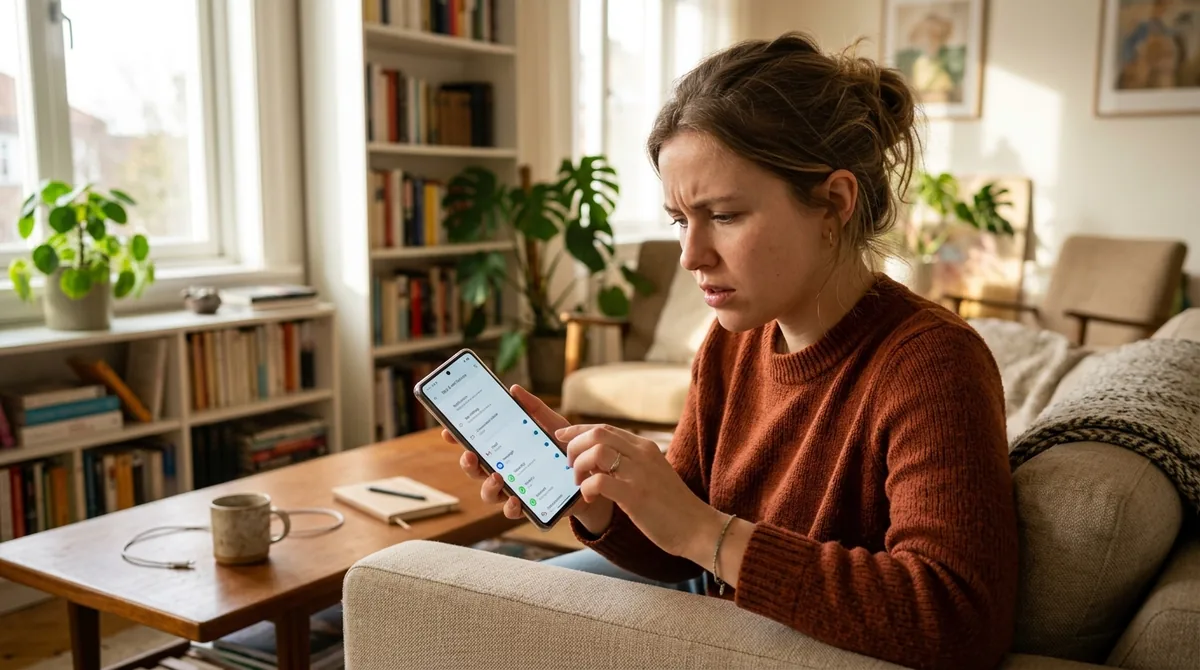
Before diving into per-app settings, rule out the phone-wide switches that can mute everything at once. These take less than a minute to check.
Do Not Disturb and Silent Modes
The number one reason people wonder why are my app notifications not working is an active Do Not Disturb mode they forgot about. On most Android phones, swipe down from the top of the screen to open Quick Settings and look for the Do Not Disturb tile. If it is highlighted, tap it to turn it off.
Also check whether a schedule is turning it on automatically. Go to Settings > Sound (or Sound & vibration) > Do Not Disturb > Schedules and look for bedtime or work schedules you may have set up long ago. A phone that goes silent every night at 10 PM and stays silent because of a forgotten schedule is a classic scenario.
While you are there, check the ringer mode. Some phones have a physical alert slider or a silent mode that suppresses notification sounds while still allowing vibrations. Press a volume button and make sure the mode is set to sound or vibrate, not fully silent, if you expect audible alerts.
Notification History: Proof Your Phone Received Them
Android keeps a log of recently dismissed notifications, and it is the fastest way to tell whether notifications are being received but hidden versus never arriving at all. Go to Settings > Notifications > Notification history and turn it on if it is off. It will show every notification from the last 24 hours, including ones you swiped away.
If the missing alerts appear in Notification history, your phone is receiving them fine — the problem is visibility (lock screen settings, banners, or alert style), not delivery. If they are absent from the history too, the notification never reached your device, which points toward battery restrictions, network issues, or the app's own servers.
Check the App's Main Notification Switch
Long-press the app icon on your home screen or app drawer and tap App info (the small "i" icon). Tap Notifications and confirm the master toggle at the top is on. This switch overrides everything else for that app — if it is off, no notification from that app can get through regardless of any other setting.
Dig Into Per-App Notification Settings
Modern Android versions (8.0 and later) give every app notification channels — categories like "Messages," "Promotions," or "Updates" that can each be turned on or off independently. This granularity is useful, but it also creates a common trap: the app's main switch is on, but the specific channel you care about is muted.
In App info > Notifications, scroll through the list of channels. Tap any channel you rely on and check that it is enabled and set to an alerting importance level (not "Silent"). Some apps also let you change the sound or vibration pattern per channel from this screen. If an app recently updated, it may have added new channels with default-off states, so it is worth reviewing them after major updates.
Also open the app itself and look at its internal settings. Many apps — messaging, email, and social apps in particular — have their own notification preferences inside the app that work independently of Android's system settings. A "push notifications" toggle inside the app that got flipped off during an update will silence everything even when every system setting is correct.
Battery Optimization Is the Silent Killer

On modern Android, aggressive power management is the single most common technical reason people ask why are my app notifications not working. Android's Doze mode and Adaptive Battery restrict background activity to save power, and push notifications depend on apps (or Google Play services) running quietly in the background.
How Doze and App Standby Interfere
When your phone sits idle with the screen off, Doze mode defers background work, including the network connections that deliver push notifications. Normally the system wakes briefly to let high-priority messages through, but on some devices — and with some apps — messages get delayed until you unlock the phone. If your notifications consistently arrive in a burst the moment you pick up your phone, Doze-related restriction is almost certainly the cause.
Set Important Apps to Unrestricted
For any app whose notifications you cannot afford to miss, exempt it from battery optimization:
- Long-press the app icon and tap App info.
- Tap Battery (on some phones, Battery usage).
- Choose Unrestricted (or Don't optimize, depending on your manufacturer).
This tells Android to let the app run in the background freely. Be aware that this can use slightly more battery, so reserve it for genuinely important apps like messaging, email, banking, or security apps rather than every game on your phone.
You can also review the global setting at Settings > Battery > Battery optimization (or Adaptive Battery) to see which apps the system has restricted. Adaptive Battery learns your usage patterns and throttles apps you rarely open — which is exactly why notifications from an app you installed but seldom launch may never arrive.
Check Manufacturer-Specific Power Savers
Samsung, Xiaomi, OnePlus, Huawei, Oppo, and Vivo all add their own power-management layers on top of Android's. These are notorious for killing background apps:
- Samsung: Settings > Battery > Background usage limits. Check "Deep sleeping apps" and "Sleeping apps" — apps on these lists may not deliver notifications until opened. Remove important apps from the lists or turn off "Put unused apps to sleep."
- Xiaomi (MIUI/HyperOS): Settings > Battery > App battery saver, and set key apps to "No restrictions." Also check the Security app's autostart permissions.
- OnePlus: Settings > Battery > Battery optimization, plus check that "Deep optimization" or "Advanced optimization" is not aggressively closing your apps.
- Huawei: Settings > Battery > App launch, and disable "Manage automatically" for apps whose notifications matter, enabling "Run in background" manually.
If you use a phone from one of these manufacturers and notifications are unreliable, these vendor-specific settings are the first place to look after the basics.
Data Saver, Network Restrictions, and Connectivity
Push notifications need a network connection. That sounds obvious, but several settings can quietly cut an app off from data in the background.
Data Saver Mode
Data Saver restricts background data usage for most apps. If it is on, apps may not be able to maintain the persistent connection that delivers push notifications until you open them. Check Settings > Network & internet > Data Saver and either turn it off or add your important apps to the "Unrestricted data" allowlist.
Per-App Background Data
Even with Data Saver off, individual apps can be blocked from using data in the background. In App info > Mobile data & Wi-Fi (wording varies by manufacturer), make sure Background data is enabled. If you use a metered Wi-Fi network, also check Unrestricted data usage so the app can sync even on networks Android treats as metered.
VPNs, Firewalls, and Private DNS
A VPN or firewall app can interfere with the long-lived connections push services use. If notifications stopped working around the time you installed or configured a VPN, try temporarily disconnecting it to see whether alerts resume. Similarly, an aggressive Private DNS setting or a DNS-based ad blocker can block the domains push services rely on — switching Private DNS back to "Automatic" is a quick test.
Work Profiles and Dual Apps
If the app runs inside a work profile (common on company-managed phones), the work profile itself can be paused, which suspends all of its apps and their notifications. Check the work tab in your app drawer or Settings > Accounts to make sure the work profile is active. Dual-app or cloned-app features (two copies of the same app) can also confuse notification routing — notifications may go to one copy while you are watching the other.
Focus Modes, Bedtime, and Driving Modes
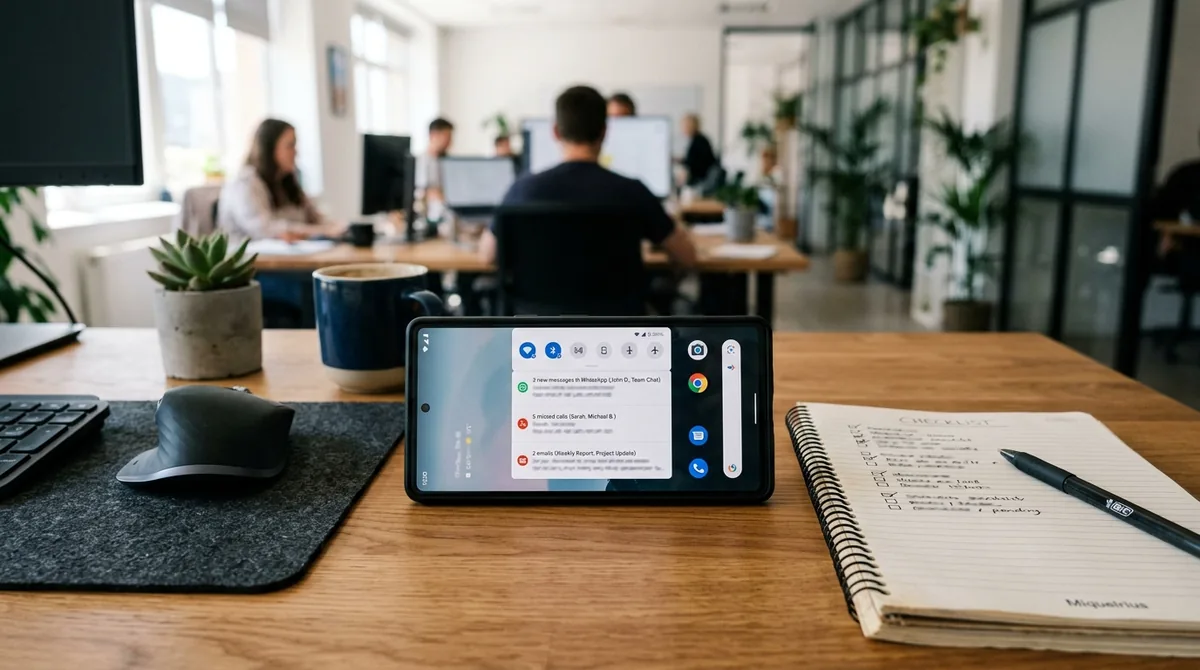
Beyond classic Do Not Disturb, newer Android versions include Focus mode (part of Digital Wellbeing) and Bedtime mode, either of which can pause distracting apps and suppress their notifications on a schedule. Check Settings > Digital Wellbeing & parental controls > Focus mode to see whether your problem apps are on the distracting-apps list and whether a schedule is active.
Bedtime mode (sometimes under Settings > Digital Wellbeing > Bedtime mode or in the Clock app) can mute notifications overnight. If you only miss notifications while you sleep, this is likely intentional behavior — but if the schedule is wrong or you want certain contacts to break through, adjust the settings or add exceptions.
Some phones also enable a driving mode automatically when they detect you are in a car via Bluetooth or motion. If notifications vanish during your commute, look for driving-mode settings and add exceptions or disable the auto-detection.
Clear Cache, Update, and Reinstall
When settings all look correct but one specific app still will not notify you, the app's own data may be corrupted.
Clear the App Cache
A corrupted cache can break an app's background components, including its notification registration. Go to App info > Storage & cache > Clear cache. This is safe — it removes temporary files without deleting your logins or data. After clearing the cache, open the app once so it can re-register for push notifications.
Update the App and the System
Notification bugs are frequently fixed in app updates, and occasionally introduced by them. Open the Play Store, check for updates to the problem app, and install them. Likewise, install pending system updates — manufacturers regularly fix notification-delivery bugs in monthly patches. After a major Android version upgrade, it is also worth revisiting notification permissions, because upgrades sometimes reset them.
Reinstall as a Last Resort for One App
If a single app refuses to notify you and everything else works, uninstalling and reinstalling it forces a clean re-registration with the push service. Before you do, make sure you know your login credentials and that any important data is backed up or synced to your account, since uninstalling removes local data.
Google Play Services: The Delivery Backbone
On most Android phones, push notifications travel through Google Play services via Firebase Cloud Messaging. If Play services itself is restricted, outdated, or misbehaving, notifications can fail across many apps at once.
Check that Google Play services is up to date in the Play Store, and make sure it is not battery-optimized: go to App info for Google Play services (you may need to tap "Show system" in the app list) and set its battery usage to Unrestricted. Clearing the cache of Google Play services can also resolve stuck push connections — use App info > Storage & cache > Clear cache (avoid "Clear data" unless you are prepared to re-sign into Google services).
If notifications fail on every app simultaneously, Play services is a prime suspect. A quick test: if Gmail, messaging apps, and social apps all went silent at the same time, the common link is usually the push infrastructure rather than any individual app.
Advanced Steps: Reset App Preferences and Safe Mode
Reset App Preferences
If you have been toggling settings for a long time, you may have created a contradictory combination you cannot easily trace. Settings > System > Reset options > Reset app preferences restores all app permissions, notification settings, background restrictions, and defaults to their out-of-box state without deleting any app data. You will need to re-grant permissions afterward, but it is an effective way to clear a tangled configuration.
Test in Safe Mode
Booting into Safe Mode disables all third-party apps temporarily. If notifications work in Safe Mode but not normally, a third-party app — often a task killer, RAM booster, antivirus, or aggressive battery app — is interfering. Uninstall recently added utility apps one by one until notifications recover. As a general rule, avoid "RAM booster" and "task killer" apps entirely; Android manages memory itself, and these utilities are a frequent cause of broken notifications.
To enter Safe Mode, press and hold the power button, then long-press the "Power off" option until the Safe Mode prompt appears. Restart normally to exit.
Why Are My App Notifications Not Working: Finding the Real Cause
When you are still wondering why are my app notifications not working after the basic checks, use this quick diagnostic logic:
- Missing from Notification history, and the app works when opened: The notification never reached your phone — suspect battery optimization, background data restrictions, or the app's servers.
- Present in Notification history but never visible: The notification arrived — suspect lock screen settings, notification channel importance set to Silent, or Do Not Disturb rules.
- Arrives late in bursts when you unlock the phone: Classic Doze/battery-optimization behavior — set the app to Unrestricted.
- One app affected, everything else fine: The problem is in that app's settings, its notification channels, or its own servers.
- Every app affected at once: Suspect system-wide causes — Do Not Disturb schedule, Data Saver, VPN, or Google Play services.
FAQ
Why are my app notifications not working all of a sudden?
A sudden, phone-wide notification failure is most often caused by a newly enabled Do Not Disturb schedule, a system update that reset permissions, or a newly installed VPN, firewall, or battery-saver app. Check Do Not Disturb first, then think about what changed on your phone in the last day or two — the timing usually points at the cause.
Why do I only get notifications when I open the app?
This is the signature symptom of battery optimization. Android is putting the app to sleep in the background, so it cannot receive pushes until you launch it. Set the app to Unrestricted in its battery settings and make sure background data is enabled, and the delays should stop.
Can a phone case or update break notifications?
A system update can absolutely change notification behavior — updates sometimes reset notification permissions or introduce bugs that a follow-up patch fixes. A phone case cannot affect notifications, though, unless it is pressing the volume buttons and forcing silent mode, which is worth a quick check if your phone keeps muting itself.
Why are my app notifications not working on Wi-Fi but work on mobile data?
This usually points to the Wi-Fi network itself: restrictive firewalls, captive portals, or DNS filtering on that network can block the persistent connections push services need. Try forgetting and rejoining the network, switching Private DNS to Automatic, or testing on a different Wi-Fi network to confirm.
Do I need to keep the app open for notifications to work?
No. Properly configured Android apps receive push notifications through Google Play services even when fully closed. If an app only notifies you while it is open on screen, its background activity is being restricted — fix the battery and background-data settings rather than leaving the app open.
Will resetting app preferences delete my data?
No. Resetting app preferences only restores permissions, notification settings, default apps, and background restrictions to their defaults. Your accounts, photos, messages, and files stay untouched. You will just need to re-grant permissions the next time you open each app.
Conclusion
Figuring out why are my app notifications not working comes down to working through the layers: system switches like Do Not Disturb, per-app notification channels, battery optimization, network restrictions, and finally the push infrastructure itself. In most cases the fix is a single toggle — the hard part is knowing which layer to look at, which is why the diagnostic approach in this guide matters more than any individual setting.
Start with the quick wins: Do Not Disturb, the app's master notification switch, and Notification history. If those check out, exempt your important apps from battery optimization and verify background data. And if everything fails at once, look at Google Play services and any VPN or firewall you recently installed. With a methodical pass through these areas, your notifications should be back to reliable — and you will know exactly which setting to check the next time they go quiet.
If one specific app is the culprit, see why am I not getting notifications from an app; for visibility-only issues, app notifications not showing on Android covers the display layers. Google’s Android help center documents notification channels by version.


What do you think?
Share your experience or ask a question. A useful conversation starts with you.
Join the discussion