

Few tech annoyances match the frustration of watching your Wi-Fi icon vanish mid-video, mid-call, or mid-download. When Android WiFi keeps disconnecting and reconnecting in an endless loop, the problem could live in your phone, your router, or the invisible radio environment between them. The good news: this is one of the most diagnosable problems in mobile tech, and the fix is usually simple.
This guide walks you through 12 fixes in the order you should try them — starting with 30-second checks and ending with deeper network surgery. Test your connection after each step. In most cases, you will find the culprit well before the end of the list.
First: Figure Out Where the Problem Lives
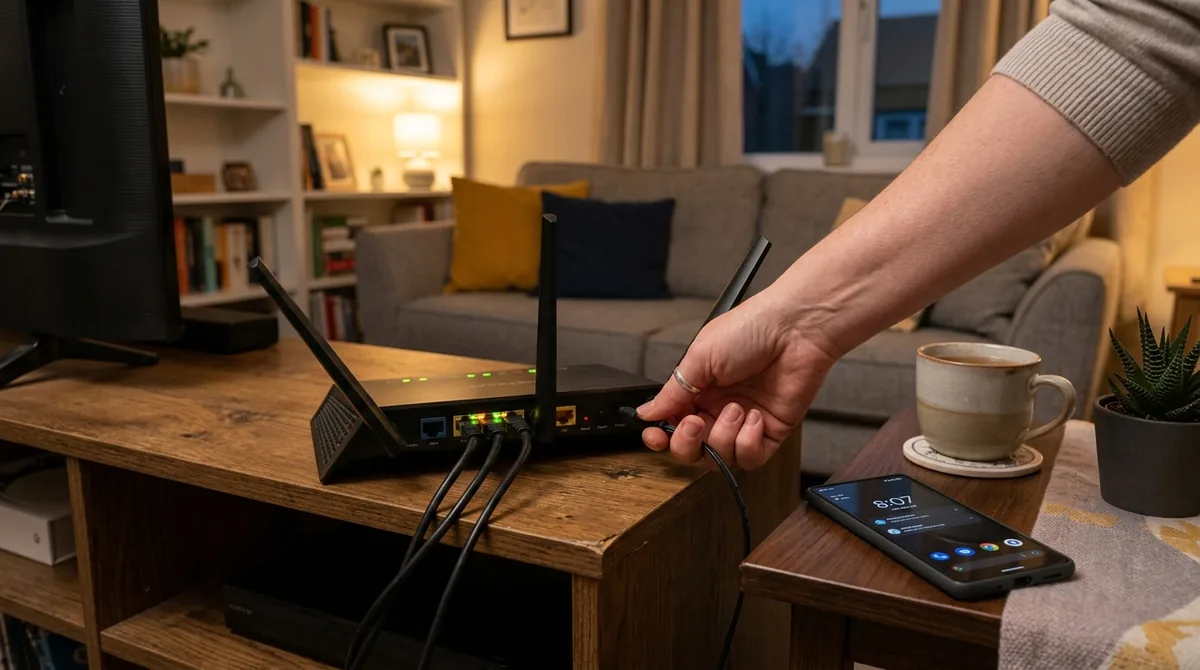
Before changing anything, spend two minutes narrowing the scope. The answer determines which fixes matter.
- Does it happen on all Wi-Fi networks or just one? If your phone drops only your home network but stays solid at work or a café, the router — not the phone — is the prime suspect.
- Do other devices drop too? If your laptop and tablet disconnect at the same time, it is a router or ISP issue. If only your Android phone drops, focus on phone-side fixes.
- When did it start? Right after a system update, a new router, or moving the router? Timing is a powerful clue.
- Where are you when it drops? If disconnects happen only in a specific room, you are likely at the edge of the router's range.
With that context, work through the fixes below.
Fix 1: Toggle Wi-Fi Off and Back On
The classic first step exists for a reason. Toggling Wi-Fi forces your phone to drop its current association and negotiate a fresh connection with the router, clearing transient glitches in the Wi-Fi radio state.
Swipe down to open quick settings, tap the Wi-Fi tile to turn it off, wait about 10 seconds, and turn it back on. If the connection stabilizes — even temporarily — you have confirmed the issue is intermittent rather than a hard failure, which points toward interference or router-side problems.
Fix 2: Restart Your Phone

A reboot clears the phone’s network stack, which is often all it takes when Android WiFi keeps disconnecting after an update. A reboot clears the phone's network stack, DNS cache, and any stuck background services managing connectivity. Hold the power button, tap Restart, and reconnect to Wi-Fi once the phone boots. This resolves a meaningful share of disconnect issues, especially those that appeared after the phone had been running for days.
Fix 3: Restart Your Router (Properly)
Routers are small computers, and they develop the same cruft phones do — memory leaks, overheated chips, stale DHCP leases. A proper restart:
- Unplug the router's power cable (do not just press a standby button).
- Wait a full 30 seconds — this lets capacitors discharge and clears volatile memory.
- Plug it back in and wait 2–3 minutes for it to fully reconnect to your ISP.
If disconnects stop for a few days and then return, your router may be overheating or dying — check whether it feels hot, and consider whether it is time for a replacement (see Fix 12).
Fix 4: Forget the Network and Reconnect
Your phone stores network profiles — security type, passwords, IP settings — and a corrupted profile causes exactly this kind of flaky behavior.
- Go to Settings > Network & internet > Internet (or Wi-Fi).
- Long-press your network (or tap the gear icon) and select Forget.
- Reconnect from scratch by selecting the network and entering the password.
This forces a clean handshake: new DHCP lease, fresh authentication, no legacy settings carried over.
Fix 5: Turn Off "Auto-Switch to Mobile Data" Aggressiveness
Android tries to be helpful: when it decides Wi-Fi is too slow or unstable, it silently switches you to mobile data — which looks and feels like a Wi-Fi disconnect. Two settings control this behavior:
- Settings > Network & internet > Internet > Network preferences > Switch to mobile data automatically — turn this off if you would rather stay on weak Wi-Fi than burn mobile data.
- On Samsung phones, check Settings > Connections > Wi-Fi > Advanced > Switch to mobile data.
If your "disconnects" coincide with moments of weak signal, this setting was probably the culprit all along. Your Wi-Fi was not dropping — your phone was abandoning it.
Android WiFi keeps disconnecting? Fix 6: Disable Wi-Fi Power Saving
Battery optimization can starve the Wi-Fi radio. Android may put Wi-Fi to sleep aggressively to save power, causing drops during idle periods.
- Turn off Wi-Fi power saving: Go to Settings > Network & internet > Internet > Network preferences and disable options like Turn on Wi-Fi automatically. On Samsung: Settings > Connections > Wi-Fi > Advanced > Wi-Fi power saving mode — turn it off.
- Disable Adaptive Connectivity (Pixel): Settings > Network & internet > Adaptive connectivity automatically switches between network types to save battery. Try turning it off to see if stability improves.
- Check per-app battery optimization: If disconnects happen while using one specific app (a VPN, a streaming app), go to Settings > Apps > [app] > Battery and set it to Unrestricted.
Fix 7: Change the Wi-Fi Frequency Band (2.4 GHz vs 5 GHz)
Most modern routers broadcast two bands. Each has tradeoffs:
- 2.4 GHz: longer range, better wall penetration, but slower and more crowded (microwaves, Bluetooth, baby monitors, and neighbors all share it).
- 5 GHz: much faster and less congested, but shorter range and weaker through walls.
If your phone drops on 5 GHz in a far room, the signal may simply be too weak — switch to the 2.4 GHz version of your network (often named `YourNetwork` vs `YourNetwork_5G`). Conversely, if 2.4 GHz is congested in an apartment building, 5 GHz may be rock solid.
How to switch bands: In your Wi-Fi settings, tap the gear icon on your connected network and look for Frequency band or a band-preference option. Some phones let you choose; others pick automatically. If your router merges both bands under one name (band steering), consider splitting them in the router's admin panel so you can choose manually.
Fix 8: Move Closer, Reduce Interference
Wi-Fi is radio, and radio obeys physics. Common interference sources that cause disconnects:
- Distance and walls: each wall between you and the router weakens the signal. Test by standing in the same room as the router — if drops stop, it is a range problem.
- Other electronics: microwaves, cordless phones, baby monitors, and Bluetooth devices all crowd the 2.4 GHz band.
- Neighbor networks: in apartments, dozens of routers fight over the same channels.
Practical steps: elevate the router (signals spread outward and downward), keep it away from metal objects and mirrors, and avoid stuffing it inside a cabinet. For persistent dead zones, a mesh Wi-Fi system or a wired access point beats a cheap range extender every time.
Fix 9: Change the Wi-Fi Channel on Your Router
If neighbors' routers crowd your channel, connections become unstable even with a strong signal. Most routers default to "Auto" channel selection, which is often lazy about switching.
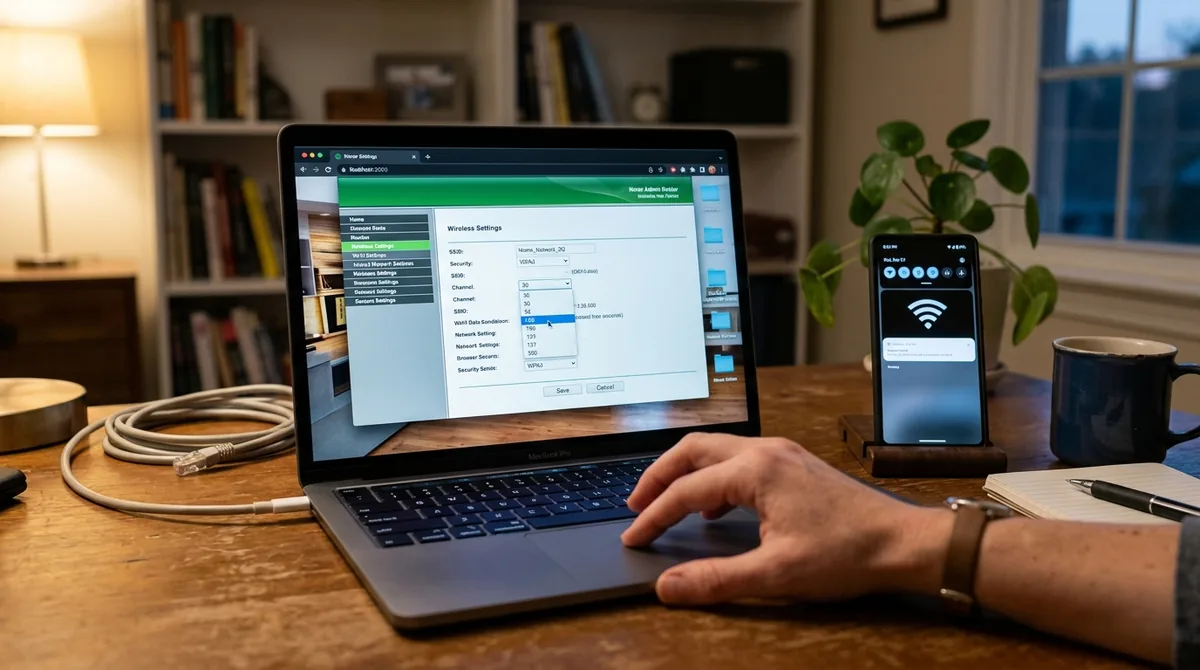
- Log in to your router's admin panel (usually `192.168.1.1` or `192.168.0.1` in a browser; credentials are on the router's sticker).
- Find the wireless settings and change the 2.4 GHz channel manually — channels 1, 6, and 11 are the only non-overlapping choices.
- For 5 GHz, pick any clear channel; overlap is less of an issue there.
Free Wi-Fi analyzer apps can show you which channels nearby networks use, making the choice easy. This single change fixes a remarkable number of apartment-building disconnect sagas.
Fix 10: Update Router Firmware and Your Phone
Outdated firmware on either end causes incompatibilities:
- Router firmware: check the manufacturer's app or admin panel for updates. Firmware updates fix bugs, patch security holes, and sometimes dramatically improve stability.
- Phone system updates: Settings > System > System update. Wi-Fi driver fixes ship with these regularly.
Also update your router's companion app if it has one — some routers manage firmware through the app exclusively.
Fix 11: Reset Network Settings on Your Phone
When nothing else works, reset the phone's entire network configuration. This wipes all saved Wi-Fi networks, Bluetooth pairings, and mobile data settings back to defaults — without touching your apps, photos, or files.
Settings > System > Reset options > Reset Wi-Fi, mobile & Bluetooth (Samsung: Settings > General management > Reset > Reset network settings). Confirm, restart the phone, and reconnect to your Wi-Fi fresh.
You will need to re-enter Wi-Fi passwords and re-pair Bluetooth devices afterward, so gather passwords first.
Fix 12: Check for Router Hardware Failure or ISP Issues
If every device drops, restarts only help briefly, and the router runs hot or is more than 4–5 years old, the hardware itself may be failing. Signs of a dying router:
- Needing restarts more than once a week.
- Disconnects that affect wired devices too (this points to the router or modem, not Wi-Fi).
- The router is very hot to the touch or makes the room smell faintly of hot plastic.
Also check with your ISP: log into your modem's status page or call support to ask about signal levels and outages in your area. If the modem's connection to the ISP drops, everything downstream — including Wi-Fi — drops with it, and no phone setting will fix that.
Quick Diagnostic Checklist
Use this when you are in a hurry:
- [ ] Other devices affected? → router/ISP problem
- [ ] Only one network affected? → forget network, check router
- [ ] Drops in one room only? → range/interference
- [ ] Started after an update? → check for patches, reset network settings
- [ ] Phone switches to mobile data? → disable auto-switch setting
- [ ] Drops when screen is off? → disable Wi-Fi power saving
FAQ
Android WiFi keeps disconnecting when the screen turns off — why?
This is almost always aggressive power saving. Android (or your manufacturer's skin) is putting the Wi-Fi radio to sleep to save battery. Disable Wi-Fi power-saving mode under your Wi-Fi advanced settings, and check that the specific apps you need (messaging, music streaming) are exempt from battery optimization.
My Wi-Fi says "Connected, no internet." Is that the same problem?
Related but different. "Connected, no internet" means the Wi-Fi link to the router is fine, but the router has no path to the internet — usually a modem or ISP issue, or a stale DHCP lease. Restart the modem and router; if it persists across devices, contact your ISP.
Should I use a static IP address to fix disconnects?
Sometimes. If your router's DHCP server is flaky, assigning a static IP bypasses it. In your Wi-Fi network's advanced settings, change IP settings from DHCP to Static and enter an address outside the router's DHCP pool. But this is a workaround, not a fix — a router with a broken DHCP server likely has deeper problems.
Can a VPN cause Wi-Fi disconnects?
Yes. VPN apps hold a persistent connection that is sensitive to network changes, and some VPNs aggressively reconnect in ways that look like Wi-Fi drops. If disconnects started when you installed a VPN, try disabling it temporarily. Also check the VPN's "kill switch" setting, which can block all traffic during reconnections.
How do I know if I need a new router?
Consider replacing it if it is more than five years old, needs weekly restarts, cannot handle your device count (modern homes often have 20+ connected devices), or lacks current security standards (WPA3). A modern Wi-Fi 6 router is a meaningful upgrade for most households still running older hardware.
Why does my phone disconnect from Wi-Fi but my laptop stays connected?
Phones are more aggressive about power saving and network switching than laptops. Your phone may be dropping a weak-but-usable signal that your laptop tolerates, or auto-switching to mobile data. Work through Fixes 5 and 6 first — they address exactly this phone-specific behavior.
Conclusion
When your android wifi keeps disconnecting, resist the urge to change everything at once. Diagnose first — one network or all, one device or many — then work the list in order. For most people, the fix is one of the early steps: a proper router restart, forgetting and rejoining the network, or taming the auto-switch and power-saving settings that sabotage connections in the name of efficiency.
Stable Wi-Fi is not luck; it is configuration. Take twenty minutes with this guide, and those maddening mid-video drops should become a thing of the past.
If Android WiFi keeps disconnecting after all twelve fixes, rule out related radio issues with Android Bluetooth not working: 11 fixes to try and system-level faults via Android system update stuck: 8 ways to fix it. Google’s Android help center documents Wi-Fi power settings.


What do you think?
Share your experience or ask a question. A useful conversation starts with you.
Join the discussion