
When you notice push notifications not working on Android, the problem lives one level deeper than the notification settings most guides cover. Push notifications are not generated on your phone — they are sent from an app’s servers, relayed through Google’s push infrastructure, and delivered to your device over a persistent network connection. A break at any point in that chain means silence, no matter how perfect your notification toggles are.
This guide explains how push delivery actually works and then walks through every link in the chain: Google Play services, Firebase Cloud Messaging, battery optimization and Doze, network restrictions, and the app's own server connection. If your notifications arrive late, in bursts, or not at all, the answer is in here.
How Push Notifications Travel to Your Phone
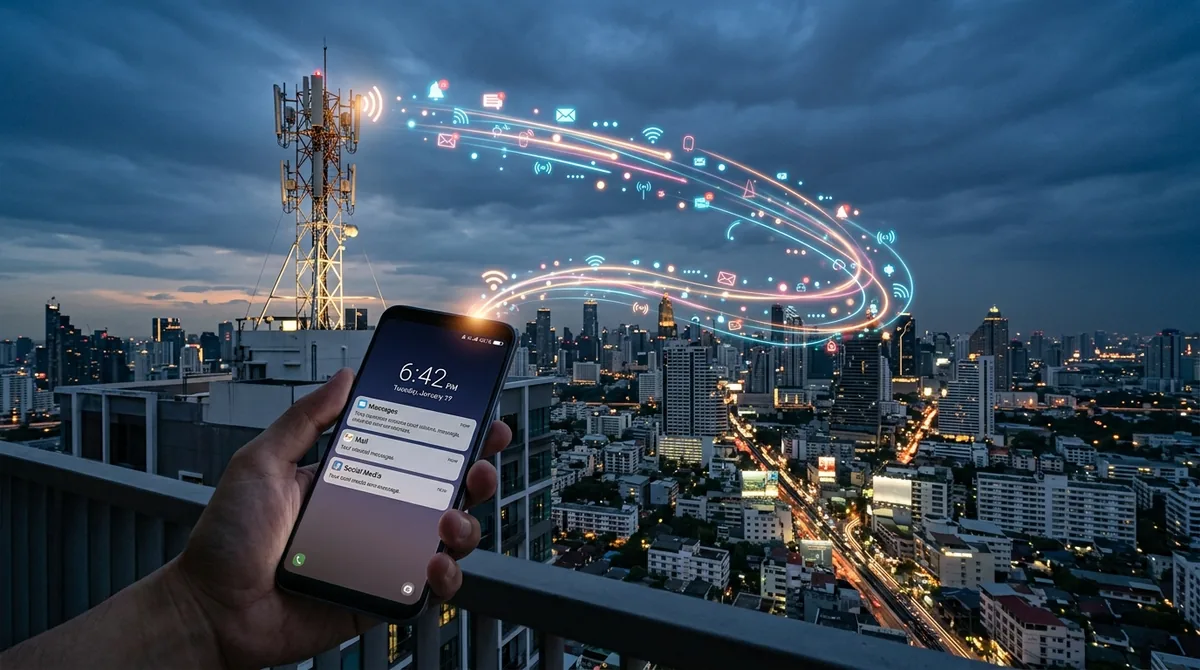
Understanding the pipeline makes every fix below make sense. When someone sends you a message in a typical app, this is what happens:
- The sender's app uploads the message to the app company's servers.
- Those servers ask Google's Firebase Cloud Messaging (FCM) service to deliver a push to your device.
- FCM sends the push over a persistent connection to Google Play services on your phone.
- Play services wakes the target app (or delivers directly) and the app posts the notification you see.
Four hops, and each one can fail independently. Most troubleshooting guides only address step 4 — the visible notification settings. This guide covers steps 2 and 3, the invisible infrastructure, which is where the stubborn cases live.
Step 1: Check Google Play Services Health
Google Play services is the on-device endpoint for FCM. If it is outdated, restricted, or malfunctioning, push notifications can fail across many apps simultaneously — the hallmark symptom of a Play services problem is every app going quiet at once.
Update Google Play Services
Open the Play Store, search for "Google Play services," and install any available update. Play services updates itself automatically in the background, but a stuck or failed update can leave push delivery broken for weeks without any visible error.
Exempt Play Services From Battery Optimization
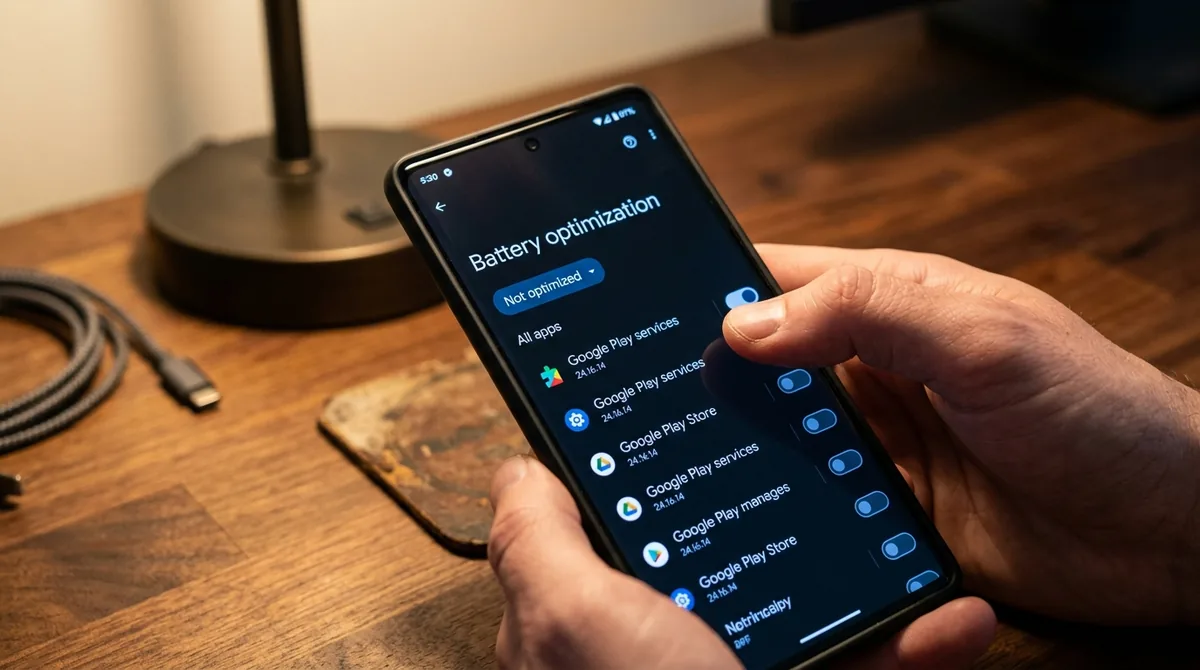
This is critical and often overlooked. If the system throttles Play services, the persistent FCM connection drops and pushes stop arriving. To check:
- Go to Settings > Apps > See all apps, tap the menu, and enable Show system.
- Find Google Play services and tap it.
- Tap Battery or App battery usage and set it to Unrestricted.
Do the same for Google Services Framework if it appears in your system app list. These components must be free to run in the background at all times.
Clear the Play Services Cache
A corrupted cache in Play services can stall the push connection. In the app's info page, go to Storage & cache > Clear cache. This is safe and often restores a stuck FCM connection within minutes. Avoid "Clear data"/"Manage space" for Play services unless you are prepared to re-authenticate Google services, since that wipes account tokens.
Verify Your Google Account Sync
FCM delivery is tied to your Google account on the device. Go to Settings > Accounts (or Passwords & accounts), tap your Google account, and confirm sync is working without errors. A broken account sync — often after a password change — can silently break push registration for Google-dependent services.
Step 2: Defeat Doze Mode and Battery Optimization
Android's power-saving systems are the most common infrastructure-level cause of broken pushes. Here is why: FCM maintains a long-lived network connection to Google's servers, and Doze mode — which activates when your phone is idle with the screen off — defers network access and background work. High-priority pushes are supposed to wake the device briefly, but on many phones, especially from manufacturers with aggressive power managers, the wake-ups do not happen reliably.
The Signature Symptom
If your push notifications arrive in a sudden burst the moment you unlock your phone or open the app, you are watching Doze behavior in real time. The pushes were queued on Google's servers and delivered the instant the device woke. This pattern is diagnostic: it means the infrastructure works and power management is the blocker.
Set Critical Apps to Unrestricted
For each app whose pushes must arrive on time:
- Long-press the icon, tap App info.
- Tap Battery and choose Unrestricted.
Also review Settings > Battery > Adaptive Battery to see whether the system has learned to throttle your apps. Adaptive Battery restricts apps you open infrequently — which is precisely why pushes from a rarely opened app (a banking app, a smart-home app) may never arrive until you launch it.
Tame Manufacturer Power Managers
Samsung, Xiaomi, OnePlus, Huawei, Oppo, and Vivo add proprietary app killers on top of Android's Doze, and these are responsible for a large share of push failures:
- Samsung: Settings > Battery > Background usage limits — remove key apps from "Deep sleeping" and "Sleeping" lists, and consider disabling "Put unused apps to sleep."
- Xiaomi: Settings > Battery > App battery saver — set to "No restrictions" for push-dependent apps; also grant autostart permission in the Security app.
- OnePlus/Oppo: Battery optimization settings plus "Deep optimization" toggles that aggressively close background apps.
- Huawei: Settings > Battery > App launch — switch important apps from automatic to manual management with "Run in background" enabled.
- Vivo: Similar per-app background power consumption controls in battery settings.
If pushes fail on one of these phones and work on a Pixel, the manufacturer's power manager is the difference — address it directly.
Step 3: Fix Network-Level Push Blockers
FCM needs a stable, long-lived connection to Google's servers. Several network configurations can break it.
Data Saver and Background Data
Data Saver (Settings > Network & internet > Data Saver) restricts background data, which can starve the push connection. Either disable it or add your push-dependent apps to the unrestricted list. Per app, verify App info > Mobile data & Wi-Fi > Background data is enabled — an app blocked from background data cannot maintain its push registration.
VPNs, Firewalls, and DNS Filters
VPN apps, firewall apps, and DNS-based ad blockers sit between your phone and the internet, and they can interfere with FCM's persistent connection. If pushes stopped working around the time you installed or reconfigured one of these, disconnect it temporarily as a test. If pushes resume, add an exception or choose a configuration that does not break the push connection.
Private DNS deserves special attention: an aggressive Private DNS provider can block the Google domains FCM uses. Switching Settings > Network & internet > Private DNS back to "Automatic" is a quick, reversible test.
Restrictive Wi-Fi Networks
Corporate, school, hotel, and public Wi-Fi networks often run firewalls that block the ports or long-lived connections push services need. The diagnostic test is simple: turn off Wi-Fi and see whether pushes arrive promptly on mobile data. If they do, the Wi-Fi network is the problem — not your phone. For networks you control, check firewall rules and DNS filtering; for networks you do not control, mobile data or a VPN tunnel may be the workaround.
Work Profiles and Dual Apps
A paused work profile suspends all of its apps, including their push connections. Check that the work profile is active. Cloned/dual apps can also split push registration between copies — pushes may be delivered to the copy you are not watching.
Push Notifications Not Working on Android? Step 4: Re-register With FCM
Every app holds a push registration token — the address FCM uses to reach that specific app installation. Tokens can expire or become invalid after app updates, backup restores, clearing app data, or account changes. When the token is dead, the app's servers are sending pushes into the void.
Force a fresh registration:
- Log out of the app and log back in (this refreshes both the session and the token).
- If that fails, App info > Storage & cache > Clear cache, then open the app.
- As a final measure, uninstall and reinstall the app, then log in fresh.
After each step, send a test push — message yourself from another device. Reinstalling guarantees a new token, which is why it resolves the stubborn cases where every setting looks correct.
Step 5: Rule Out the App's Own Servers
Push infrastructure has one more link: the app company's servers that originate the push. If those servers are down or degraded, no device-side fix will help. Clues include the app itself failing to refresh, friends on other networks reporting the same silence, or the company's status page acknowledging an incident.
Search for the app's name with terms like "push notifications down" or check a service status tracker. Server-side outages usually resolve within hours. Recognizing one saves you from an afternoon of pointless settings changes.
Step 6: Check Date, Time, and System Integrity
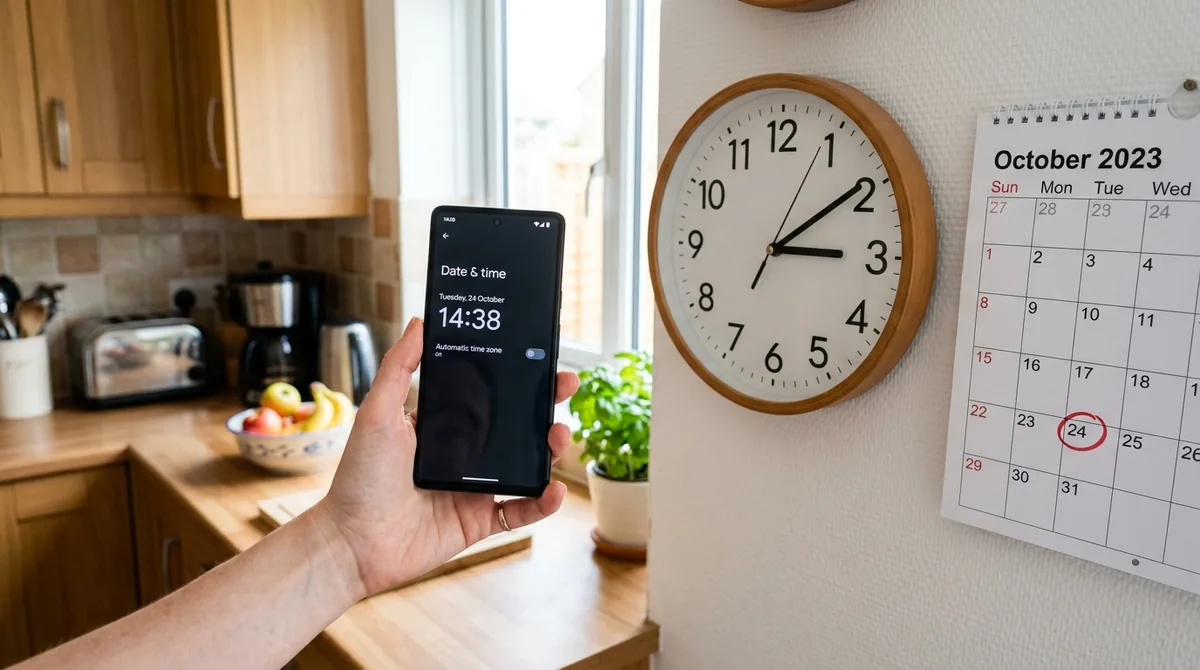
Push connections use encrypted sessions that depend on accurate time. If your phone's clock is significantly wrong — after a failed manual time set, for example — TLS connections to push servers can fail. Leave Settings > System > Date & time > Set time automatically enabled.
Also install pending system updates. Manufacturers fix push-delivery bugs in monthly patches, and a major Android upgrade can disturb push registration — after upgrading, it is worth logging out and back into your most important apps to refresh their tokens.
As a last resort for phone-wide push failure, Safe Mode (hold Power, then long-press "Power off") disables third-party apps. If pushes work in Safe Mode, a third-party utility — task killer, RAM booster, aggressive antivirus — is breaking the push connection. Remove such apps; Android manages its own memory and does not need them.
FAQ
Push notifications not working on Android: why are mine delayed?
Delayed pushes — arriving minutes late or in bursts when you unlock the phone — are almost always caused by Doze mode or battery optimization throttling the app or Google Play services. Set the affected apps and Play services to Unrestricted battery usage and the delays should disappear.
Why do push notifications work on mobile data but not Wi-Fi?
That pattern points to the Wi-Fi network blocking FCM's connection — a firewall, DNS filter, or captive portal on that network. Test by forgetting and rejoining the network, switching Private DNS to Automatic, or trying a different Wi-Fi network to confirm the phone itself is fine.
Can a VPN break push notifications?
Yes. VPNs, firewalls, and DNS-based ad blockers can disrupt the persistent connection between your phone and Google's push servers. If pushes broke when you installed or configured one, disconnect it temporarily to test, then add exceptions or adjust its settings.
Why did all my apps stop sending push notifications at once?
Phone-wide push failure points to shared infrastructure: Google Play services (outdated, battery-restricted, or corrupted cache), a broken Google account sync, Data Saver, a VPN, or a Do Not Disturb schedule. Because every app shares the FCM pipeline, one broken link silences them all.
Do I need Google Play services for push notifications?
On standard Android phones, yes — the vast majority of apps deliver pushes through Firebase Cloud Messaging, which runs on Play services. Some apps (notably certain privacy-focused messengers) can use their own push systems or alternatives, but for most apps, healthy Play services is a requirement.
Will clearing Google Play services data fix push notifications?
Clearing the cache of Play services is safe and often helps. Clearing its data is a bigger step that wipes account tokens and can require re-signing into Google services — try the cache first, and only clear data if the cache clear and the other steps in this guide have not worked.
Conclusion
Push notifications not working on Android is an infrastructure problem more often than a settings problem. The delivery chain — app servers to Firebase Cloud Messaging to Google Play services to your phone — depends on a persistent connection that battery optimization, Doze mode, Data Saver, VPNs, and restrictive networks can all break. That is why the classic symptom is delay or silence that vanishes the moment you open the app: the pipeline works, but something is putting it to sleep.
Work the chain in order: verify Play services health and exempt it from battery optimization, set your critical apps to Unrestricted, clear network-level blockers like VPNs and Private DNS, and force a fresh push registration for stubborn apps. When every app fails at once, think shared infrastructure; when one app fails, think its token and its battery allowance. Fix the right link, and pushes will arrive the way they are supposed to — instantly, whether the app is open or not.
For app-specific notification failures rather than push infrastructure, see why are my app notifications not working and app notifications not showing on Android. To stop battery savers from killing push, read how to stop apps running in the background on Android. Google’s Android help center covers Play services push settings.


What do you think?
Share your experience or ask a question. A useful conversation starts with you.
Join the discussion