

Apps running in the background are one of the biggest causes of battery drain, sluggish performance, and unexpected mobile data usage on Android phones. Learning how to stop apps running in background android devices allow is essential maintenance for anyone who wants better battery life and a faster phone.
This guide explains what background activity actually is, how to identify the worst offenders, and every method Android gives you to control them — from quick one-tap stops to permanent restrictions. These steps apply to Samsung, Pixel, Motorola, OnePlus, Xiaomi, and other Android phones.
How to Stop Apps Running in Background Android: What It Actually Means
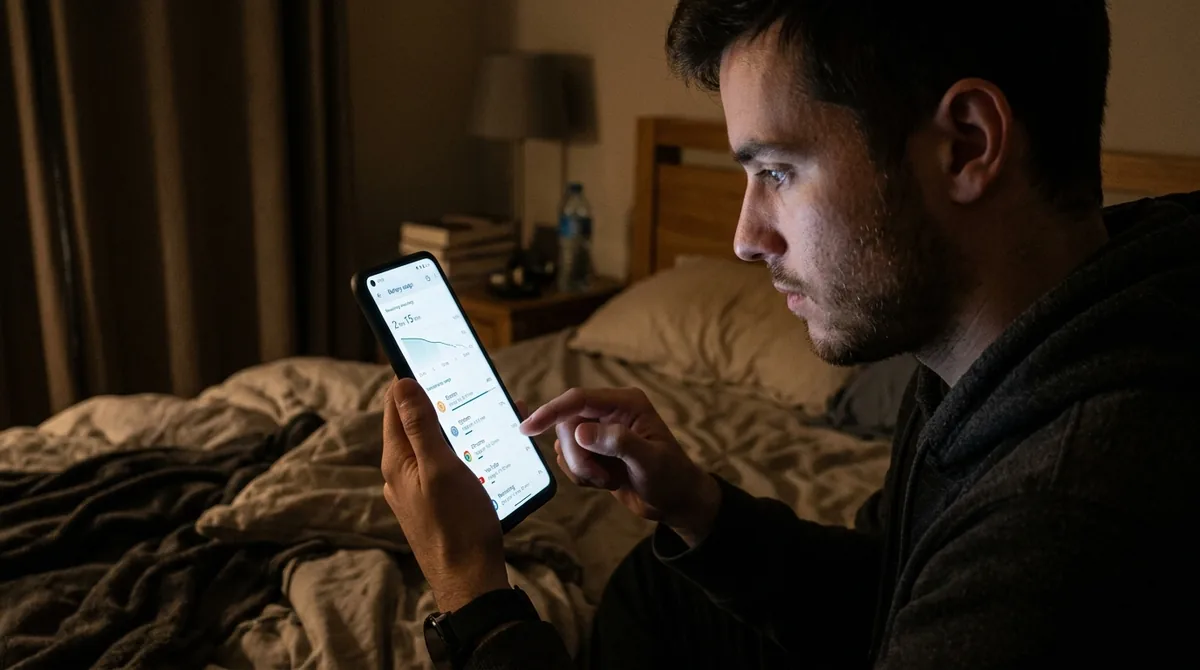
When you switch away from an app, it does not always stop completely. Background activity falls into several categories:
- Cached processes: The app sits in memory so it reopens quickly. This uses RAM but almost no battery — Android manages this automatically and it is generally harmless.
- Background services: The app actively does work — syncing email, downloading updates, tracking location, playing audio. This uses battery and data.
- Background restrictions ignored: Some apps wake the phone frequently with alarms and notifications, draining battery even when you are not using them.
The goal is not to stop all background activity — that would break notifications, email sync, and music playback. The goal is to stop unnecessary background activity from apps you rarely use or that misbehave.
A Warning: Don't Obsess Over Closing Apps
Before diving in, an important truth: constantly swiping apps closed in the recent apps screen does not save battery. In fact, it can make battery life worse. When you force-close an app, Android has to spend energy reloading it from scratch next time you open it. Android's memory management is designed to keep frequently used apps cached efficiently.
The methods in this guide target apps that are actively working in the background — syncing, tracking, or waking your phone — not apps sitting quietly in memory. Focus on the real battery hogs, not the recent apps list.
Method 1: Check Battery Usage to Find the Culprits

Start by identifying which apps actually drain your battery in the background:
- Go to Settings > Battery (on Samsung: Settings > Battery and device care > Battery).
- Tap Battery usage (or View details).
- Look at the list — it shows how much battery each app used, split between foreground (while you used it) and background.
Apps with high background usage that you rarely open are your targets. Common offenders include social media apps, shopping apps, poorly optimized games, and apps with aggressive location tracking.
Method 2: Restrict Background Battery Usage (Per App)
If you are wondering how to stop apps running in background android keeps alive, this is the most effective targeted method: it tells Android to limit what an app can do when you are not actively using it.
- Go to Settings > Apps.
- Tap the app you want to restrict.
- Tap Battery (or App battery usage).
- Choose Restricted (options are typically Unrestricted / Optimized / Restricted).
What each setting means:
- Unrestricted: The app can run freely in the background. Use for apps where timely notifications matter — messaging, email, alarms.
- Optimized (default): Android manages the app intelligently based on your usage patterns. Fine for most apps.
- Restricted: The app cannot run in the background at all. It will only work when you open it. Notifications may be delayed or stopped.
Be careful with Restricted mode: Do not restrict messaging apps, email, phone, alarms, or anything where you need timely notifications. Restricting those will break their core function.
Method 3: Force Stop an App

Force stop immediately kills an app and all its background processes. It is a temporary measure — the app may restart itself later — but useful for stopping a misbehaving app right now.
- Go to Settings > Apps and tap the app.
- Tap Force stop.
- Confirm.
Alternatively, open the recent apps screen, find the app, and swipe it away — though as noted above, this only removes it from memory and does not stop scheduled background work.
Force stop is best used for apps that are stuck, draining battery abnormally, or misbehaving — not as routine maintenance.
Method 4: Turn Off Background Data
Some apps consume mobile data in the background — syncing, preloading content, uploading analytics. To stop this:
- Go to Settings > Apps and tap the app.
- Tap Mobile data & Wi-Fi (or Data usage).
- Toggle off Background data.
The app will only use data when you have it open. This is excellent for data-hungry apps you use occasionally, like shopping or news apps. Note that this does not stop the app from running background processes on Wi-Fi — for that, use battery restriction.
Method 5: Manage Location Permissions
Location tracking is one of the most battery-intensive background activities. Many apps request "always allow" location access they do not need.
- Go to Settings > Location > App location permissions (or Settings > Privacy > Permission manager > Location).
- Review each app's setting.
- Change apps from Allow all the time to Allow only while using the app — or Don't allow for apps that have no business knowing your location.
This single change can dramatically reduce background battery drain, since location polling wakes the phone frequently.
Method 6: Disable Unnecessary Notifications and Sync
Every notification wakes your phone's screen and processor. Reducing notification noise cuts background activity:
- Go to Settings > Apps and tap a noisy app.
- Tap Notifications and disable categories you do not care about.
For sync-heavy apps like email:
- Open the app's own settings.
- Look for Sync frequency or Background sync options.
- Reduce sync frequency (e.g., every 30 minutes instead of push) or disable sync for folders you do not need.
Method 7: Use Adaptive Battery
Adaptive Battery is Android's built-in AI that learns your usage patterns and limits background activity for apps you rarely use (see Google's Android help for the official rundown).
- Go to Settings > Battery.
- Tap Adaptive Battery (or Adaptive preferences).
- Make sure it is turned on.
Give it a week or two to learn your habits. It automatically deprioritizes apps you seldom open — which answers how to stop apps running in background android passively, without you lifting a finger. This is the closest thing to a "set and forget" solution.
Method 8: Disable or Uninstall Bloatware
Pre-installed apps you never use still run background processes, check for updates, and send analytics. Deal with them:
- Go to Settings > Apps and find the bloatware app.
- If Uninstall is available, remove it.
- If not, tap Disable — this stops the app completely and hides it.
Disabling is safe and reversible. Focus on carrier apps, duplicate apps (two email clients, two app stores), and promotional apps you never opened.
Method 9: Turn Off Background App Refresh-Style Features
Some manufacturers add their own background management:
- Check Settings > Battery for options like "Background usage limits" or "Put unused apps to sleep".
- Review any "auto-start" management in your manufacturer's security or device care app — preventing apps from auto-starting at boot reduces background load.
- Disable Nearby device scanning and Bluetooth scanning under Location settings if you do not use them — these run constant background scans.
Method 10: Use Data Saver Mode
Data Saver restricts background data for all apps at once:
- Go to Settings > Network & internet > Data Saver.
- Toggle it on.
- Optionally, allow specific apps (like messaging) as unrestricted exceptions.
This is a blunt instrument but effective when you want maximum battery and data savings — for example, while traveling.
How to Tell If It's Working
After applying restrictions, monitor the results:
- Check Settings > Battery > Battery usage after a day or two — background usage for restricted apps should drop significantly.
- Notice whether your phone feels cooler and lasts longer between charges.
- Confirm that important notifications (messages, email, calls) still arrive on time — if they are delayed, you restricted something too aggressively and should loosen the setting.
What NOT to Do
- Don't install "task killer" or "RAM booster" apps. They fight against Android's own memory management, drain battery with constant activity, and many are loaded with ads or collect your data. Android manages memory better than any third-party app can.
- Don't restrict system apps blindly. Restricting critical system services can cause instability.
- Don't disable the Play Store or Play Services. Many apps depend on Google Play Services for push notifications — restricting it breaks notifications across many apps.
- Don't expect miracles from old batteries. If your phone is several years old, battery degradation — not background apps — may be the main cause of short battery life.
Background Apps and Mobile Data: The Hidden Cost
Background activity does not just drain battery — it consumes mobile data, which matters on limited plans:
- Preloading: Social media and news apps download content in the background so it is ready when you open them.
- Analytics and telemetry: Many apps send usage data home regularly.
- Auto-playing previews: Video apps may buffer content you never watch.
- Cloud sync: Photo backup, file sync, and app data sync run in the background.
To see which apps use the most background data:
- Go to Settings > Network & internet > Data usage (or Settings > Connections > Data usage on Samsung).
- Tap Mobile data usage to see per-app consumption.
- Look for apps with high background data relative to your actual usage.
Restricting background data for the worst offenders (Method 4 above) directly reduces your data bill. Combine this with Data Saver for maximum effect when traveling or on a tight data budget.
Notification Batching and Scheduled Summaries
On recent Android versions, you can reduce background wake-ups from notifications without losing information:
- Notification cooldown: Android gradually lowers notification volume for rapid successive alerts from the same app.
- Scheduled digest: Some manufacturers and third-party apps offer daily notification summaries instead of real-time pings.
- Silent notifications: Set low-priority apps to deliver silently — they still appear in the shade but never wake your screen or vibrate.
Fewer wake-ups mean fewer background CPU cycles, which translates directly to better standby battery life.
FAQ — How To Stop Apps Running In Background Android
How do I stop apps running in background on Android permanently?
Use per-app battery restriction: Settings > Apps > [app] > Battery > Restricted. This is the most permanent built-in method. For apps you never use, Disable or Uninstall them. Enable Adaptive Battery so Android automatically limits apps you rarely open.
Why do apps keep running in the background after I close them?
Swiping an app away only removes it from the recent apps list — it does not cancel scheduled background tasks like sync, location updates, or push notification listeners. To learn how to stop apps running in background android schedules for them, restrict the app's battery usage, turn off its background data, or disable auto-start.
Will stopping background apps break my notifications?
It can, if you are too aggressive. Restricting messaging, email, or alarm apps to "Restricted" battery mode will delay or stop their notifications. Keep important communication apps on Optimized or Unrestricted, and only restrict apps where delayed notifications do not matter.
Does closing background apps save battery?
Closing apps from the recent apps screen generally does not save battery and can make it worse, since reopening apps costs energy. Real battery savings come from restricting background activity — sync, location, and wake-ups — not from clearing the recent apps list.
What is the difference between force stop and restricting battery?
Force stop kills the app immediately but temporarily — it may restart itself. Battery restriction is a persistent policy that limits what the app can do in the background going forward. Use force stop for immediate problems; use battery restriction for long-term control.
Should I use a task killer app?
No. Task killers conflict with Android's built-in memory management, run constantly themselves (using battery), and provide no lasting benefit. Google and Android engineers consistently advise against them. Use the built-in battery and permission controls instead.
Conclusion — How To Stop Apps Running In Background Android
Learning how to stop apps running in background android phones allow is about smart targeting, not aggressive app-killing. Start with Settings > Battery > Battery usage to find the real offenders, restrict background battery usage for apps you rarely need instantly, trim location permissions, and let Adaptive Battery handle the rest automatically.
Resist the urge to micromanage the recent apps screen or install task killers — Android's own tools are more effective and safer. With a few minutes of setup, your phone will run cooler, last longer, and still deliver every notification that matters.




What do you think?
Share your experience or ask a question. A useful conversation starts with you.
Join the discussion