

When your Android phone starts lagging, stuttering, or reloading apps every time you switch between them, low available RAM is often part of the story. Learning how to free up RAM on Android the right way can restore smoothness — but it is equally important to know what not to do, because the most heavily advertised "solutions" (aggressive RAM booster apps) usually make things worse.
This guide explains how Android actually uses RAM, then walks through nine effective, safe methods to free up memory — from managing background apps properly to taming the worst offenders in your app list. No gimmicks, no risky tweaks, just approaches that work with how Android is designed.
How Android Uses RAM (And Why "Free RAM" Is Misleading)

Before freeing anything, it helps to understand the philosophy: Android is designed to keep RAM full. Unlike a desktop computer where free RAM is good, Android deliberately keeps recently used apps in memory so they reopen instantly. Empty RAM is wasted RAM — it consumes the same power whether it holds data or not.
So when your phone shows only 1 GB of 8 GB "free," that is not a problem by itself. It becomes a problem when the system is constantly killing and reloading apps — you switch from your browser to a message and back, and the browser reloads the page from scratch. That thrashing means genuinely needed apps cannot stay in memory, usually because too many background processes are competing for space, or because one misbehaving app is consuming far more than its share.
The goal, then, is not to maximize the "free RAM" number. It is to reduce unnecessary memory pressure so the apps you actually use stay resident and responsive.
How to Free Up RAM on Android: 9 Effective Ways
1. Close Apps You Are Not Using — Properly
Swiping apps away from the recent-apps screen does free their memory, but doing it compulsively is counterproductive: Android will just reload the apps you actually use, spending more battery and time than leaving them cached. The right approach is selective — close apps you opened once and will not return to (a boarding pass, a one-time form, a game you finished), and leave your daily apps alone.
To close: tap the recent-apps (square) button and swipe away the apps you are done with, or tap "Close all" and then reopen the two or three you use constantly. Think of it as tidying, not purging.
2. Find and Tame Memory-Hungry Apps
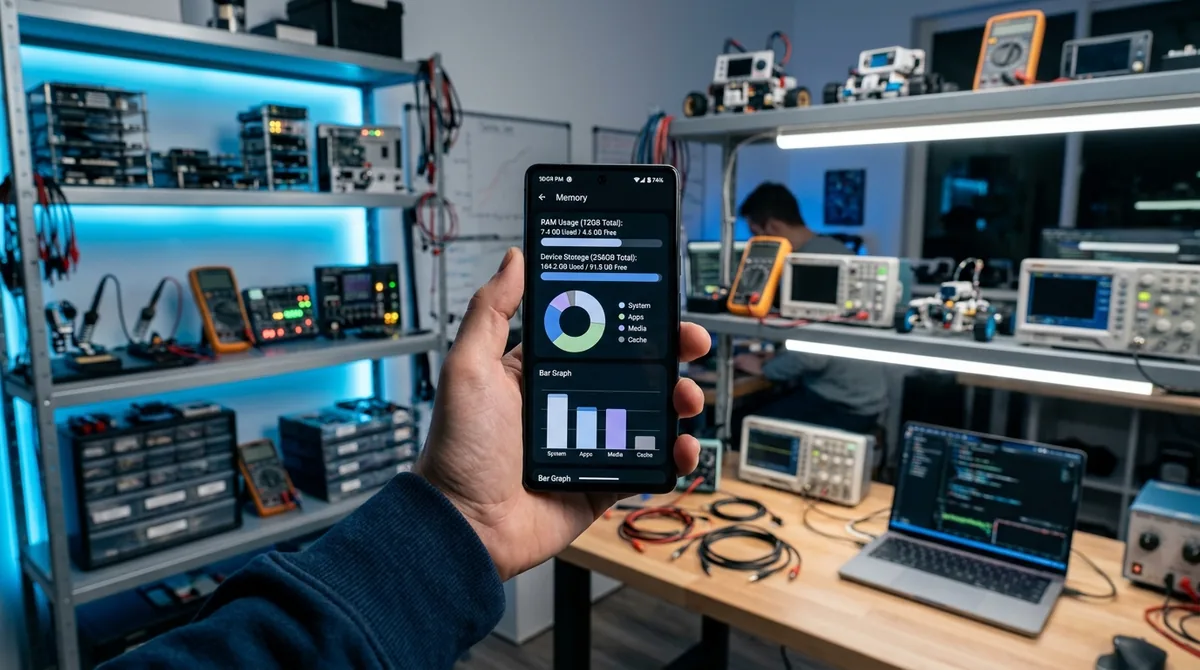
A small number of apps are usually responsible for most memory pressure. Find them under Settings > Battery and device care > Memory (Samsung) or Settings > System > Developer options > Running services (other phones) — the latter shows exactly how much RAM each running process is using.
Common offenders that force you to learn how to free up ram on android include social media apps with heavy background activity, poorly optimized games left running, and apps with memory leaks that grow the longer they run. For apps you need but that misbehave: restrict their background activity (Settings > Apps > [app] > Battery > Restricted), which prevents them from running wild when you are not using them.
3. Disable or Uninstall Bloatware
Pre-installed apps you never use still consume RAM — many run background services, check for updates, or sync data on schedules you never asked for. Go through Settings > Apps and identify the pre-installed apps you have never opened. For apps that cannot be uninstalled, use Disable: this stops the app entirely, preventing it from running or updating. (You can re-enable later if needed.)
Be conservative with system apps — disabling the wrong component can break features. But carrier apps, duplicate manufacturer apps (a second browser, a second app store, a second gallery), and sponsored games are safe targets.
4. Reduce Widgets and Live Wallpapers
Every widget on your home screen is a small process updating in the background. A screen full of widgets — weather, news, stocks, calendar, music — adds up. Audit your home screens and remove widgets you glance at rarely. Similarly, live wallpapers look nice but consume memory continuously; switching to a static wallpaper frees a modest but real amount of RAM.
This is not about stripping your phone bare — keep the three or four widgets you actually use. It is about removing the dozen you added once and forgot.
5. Turn Off Unnecessary Background Sync and Animations
Apps syncing in the background — email, cloud storage, social feeds — each hold memory while they work. Review Settings > Passwords & accounts and disable auto-sync for accounts you do not need constantly updated. In individual apps (especially social and news apps), look for background refresh or autoplay settings and tone them down.
Separately, reducing animation scales lightens the load on the system UI. Enable Developer options (Settings > About phone > tap Build number seven times), then set Window animation scale, Transition animation scale, and Animator duration scale to 0.5x. This does not free much RAM directly, but it makes the phone feel significantly faster, which is half the battle.
6. Clear Cached Data — Selectively
Cached data helps apps load faster, so clearing all caches indiscriminately just forces everything to rebuild them (using CPU and battery in the process). But individual apps with bloated or corrupted caches are worth targeting. If a specific app has become sluggish or is using an unusual amount of storage — another reason to know how to free up ram on android — go to Settings > Apps > [app] > Storage & cache > Clear cache.
For a broader cleanup, Settings > Storage > Cached data (or your manufacturer's device-care "clean" feature) can clear system-level caches safely. Do this occasionally — monthly is plenty — not daily.
7. Restart Your Phone Regularly
A restart is the simplest effective RAM maintenance there is. It terminates every process, clears temporary memory states, and lets the system start fresh with only what it needs. Apps with slow memory leaks — which are common — get reset to zero.
Make it a habit: restart once a week, or set an automatic restart if your phone offers it (Samsung: Settings > Battery and device care > Auto optimization > Auto restart). Many "my phone got slow over the month" complaints are solved by this one habit.
8. Keep Storage Space Free
RAM and storage are different, but they interact: when storage gets critically full, Android cannot manage memory efficiently — it needs working space for caches, swap-like operations, and update staging. Performance degrades noticeably when free storage drops below roughly 10% of total capacity.
Keep at least a few gigabytes free. Offload photos and videos to cloud backup, delete downloaded files you no longer need, and uninstall apps you have not opened in months. A phone with comfortable free storage manages its RAM noticeably better than one gasping for space.
9. Update Your Apps and Android System
Developers continuously fix memory leaks and optimize resource usage — the version of an app from two years ago may use twice the RAM of the current one. Keep apps updated (Play Store > Manage apps & device > Update all), and install Android system updates when they arrive. Major Android versions regularly include memory-management improvements, and security patches sometimes fix the exact background-process bugs causing your slowdowns.
What NOT to Do: RAM Booster Myths

This section matters as much as the nine methods above, because bad advice in this area is everywhere:
- Do not install "RAM booster" / "memory cleaner" apps. They work by force-killing background processes — which Android immediately restarts, consuming more battery and CPU than leaving them alone. They also display alarming "RAM full!" warnings to justify their existence. Android has managed its own memory effectively since roughly 2015; these apps are solving a problem that does not exist, and often cause real ones (killed alarms, missed notifications, broken background sync).
- Do not obsess over the free-RAM number. As explained above, full RAM is normal and healthy on Android. Judge by behavior — are apps reloading when you switch? — not by a meter.
- Do not force-stop system apps routinely. Force-stopping apps you do not understand can break notifications, widgets, and background features. Reserve force-stop for a specific misbehaving app.
- Do not use task killers on a schedule. Automated killing fights the operating system's own management and always loses, at the cost of your battery.
If you currently have a RAM booster installed, uninstall it — that alone sometimes improves performance.
When Low RAM Is a Hardware Limit
Software tuning has limits. If your phone has 3–4 GB of RAM and you are running 2026-era apps, some reloading and sluggishness is simply the hardware showing its age. Signs you have hit a hardware wall rather than a software problem:
- Apps reload constantly even with minimal apps installed and bloatware disabled.
- The camera app takes several seconds to become responsive.
- The phone struggles with two apps in split-screen.
- Performance did not improve after a factory reset (the ultimate software clean slate).
In that case, the honest answer is that no settings change will fully fix it. Mitigations that help on low-RAM phones: use "Lite" or "Go" versions of heavy apps where available, keep the app count low, avoid live wallpapers and widget-heavy home screens, and consider a lightweight third-party launcher, which typically uses less memory than heavy manufacturer skins.
FAQ
Does clearing RAM make my Android phone faster?
Temporarily, sometimes — but Android refills RAM by design, so aggressive clearing provides no lasting benefit and can actually slow things down (apps must cold-start instead of resuming). The effective approach to how to free up ram on android is reducing unnecessary memory demand — taming hungry apps, removing bloatware, restarting regularly — not maximizing the free-RAM number.
Are RAM cleaner apps safe to use?
They are generally safe in the sense that they will not damage your phone, but they are ineffective and often counterproductive: they kill processes Android immediately restarts, wasting battery, and can interrupt alarms, notifications, and background sync. There is no reputable technical case for using one on a modern Android phone.
How much RAM does Android need in 2026?
For comfortable everyday use with current apps, 6 GB is the practical minimum and 8 GB is the sweet spot. Heavy multitaskers, mobile gamers, and people who keep dozens of Chrome tabs open benefit from 12 GB or more. Below 4 GB, expect noticeable app reloading with modern app versions regardless of software tuning.
Why does my phone say RAM is full right after I clear it?
Because that is how Android is supposed to work. The system preloads apps and services it predicts you will use into any available RAM — empty memory is wasted memory. A "full" RAM meter on Android is not a warning; it is the system doing its job. Worry only if apps are visibly reloading or stuttering.
Will a factory reset free up RAM?
A factory reset removes all third-party apps and their background processes, which does reduce memory pressure — but it is a drastic step for a RAM problem, and the benefit evaporates as you reinstall the same apps. Try the nine methods in this guide first. Consider a reset only if performance is bad even with minimal apps installed, which suggests deeper system corruption.
Does having many apps installed use RAM even when closed?
Installed-but-never-opened apps use storage, not RAM. However, many apps register background services, scheduled syncs, or broadcast receivers that run without you opening them — that is what consumes RAM. Disabling or uninstalling apps you do not use eliminates their background footprint, which is why the bloatware cleanup in method 3 matters.
Conclusion
Knowing how to free up RAM on Android is really about working with the system instead of against it: close what you are done with, restrict the apps that hog memory in the background, clear out bloatware and forgotten widgets, restart weekly, and keep storage comfortable. Skip the RAM booster apps entirely — they are the one "solution" guaranteed to make things worse. Do the nine things in this guide, judge by how the phone behaves rather than what a meter says, and your Android will stay smooth without any constant micromanagement.




What do you think?
Share your experience or ask a question. A useful conversation starts with you.
Join the discussion