

If your apps are crashing, running slowly, or eating up storage space, learning how to clear app cache android devices accumulate is one of the most useful maintenance skills you can have. Cached data helps apps load faster, but over time it can become bloated or corrupted — causing exactly the problems it was meant to prevent. Clearing the cache is safe, quick, and does not delete your personal data.
This evergreen guide covers what app cache is, when you should clear it, and step-by-step instructions for clearing the cache of individual apps and all apps at once. The steps apply to phones from Samsung, Google Pixel, Motorola, OnePlus, Xiaomi, and other manufacturers, with notes where menus differ.
What Is App Cache?

When you use an app, it stores temporary files on your phone to work faster. A browser caches images so pages load quicker on repeat visits. A social media app caches profile pictures and posts so your feed appears instantly. A maps app caches map tiles for areas you view frequently.
This cached data is meant to be helpful — it reduces loading times and saves mobile data. But cache has downsides:
- It grows over time. Some apps accumulate gigabytes of cached data.
- It can become corrupted. Damaged cache files cause crashes, freezes, and strange behavior.
- It can go stale. Old cached data may conflict with updated app content.
Clearing the cache removes these temporary files. The app rebuilds fresh cache as you use it, often fixing problems in the process.
Cache vs. Data: What Is the Difference?
Android distinguishes between two types of app storage, and understanding the difference matters:
- Cache: Temporary files the app can rebuild on its own. Clearing cache is safe — you will not lose logins, settings, or personal content.
- Data (storage): Your personal information within the app — login sessions, settings, downloaded content, game progress, messages. Clearing data resets the app to a freshly-installed state, and you will be logged out.
Rule of thumb: Always try clearing the cache first. Only clear data if clearing the cache does not fix the problem and you are prepared to set the app up again.
Clear App Cache Android: How to Do It for a Single App
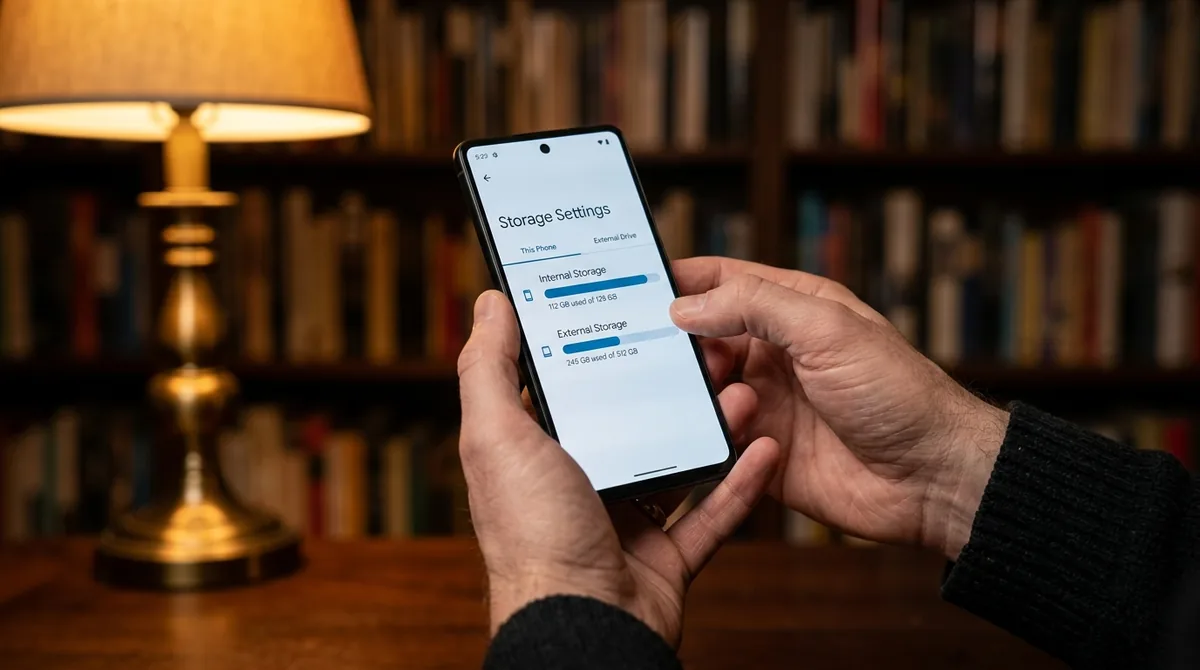
This is the most common scenario — one app is misbehaving, and you want to clear its cache specifically.
- Open Settings on your Android phone.
- Tap Apps (on some phones, Apps & notifications).
- Find and tap the app you want to clear. You may need to tap See all apps first.
- Tap Storage & cache (or just Storage).
- Tap Clear cache.
That is it. The app's temporary files are gone, and the app will rebuild them fresh. Your login, settings, and data remain untouched.
Quick shortcut
On many phones, you can long-press an app's icon on the home screen or app drawer, tap the info icon (i), and go straight to the app info page — then tap Storage & cache > Clear cache.
How to Clear Cache for All Apps at Once
Older Android versions had a single button to clear all cached data at once. On modern Android (8.0 and later), Google removed this system-wide option for technical reasons. However, you still have options:
Option 1: Use your manufacturer's device care tool
- Samsung: Open Settings > Device care > Storage (or Battery and device care). Tap Clean now or review the storage breakdown to clear unnecessary files.
- Xiaomi/Redmi: Open the Security app and use the Cleaner feature.
- OnePlus: Use the storage cleaner in Settings > Storage.
- Motorola: Check Settings > Storage for cleanup suggestions.
These tools scan for cached data, residual files, and other junk across all apps and let you remove them in bulk.
Option 2: Clear caches app by app
For the apps using the most cache, clear them individually. To find the worst offenders, go to Settings > Storage > Apps (wording varies) and sort by size — apps with large cache footprints will stand out.
Option 3: Use Files by Google
Google's free Files app includes a Clean tab that identifies junk files, duplicate files, and large cached items across your phone, letting you remove them with a few taps.
When Should You Clear App Cache?

Knowing when to clear app cache android builds up is a troubleshooting skill, not a daily ritual. Here are the situations where it genuinely helps:
- An app keeps crashing or freezing. Corrupted cache is a leading cause. Clear the cache before reinstalling.
- An app behaves strangely. Outdated interface elements, content that will not refresh, features that stopped working.
- You are running low on storage. Social media, browser, and streaming apps can hoard gigabytes of cache.
- An app is slow to load. Bloated cache can paradoxically slow an app down.
- After a major app or system update. Old cache can conflict with new app versions.
When you should NOT clear cache
- As routine maintenance. Android manages cache well on its own. Clearing cache constantly forces apps to rebuild it, which uses more battery and data and can make apps slower in the short term.
- To "speed up your phone" generally. If your phone is slow overall, the cause is more likely low storage, too many background apps, or an aging battery — not cache.
- For apps that work fine. If it is not broken, do not fix it.
How Much Space Can Clearing Cache Free Up?
It varies enormously by app. Typical examples of cache-heavy apps:
- Social media apps (Instagram, TikTok, Facebook): These cache images and videos aggressively and can each accumulate 1–5 GB over months of use.
- Web browsers (Chrome): Cached pages, images, and site data can reach several hundred megabytes to over a gigabyte.
- Streaming apps (YouTube, Spotify, Netflix): Cached thumbnails, offline previews, and temporary downloads add up.
- Maps apps (Google Maps): Cached map tiles for areas you have viewed.
Checking Settings > Storage gives you the full picture of where your space is going. Clearing cache across a few heavy apps can easily free 5–10 GB on a phone that has not been cleaned in a while.
Clearing Cache on Popular Apps
Google Chrome
- Open Chrome and tap the three-dot menu > Settings.
- Tap Privacy and security > Clear browsing data.
- Select Cached images and files (uncheck browsing history and cookies unless you want those cleared too).
- Choose a time range and tap Clear data.
Alternatively, clear Chrome's cache from Android Settings like any other app.
Social media apps
For Instagram, TikTok, Facebook, and similar apps, the steps to clear app cache android users follow are the same: Settings > Apps > [app] > Storage & cache > Clear cache. This removes cached media without logging you out or deleting drafts.
Spotify and music apps
Streaming apps cache downloaded content and thumbnails. Clearing cache from Settings is safe, but note that downloaded offline music counts as app data, not cache on some apps — clearing data would remove your downloads, while clearing cache leaves them intact.
Does Clearing Cache Delete Photos or Messages?
No. Clearing an app's cache never deletes your personal content — photos, messages, contacts, and files are stored as app data or in separate storage, not in the cache. The cache contains only temporary files like thumbnails, preview images, and temporary downloads that the app can regenerate.
The one exception to be aware of: some apps store drafts or offline downloads in ways that blur the line. If you clear data (not cache) on a messaging app, you may lose unsent drafts. Stick to Clear cache and your content is safe.
Automating Cache Management
If you prefer not to think about cache manually (Google's Android help documents the built-in storage tools):
- Device care routines: Samsung's Device care can be set to auto-optimize daily, which includes clearing unnecessary cached files.
- Files by Google: The Clean tab offers one-tap cleanup suggestions periodically.
- Storage manager: On Pixel phones, Settings > Storage > Storage manager can automatically remove backed-up photos and old downloads after a set period.
Avoid third-party "cleaner" or "booster" apps from unknown developers — many are ineffective, show excessive ads, or collect your data. The built-in tools are safer and just as effective.
What Happens Right After You Clear Cache?
Knowing what to expect prevents unnecessary worry:
- The app may take slightly longer to open the first time. It is rebuilding its temporary files — this is normal and only happens once.
- Images and content reload. Your feed, thumbnails, and previews will download fresh copies, using a small amount of mobile data. If you are on a limited data plan, clear cache while on Wi-Fi.
- Login sessions persist. You stay signed in — cache clearing never touches authentication tokens.
- Settings stay the same. Your preferences, themes, and configurations are stored as app data, not cache.
- The cache starts growing again immediately. This is the cache doing its job. Do not be alarmed when the numbers climb back up over days and weeks.
Clearing Cache with Files by Google: Detailed Walkthrough
Files by Google deserves a closer look because it is the closest thing to a bulk cache cleaner on modern Android:
- Install Files by Google from the Play Store if you do not have it.
- Open the app and tap the Clean tab (broom icon at the bottom).
- You will see cards for different cleanup categories:
- Junk files: Temporary files and cached data safe to remove.
- Large files: Big files you may have forgotten about.
- Duplicate files: Copies of the same file wasting space.
- Unused apps: Apps you have not opened in months.
- Old screenshots and memes: Often-forgotten storage hogs.
- Tap Clean on the Junk files card and confirm.
- Review the other cards and clean what you do not need.
Run through this once a month and your phone's storage will stay healthy with minimal effort. The app clearly labels everything before deleting, so there are no surprises.
Cache on Android Tablets and Other Devices
The same principles apply beyond phones:
- Android tablets use identical steps: Settings > Apps > [app] > Storage & cache > Clear cache.
- Chromebooks running Android apps manage cache through the same app info pages.
- Android TV / Google TV devices: go to Settings > Apps > See all apps, select the app, and choose Clear cache. Streaming apps on TVs accumulate particularly large caches.
FAQ — Clear App Cache Android
Is it safe to clear app cache on Android?
Yes, completely safe. Clearing cache only removes temporary files that apps rebuild automatically. It does not delete your accounts, settings, photos, messages, or personal data. The worst that happens is an app takes slightly longer to load the first time you open it after clearing.
What is the difference between clear cache and clear data?
Clear cache removes temporary files and is safe — your login and settings stay intact. Clear data (or clear storage) resets the app to its freshly-installed state, logging you out and deleting settings, downloaded content, and app-specific data. Always try clear cache first.
How often should I clear app cache?
Only when needed — when an app misbehaves or you need to free storage space. There is no benefit to clearing cache on a schedule. Android manages cache efficiently, and constantly clearing it forces apps to re-download data, using more battery and mobile data.
Will clearing cache log me out of apps?
No. Login sessions are stored as app data, not cache. Clearing cache leaves you logged in. Clearing data will log you out.
Why does the cache come back after I clear it?
That is normal and expected. Apps rebuild their cache as you use them — that is the cache doing its job. If an app's cache grows extremely large again very quickly, that may indicate a bug worth reporting to the app developer.
Can clearing cache fix a crashing app?
Often, yes. Corrupted cache files are one of the most common causes of app crashes — which is why learning to clear app cache android devices carry is so useful. Clear the cache first; if the app still crashes, try clearing data (you will need to log in again) or reinstalling the app.
Conclusion — Clear App Cache Android
Knowing how to clear app cache android phones build up is a fundamental troubleshooting skill. It is safe, takes seconds, and resolves a wide range of app problems — from crashes and freezes to mysterious storage shortages. Remember the golden rules: clear cache before clearing data, only clear when there is a reason to, and let Android manage cache on its own the rest of the time.
Use your manufacturer's built-in cleanup tools or Files by Google for occasional bulk cleanups, skip the sketchy third-party cleaner apps, and your phone's apps will stay healthy with minimal effort.




What do you think?
Share your experience or ask a question. A useful conversation starts with you.
Join the discussion