

Android 15 and Android 16 refined how the operating system handles storage, privacy, and app management — and that means the steps to clear app cache android 15 and 16 users follow look slightly different from older versions. Menus were reorganized, the storage dashboard got smarter, and new features like Private Space add wrinkles to cache management.
This guide is written specifically for Android 15 and Android 16. If you are running one of these versions (check under Settings > About phone > Android version), follow these steps for accurate, up-to-date instructions.
What's New in Android 15/16 Storage Management

Before diving into the steps, here is what changed compared to older Android versions:
- Reorganized Settings menus. The Apps and Storage sections were streamlined. Paths that used to go through "Apps & notifications" are now shorter.
- Smarter storage dashboard. The Storage page now gives clearer breakdowns and more actionable cleanup suggestions.
- Private Space. Android 15 introduced Private Space — a separate, lockable area for sensitive apps. Apps inside Private Space have their own isolated storage and cache, managed separately.
- Improved auto-archiving. Android can now automatically archive unused apps (removing the app but keeping your data), which changes the storage equation.
- Granular notification and permission controls that interact with app info pages where cache controls live.
Clear App Cache Android 15: Steps for a Single App
The core process remains familiar, with slightly updated menu names:
- Open Settings.
- Tap Apps.
- Tap See all apps (or search for the app name using the search icon at the top).
- Tap the app you want to clear.
- Tap Storage & cache.
- Tap Clear cache.
Your app's login, settings, and personal data are untouched — only temporary files are removed.
Quick access shortcut
Long-press any app icon on your home screen or in the app drawer, then tap App info (the "i" icon). This jumps directly to the app info page, where you tap Storage & cache > Clear cache. This shortcut works on Android 15 and 16 across all manufacturers.
Using the Storage Dashboard on Android 15/16
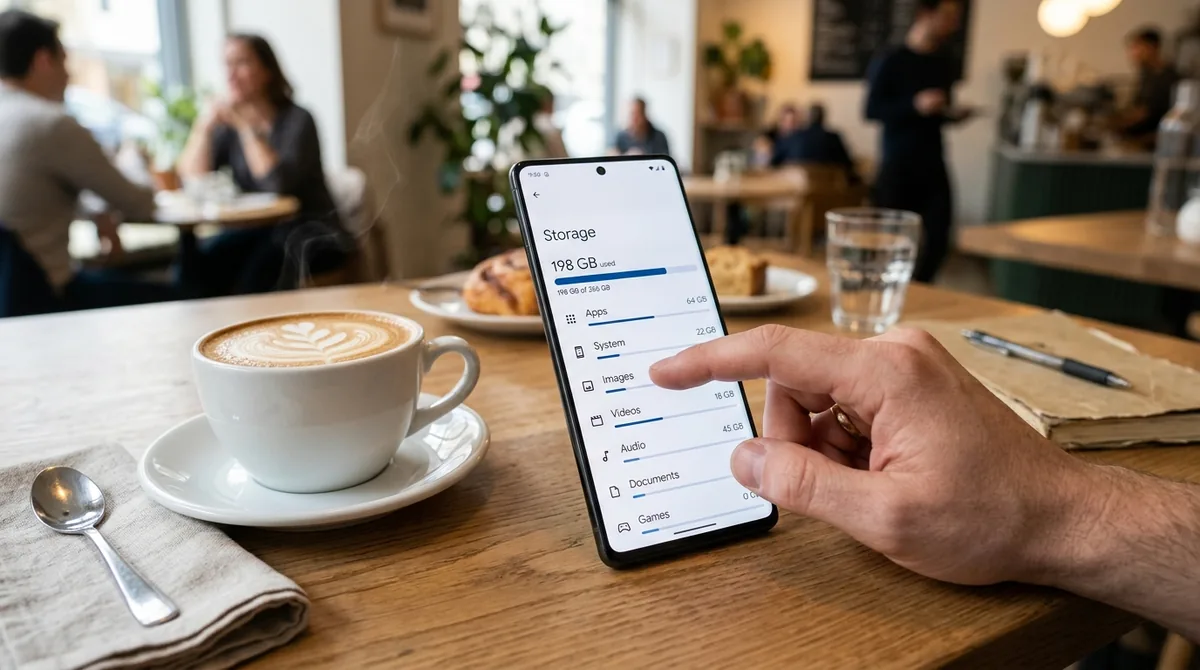
The Storage page is your command center for understanding where space goes:
- Go to Settings > Storage.
- You will see a visual breakdown: Apps, Photos & videos, Audio, Documents, System, and free space.
- Tap Apps to see a list sorted by total size.
On Android 15 and 16, tapping an app from this list takes you directly to its Storage & cache page, where the steps to clear app cache android 15 users follow are just one tap away. This is the fastest way to find your biggest cache hogs — sort by size and clear the worst offenders first.
Storage manager and automatic cleanup
Pixel phones and many others include automatic storage management:
- Go to Settings > Storage.
- Look for Storage manager or automatic cleanup options.
- Enable it to automatically remove backed-up photos/videos and old downloads after a chosen period (30, 60, or 90 days).
This does not clear app cache automatically, but it keeps overall storage healthy so cache has room to work properly.
Clearing Cache for Apps in Private Space (Android 15+)
Private Space is Android 15's locked folder for sensitive apps — a separate profile with its own apps, files, and cache. Managing cache here works differently:
- Open your app drawer and scroll to the bottom to find Private Space.
- Authenticate with your fingerprint, PIN, or password to unlock it.
- Long-press an app inside Private Space and tap App info.
- Tap Storage & cache > Clear cache.
Important notes about Private Space storage:
- Cache inside Private Space is isolated — clearing cache in your main profile does not affect Private Space apps, and vice versa.
- When Private Space is locked, its apps are fully stopped — they cannot run in the background or accumulate cache.
- If you delete Private Space entirely, all apps and their data inside it are permanently removed.
Auto-Archiving: Android 15/16's Storage Saver
Android 15 expanded automatic app archiving, which is relevant to cache management:
- When enabled, Android automatically archives apps you have not used in a long time.
- Archiving removes the app's code but keeps your personal data — and clears the app's cache in the process.
- The app icon remains on your home screen with a small cloud/download indicator; tapping it re-downloads the app instantly.
To manage auto-archiving:
- Open the Play Store.
- Tap your profile icon > Settings.
- Expand General and look for Automatically archive apps.
- Toggle it on or off.
Archived apps free up significant space without you losing anything important. It is one of the best storage features in recent Android versions.
Clearing Cache on Android 16: What's Different
Android 16 builds on Android 15's foundation with these refinements:
- Faster Settings search. The search bar at the top of Settings is more prominent — typing "cache" or an app name gets you to the right page faster than navigating menus manually.
- Enhanced storage insights. The Storage dashboard provides more specific recommendations, including identifying apps with unusually large caches.
- Improved Private Space. Smoother unlocking and better integration with the main profile's storage view.
- Notification cooldown and permission refinements do not directly affect cache, but the reorganized App info pages group storage, permissions, and notifications more logically.
The actual cache-clearing steps are identical to Android 15 — the differences are in how you find things, not what you do.
Bulk Cache Clearing on Android 15/16
Android still does not offer a single "clear all cache" button (removed years ago for system stability reasons), so anyone wanting to clear app cache android 15 in bulk needs these options:
Files by Google
Google's free Files app remains the best bulk cleanup tool:
- Install or open Files by Google.
- Tap the Clean tab (broom icon).
- Review suggestions: junk files, large files, duplicate files, unused apps.
- Tap to clean each category.
Manufacturer tools
- Samsung (One UI 7/8 on Android 15/16): Settings > Device care > Storage > Clean now.
- Xiaomi: Security app > Cleaner.
- OnePlus: Settings > Storage > cleanup suggestions.
- Motorola: Settings > Storage > Free up space.
Manual targeted clearing
Go to Settings > Storage > Apps, identify the apps with the largest cache footprints, and clear them individually. In practice, clearing cache for your top 5–10 heaviest apps captures most of the benefit of a bulk clear.
Cache and Android 15/16 Performance
A common question: does clearing cache speed up Android 15/16? The honest answer:
- It fixes misbehaving apps. Corrupted cache causes crashes and glitches — clearing it genuinely helps.
- It frees storage space. Useful when you are running low.
- It does not make a healthy phone faster. Android 15 and 16 manage memory and cache efficiently. Clearing cache on well-behaved apps provides no speed benefit and can temporarily slow things down as apps rebuild their caches.
Android 15/16 also manage background processes more intelligently than older versions, so the old habit of aggressively clearing cache and killing apps is less necessary — and sometimes counterproductive.
Troubleshooting: Cache Clearing Not Working?
If clearing cache does not fix your app problem on Android 15/16:
- Clear data instead. On the same Storage & cache page, Clear storage (or Clear data) resets the app fully. You will be logged out and lose app settings.
- Reinstall the app. Uninstall, restart the phone, and reinstall from the Play Store for the cleanest possible state.
- Check for app updates. The bug may be in the app itself, fixed in a newer version.
- Check for system updates. Go to Settings > System > Software updates.
- Test in Safe Mode. Long-press Power off in the power menu to reboot into Safe Mode and test the app without third-party interference.
How to Check Your Android Version
Before following version-specific steps, confirm which Android version you are running:
- Open Settings.
- Scroll down and tap About phone (on some phones, About device).
- Tap Android version to see the full version number and build details.
On Android 15 and 16, tapping Android version may show a fun Easter egg animation — tap repeatedly if you are curious. The version number at the top is what matters for this guide.
Clearing Cache for Work Profile Apps
Many people use a Work Profile (set up by an employer) alongside their personal profile. Like Private Space, the work profile has isolated storage:
- Open your app drawer and find the Work tab at the top.
- Long-press a work app and tap App info.
- Tap Storage & cache > Clear cache.
Work profile apps are managed partly by your organization's IT policies — if cache controls are grayed out or restricted, contact your IT administrator. Your employer cannot see your personal profile's apps or cache; the isolation works both ways.
Storage Warnings and Smart Suggestions on Android 15/16
Android 15 and 16 are more proactive about storage than older versions:
- Storage warnings: When free space drops below roughly 10%, Android shows a persistent notification suggesting cleanup actions.
- Smart suggestions: The Storage page highlights specific apps with unusually large caches and offers one-tap clearing.
- Screenshot and screen recording cleanup: The system suggests removing old screenshots you have not viewed.
- Backed-up media: If you use Google Photos backup, Android suggests removing local copies of photos already backed up to the cloud — often the single biggest space saver.
Follow these suggestions before manually clearing individual app caches — they target the biggest wins first.
Cache Behavior on Large-Screen Devices
If you run Android 15/16 on a tablet or foldable, cache management works the same way, but a few things are worth noting:
- Multi-window apps may cache layout data for different screen configurations — clearing cache resets these without harm.
- Foldables running apps across folded and unfolded states can accumulate slightly larger caches; nothing to worry about.
- The Settings app on large screens uses a two-pane layout — Apps and Storage appear side by side, making navigation faster.
FAQ — Clear App Cache Android 15
Where is the clear cache button on Android 15?
Go to Settings > Apps, tap the app, then Storage & cache > Clear cache. Or long-press the app icon, tap App info, then Storage & cache > Clear cache. The location is the same on Android 15 and 16.
Does Android 15 clear app cache automatically?
Android does not automatically clear individual apps' caches on a schedule. However, the system may clear cached data when storage runs critically low, and the auto-archive feature removes unused apps (including their cache) while preserving your data. You can also enable Storage manager to auto-remove old downloads and backed-up media.
How do I clear cache for Private Space apps?
Unlock Private Space from the bottom of your app drawer, long-press the app, tap App info, then Storage & cache > Clear cache. Private Space apps have isolated storage, so their cache must be managed separately from your main profile.
Is there a clear-all-cache button on Android 16?
No. Google removed the system-wide clear-all-cache button in Android 8.0 and has not brought it back. Use Files by Google's Clean tab or your manufacturer's device care tools for bulk cleanup, or clear individual apps via Settings > Storage > Apps — the manual way to clear app cache android 15 and 16 devices carry.
Will clearing cache on Android 15/16 delete my photos?
No. Clearing cache only removes temporary files. Photos, videos, messages, and other personal content are stored separately and are never affected by clearing cache. Only Clear storage/data affects app data, and even that does not touch photos stored in your gallery or Google Photos.
Why does Android 15 use so much system storage?
The System category in Storage includes the operating system, pre-installed apps, and reserved space. Android 15/16 system images are larger than older versions due to new features, but this is normal. Focus your cleanup efforts on the Apps and Photos & videos categories, where you have actual control.
Conclusion — Clear App Cache Android 15
To clear app cache android 15 and 16 devices, follow the same principles as older versions — Settings > Apps > [app] > Storage & cache > Clear cache — with refinements in how you find things and new considerations like Private Space isolation and auto-archiving. Use the improved Storage dashboard to identify cache hogs, lean on Files by Google or your manufacturer's tools for bulk cleanup, and remember that cache clearing is a troubleshooting tool, not a performance ritual.
Keep your system updated, let Android manage routine cache on its own, and intervene manually only when an app misbehaves or storage runs tight.




What do you think?
Share your experience or ask a question. A useful conversation starts with you.
Join the discussion