
Email is one of those things you only notice when it breaks. When you spot Gmail app notifications not working on Android, important messages sit unread for hours — job replies, bills, two-factor codes, school updates — and you only discover them when you happen to open the app. Because Gmail has its own layered notification system on top of Android’s, the fix is usually inside Gmail’s settings rather than your phone’s.
This guide covers every Gmail-specific cause: sync settings, per-label notifications, inbox categories, battery optimization, account problems, and the less obvious traps like muted threads and filters. Follow it in order and your email alerts will be reliable again.
First: Confirm Gmail Sync Is Actually Running
Gmail notifications depend on sync. If Gmail is not syncing, there is nothing to notify you about — the app simply does not know new mail exists until you open it and pull to refresh.
Open Gmail, pull down on the inbox to refresh, and watch whether new mail appears that you were never notified about. If fresh mail appears on manual refresh, sync is the problem. Two settings control it:
- Phone-level sync: Go to Settings > Accounts (or Passwords & accounts), tap your Google account, and make sure Gmail sync is toggled on. Also check Settings > Accounts > Auto-sync data (sometimes under "Automatically sync data") is enabled — if master auto-sync is off, no Google app syncs in the background.
- In-app sync: In Gmail, tap the menu (three lines) > Settings, tap your account, and confirm Sync Gmail is checked. Just below it, Days of mail to sync controls how far back sync goes — it does not affect new-mail notifications, but keep it at a sensible value.
A quick test: send yourself an email from another device or account. If it does not arrive in Gmail within a minute or two without manual refresh, sync is broken and notifications cannot work until it is fixed.
Check Gmail's Per-Account Notification Settings
Gmail lets each account on your phone have completely different notification settings. If you added a second account recently, or if an update reset preferences, the account you care about may have notifications disabled while another account works fine.
In Gmail: menu > Settings > tap the specific account > Notifications. The options are typically:
- All: Notify for every new message (can be noisy, but nothing is missed).
- High priority only: Gmail's algorithms decide what matters — useful, but it can and does misclassify important mail as low priority.
- None: No notifications at all.
If you are missing important mail, set this to All while troubleshooting. You can switch back to High priority only later, once you have confirmed the pipeline works. Also check Inbox notifications vs label notifications on the same screen — Gmail distinguishes between notifying for the inbox in general and notifying for specific labels.
Per-Label Notifications: The Hidden Trap
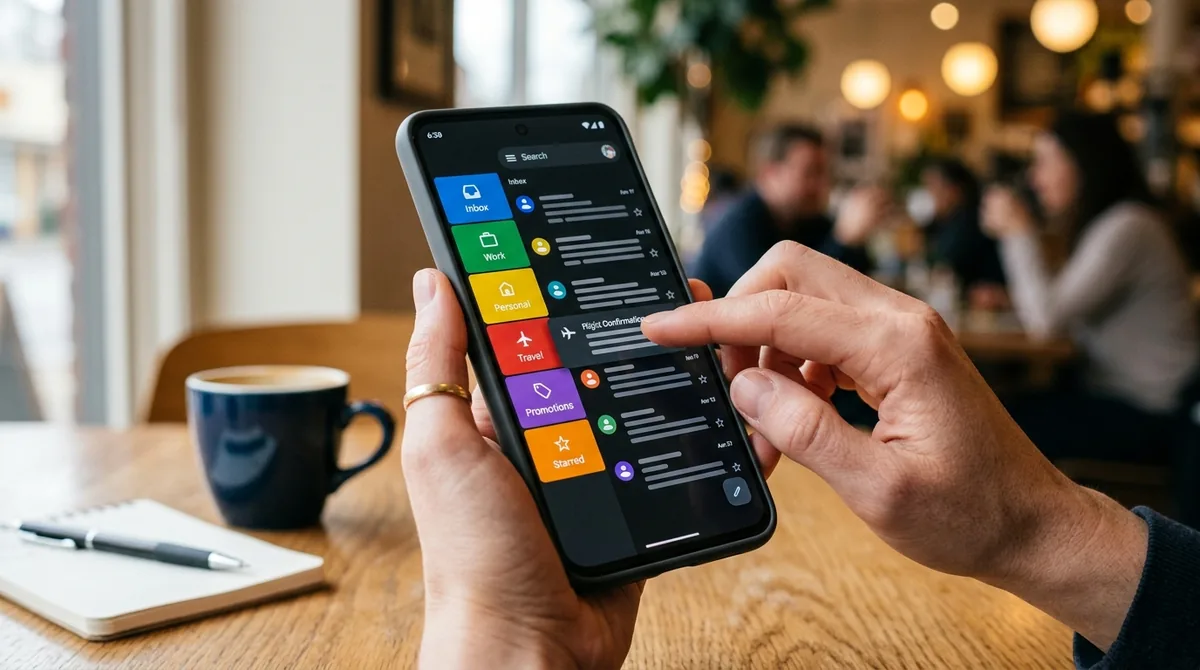
This is the Gmail-specific setting that catches the most people. Gmail can notify you per label, and labels like Promotions, Social, or custom labels you created may have notifications disabled while the inbox itself is set to notify.
In Gmail: menu > Settings > your account > Manage labels. Tap each label you care about (Inbox, and any custom labels with filters routing mail to them) and check Label notifications. If you use filters that skip the inbox and apply a label, mail goes straight to that label — and if that label's notifications are off, you will never hear about it.
Related trap: filters that mark mail as read or archive it. In Gmail on the web, check Settings > Filters and Blocked Addresses. A filter that archives incoming mail or marks it read will prevent notifications for those messages entirely, because as far as Gmail is concerned, there is nothing new to announce. If notifications stopped for a specific sender, a filter is a prime suspect.
Inbox Categories and Tabbed Inbox Behavior
If you use Gmail's tabbed inbox (Primary, Promotions, Social, Updates, Forums), notification behavior follows your Inbox type settings. Mail landing in Promotions or Social may not trigger the same alerts as Primary, depending on your configuration.
Check Gmail > menu > Settings > your account > Inbox type and Inbox categories. If important mail is being categorized into a tab you never check — Gmail's categorization is good but not perfect — consider disabling the tabs you do not need, or create a filter to force important senders into Primary with "Never send to Spam" and "Always mark as important."
Also verify conversation view expectations: Gmail groups replies into conversations, and notification behavior for a long thread follows the thread's settings, not each individual message.
Muted Conversations and Snoozed Mail
Gmail lets you mute a conversation, which archives future replies and — critically — suppresses notifications for them. If you muted a thread months ago and someone revived it, you will get no alert. Search Gmail for `is:muted` to see your muted threads and unmute any that should notify you.
Similarly, snoozed mail reappears without a fresh notification in some configurations. And Smart features like "Nudges" (reminders about unanswered mail) are separate from new-mail notifications — do not confuse a missing nudge with broken notifications.
On the web, also check Settings > General > Desktop notifications is irrelevant on mobile, but do check Vacation responder — an active responder does not block notifications, yet users sometimes conflate the two when diagnosing.
Gmail App Notifications Not Working on Android? Check Battery Optimization
Gmail is just as vulnerable to Doze and Adaptive Battery as any other app — arguably more so, because email sync is exactly the kind of periodic background work power savers love to defer. The symptom is unmistakable: mail arrives in a batch when you open Gmail, and you are never notified in real time.
Fix it:
- Long-press the Gmail icon > App info > Battery > Unrestricted.
- In App info > Mobile data & Wi-Fi, confirm Background data is enabled.
- If your phone is a Samsung, Xiaomi, OnePlus, Huawei, Oppo, or Vivo, check the manufacturer's battery manager too — remove Gmail from any sleeping, deep-sleeping, or restricted list.
Also exempt Google Play services from battery optimization (App info with "Show system" enabled), since Gmail's push delivery travels through it. A throttled Play services breaks Gmail notifications even when Gmail itself is unrestricted.
Account Problems: Password Changes and Sync Errors
Gmail notifications stop when the account itself has a problem. Common scenarios:
- Password changed recently: If you changed your Google password on another device, the phone's stored credentials expire. Android usually prompts you to re-sign in, but the prompt is easy to dismiss — and then sync silently fails. Go to Settings > Accounts, tap the Google account, and look for a sync error or re-authentication prompt.
- Two-factor and security holds: After a security event, Google may pause sync until you verify. Check your account's security notifications.
- Storage full: If your Google account storage is full, Gmail cannot receive new mail at all. Check storage in the Google One app or at your Google account's storage page, and free space or manage it if full.
- Multiple accounts confusion: Notifications may be configured for one account while you are watching another. In Gmail's account switcher, verify each account's notification settings individually.
Check Spam, Trash, and "All Mail"
Before concluding notifications are broken, confirm the missing mail is actually reaching the inbox. Search Gmail for the expected message:
- Check Spam — Gmail's spam filter occasionally misfiles legitimate mail, and spam never generates notifications.
- Check Trash and All Mail — a misconfigured filter may be deleting or archiving mail on arrival.
- Search `in:anywhere` for the sender to find mail that bypassed the inbox entirely.
If the mail is in Spam, mark it "Not spam" and consider creating a filter with "Never send to Spam" for that sender. If filters are misbehaving, review them at Gmail web > Settings > Filters and Blocked Addresses and delete or fix the offenders.
App-Level Issues: Cache, Updates, and Reinstall
When settings look right, treat Gmail like any misbehaving app:
- Clear cache: App info > Storage & cache > Clear cache, then open Gmail and let it re-sync.
- Update Gmail in the Play Store — notification bugs are regularly fixed in updates.
- Check notification channels: App info > Notifications — Gmail defines channels like "Mail," and each must be enabled with adequate importance.
- Reinstall as a last resort: Remove Gmail updates or reinstall, then sign back in and re-check the per-account notification settings (they reset to defaults).
Also confirm Gmail is not disabled as a system app on phones where it came preinstalled — a disabled Gmail cannot sync at all.
Fine-Tune Sounds, Vibration, and Per-Conversation Alerts
Once Gmail notifications are working, make them useful rather than noisy. In Gmail > menu > Settings > your account > Notifications, you can set a distinct notification sound per account — invaluable if you monitor both personal and work mail, since you will know which account pinged without looking.
Vibration deserves the same attention. In your phone's App info > Notifications, tap Gmail's mail channel to set vibration on or off independently of sound. Many users prefer vibration-only for email during work hours and sound for everything else — Android supports that split per channel.
For truly critical senders, create a Gmail filter (on the web) matching that sender with "Always mark as important" and "Never send to Spam," then set the account to notify for All mail. Conversely, if a newsletter floods your alerts, unsubscribe or filter it to skip the inbox with a dedicated label whose notifications are off. The goal is a notification stream where every ping deserves your attention — because an alert you ignore trains you to ignore the important ones too.
Finally, check notification behavior on secondary devices. If you read Gmail on a tablet, Chromebook, or desktop with desktop notifications enabled, Android may suppress the phone alert once the message is marked read elsewhere. That is working as designed, but it surprises users who expect every device to ping. If you want the phone to always notify regardless, keep desktop notifications off or accept the tradeoff.
FAQ
Gmail app notifications not working on Android: why does mail arrive only when I open the app?
That pattern means sync is being deferred in the background — almost always battery optimization or disabled auto-sync. Set Gmail to Unrestricted battery usage, confirm background data is on, and check that master auto-sync is enabled under Settings > Accounts.
Why do I get notifications for some Gmail accounts but not others?
Gmail stores notification preferences per account. Open Gmail > menu > Settings, tap each account individually, and compare their Notifications settings. The silent account likely has notifications set to "None" or "High priority only" while the working one is set to "All."
Why am I not notified about emails with a specific label?
Per-label notification settings are separate from inbox notifications. Go to Gmail > Settings > your account > Manage labels, tap the label, and enable Label notifications. Also check that no filter is archiving or marking that label's mail as read on arrival.
Can Gmail filters stop notifications?
Yes. A filter that skips the inbox, archives mail, marks it as read, or deletes it will prevent notifications for matching messages. Review your filters in Gmail on the web under Settings > Filters and Blocked Addresses.
Why did Gmail notifications stop after I changed my password?
Changing your Google password invalidates the phone's stored credentials, which pauses sync until you re-authenticate. Go to Settings > Accounts, tap the Google account, and complete any sign-in prompt. Sync — and notifications — resume afterward.
Does High priority only miss important emails?
It can. High priority mode relies on Gmail's importance ranking, which learns from your behavior but misclassifies mail, especially from new senders. If missing important mail is worse than extra noise, use "All" notifications and manage noise with filters and labels instead.
Conclusion
Gmail notifications not working on Android almost always traces to one of Gmail's own layers: sync disabled at the phone or account level, per-account notification preferences set to High priority only or None, per-label notifications off for the labels your mail actually lands in, filters archiving mail on arrival, or battery optimization deferring background sync. The phone's general notification settings are rarely the problem — Gmail's internal configuration is.
Work through it systematically: verify sync with a manual refresh test, set the account to notify for All mail, audit your labels and filters, exempt Gmail and Play services from battery optimization, and check the account for password or storage issues. Email is too important to discover by accident — with these settings correct, Gmail will tell you the moment mail arrives, not the next time you happen to look.
If you still find Gmail app notifications not working on Android after these steps, rule out system-wide causes with why are my app notifications not working and push notifications not working on Android. Google’s Gmail help center documents sync and label notification settings.


What do you think?
Share your experience or ask a question. A useful conversation starts with you.
Join the discussion