

Imagine holding up your phone in a noisy café and watching your friend’s words appear as text in real time — or following a doctor’s instructions, a lecture, or a family story as readable captions, even if you can’t hear every word. That’s Live Transcribe: Google’s free Android accessibility app that turns speech into text instantly, on-device, in dozens of languages. This 2026 guide shows you how to use Live Transcribe on Android, from setup to power-user settings.
Originally built for people who are deaf or hard of hearing, Live Transcribe has quietly become useful for everyone — language learners, journalists, students, and anyone who's ever been stuck in a conversation they couldn't quite follow. Below: setup, the interface, languages, Sound Notifications, saving transcripts, accuracy tips, and troubleshooting.
What Is Live Transcribe?
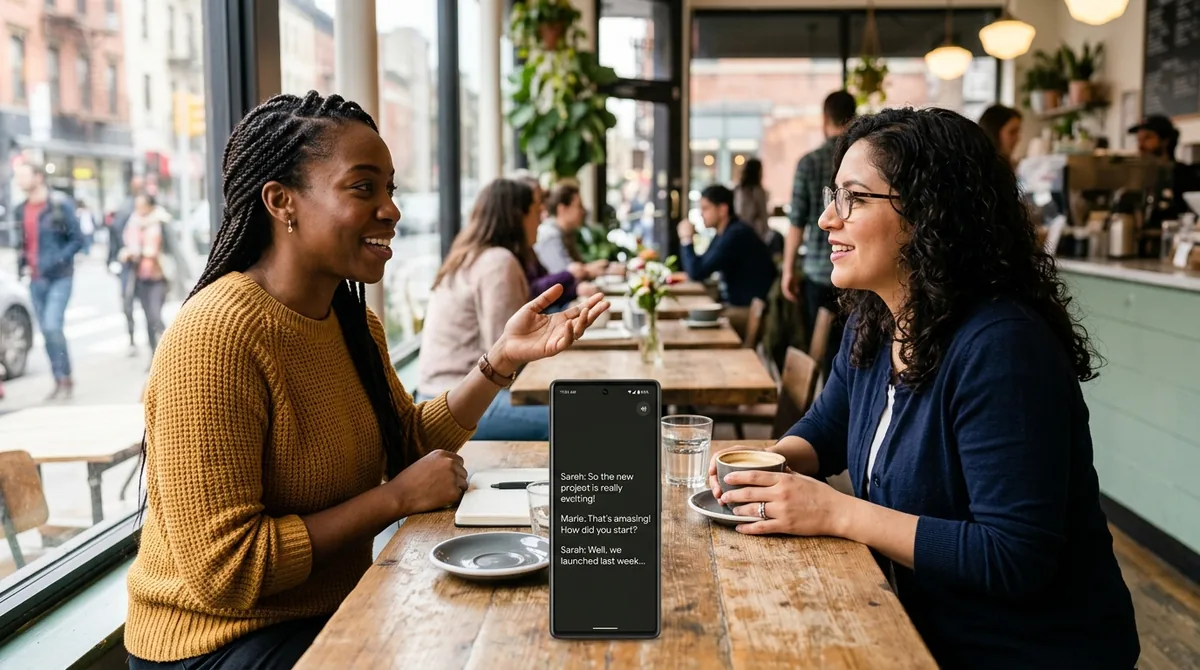
Live Transcribe (by Google, from its Research accessibility team) uses your phone's microphone and on-device speech recognition to display a live, scrolling transcript of nearby speech. Key facts:
- Free, no ads, no subscription.
- Real-time: words appear within a second or two of being spoken.
- On-device processing on modern phones — transcripts generally don't leave your phone (a meaningful privacy plus).
- 70+ languages supported for transcription, with quick switching between two primary languages.
- Part of Android's accessibility suite, alongside Sound Notifications (alerts for doorbells, alarms, baby crying — covered below).
It's preinstalled on Pixel phones and downloadable free from the Play Store for other Android devices.
How to Use Live Transcribe on Android: Installation and First Launch
If you have a Pixel: Live Transcribe is usually preinstalled. Find it in your app drawer, or go to Settings → Accessibility → Live Transcribe and enable it.
Other Android phones:
- Open the Play Store and search for "Live Transcribe" (published by Google).
- Install it — it's a small download.
- Open the app and grant microphone permission (essential — it can't work without it). Grant notifications permission if you want Sound Notifications.
First-launch checklist:
- Hold the phone 1–3 feet from the speaker, microphone unobstructed (watch out for cases covering the mic).
- Speak normally — the app handles conversational volume well.
- Try it in a quiet room first to see baseline accuracy before testing noisy environments.
The Interface Tour
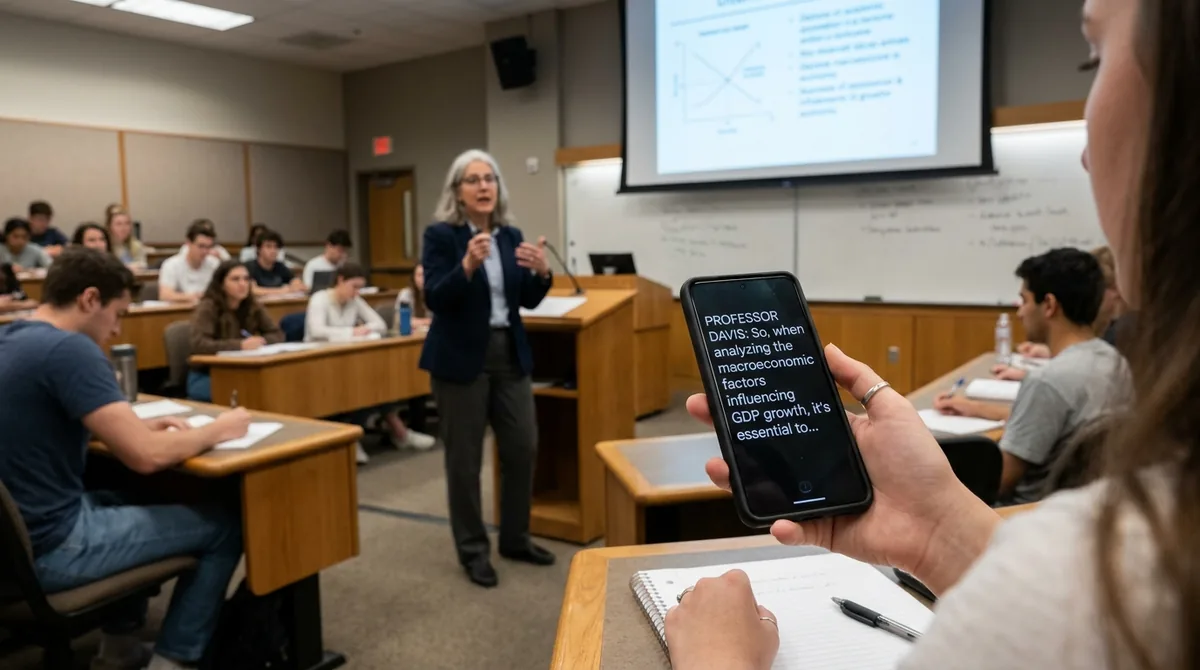
Live Transcribe's interface is deliberately minimal — it's designed to be readable at a glance:
- The transcript area fills most of the screen: large, high-contrast text scrolling as people speak. Pinch to zoom text size on the fly.
- Microphone indicator shows the app is listening.
- Language switcher — tap to toggle between your two primary languages instantly (great for bilingual conversations).
- Keyboard button — opens a type-to-speak box: type a response and the phone speaks it aloud. This makes two-way conversations possible when one party can't speak or hear well.
- Settings gear — transcription options, text size, history, Sound Notifications.
- Hold-to-pause — tap the mic to pause/resume listening.
Dark theme is available and recommended — easier on the eyes and better in low light.
Key Settings Worth Configuring
Open Settings inside Live Transcribe and tune these:
Primary and secondary languages Set two languages for instant switching. The app auto-detects which is being spoken within the pair — genuinely useful in multilingual households and workplaces.
Text size and display Crank text size up for readability across a table. Options include showing speaker labels and adjusting how much history stays on screen.
Transcription history
- Save transcripts: Live Transcribe can keep recent transcripts (typically a few days of history) on-device. Enable this if you want to review conversations later — lectures, medical appointments, interviews.
- Privacy note: history stays on your phone; clearing it is one tap in settings.
Sound Notifications A companion feature (also in Accessibility settings): your phone listens for important sounds — doorbell, fire/smoke alarm, baby crying, dog barking, appliance beeps — and flashes, vibrates, or shows a notification when detected. Configure which sounds matter to you; it's genuinely useful for hard-of-hearing users and for anyone wearing noise-canceling headphones at home.
Vibration and flash alerts Pair transcripts with vibration patterns or camera-flash alerts for incoming speech or specific sounds — helpful when the phone isn't in your line of sight.
Offline behavior Modern phones transcribe on-device, so Live Transcribe works without internet. If accuracy drops offline on an older phone, that's the cloud model being unavailable — newer devices won't notice.
Real-World Use Cases

Deaf and hard-of-hearing users (the core audience): everyday conversations, phone calls on speaker, drive-throughs, appointments. The type-back feature enables full two-way dialogue.
Medical appointments: enable transcript history and review the doctor's instructions afterward — dosage, follow-ups, terminology you didn't catch live.
Lectures and meetings: prop the phone near the speaker; review the saved transcript later. (Check local consent norms for recording-like uses — transcription of others' speech has the same etiquette as recording.)
Language learning: watch the transcript while listening to native speakers; switch primary languages to compare.
Noisy environments: construction sites, concerts, loud restaurants — read what you can't hear.
Customer service and counters: banks, airports, government offices — anywhere with glass barriers and mumbling.
Journalists and researchers: quick, rough transcripts of interviews (always verify quotes against audio — Live Transcribe is an aid, not a court reporter).
Accuracy Tips: Getting the Best Transcripts
Speech recognition is good, not perfect. These practices meaningfully improve results:
- Distance matters most. 1–3 feet from the speaker is the sweet spot. Across a conference table works; across a hall doesn't.
- Point the mic. The bottom microphone should face the speaker. Phone lying flat on a table between people works surprisingly well.
- Reduce competing noise. TV, music, and cross-talk are the top accuracy killers. Pause background audio when transcription matters.
- One speaker at a time — overlapping speech confuses any recognizer. In group conversations, the transcript will be rough; that's normal.
- Speak naturally, not slowly. Recognition models are trained on natural speech; exaggerated slowness can reduce accuracy.
- Proper nouns need help. Names, technical terms, and uncommon words are the most likely errors — verify them in saved transcripts.
- Check the language setting. Wrong-language mode produces confident gibberish. The quick-switch button exists for exactly this.
- Keep the app updated — recognition models improve via Play Store updates.
Honest limitations: heavy accents in noisy rooms, rapid overlapping dialogue, whispered speech, and highly technical jargon will produce errors. Treat transcripts as ~90%-accurate working notes, not verbatim records, and always confirm critical details (medication names, numbers, dates) by asking.
Privacy and Etiquette
- On-device processing: on modern phones, transcription happens locally — audio isn't sent to Google's servers for the core feature. (Older devices or certain languages may use cloud processing; the app indicates this.)
- Transcripts stay on your phone unless you share them. History auto-expires.
- Etiquette: transcribing someone's speech is functionally similar to recording them. In sensitive settings (workplaces, medical offices, classrooms), mention you're using a transcription aid — most people are accommodating when they understand it's accessibility tech, not surveillance.
- Legal note: audio recording consent laws vary by US state; transcription occupies a gray area. When in doubt, ask. This is general information, not legal advice.
Sound Notifications: The Companion Feature
Don't overlook Sound Notifications (Settings → Accessibility → Sound Notifications, or inside Live Transcribe settings):
- Detects: doorbell/knocking, smoke/fire alarms, baby sounds, dog barking, appliance beeps, water running.
- Alerts via flash, vibration, and on-screen notification — even with the phone locked.
- Timeline view shows recent detected sounds with timestamps ("Dog barking — 2:14 PM").
- Useful far beyond hearing loss: noise-canceling headphone users, deep sleepers (with vibration), parents in another room.
Train it to your home: run through each sound type once so you trust the alerts before relying on them.
Troubleshooting
"No sound is being detected / transcript is empty." Check microphone permission (Settings → Apps → Live Transcribe → Permissions → Microphone → Allow). Remove cases blocking the mic. Test in a quiet room close to the speaker.
"Accuracy is terrible." Verify the correct language is selected, move closer, reduce background noise, and update the app. If it suddenly degraded, a Play Services or app update may have reset settings — re-check language and mic.
"The app keeps pausing." Battery optimization may be killing the microphone background process. Set Live Transcribe to Unrestricted battery usage (Settings → Apps → Live Transcribe → Battery → Unrestricted).
"Type-back voice sounds wrong / too quiet." Adjust the speech volume in the type-back settings; some voices download on first use — connect to Wi-Fi once to fetch your preferred voice.
"Sound Notifications drains battery." Continuous sound detection uses the mic and some power. It's optimized to be light, but if battery impact bothers you, enable it only when needed (e.g., while wearing headphones) rather than 24/7.
"Languages I need aren't listed." Transcription language support is broad but not universal; check for app updates, as Google adds languages periodically. The secondary-language slot only offers supported languages.
"Transcript history disappeared." History retention is limited (a few days) by design for privacy. For important transcripts, copy or share the text to your notes app promptly.
Live Transcribe vs Alternatives
- Built-in Live Caption (Pixel/Samsung): captions media audio (videos, calls, podcasts) — different job from Live Transcribe's live microphone transcription. They complement each other.
- Recorder app (Pixel): records audio and transcribes — better for lectures you want to replay; Live Transcribe is better for live conversation you want to read now.
- Third-party transcription apps: many exist with cloud processing and more languages, but most are paid, ad-supported, or send audio to servers. Live Transcribe's free, on-device, no-account approach is hard to beat for everyday use.
Setting Up an Accessibility Shortcut for Live Transcribe
If you use Live Transcribe often, don't bury it in the app drawer — make it instantly reachable:
- Go to Settings → Accessibility → Live Transcribe.
- Turn on the Live Transcribe shortcut (on Pixel; on Samsung look under Accessibility → Installed apps/services).
- Choose the trigger: holding both volume keys for 3 seconds is the classic option, or a floating accessibility button.
Now you can launch transcription mid-conversation without fumbling through menus — genuinely important when someone starts talking and you need captions now. Pair this with the volume-key shortcut and Live Transcribe becomes as fast to open as the camera.
Using Live Transcribe with Hearing Aids and Bluetooth Audio
Live Transcribe works with your phone's audio routing, which opens useful combinations:
- Bluetooth hearing aids: if your hearing aids stream to your phone, Live Transcribe can caption what the phone hears — a powerful pairing for difficult listening environments.
- External microphones: a cheap clip-on or USB-C microphone dramatically improves accuracy in lectures and meetings by getting the mic closer to the speaker while your phone stays in your pocket or on the table.
- Earbuds as remote mic: in some setups, leaving one earbud near the speaker while you read the transcript on your phone works as a makeshift remote microphone.
Test any Bluetooth audio combination before relying on it — latency and routing quirks vary by device.
FAQ
Is Live Transcribe free?
Yes — completely free, no ads, no subscription, no account required. It's published by Google as an accessibility app.
Does Live Transcribe work offline?
On modern phones, yes — transcription runs on-device. Older devices may need an internet connection for some languages.
How accurate is Live Transcribe?
Very good in quiet, close-range conditions with clear speech — good enough to follow conversations reliably. Accuracy drops with distance, background noise, overlapping speakers, and uncommon vocabulary. Treat it as a strong aid, not a verbatim record.
Can Live Transcribe translate languages?
It transcribes speech to text in the spoken language; it doesn't translate between languages. For translation, pair it with Google Translate's conversation mode.
Does it save my conversations?
Only if you enable transcript history — saved transcripts stay on your device for a limited time and can be cleared anytime. Core transcription doesn't require saving anything.
How to use Live Transcribe on Android for phone calls?
Put the call on speakerphone and Live Transcribe will transcribe the other party. (For direct call captioning, Android's Live Caption during calls is the more purpose-built option on supported phones.)
Conclusion
Live Transcribe is one of those rare apps that's both a vital accessibility tool and a quietly brilliant general utility. Setup takes two minutes: install, grant the mic, pick your languages, tune text size, and optionally enable Sound Notifications. Then it just works — in cafés, classrooms, clinics, and loud family gatherings — turning the spoken world into readable text in real time.
If you've now learned how to use live transcribe android, do one more thing: show it to someone who needs it. The best accessibility tech is the kind people discover through a friend — and this particular friend fits in a pocket, costs nothing, and might change how someone experiences every conversation.
Once you know how to use live transcribe on android, explore more accessibility wins in our Android phone hidden features roundup and hidden Android features: 20 tricks for 2026. Android’s accessibility hub lists every supported language.




What do you think?
Share your experience or ask a question. A useful conversation starts with you.
Join the discussion