

Android keeps evolving, and with each release Google tucks new capabilities into corners of the operating system that most users never explore. Whether you just unboxed a new phone or have been on Android for years, this roundup of hidden android features for 2026 will show you tricks that make your device faster, smarter, and more private.
Some of these features arrived with recent Android versions; others have been quietly available for years. All of them are built in — no downloads, no subscriptions, no root required. Settings paths vary slightly between Pixel, Samsung, Motorola, and OnePlus devices, so use the search bar inside your Settings app if a path looks different on your phone.
Privacy and Security Tricks
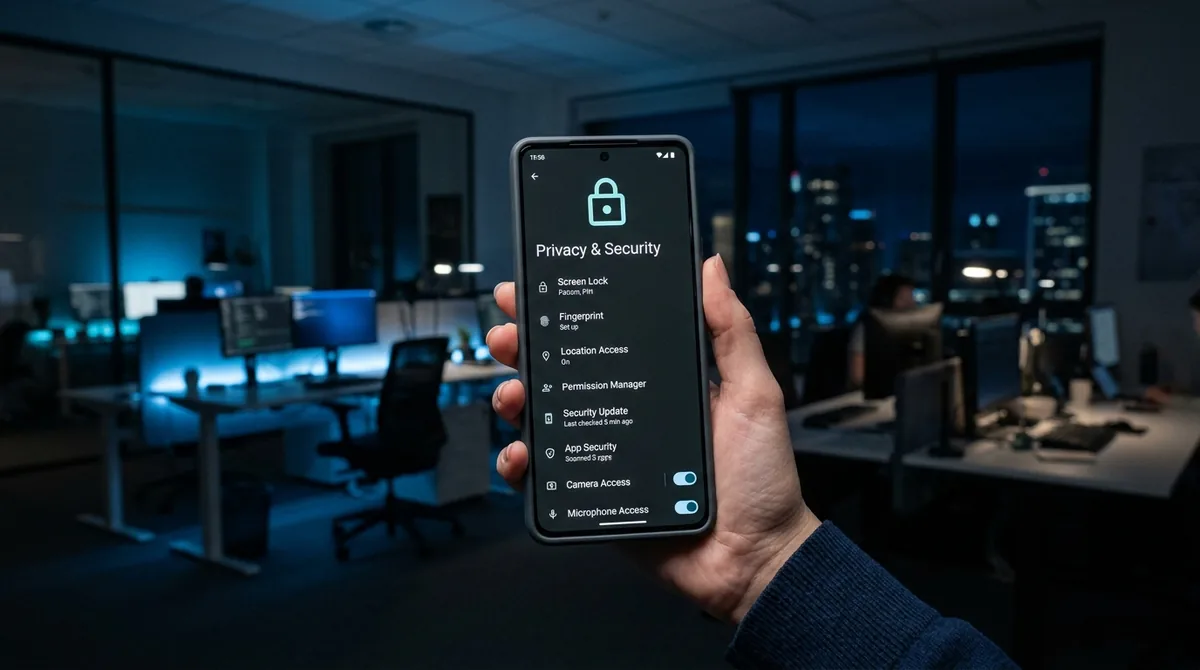
1. Privacy Dashboard
Android's Privacy Dashboard shows exactly which apps accessed your location, camera, microphone, and other sensitive permissions over the last 24 hours — on a timeline.
Find it: Settings > Security & privacy > Privacy dashboard. Tap any permission to see the full access history per app, and revoke anything suspicious on the spot. Check it monthly; you will be surprised how often some apps ping your location.
2. One-Time Permissions
Instead of granting permanent access, you can give an app a permission exactly once. The next time it needs it, Android asks again.
How it works: When an app requests location, camera, or microphone, choose Only this time instead of While using the app. It is the perfect middle ground for apps you use rarely but that legitimately need the permission in the moment.
3. Auto-Reset Unused App Permissions
Apps you have not opened in months should not keep their permissions forever. Android can automatically revoke permissions from unused apps.
Find it: Settings > Apps > [any app] > Permissions, or manage it globally under Settings > Security & privacy. When enabled, Android strips permissions from apps you have not used in a few months and notifies you. Re-grant them whenever you reopen the app.
4. App Pinning With Lock (Screen Pinning + Lockdown Combo)
Screen pinning locks the phone to one app, and enabling the "ask for PIN before unpinning" option turns it into a genuinely secure way to hand your phone to someone. Combine it with Lockdown Mode (hold power, tap Lockdown) in sensitive situations to disable biometrics entirely. Together, these two underused tools cover nearly every "let me show you something on my phone" scenario safely.
5. Private DNS for System-Wide Ad and Tracker Blocking
Private DNS encrypts your DNS queries and — depending on the provider you choose — can block ads and trackers across every app on your phone, not just the browser.
How to set it up: Go to Settings > Network & internet > Private DNS and select Private DNS provider hostname. Enter the hostname of a filtering DNS provider (several reputable free options exist; research current recommendations). From then on, DNS-level blocking applies system-wide.
Note: this is DNS filtering, not a full VPN. It will not hide your IP address, but it quietly cuts a large share of in-app tracking.
Productivity Power Moves
6. Split Screen and App Pairs
Running two apps at once is old news, but few people use it daily. Open recent apps, tap an app's icon, choose Split screen, and pick the second app. Samsung users can save favorite combinations as App pairs on the Edge panel for one-tap launch. Research-plus-notes, video-plus-chat, maps-plus-music — once you build the habit, going back to single-app mode feels broken.
7. Quick Tap Gestures (Pixel)
Pixel phones can detect a double-tap on the back of the device and trigger an action: take a screenshot, open the camera, toggle the flashlight, pause media, or open any app.
Find it: Settings > System > Gestures > Quick Tap. Assign the action you reach for most. It works through most cases and quickly becomes muscle memory.
8. Clipboard History in Gboard
Gboard quietly saves everything you copy. Tap the clipboard icon in the keyboard's toolbar to see recent clips — text, and on newer versions, screenshots too. You can pin frequently used items (addresses, email templates, phone numbers) so they never expire.
Tip: If the clipboard icon is not visible, tap the four-square menu on the toolbar to add it.
9. Select Text From the Recent-Apps Screen (Pixel)
On Pixel phones, the recent-apps overview lets you select and copy text directly from an app's preview card — even from apps that normally block text selection. Open the multitasking view, then long-press or drag over text in any preview. You can also tap the Lens button to run visual search on the preview, or Screenshot to capture just that app.
10. Focus Mode and App Timers
Under Settings > Digital Wellbeing & parental controls, Focus Mode lets you pause distracting apps on a schedule or with one tap — their icons gray out and notifications stop. Pair it with per-app daily timers. Unlike willpower, it actually works, and unlike third-party blockers, it cannot be dodged by uninstalling anything.
Smarter Everyday Interactions
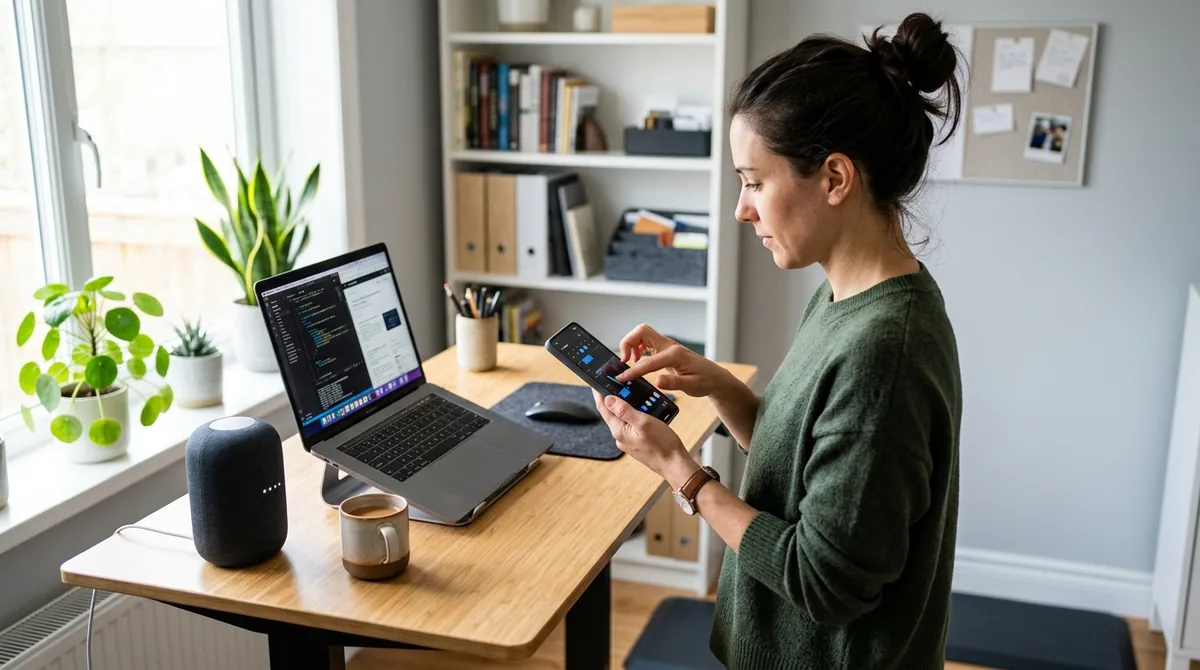
11. Live Caption for Everything
Live Caption transcribes any audio playing on your device in real time — videos, podcasts, voice notes — entirely on-device, no internet needed. Enable it under Settings > Accessibility > Live Caption. The caption box is draggable, and on recent versions it supports phone calls too. Invaluable in noisy places, silent waiting rooms, and for anyone hard of hearing.
12. Now Playing / Song Recognition
Pixel's Now Playing identifies music playing around you automatically and keeps a history — no need to open an app or even unlock the phone. Enable it under Settings > Sound & vibration > Now Playing. Samsung and other phones can get similar one-tap recognition through Google Assistant or the Sound Search widget. Never again wonder "what's that song" in a café.
13. Live Translate in Messaging and Calls
Recent Android versions can translate conversations live: chat apps get on-device translation of incoming messages, and phone calls can get real-time translated captions. Look under Settings > System > Live Translate. It downloads language packs for offline use. If you communicate across languages at all — family abroad, international clients — this quietly removes a real friction.
14. Smart Copy-Paste Suggestions
When you copy something, Android often suggests the right app before you even switch to it: copy an address and Maps appears in the share sheet; copy a tracking number and your package tracker surfaces. This "smart" layer also powers the screenshot toolbar — after taking a screenshot, the thumbnail preview offers instant share, edit, and (on Pixel) Lens actions without opening the gallery.
System Tweaks Most People Miss
15. Notification History
Swiped away something important? Settings > Notifications > Notification history keeps a 24-hour log of every notification (you must enable it in advance). It has saved countless users from lost two-factor codes, deleted messages, and missed reminders.
16. Scheduled Dark Theme and Extra Dim
Set dark mode on a schedule (Settings > Display > Dark theme > Schedule) — sunset to sunrise is the classic. And if minimum brightness still sears your eyes at 2 a.m., Settings > Accessibility > Extra dim pushes brightness below the normal floor. Your late-night scrolling self will thank you.
17. One-Handed Mode
Big screens, small hands: Settings > System > Gestures > One-handed mode (Pixel) or Settings > Advanced features > One-handed mode (Samsung) shrinks the display into thumb range. Activate with a swipe down on the gesture bar or a corner swipe, depending on your phone.
18. Nearby Share / Quick Share
Android's AirDrop equivalent sends files between Android devices at high speed with no cables and no messaging app in the middle: select, share, Quick Share, done. Control discoverability (everyone, contacts, no one) by long-pressing its quick-settings tile. It also works with Chromebooks and Windows PCs via Google's companion app.
19. Built-In Screen Recorder With Internal Audio
The native screen recorder (quick-settings tile > Screen record) captures internal audio — meaning game sound, app audio, video playback — without a microphone held to a speaker. Choose internal audio, mic, or both before recording. Perfect for tutorials, bug reports, and gameplay clips.
20. Developer Options: The Safe Tweaks
Tap Build number seven times (Settings > About phone) to unlock Developer Options. Two tweaks are safe and genuinely useful for everyone:
- Animation scales to 0.5x: Under Drawing, halve the three animation scales. The phone instantly feels faster because transitions complete sooner.
- Show taps: Displays a visual indicator wherever you touch — ideal when recording tutorials or demonstrating something to support.
Leave the rest (USB debugging, process limits, mock locations) alone unless you have a specific reason.
Hidden Android Features: A Suggested Setup Order

Overwhelmed? Enable these five first — they deliver the most value for the least effort:
- Notification history — future-you insurance.
- One-time permissions + permission auto-reset — privacy on autopilot.
- Scheduled dark theme — comfort every evening.
- Quick Tap or double-press-power camera — never miss a moment.
- Focus Mode schedule — reclaim your attention during work hours.
Then layer in the rest as curiosity strikes.
Hidden Features Worth Knowing by Brand
While most tricks above are universal, each manufacturer adds its own extras:
- Samsung (One UI): Modes and Routines automates your phone based on triggers — silence notifications at work, turn on power saving at 20% battery, launch music when headphones connect. Edge panels give one-swipe access to apps, contacts, and tools. Secure Folder creates an encrypted vault for sensitive apps and files, protected by separate biometrics.
- Google Pixel: Call Screen has Google Assistant answer unknown callers and transcribe them live. Hold for Me waits on hold for you. The Recorder app transcribes speech offline with remarkable accuracy. Adaptive Battery learns your habits and throttles apps you rarely open.
- OnePlus/Oppo: Zen Mode locks you out of the phone for a set period (with emergency exceptions). Gaming Mode blocks notifications and optimizes performance during play.
- Motorola: Moto Actions — chop twice for flashlight, twist twice for camera — remain the fastest hardware gestures in the business.
Explore your manufacturer's "Advanced features" menu; there is usually more hiding there than any single guide can cover.
FAQ — Hidden Android Features
Will these hidden Android features work on my Samsung phone?
Nearly all of them, yes. About three-quarters are core Android features; the rest have manufacturer equivalents (Quick Tap is Pixel-only, but Samsung has its own gesture options; App pairs are Samsung's take on saved split-screen). When a path differs, the Settings search bar finds any option by name.
Do I need to update to the latest Android to use these?
Most features on this list require Android 11 or newer, and a few (Live Translate, the newest Quick Share) need Android 13+. Check Settings > About phone > Android version. If your phone no longer receives updates, the majority of these tricks still apply — only the newest AI-flavored ones may be missing.
Can hidden features like Developer Options damage my phone?
Unlocking Developer Options itself is harmless — it only reveals a menu. Damage comes from changing settings you do not understand. The two tweaks recommended here (animation speed, show taps) are widely used and completely reversible. When in doubt, leave a setting at its default.
Why does Android hide useful features instead of advertising them?
Many of these are power-user or accessibility features that would clutter the experience for casual users. Google surfaces the most broadly useful ones during setup or via tips notifications; the rest wait in Settings for the curious. It is a reasonable tradeoff — and it is why guides like this exist.
Does Private DNS slow down my internet?
In practice, no — the difference is measured in milliseconds and is imperceptible in daily use. In some cases, a fast DNS provider can actually make page loads feel slightly snappier than a sluggish ISP default.
Is it safe to grant one-time permissions repeatedly to the same app?
Yes — that is exactly what they are for. If you find yourself granting the same permission to the same app every day, consider switching it to "while using the app" for convenience. The security benefit of one-time grants is mostly for apps you use rarely.
Conclusion — Hidden Android Features
The 20 hidden Android features in this guide span privacy, productivity, accessibility, and pure convenience — and every one of them is already on your phone, waiting behind a toggle. Android rewards curiosity: the users who get the most from their devices are not the ones with the most apps, but the ones who know where the good settings live.
Start with the five high-impact picks, explore one new trick a week, and within a couple of months you will be the person friends ask for phone advice. That is the real payoff of knowing what your phone can actually do.
Pair these hidden android features with the 15 Android phone hidden features you should use for the complete collection, then personalize with how to customize Android Quick Settings and Android widgets in 2026. Google’s Android help center has per-feature guides.


What do you think?
Share your experience or ask a question. A useful conversation starts with you.
Join the discussion