
The Quick Settings panel — that grid of toggles you see when you swipe down from the top of your screen — is one of Android's most-used features and one of its least-customized. Most people live with whatever tiles their phone shipped with, never realizing that learning how to customize android quick settings takes about ninety seconds and pays off every single day. Wi-Fi, flashlight, Do Not Disturb, screen recorder, dark mode: the controls you reach for constantly can be exactly where your thumb expects them, in the order you want, with the extras you never touch banished to the overflow.
This guide covers everything: opening the editor on Pixel and Samsung phones, adding and removing tiles, rearranging them, understanding what the most useful tiles do, adding third-party app tiles, and fixing the common problems (missing tiles, tiles that won't stay put, grayed-out options). Whether you're on a Pixel, a Galaxy, or any other Android phone, you'll finish with a Quick Settings panel built for your actual life.
What Is Quick Settings?

Quick Settings is the panel of shortcut tiles that appears when you swipe down from the status bar — once for a compact row of the most important toggles, twice (or with a two-finger swipe) for the full grid. Each tile is a toggle or shortcut: tap Wi-Fi to turn it on or off, long-press it to jump to the full Wi-Fi settings page. It's the fastest path to the settings you change most often, and Android lets you curate which tiles appear and in what order.
Think of it as your phone's control deck. A well-organized panel means fewer trips into the Settings app; a neglected one means scrolling past toggles you never use to find the one you need.
How to Open the Quick Settings Editor
The editing flow is nearly identical across Android phones, with small brand differences:
On Google Pixel (and most stock Android phones):
- Swipe down from the top of the screen twice to open the full Quick Settings panel.
- Tap the pencil icon (edit) — on newer Android versions it may appear as a small edit button at the bottom of the panel.
- You're now in edit mode: active tiles at the top, available tiles below.
On Samsung Galaxy (One UI):
- Swipe down twice from the top to open the full panel.
- Tap the three-dot menu (⋮) in the top corner, then Edit buttons — or look for the edit/pencil option depending on your One UI version.
- Drag tiles between the active area and the available area.
Two-finger shortcut: swiping down with two fingers from the status bar jumps straight to the full panel on most phones — handy once you're rearranging often.
Adding, Removing, and Rearranging Tiles

In edit mode, the mechanics are drag-and-drop:
- To add a tile: drag it from the "available" section up into the active grid (or tap the + on some versions). It joins the end of your active tiles.
- To remove a tile: drag it down out of the active grid into the available section (or tap the −). It's not deleted — just parked, and you can re-add it anytime.
- To rearrange: long-press any active tile and drag it to a new position. The first 4–6 tiles (depending on phone) form the compact row you see on a single swipe — put your most-used toggles there.
Pro tip: order the first row ruthlessly. Those 4–6 slots are the highest-value real estate on your phone. Wi-Fi, Bluetooth, flashlight, and Do Not Disturb are the usual residents; everything else is negotiable.
Reset option: every editor has a "Reset" choice that restores the factory tile layout. Useful if you've made a mess and want a clean slate.
The Most Useful Tiles (and What They Do)
Android ships with more tiles than most people know exist. Here are the ones worth considering, with plain-English explanations:
Connectivity
- Wi-Fi / Bluetooth / Mobile data — the big three toggles. Long-press jumps to full settings.
- Airplane mode — kills all radios at once.
- Hotspot — turns your phone into a Wi-Fi hotspot for your laptop.
- NFC — for tap-to-pay and tap-to-pair. Leave it on; it uses negligible power.
- Nearby Share / Quick Share — toggles discoverability for file sharing.
Display and sound
- Flashlight — self-explanatory, and more useful than you'd think.
- Auto-rotate — locks or frees screen rotation.
- Dark theme — toggles dark mode system-wide.
- Do Not Disturb — silences calls and notifications (with exceptions you configure).
- Bedtime mode / Extra dim — for nighttime use.
- Screen record — captures video of your screen with optional mic audio.
- Screenshot — on some phones, a dedicated tile.
System
- Battery Saver — extends battery by limiting background activity.
- Location — toggles GPS/location services.
- Focus Mode — pauses distracting apps (pairs with Digital Wellbeing).
- Data Saver — restricts background mobile data.
- Work profile toggle — pauses work apps (if your phone has a work profile).
Samsung extras (One UI): Link to Windows, Smart View (cast screen), Secure Folder shortcut, Edge lighting controls, Power saving variants, and DeX toggle on supported models.
Pixel extras: Live Caption, Night Light, QR code scanner, one-handed mode, device controls (smart home).
Browse the full "available" list on your phone — manufacturers hide genuinely useful tiles there that never make the default layout.
Adding Third-Party App Tiles
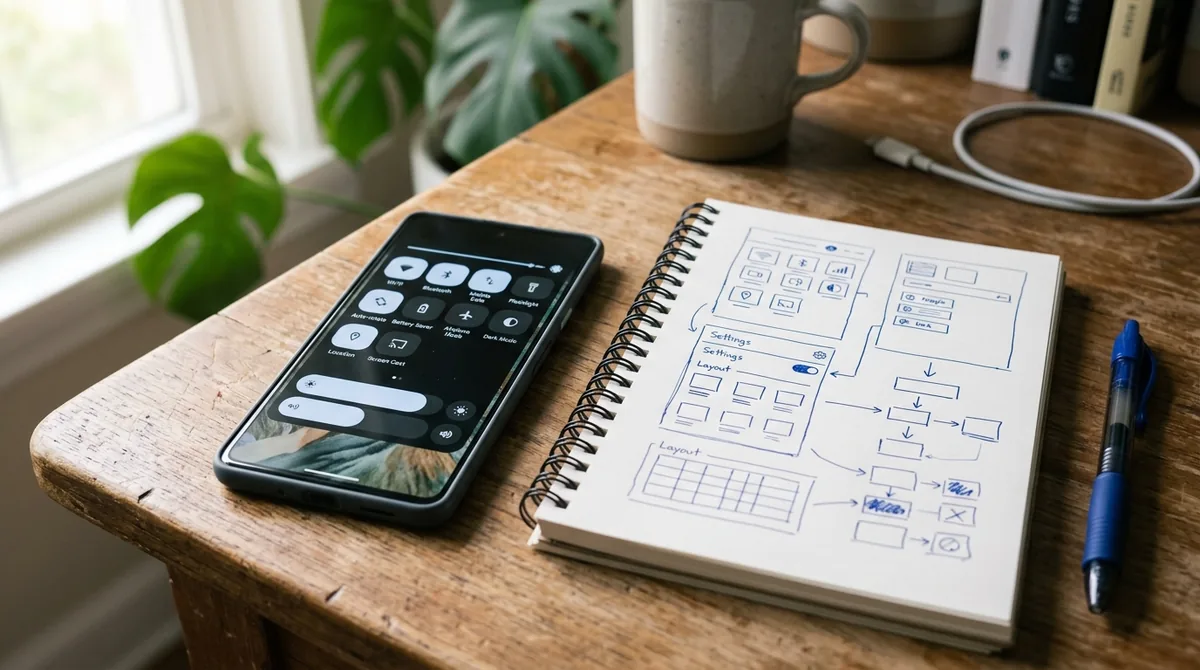
Many apps can add their own Quick Settings tiles — and this is an underused superpower:
- VPN apps typically offer a one-tap connect/disconnect tile.
- Password managers sometimes offer vault lock or autofill tiles.
- Automation apps (like Tasker or MacroDroid) let you build fully custom tiles that run any routine.
- Music and podcast apps may offer playback tiles.
- Smart home apps can expose device toggles.
To add them: open the Quick Settings editor and scroll the available-tiles list — third-party tiles appear there after you install the app (you may need to open the app once first). If an app's tile doesn't appear, check the app's own settings for a "Quick Settings tile" toggle.
Customizing on Samsung vs Pixel: Key Differences
Samsung (One UI):
- Tiles can show text labels under icons, and you can toggle label visibility.
- The panel supports separate brightness slider placement and media output switching.
- Button order and grid options let you change how many tiles per row.
- Some tiles (like SmartThings device controls) are Samsung-ecosystem specific.
Pixel (stock Android):
- Larger, pill-shaped tiles on recent versions with the edit pencil at the panel bottom.
- Device controls tile opens your smart home dashboard (Google Home).
- Internet tile combines Wi-Fi and mobile data into one panel (tap to switch) — a change some love and some hate.
Both let you long-press any tile to jump to its full settings page — the single most useful Quick Settings habit to build.
Advanced: Tile Tricks Power Users Love
- Long-press > tap: long-pressing a tile opens its detailed settings; tapping toggles. Teach your thumbs the difference.
- The Internet tile (Pixel): one tile for Wi-Fi + mobile data. Tap it to see both networks and switch quickly — faster than the old separate toggles once you're used to it.
- Screen Record tile: long-press it to set resolution, mic audio, and show-taps before recording — great for tutorials.
- Do Not Disturb schedules: long-press the DND tile to set automatic schedules (sleep hours, meetings) instead of toggling manually.
- Flashlight brightness: on Samsung phones, long-pressing the flashlight tile (or opening its settings) lets you adjust brightness levels.
- QR scanner tile (Pixel): faster than opening the camera for Wi-Fi QR codes and links.
How to Customize Android Quick Settings: Troubleshooting
"A tile I want isn't in the list." Some tiles only appear when relevant hardware or apps exist (e.g., no NFC tile on phones without NFC; no work-profile tile without a work profile). Third-party tiles require the app installed and opened at least once. On Samsung, check Galaxy Store updates for system apps that provide tiles.
"My tiles keep resetting to default." This usually happens after major OS updates or when switching launchers/themes that reset system UI state. Re-customize once after updates; the layout should then stick. If it recurs, check for a device-administrator or work-profile policy forcing defaults.
"Tiles are grayed out and won't toggle." Grayed-out tiles usually mean a restriction: Airplane mode grays out Wi-Fi/Bluetooth/mobile data toggles (turn off Airplane mode first); Battery Saver may lock performance toggles; work-profile policies can disable location or hotspot. Some tiles gray out while the phone is in power-saving or ultra-power-saving modes.
"The edit pencil icon is missing." On some versions, the edit control moved: try the three-dot menu → "Edit buttons" (Samsung) or look for "Edit" text at the panel bottom (Pixel). A full-panel two-finger swipe down is required — the compact single-swipe view has no edit option.
"Quick Settings panel won't open / swipe doesn't work." Check for screen protectors interfering with edge swipes, try the two-finger swipe, and restart the phone. If an accessibility service is drawing over the screen, it can intercept gestures — temporarily disable overlays to test.
"I removed a tile and can't find it." It's in the available-tiles section at the bottom of edit mode — scroll down. Removed tiles are never deleted, just parked.
Building Your Ideal Layout: Suggested Setups
The minimalist (6 tiles): Wi-Fi, Bluetooth, Flashlight, Do Not Disturb, Auto-rotate, Battery Saver. Everything else lives one extra swipe away.
The commuter: Internet/Wi-Fi, Bluetooth (earbuds), Do Not Disturb, Hotspot, NFC, Screen record (for capturing transit info), Dark theme.
The smart-home owner: Device controls, Wi-Fi, Bluetooth, Do Not Disturb, Flashlight, Location.
The power user: everything above plus Data Saver, Focus Mode, QR scanner, VPN tile, automation tiles, and Work profile toggle — organized with daily drivers in the first row.
Revisit your layout every few months. Habits change; your control deck should change with them.
FAQ
How to customize Android Quick Settings tiles on Samsung vs Pixel?
Swipe down twice to open the full panel, tap the pencil/edit icon (or three-dot menu → Edit buttons on Samsung), then drag tiles from the available section into the active grid. Third-party app tiles appear in the available list after installing the app.
Why can't I edit my Quick Settings?
Make sure you're opening the full panel (swipe down twice or use two fingers) — the compact view has no edit option. On Samsung, the editor lives under the three-dot menu → Edit buttons. If options are grayed out, a work-profile policy or power-saving mode may be restricting changes.
How many Quick Settings tiles can I have?
There's no hard user-facing limit on most phones — you can add dozens, and the panel scrolls or paginates. But only the first 4–6 appear in the single-swipe compact view, so prioritize those.
Do third-party apps need special permission for tiles?
No special permission — apps declare tiles in their manifest, and Android shows them in the editor's available list. You add or remove them like any system tile.
Will customizing Quick Settings drain my battery?
No. Tiles are just shortcuts; rearranging them changes nothing about power consumption. (Toggling Battery Saver on via a tile, of course, saves battery — that's the point.)
How do I reset Quick Settings to default?
Open the editor and look for the Reset option (usually in the three-dot menu or at the bottom of edit mode). This restores the factory tile selection and order without affecting anything else on your phone.
Conclusion
Learning how to customize android quick settings is one of the highest-ROI tweaks in Android: ninety seconds of drag-and-drop for a control panel that saves you seconds dozens of times a day, forever. Put your daily toggles in the first row, exile the ones you never touch, add the third-party tiles your favorite apps offer, and set a calendar reminder to revisit the layout in a few months.
Your phone's most-used screen real estate shouldn't be running on factory defaults. Make it yours — your thumbs will thank you every single day.
Once you know how to customize android quick settings, extend the makeover with our Android lock screen customization guide and how to use Do Not Disturb on Android for the full control-center overhaul. Google’s Android help center covers tile behavior across versions.




What do you think?
Share your experience or ask a question. A useful conversation starts with you.
Join the discussion