

The lock screen is the first thing you see every time you pick up your phone — dozens of times a day. Yet most people never change anything about it beyond the default wallpaper. With proper android lock screen customization, that first glance can show you the weather, your next meeting, and your favorite photo, while giving you one-tap access to the flashlight, camera, or wallet — all without unlocking the phone.
This complete guide covers every layer of lock screen personalization available on modern Android phones, from basic wallpaper changes to widgets, shortcuts, clock styles, notification controls, and the security settings that keep convenience from becoming a vulnerability. Steps are written generically, with notes for Samsung, Pixel, and other major brands where their menus differ.
Android Lock Screen Customization: Why It's Worth It
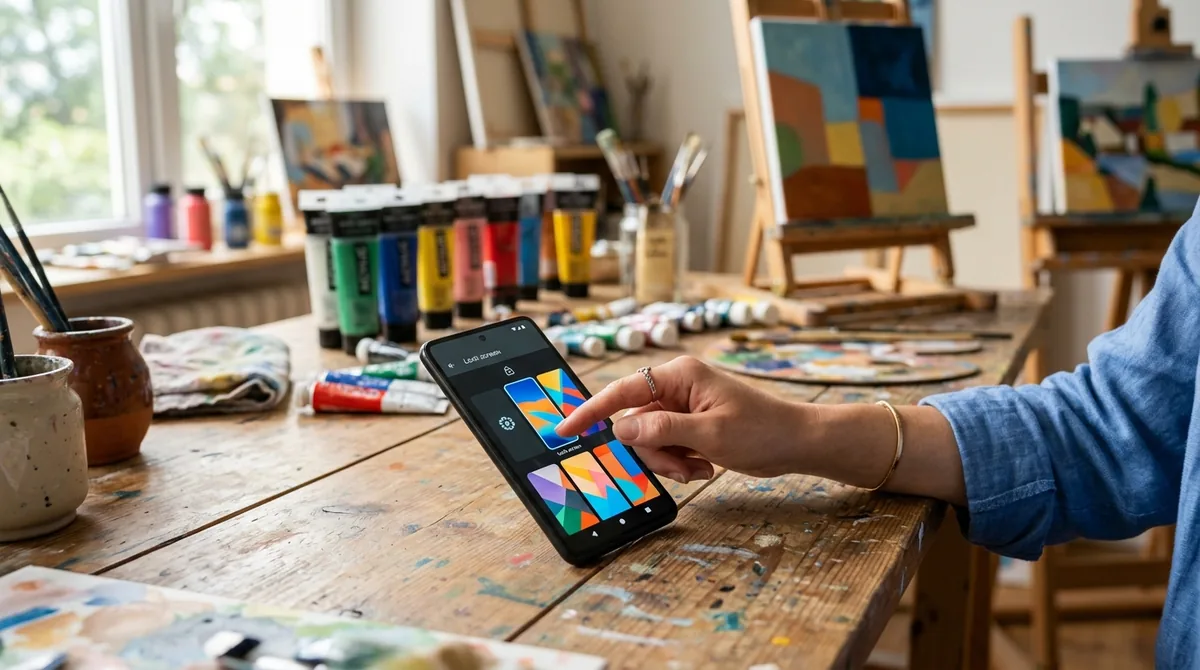
Beyond aesthetics, a customized lock screen is genuinely practical. Glanceable information — time, date, weather, calendar events — saves you from unlocking your phone for quick checks, which adds up over dozens of daily interactions. Shortcuts to the flashlight or camera turn two-or-three-step tasks into a single tap. And on an emotional level, seeing a photo you love instead of a stock wallpaper makes the device feel like yours.
There is also a functional argument: a well-configured lock screen reduces "pickup spirals," where you unlock your phone to check the time and end up scrolling for twenty minutes. If the information you need is visible without unlocking, the temptation loop never starts.
Changing Your Lock Screen Wallpaper
The wallpaper is the foundation of android lock screen customization, and changing it takes under a minute.
Setting a Wallpaper
The universal method: go to Settings > Wallpaper & style (on Samsung: Settings > Wallpaper and style; on Pixel: long-press the home screen > Wallpaper & style). Choose "Lock screen" when asked whether to apply the image to the home screen, lock screen, or both. You can pick from the built-in gallery, your own photos, or downloadable wallpaper collections.
For the best results, use high-resolution images that match your screen's aspect ratio (most modern phones are roughly 20:9). Portrait-oriented photos work best since the lock screen is viewed vertically.
Wallpaper Extras Worth Knowing
- Dynamic / slideshow wallpapers: Samsung's Wallpaper Services (formerly Dynamic Lock Screen) can rotate through curated image packs — landscapes, food, art — each time you wake the phone. Pixel phones offer a similar "curated culture" and landscape rotation.
- Blur and dimming: Most phones let you blur or dim the lock screen wallpaper slightly so clock text and notifications stay readable over busy photos. Look for a blur slider in the wallpaper preview screen.
- Separate home and lock wallpapers: Setting a calm, minimal wallpaper on the lock screen and a livelier one on the home screen is a popular combination — the lock screen stays readable while the home screen shows personality.
Clock Styles, Colors, and Always-On Display
Clock Customization
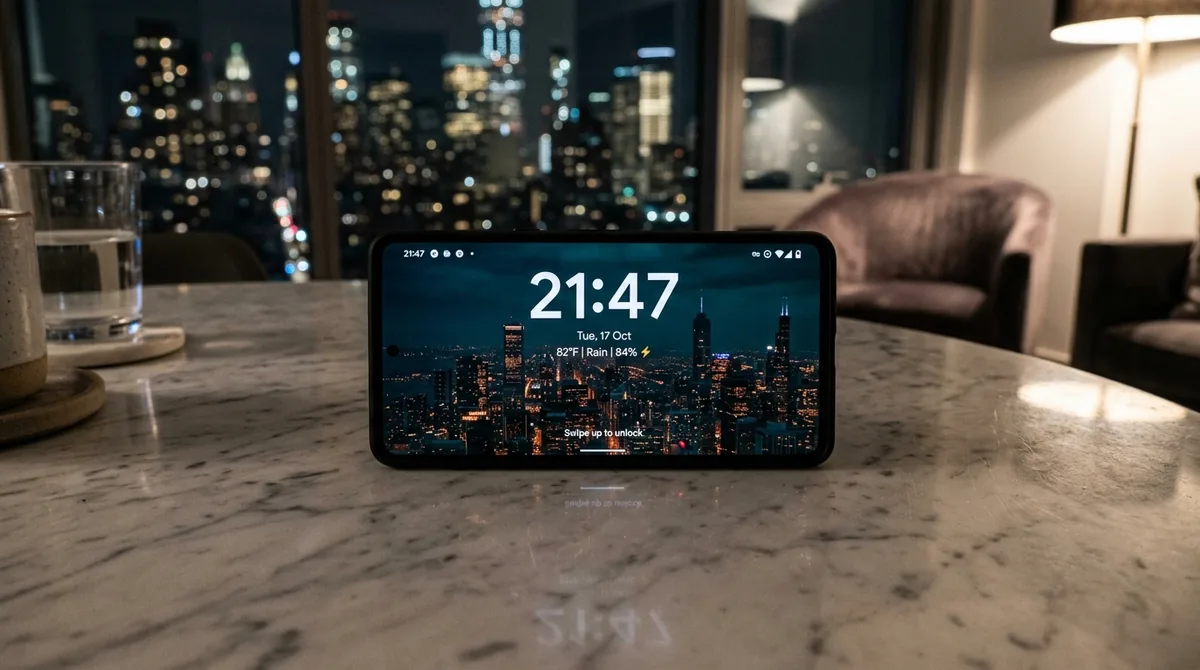
Modern Android offers surprising control over the lock screen clock. On Pixel phones, go to Settings > Wallpaper & style > Lock screen to choose between clock designs (bold digital, outlined, analog-style faces) and color palettes drawn from Material You theming. Samsung's One UI offers a similar set under Settings > Lock screen and AOD > Edit, with font choices, clock sizes, and color options.
If you use a photo wallpaper, pick a clock color that contrasts with the image — white or light colors on dark photos, dark colors on light photos. Some phones auto-adjust, but manual selection gives better results.
Always-On Display (AOD)
The Always-On Display shows the time, date, battery level, and notification icons on a dark screen without fully waking the phone. Configure it under Settings > Lock screen (Samsung: Lock screen and AOD) or Settings > Display > Lock screen (Pixel). Options typically include:
- Show always, on tap, or on schedule: "Always" is convenient but uses more battery; "Tap to show" or a nighttime schedule balances visibility and battery life.
- What to display: Choose whether notification icons, music controls, and fingerprint hints appear on the AOD.
- Brightness: Auto-brightness usually works well, but you can set it manually if the AOD is too bright at night.
On phones with LTPO displays (most flagships since 2023), AOD battery drain is minimal — roughly 1–2% overnight. On older or budget phones, consider the tap-to-show mode.
Lock Screen Widgets and Glanceable Info
Widgets on the Lock Screen
Android has brought widgets back to the lock screen in recent versions — a highlight of modern android lock screen customization. On supported phones, you can add widgets that appear when the phone is locked — weather, calendar agenda, timers, and music controls are the most useful. Access this through the lock screen editor: on Pixel, long-press the lock screen (or go to Settings > Wallpaper & style > Lock screen > Widgets); on Samsung, Settings > Lock screen and AOD > Widgets.
Keep lock screen widgets to two or three at most. The lock screen has limited space, and cramming it full defeats the purpose of glanceable information.
At a Glance and Smart Info
Pixel's "At a Glance" widget shows contextual info on the lock screen: upcoming calendar events, weather alerts, package tracking, and boarding passes. Customize it under Settings > Display > Lock screen > At a Glance (or long-press the widget itself). Samsung offers similar functionality through its lock screen widgets for weather, alarms, and music. Review which categories are enabled — package tracking and commute info are useful; some people prefer to disable the more aggressive suggestions.
Notifications on the Lock Screen
Notification handling is where customization meets privacy, and it deserves careful thought.
Choosing What Appears
Go to Settings > Notifications > Notifications on lock screen (wording varies). You generally have three options:
- Show all notification content: Full message previews visible to anyone who picks up your phone.
- Show notifications but hide sensitive content: You see which apps have notifications, but message text and details are hidden until you unlock.
- Do not show notifications: Maximum privacy; you will only see notification icons or nothing at all.
The middle option — hiding sensitive content — is the best balance for most people. Your banking app, messaging apps, and email stay private, while you still know something arrived.
Per-App Notification Control
For finer control, go to Settings > Notifications > App notifications and configure individual apps. Common sense choices: allow your messaging and calendar apps to show on the lock screen, but silence shopping apps, games, and social media from the lock screen entirely. Each app you remove from the lock screen is one fewer distraction competing for your attention dozens of times a day.
Notification History
If you dismiss a notification from the lock screen and later wonder what it said, Android keeps a notification history. Enable it under Settings > Notifications > Notification history. This is a lifesaver for accidentally swiped-away messages.
Lock Screen Shortcuts
Default Shortcuts: Camera and Flashlight
Most Android phones place camera and flashlight shortcuts on the lock screen by default — usually in the bottom corners. You can typically launch the camera by double-pressing the power button even from a locked phone, and toggle the flashlight with a long-press on its lock screen icon. These are worth keeping; they are the two most genuinely useful lock-screen shortcuts.
Customizing Shortcuts
Samsung's One UI lets you change the bottom-corner shortcuts: go to Settings > Lock screen and AOD > Edit, tap the shortcut icons, and choose from options like flashlight, camera, voice recorder, QR scanner, or Do Not Disturb. Pixel phones added similar customization in recent versions through the lock screen editor. Pick the two tools you reach for most — for many people, that is the flashlight and a QR/barcode scanner.
Wallet and Device Controls
Google Wallet can be accessed from the lock screen for tap-to-pay (Settings > Connected devices or the Wallet app settings — look for "quick access wallet"). Similarly, smart home device controls can appear on the lock screen, letting you toggle lights or check a doorbell camera without unlocking. Both are convenient, but consider the security trade-off discussed below.
Security Settings: Convenience vs. Protection
Every lock screen convenience feature is also a potential information leak. Here is how to keep the balance right:
- Use a strong screen lock. PINs of six digits or more, patterns with complexity, or (best) biometrics plus a strong backup PIN. Avoid simple patterns and obvious PINs like birth years.
- Hide sensitive notification content as described above — this is the single highest-impact privacy setting.
- Lockdown mode. On Pixel phones, holding the power button and tapping "Lockdown" disables biometrics and notifications on the lock screen until you enter your PIN. Samsung offers this under Settings > Lock screen > Secure lock settings > "Show lockdown option." Useful when traveling or in situations where you want maximum security temporarily.
- Auto-lock timing. Under secure lock settings, set the phone to lock immediately (or after a few seconds) when the screen turns off. Longer delays are convenient but leave the phone exposed.
- Smart Lock / Extend Unlock. Features that keep the phone unlocked near trusted places or devices (home, smartwatch) are convenient but weaken security. If you use them, limit trusted places to home only, and reconsider trusted devices — a stolen watch plus a stolen phone is a bad combination.
- Wallet access from lock screen requires authentication for actual payments on modern Android, so it is reasonably safe — but device controls that unlock doors or disarm alarms from the lock screen deserve a second thought.
Brand-Specific Notes
- Samsung (One UI): The most customizable stock lock screen. Use Settings > Lock screen and AOD for clock styles, shortcut editing, widgets, and notification icons. Good Lock's "LockStar" module (from the Galaxy Store) unlocks even deeper customization — repositioning clock and notification elements freely.
- Google Pixel: Cleaner but slightly less flexible. Customization lives in Settings > Wallpaper & style. At a Glance is the standout feature. Recent Pixel versions added lock screen shortcut customization and richer clock options.
- OnePlus / Motorola / Others: Most offer wallpaper, clock style, and AOD basics under Settings > Display or Settings > Lock screen. Widget support varies — check your specific model's settings.
Troubleshooting Common Issues
- Wallpaper looks zoomed or cropped: The image resolution does not match your screen. Try a higher-resolution image or use the wallpaper editor's positioning controls before applying.
- Notifications not showing on lock screen: Check both the global lock screen notification setting and the per-app notification settings. Also verify that Do Not Disturb is not hiding them.
- AOD drains battery: Switch from "Always" to "Tap to show" or set a schedule (e.g., off overnight). On older phones without LTPO displays, this makes a noticeable difference.
- Lock screen shortcuts disappeared: This can happen after system updates reset lock screen settings. Revisit the lock screen editor and reassign them.
- Fingerprint icon not showing on AOD: Enable fingerprint hints in the AOD settings, and make sure screen lock is set to fingerprint plus PIN rather than PIN only.
FAQ — Android Lock Screen Customization Guide
Can I put widgets on my Android lock screen?
Yes, on recent Android versions. Pixel phones support lock screen widgets through Settings > Wallpaper & style > Lock screen, and Samsung phones offer them under Settings > Lock screen and AOD > Widgets. Available widgets typically include weather, calendar, clock, music, and alarms. Support varies by manufacturer and Android version, so check your specific phone's settings.
How do I hide message previews on the lock screen?
Go to Settings > Notifications > Notifications on lock screen and select the option to hide sensitive content. This shows which app sent a notification without revealing the message text. For even stricter control per app, go to Settings > Notifications > App notifications, select the app, and disable lock screen notifications entirely.
Will customizing my lock screen drain my battery?
Basic customization — wallpaper, clock style, shortcuts — has negligible battery impact. The Always-On Display is the main battery consideration: on modern phones with efficient displays it costs very little, but on older phones the "always on" mode can drain several percent overnight. Use tap-to-show or a schedule if battery life is a concern.
Can someone access my phone through lock screen shortcuts?
Lock screen shortcuts are designed to be safe: the camera opens in a restricted mode that cannot access your photo gallery, and payments through the wallet require authentication. The main risks are information exposure through notifications (fix with hidden sensitive content) and smart home controls that could unlock doors — review those carefully.
Why did my lock screen change after an update?
System updates sometimes reset lock screen customizations, particularly shortcuts and widget layouts. Major Android version upgrades are the most common trigger. It is worth revisiting your android lock screen customization after any big update to restore your preferred setup.
How do I remove the camera shortcut from the lock screen?
On Samsung, go to Settings > Lock screen and AOD > Edit and tap the shortcut to change or remove it. On Pixel and most other phones, the camera shortcut can be reassigned or disabled in the lock screen editor. Note that double-pressing the power button to open the camera is a separate setting (usually under Settings > System > Gestures) and can be disabled independently.
Conclusion — Android Lock Screen Customization Guide
Android lock screen customization rewards the small effort it takes. Start with a wallpaper you love and a readable clock, add one or two glanceable widgets, set your most-used shortcuts, and — most importantly — lock down notification privacy with hidden sensitive content. Revisit the settings after major system updates, since those occasionally reset your choices. Done right, your lock screen becomes the most efficient square inches on your phone: everything you need to know at a glance, nothing you do not, and your private information staying private.


What do you think?
Share your experience or ask a question. A useful conversation starts with you.
Join the discussion