
Your phone is engineered to compete for your attention — every notification a tiny tug at your focus. Learning how to use Android Focus Mode is the fastest way to win that competition back: Focus Mode is the master off switch — pick the apps that steal your attention, and with one tap (or on a schedule), Focus Mode pauses them. No notifications, no badges, no temptation when you open the app drawer — paused apps literally gray out and refuse to open until you say so.
If you've never set it up, this complete guide to how to use android focus mode will take you from zero to a working deep-work system: what Focus Mode is (and isn't), step-by-step setup on Pixel and Samsung, scheduling, work/personal profiles, combining it with Do Not Disturb and Bedtime mode, and troubleshooting the quirks. It's part of Android's Digital Wellbeing suite, it's free, and it's one of the most effective productivity tools on your phone — precisely because it removes willpower from the equation.
What Is Focus Mode?

Focus Mode is a feature inside Android's Digital Wellbeing settings. You select a list of "distracting apps" — social media, news, games, shopping, whatever eats your time — and when Focus Mode is on, those apps are paused:
- Their notifications are silenced and hidden.
- Their icons gray out in the app drawer and on the home screen.
- Tapping a paused app shows a "paused by Focus Mode" screen instead of opening it (with a small "take a break" option — more on that below).
Unlike simply muting notifications, Focus Mode removes the ability to open the app impulsively. That friction — one extra tap and a moment of conscious choice — is what makes it work. It's not a blocker you can't escape (you can always turn it off or take a break); it's a speed bump for your impulses.
What Focus Mode is not: it's not Do Not Disturb (which silences all notifications system-wide), it's not an app timer (which limits daily minutes per app), and it's not parental control software. It sits between them: stronger than DND for specific apps, gentler than hard locks.
Focus Mode vs Do Not Disturb vs App Timers
These three get confused constantly. Here's the clean distinction:
| Focus Mode | Do Not Disturb | App Timers | |
|---|---|---|---|
| What it does | Pauses chosen apps entirely | Silences all notifications/calls | Limits daily time per app |
| Notifications from paused apps | Blocked | Blocked (all apps) | Allowed until limit hit |
| Can you still open the app? | No (without taking a break) | Yes | Yes, until timer expires |
| Calls | Unaffected | Silenced (with exceptions) | Unaffected |
| Best for | Deep work sessions, study | Meetings, sleep, movies | Overall daily limits |
The power combo: Focus Mode + Do Not Disturb together. Focus Mode pauses your chosen distracting apps; DND silences everything else (email pings, group chats) except your allowed exceptions (calls from family, alarms). That combination is the closest a phone gets to a "do not disturb my brain" button.
How to Use Android Focus Mode: Setup, Step by Step
On Google Pixel / stock Android
- Open Settings → Digital Wellbeing & parental controls.
- Tap Focus Mode.
- You'll see your most-used apps suggested. Select the apps you want paused during focus time — tap each to check it. (Be honest: include the ones you actually open reflexively.)
- Tap Turn on now to activate immediately, or Set a schedule (below) to automate it.
- Optional: enable "Take a break" settings — this controls whether paused apps offer a 5/15/30-minute break option.
On Samsung Galaxy (One UI)
- Open Settings → Digital Wellbeing and parental controls.
- Tap Focus Mode (on newer One UI versions it may appear under "Focus mode" with work/personal time presets).
- Select your distracting apps.
- Turn it on now or set schedules. Samsung also offers Modes and Routines integration (see below).
Choosing which apps to pause: a framework
Don't just pause "social media." Audit by behavior:
- Reflex apps: the ones you open without deciding to (social feeds, news aggregators).
- Rabbit-hole apps: video apps, forums, shopping — anything where "5 minutes" becomes 45.
- Interruption apps: messaging apps if group chats derail you (keep 1:1 family messaging unpaused if needed).
- Never pause: phone, SMS, authenticator apps, maps/navigation, your task manager, music (if it aids focus).
Start with 5–8 apps. You can always add more — starting too aggressively leads to disabling the whole thing in frustration.
Scheduling Focus Mode
Manual toggling works, but scheduled Focus Mode is where the habit forms:
Set a schedule (Pixel/stock):
- In Focus Mode settings, tap Set a schedule (or the schedule icon).
- Choose days and time windows — e.g., weekdays 9 AM–12 PM for deep work, or 10 PM–7 AM to protect sleep.
- You can create multiple schedules for different parts of the day.
Samsung Modes and Routines (more powerful): Samsung's Modes and Routines (Settings → Modes and Routines) lets you trigger Focus Mode on complex conditions: at a location (office, library), when connected to work Wi-Fi, during calendar events marked "Focus," or at bedtime. Example routines:
- "When I arrive at the office → turn on Focus Mode + Do Not Disturb."
- "Weekdays 9 PM → Focus Mode on (wind down)."
- "When 'Deep Work' calendar event starts → Focus Mode on; ends → off."
Suggested starter schedules:
- Work block: weekdays, 9:00 AM–11:30 AM (your peak focus hours).
- Evening wind-down: daily, 9:30 PM–7:00 AM (protects sleep from late-night scrolling).
- Study sessions: manual toggle — turn on when you sit down, off when done.
The "Take a Break" Feature

Paused apps show a screen offering "Take a break" — typically 5, 15, or 30 minutes of access before the app re-pauses. This is a feature, not a loophole: it acknowledges that sometimes you genuinely need the app (checking a message you were expecting) while keeping the friction that stops mindless opening.
Use it consciously: if you find yourself taking breaks every 20 minutes, the app probably shouldn't be on your paused list during that schedule — or the schedule doesn't match your real life. Adjust the list, not your willpower.
Parents note: Focus Mode isn't a child-lock — a kid can turn it off. For actual parental controls, use Google Family Link or Samsung's parental controls, which enforce restrictions properly.
Combining Focus Mode with Other Wellbeing Tools
Focus Mode + Do Not Disturb: the deep-work stack. DND handles calls/notifications globally (with your exceptions); Focus Mode handles the apps. Enable both via a single routine or Quick Settings tiles side by side.
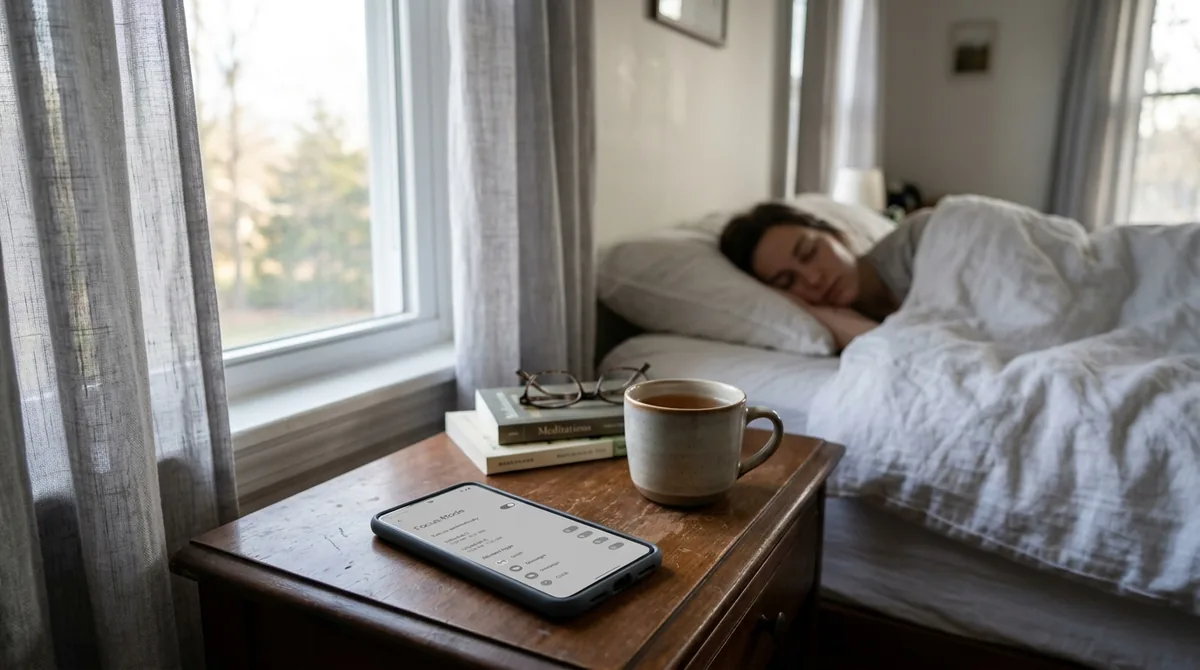
Focus Mode + Bedtime Mode: Bedtime Mode (Digital Wellbeing → Bedtime mode) grayscales the screen and silences notifications at night. Adding Focus Mode's app-pausing on top kills the "one more scroll" reflex that Bedtime Mode alone can't stop.
Focus Mode + App Timers: timers cap total daily minutes; Focus Mode blocks access during chosen hours. Together they cover both when and how much.
Quick Settings tiles: add both the Focus Mode and Do Not Disturb tiles to your Quick Settings first row. One swipe, two taps, total silence — the fastest path to a focused state on Android.
Focus Mode for Work Profiles
If your phone has a work profile (company-managed apps), Focus Mode interacts with it in useful ways:
- You can pause work apps during personal time (evenings, weekends) — email, Slack/Teams, work calendar — creating a real boundary.
- Conversely, pause personal distracting apps during work hours while leaving work apps active.
- Samsung's Modes can automate this: "Work mode" pauses personal apps; "Personal/Sleep mode" pauses work apps.
This is one of the most underused Focus Mode patterns: scheduled disconnection from work, not just from distraction.
Troubleshooting Common Issues
"Focus Mode turns off by itself." Check your schedules — an overlapping schedule ending is the usual cause. Also verify Battery optimization isn't killing Digital Wellbeing's background process (it shouldn't, but aggressive manufacturer battery managers occasionally interfere).
"Notifications still come through from paused apps." A few possibilities: the app wasn't actually selected in the Focus Mode list (re-check); the notification arrived before Focus Mode turned on; or it's a system-level notification (like a download completion) rather than an app notification. Persistent offenders can be double-covered with per-app notification settings.
"I need one paused app urgently." Tap the paused app → "Take a break" for timed access, or turn Focus Mode off from Quick Settings / notification. It's designed to be escapable — the friction is the feature.
"Focus Mode pauses apps during my schedule but I wanted manual control." Delete or disable the schedule and use the Quick Settings tile manually. Schedules and manual control can coexist — manual toggles override until the next schedule boundary.
"Digital Wellbeing / Focus Mode is missing from Settings." On some phones it's under Settings → Digital Wellbeing & parental controls; on Samsung, Settings → Digital Wellbeing and parental controls. If truly absent (rare on modern phones), ensure Digital Wellbeing is updated via the Play Store and not disabled. Work-profile-managed devices may have it restricted by IT policy.
"Paused apps still show badges." Badges should clear when Focus Mode activates. If stale badges persist, they're cosmetic — the notifications behind them are suppressed. A launcher restart clears them.
Building a Focus System That Lasts
Tools don't create habits; systems do. A Focus Mode setup that survives past week one:
- Start small: 3-hour work block, 6–8 apps. Expand later.
- Pair with environment: Focus Mode on + phone face-down + DND = a ritual your brain learns.
- Schedule, don't rely on memory: the schedule is the habit.
- Review weekly: Digital Wellbeing's dashboard shows screen time and unlocks. If numbers aren't moving, adjust the app list or schedule — don't blame yourself.
- Protect sleep first: the evening wind-down schedule delivers the biggest life improvement for most people — better sleep beats better work output.
- Tell people: let family know calls still come through (whitelist them in DND exceptions) so Focus Mode never creates anxiety about emergencies.
FAQ
What happens when Focus Mode is on?
Selected apps are paused: their notifications are silenced, icons gray out, and opening them shows a paused screen (with an optional timed "take a break"). All other apps, calls, and alarms work normally.
Can I still receive calls in Focus Mode?
Yes. Focus Mode doesn't affect calls at all. (If you also enable Do Not Disturb, configure its exceptions for calls from starred contacts/family.)
How do I turn off Focus Mode?
Swipe down to Quick Settings and tap the Focus Mode tile, or go to Settings → Digital Wellbeing → Focus Mode → Turn off now. Active schedules can be edited or deleted in the same place.
How to use Android Focus Mode together with Do Not Disturb?
No — only from the apps you've selected. To silence everything, combine it with Do Not Disturb.
Can apps bypass Focus Mode?
Paused apps cannot send notifications or be opened normally while Focus Mode is active. The only bypass is the user choosing "Take a break" or turning Focus Mode off — it's a friction tool, not a lock.
Is Focus Mode available on all Android phones?
Focus Mode is part of Digital Wellbeing, which ships on virtually all modern Android phones (Pixel, Samsung, and others). The exact menu location varies slightly by manufacturer.
Conclusion
Learning how to use android focus mode is really learning a simpler lesson: attention is a resource, and your phone is engineered to harvest it. Focus Mode doesn't ask you to be disciplined — it just makes distraction slightly inconvenient, and slightly inconvenient turns out to be enough.
Set it up in five minutes: pick your reflex apps, schedule your deep-work block and your evening wind-down, add the Quick Settings tile, and pair it with Do Not Disturb when it matters. Then forget about it and let the schedule do the remembering. Your future focused self — the one who finishes the project, reads the book, sleeps through the night — is built one paused app at a time. Revisit your paused list monthly, since newly installed apps default to unpaused and can quietly reintroduce the exact distractions you worked to remove.
Now that you know how to use android focus mode, complete the setup with our how to use Do Not Disturb on Android guide for scheduled silence and how to customize Android Quick Settings for one-tap focus toggles. Google’s Android help center documents Digital Wellbeing features by version.




What do you think?
Share your experience or ask a question. A useful conversation starts with you.
Join the discussion