

Somewhere between the Settings app you open twice a year and the features Google announces and never mentions again, there is a version of your phone you have not met yet. Live Caption puts subtitles on any audio. Private DNS blocks trackers without an app. App pinning hands your phone to a friend without handing over everything. Here is the practical tour — what each hidden feature does, where it lives, and which ones are worth your two minutes.
Manufacturers sometimes rename or relocate these options (Samsung, Google Pixel, Motorola, and OnePlus all have their own Settings layouts), but the features themselves exist across nearly all modern Android phones. This guide covers 15 of the most useful hidden gems, explains what each one does, and shows you exactly where to find it.
1. Split-Screen Multitasking

Split screen lets you run two apps side by side — watch a video while taking notes, or compare prices across two shopping apps.
How to use it: Open the recent-apps view (swipe up and hold, or tap the square button). Tap the app icon at the top of an app's preview card, then select Split screen. Choose the second app from the list that appears. Drag the divider to resize each half.
Tip: some apps refuse split-screen mode, but most mainstream apps support it. Pair it with picture-in-picture (next feature) for a true multitasking setup.
2. Picture-in-Picture Mode
Picture-in-picture shrinks a video or video call into a small floating window while you use other apps.
How to use it: While watching a supported video (YouTube, Google Meet, Maps navigation, and others), simply press the home button or swipe up — the video pops into a corner automatically. Drag it to reposition, tap it for controls, or swipe it away to dismiss.
To manage it: Go to Settings > Apps > Special app access > Picture-in-picture to see which apps are allowed to use it.
3. Screen Pinning

Handing your phone to someone to show a photo, but worried they will start swiping through everything else? Screen pinning locks the phone to a single app until you unpin it with your lock-screen security.
How to enable it: Go to Settings > Security > Screen pinning (on some phones it is under Settings > Security & privacy > More security settings) and turn it on. Enable the option to require your PIN or fingerprint before unpinning.
How to use it: Open the recent-apps view, tap the app icon on the preview card, and choose Pin. To unpin, swipe up and hold, then authenticate.
4. One-Handed Mode
Modern phones are tall, and reaching the top of the screen with one thumb is a stretch. One-handed mode shrinks the entire display down toward the bottom corner.
- Pixel: Go to Settings > System > Gestures > One-handed mode and turn it on. Swipe down on the bottom edge of the screen to activate.
- Samsung: Go to Settings > Advanced features > One-handed mode. Activate with a diagonal swipe from a bottom corner or triple-tap of the home button.
Once active, everything — including the notification shade — sits within thumb reach.
5. Guest Mode and Multiple Users
Android supports multiple user profiles, just like a computer. You can create a guest profile for visitors or a separate profile for work, each with its own apps, settings, and data.
How to set it up: Go to Settings > System > Multiple users (on Samsung: Settings > Accounts and backup > Users) and turn on Allow multiple users. Add a guest or a new user from there.
Switching profiles takes seconds from the quick-settings panel. Your personal data stays completely isolated from the guest profile — ideal for lending your phone to kids or coworkers.
6. Smart Lock (Trusted Places and Devices)
Typing your PIN dozens of times a day gets old. Smart Lock keeps your phone unlocked in situations you trust — when it is connected to your car's Bluetooth, on your home Wi-Fi network's location, or when it detects it is on your body.
How to set it up: Go to Settings > Security > More security settings > Smart Lock (or Extend Unlock on newer Pixels). Add trusted places, trusted devices, and turn on on-body detection.
A word of caution: convenience trades against security. Trusted places use location, which is approximate — a neighbor's apartment might count as "home." Use it thoughtfully.
7. Notification History
Dismissed a notification before reading it? Android keeps a log. Notification history records every notification from the last 24 hours, so you can recover that message you swiped away too fast.
How to enable it: Go to Settings > Notifications > Notification history and turn it on. (It is off by default, so enable it now — it cannot show you notifications from before you turned it on.)
Once enabled, the same screen shows a chronological list you can browse anytime.
8. Live Caption
Live Caption generates real-time captions for any audio playing on your phone — videos, podcasts, voice messages, even phone calls on some devices. It works entirely on-device, so it functions without an internet connection.
How to enable it: Go to Settings > Accessibility > Live Caption (on Pixels it is also under Settings > Sound & vibration). Turn it on, and a caption box appears whenever media plays. You can drag the box anywhere on screen.
This is a genuine accessibility win, but it is also just useful — watch videos silently in a waiting room without missing a word.
9. App Pairs (Samsung) and Saved Split-Screen Combos
If you always open the same two apps together — say, a browser and a notes app — you can save the pair and launch both with one tap.
- Samsung: Open the Edge panel, and under recent split-screen apps you will find the option to create an App pair.
- Pixel and others: Some launchers and third-party tools offer similar shortcuts, and Android's recent-apps screen remembers your split-screen combinations for quick relaunch.
It is a small thing that adds up if you multitask daily.
10. Digital Wellbeing and Focus Mode
Buried in Settings is a full toolkit for managing screen time: app timers that lock you out after a daily limit, Focus Mode that pauses distracting apps on demand, Bedtime Mode that silences the phone at night, and a dashboard showing exactly where your hours go.
Where to find it: Settings > Digital Wellbeing & parental controls. Set app timers for your biggest time sinks, schedule Focus Mode during work hours, and turn on Bedtime Mode to grayscale the screen and mute notifications overnight.
Unlike third-party "productivity" apps, this is built in, free, and cannot be bypassed by simply uninstalling something.
11. Nearby Share (Quick Share)
Nearby Share — now called Quick Share on many devices — is Android's answer to AirDrop. It sends photos, videos, links, and files to nearby Android devices over Wi-Fi Direct and Bluetooth, fast and without cables or messaging apps.
How to use it: Select the file, tap Share, and choose Quick Share / Nearby Share. Nearby devices appear automatically. On the receiving phone, the owner accepts the transfer.
Settings: Long-press the Quick Share tile in quick settings to control who can discover you — everyone, contacts only, or no one.
12. Built-In Screen Recorder
You do not need a third-party app to record your screen. Android has a native screen recorder with options for internal audio, microphone narration, and touch indicators.
How to use it: Swipe down twice to open the full quick-settings panel, tap Screen record (you may need to add the tile via the edit button first), choose your audio source, and tap Start. A countdown runs, then recording begins. Tap the floating stop button when done.
Recordings save to your gallery, ready to share. It is perfect for creating tutorials, reporting bugs, or capturing gameplay.
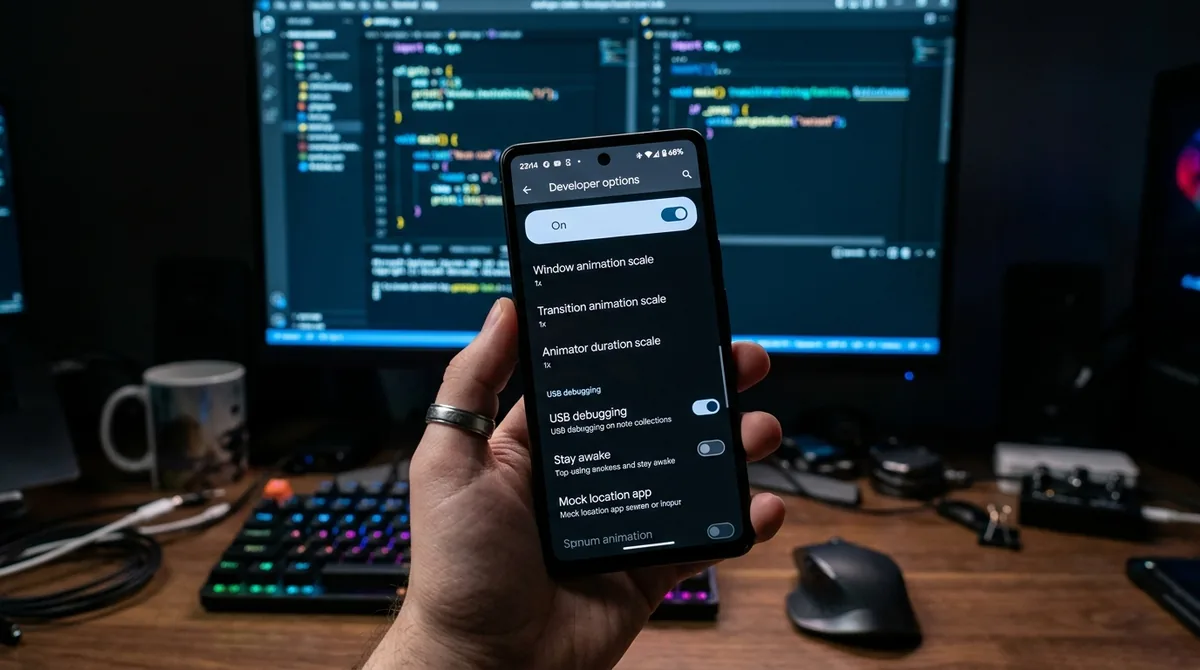
13. Developer Options (USB Debugging, Animation Speed, and More)
Developer Options unlocks a hidden settings menu with dozens of advanced tweaks: speeding up or disabling window animations (which makes any phone feel faster), enabling USB debugging, showing CPU usage overlays, forcing dark mode on stubborn apps, and limiting background processes.
How to unlock it: Go to Settings > About phone and tap Build number seven times. Enter your PIN when prompted. A new Developer options entry appears in Settings (usually under System).
Safe tweaks for everyone:
- Set Window animation scale, Transition animation scale, and Animator duration scale to 0.5x for a snappier feel.
- Turn on Show taps when recording tutorials.
Leave alone unless you know what you are doing: USB debugging, background process limits, and mock location settings can cause real problems if misconfigured.
14. Lockdown Mode
If you ever need maximum security fast — say, you are crossing a border or in an unfamiliar situation — Lockdown Mode instantly disables biometric unlock (fingerprint and face), Smart Lock, and lock-screen notifications. Only your PIN, pattern, or password will unlock the phone.
How to enable it: Go to Settings > Display > Lock screen (on Pixels) or Settings > Security and turn on Show lockdown option. Then hold the power button and tap Lockdown.
Nobody can compel a fingerprint unlock when biometrics are disabled — that is the entire point.
15. Scheduled Dark Theme and Extra Dim
Two display features worth knowing:
- Scheduled dark theme: Instead of toggling dark mode manually, schedule it — sunset to sunrise, or a custom time window. Find it under Settings > Display > Dark theme > Schedule.
- Extra dim: If your screen's lowest brightness is still too bright at night, Settings > Accessibility > Extra dim adds an additional dimming layer beyond the normal minimum. Pair it with a quick-settings tile for one-tap access.
Both reduce eye strain and, on OLED screens, the dark theme genuinely saves battery.
Android Phone Hidden Features: Bonus Tricks
A few more quick wins that did not make the numbered list:
- Double-press power for camera: Under Settings > System > Gestures, enable jumping straight to the camera with two power-button presses — the fastest way to never miss a shot.
- Clipboard history: Gboard keeps a clipboard history — tap the clipboard icon on the keyboard toolbar to paste anything you copied recently.
- Pinch the home screen: Pinching on most launchers opens wallpaper, widget, and home-screen settings instantly.
- Swipe fingerprint sensor for notifications: On phones with a rear fingerprint sensor, swiping down on it pulls down the notification shade (enable under Gestures).
FAQ
Do android phone hidden features work on all Android phones?
Most of them are part of stock Android and work across brands, but manufacturers rename and relocate settings. Samsung's One UI, for example, puts some options under "Advanced features" instead of "Gestures." If you cannot find something, use the search bar at the top of the Settings app — it searches every submenu.
Will enabling Developer Options void my warranty or harm my phone?
No. Developer Options is an official part of Android, and simply unlocking the menu changes nothing. Problems only arise if you toggle advanced settings without understanding them. Stick to the safe tweaks listed above (like animation speed) and you will be fine.
Why is Notification History turned off by default?
Google keeps it off by default for privacy and storage reasons — the log records the content of notifications, which can include message previews. Turning it on is a conscious choice, and the history is stored only on your device, never uploaded.
Does dark mode really save battery?
On phones with OLED or AMOLED screens — which is most modern Android phones — yes. Dark pixels on OLED displays are essentially turned off, drawing almost no power. On older LCD screens, dark mode saves little to nothing since the backlight stays on regardless. Either way, it is easier on the eyes at night.
Can I use Guest Mode to let my kids play games safely?
Guest Mode is a decent quick solution: the guest profile starts clean, with no access to your apps, photos, or accounts. For ongoing kid use, though, Google's Family Link offers proper parental controls — screen-time limits, content filters, and app approval — and is the better long-term answer.
Is Smart Lock safe to use?
Smart Lock is a calculated tradeoff. Trusted Bluetooth devices (like your car or smartwatch) are reasonably safe; trusted places rely on geofencing, which can be imprecise. Many security-conscious users enable it only for trusted devices and keep a short screen-lock timeout as a backstop.
Conclusion
These 15 hidden Android phone features prove that the phone in your pocket is more capable than its default setup suggests. Split-screen multitasking, screen pinning, notification history, Live Caption, guest profiles, and the rest are all sitting in your Settings right now, waiting to be switched on.
You do not need to enable everything today. Pick two or three that solve real annoyances in your daily routine — one-handed mode if your phone feels too tall, notification history if you keep swiping things away, Focus Mode if your screen time worries you — and try them for a week. Small features, used consistently, are what turn a good phone into a great one.
These android phone hidden features overlap with our hidden Android features: 20 tricks for 2026 roundup — combine both lists for the full set. Customize further with how to customize Android Quick Settings and the Android lock screen customization guide. Google’s Android help center documents each feature by version.


What do you think?
Share your experience or ask a question. A useful conversation starts with you.
Join the discussion