

Talking to an AI assistant is nothing new, but talking to one that can see what you see and hear you in real time is a different experience entirely. That is what Gemini Live does on Android: a full-screen voice mode inside the Gemini app where you can speak naturally, interrupt mid-sentence, point your camera at something, or share your screen — all in one continuous conversation.
This gemini live android guide walks you through everything: what Gemini Live is, what your phone needs to run it, how to start a session, and how to use each of its three main modes — voice, camera, and screen sharing. It also covers the features Google added most recently (as of October 2026), practical tips for better results, and the limitations you should know before you rely on it.
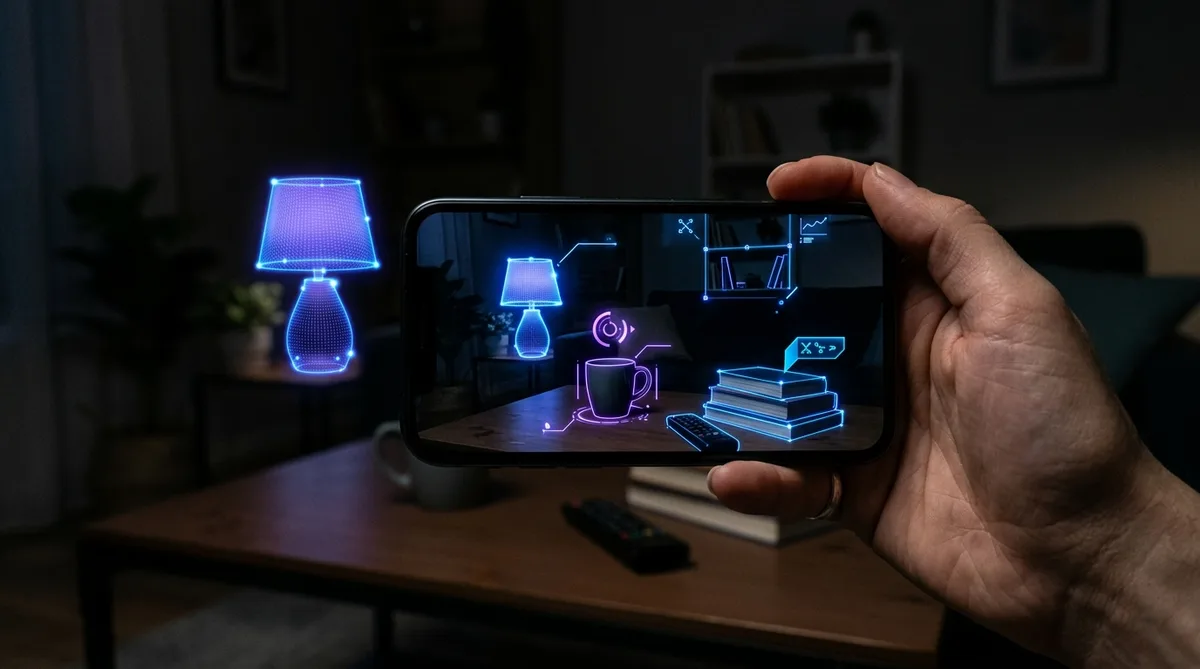
What Is Gemini Live?
Gemini Live is the real-time conversational mode inside Google’s Gemini app. Instead of typing prompts and waiting for replies, you open a fullscreen interface, start talking, and Gemini responds out loud — like a phone call with an AI that can reason. You can interrupt it, change the subject, ask follow-ups, and keep the conversation going in the background while you use other apps or even lock the screen.
What separates Live from a standard voice assistant interaction is multimodality. During a session, you can:
- Talk — natural, hands-free voice conversation with interruptions.
- Show your camera — let Gemini see through your phone’s front or rear camera and comment on what is in view.
- Share your screen — let Gemini see the app or page you have open and answer questions about it while you scroll.
When a session ends, a text transcript of your exchange appears in your Gemini Apps Activity history, so you can review what was said or pick the conversation back up later.
Requirements: What You Need to Use Gemini Live
Before you try to start Live, confirm your phone and setup meet the basics. Missing one of these is the most common reason the feature does not appear.
Device requirements
- Android 10 or newer with at least 2 GB of RAM — this is the documented baseline for camera and screen sharing in Live.
- iOS: Live is also available through the Gemini iOS app, though some integrations (such as screen sharing) can depend on the iOS version.
- The Gemini app installed and updated to the latest version from the Play Store. On Pixel 9 and newer phones, Gemini is the default assistant out of the box; on other phones, you may need to set it as your assistant.
- A Google account signed in to the Gemini app.
- Microphone permission granted to the Gemini app — Live cannot start without it.
Note: Gemini Live is a mobile-app feature. There is no Live mode on the Gemini web app at gemini.google.com — you need the phone app (or, on Samsung’s newer flagships, the system-level assistant integration).
Which plan do you need?
As of October 2026, the voice, camera, and screen-sharing modes of Gemini Live are available on the free tier of the Gemini app — no Google AI subscription is required to start a Live session. Google rolled Live out to all Gemini users during 2025, and its official Android documentation describes camera and screen sharing as available across supported devices without a paywall.
That said, the models behind the experience differ by plan, and this is an area that is actively changing:
- Free — full Live access, but as of October 9, 2026, free-tier users are limited to the Flash-Lite model, the fastest and least computationally heavy option. Quotas refresh on a rolling cycle rather than as a fixed daily prompt count.
- Google AI Plus ($4.99/month) — roughly double the standard usage allowance and access to the more capable Flash model.
- Google AI Pro ($19.99/month) — about four times the usage allowance, access to Gemini Pro, and features like Deep Think reasoning; also bundles 5 TB of Google One storage (Google raised it from 2 TB in April 2026).
- Google AI Ultra ($99.99 or $199.99/month, depending on the variant) — the highest limits (up to 20x Pro on the top tier) and earliest access to new flagship models.
Practical takeaway: you can use Gemini Live completely free. A paid plan mainly buys you stronger reasoning models, higher usage ceilings, and extras like Workspace integration — not access to Live itself.
How to Start Gemini Live on Android
- Open the Gemini app. Make sure you are signed in with your Google account and the app is fully updated.
- Tap the Live icon. It is the circular waveform/sparkle icon at the bottom of the Gemini chat screen. On some phones you can also long-press the power button and then tap the Live icon in the overlay.
- Complete first-time setup. The first launch will ask you to pick a voice for Gemini and grant microphone access.
- Start talking. There is no wake word needed inside the session — just speak.
You can leave the Live interface and keep the conversation going: Gemini Live runs in the background, so you can open another app or lock the screen and keep talking. The Hold and End buttons at the bottom of the fullscreen interface pause or finish the session. When you end it, the transcript lands in your chat history.
On supported setups you can also start hands-free: Pixel phones paired with Pixel Buds support phrases like “Hey Google, let’s talk” to jump straight into a Live conversation.
How to Use Voice Conversations in Gemini Live
Voice is the core of Live. The underlying model (as of September 2026, Gemini 3.8 Live) is designed for low-latency spoken interaction — it detects when you start speaking and can be interrupted while it is talking, with the audio stream stopping in a fraction of a second so there is no awkward overlap.
A few techniques that genuinely improve voice sessions:
- Interrupt freely. You do not need to wait for Gemini to finish. Just start talking — it will stop and listen.
- Give it context up front. “I’m cooking dinner and I have chicken, rice, and spinach” gets you better answers than asking three separate generic questions.
- Ask for brevity when you are multitasking. A simple “keep answers short” at the start of a session makes a big difference while driving or cooking.
- Use it for brainstorming, not just Q&A. Live shines at back-and-forth tasks: drafting an email out loud, rehearsing a presentation, working through a math problem step by step, or thinking through a decision.
Voices and languages
Gemini Live ships with a set of selectable voices (names like Nova, Ursa, Vega, Pegasus, Orbit, Lyra, and Orion) with different tones and pitches — you can audition them under Gemini Settings → Gemini’s voice before or between sessions.
On the language front, a major September 2026 upgrade matters: the new model automatically detects and switches between 97 supported languages mid-conversation. You no longer have to pre-select a language — you can start in English, slip into Spanish or Hindi mid-sentence, and Gemini follows along.
How to Use Camera Mode in Gemini Live
Camera mode is the closest thing to having another person looking over your shoulder. Powered by the same Project Astra technology Google has been developing since 2024, it streams your camera feed to the model in near real time so you can ask about whatever you point at.
Steps to share your camera
- Start a Gemini Live session as described above.
- Tap the Camera icon inside the Live interface.
- Choose front or rear camera. The controls let you switch between them at any time.
- Point and talk. Describe what you want — “What does this label say?”, “Does this wire look connected properly?”, “Which of these two jackets looks better?”
- Tap the camera icon again to stop sharing when you are done.
What camera mode is good for
- Reading and translating — nutrition labels, receipts, manuals, signs, and error messages on appliances.
- Troubleshooting — point at a device, cable setup, or dashboard warning light and describe the problem.
- Shopping decisions — “Which of these would look better in my living room?” while pointing at furniture.
- Identification — plants, insects, landmarks, products on a shelf.
- Getting a second opinion — outfit checks, room layouts, gift choices.
Camera privacy behavior worth knowing
Google has built in a few automatic safeguards: the camera shuts off automatically if you put Live on hold, leave the Gemini app, or lock the screen — and it does not restart on its own when you return. You always have to re-enable it deliberately.
How to Use Screen Sharing in Gemini Live
Screen sharing is arguably the most useful Live mode for productivity. Instead of describing an app or webpage in words, you let Gemini see your display and have a spoken conversation about it — while you keep scrolling and tapping.
Steps to share your screen
- Go to the screen you want to discuss — the app, article, or page in question.
- Open Gemini (long-press the power button works on most phones) and start a Live session.
- Tap “Share screen with Live” (on some versions labeled “Turn on screen sharing”) and approve Android’s screen-recording prompt.
- Start talking. Scroll through content and ask follow-ups — you can move between pages without restarting the session.
- Stop sharing from the Live controls or from the Android screen-sharing notification when finished.
One setup detail that trips people up: for screen sharing and background conversations to work, the “Live with Gemini” notification must be enabled. If the option is missing, go to Settings → Notifications → App notifications → Google and make sure Google notifications and the Live entry are switched on. Also confirm you opened an actual Live session rather than a normal text chat.
What screen sharing is good for
- Online shopping — compare two products side by side and ask which suits your needs or budget.
- Learning from content — have Gemini explain a chart, summarize a long article, or walk through a tutorial video’s page.
- App help — stuck in a settings menu or a confusing checkout flow? Share it and ask what to tap next.
- Reviewing your own work — show a draft, photo, or post and ask for a second opinion.
Screen-sharing privacy warning
Google is explicit about this: the full screen is shared — notifications, app-switcher previews, and anything else you display can be visible in the shared feed. Before you start sharing, consider turning on Do Not Disturb so private messages and codes do not pop up mid-session.
New in October 2026: Guided Vision
On October 1, 2026, Google launched Guided Vision inside Gemini Live — a real-time, voice-driven visual assistance feature developed with the blind and low-vision community. It requires only the phone camera (no extra hardware) and is available on Android 9 and above in regions and languages where Gemini Live is supported.
How it works: during a Live session you share your camera, and Gemini narrates your surroundings in clear spoken descriptions — reading fine print like nutrition labels or washing-machine dials, helping find a dropped item, and answering detailed follow-up questions. If the camera is aimed poorly, Gemini gives natural verbal cues to reframe: “pan slowly to the right”, “tilt downward”, “step back a little”.
You can enable it from a toggle in the Gemini app’s profile settings, via an Accessibility Shortcut (for example, a two-finger swipe or both volume keys), or with a three-finger tap in TalkBack. Google says it developed the feature with the blind and low-vision community — including a partnership with Aira, whose Trusted Tester network helped refine it for everyday use. Google cautions that it can make mistakes and is not a medical device, mobility aid, or substitute for safe navigation — an important caveat to take seriously.

Privacy: What Happens to Your Audio, Video, and Screen Data?
Because Live handles microphones, cameras, and screens, the privacy model matters:
- By default, audio, screen shares, and video data are stored in Gemini Apps Activity and, per Google’s stated policy, are not used for product improvement by default.
- Camera and screen sharing are always opt-in per session — they start only when you tap the control, never silently.
- You can review, delete, or disable activity retention in the Gemini app’s activity settings, which is worth doing if you handle sensitive material in Live sessions.
Tips for Getting the Best Out of Gemini Live
- Update both the Gemini and Google apps. Missing features are very often just an outdated app — check the Play Store first.
- Give one clear task at a time. “Read the model number on this router” beats “look at my router” — precise framing produces precise answers.
- Hold the camera steady. A stable, well-lit frame with the subject centered gets far better visual answers than a shaky, dim one.
- Use Do Not Disturb during screen sharing. Remember the full screen is shared; one stray notification can expose a private message or a two-factor code.
- Use headphones in noisy places. Live’s interruption detection works best when the microphone is not picking up its own speaker output.
- Keep sessions focused. Long, rambling sessions consume more of your usage quota — and with the October 2026 shift to compute-based limits, concise sessions stretch free-tier access further.
- Ask it to slow down or spell things out. “Spell that word letter by letter” is surprisingly useful when Gemini reads a serial number or a foreign word aloud.
- Check visually-answered facts. Camera and screen answers can misread small text or misidentify objects. For anything consequential — medical instructions, wiring, legal documents — verify independently.
Limitations of Gemini Live (as of October 2026)
- No app extensions in Live sessions. Live conversations cannot tap into Gemini’s extensions for Gmail, YouTube Music, and similar services — for those, use a regular typed chat.
- Gems (custom assistants) do not work inside Live.
- Camera cuts out on app-switch or lock. By design, the feed stops when you leave the app or lock the screen and must be restarted manually.
- It can make mistakes with visual input — misreading labels, misidentifying objects, or hallucinating details. Treat visual answers as a first draft.
- Managed/work accounts may be restricted. If Live features are missing, your organization’s admin may have disabled them.
- Free-tier model limits are tightening. From October 9, 2026, free users get only the Flash-Lite model, so complex Live conversations may feel less capable than they did on stronger models.
- Feature availability varies. Rollouts, language support, and some integrations differ by region, device, and app version — if a button described here is missing, an update or a gradual rollout is the likely cause.
Gemini Live vs. Other Mobile AI Assistants
Live’s main competition on Android is not really other chatbots — it is the old way of doing things: typing a description of a problem into a search box, or taking a photo and uploading it to an app. The advantage of Live is the loop: you show, you ask, it answers, you follow up, all spoken. Compared with typing the same questions into the regular Gemini app, Live is faster for anything spatial or visual and worse for anything that needs saved context, extensions, or precise written output.
If you are weighing Google’s assistant against Meta’s mobile AI offering, our Muse vs. Gemini mobile comparison breaks down how the two assistants differ on phones — useful context for deciding which one deserves your home-screen slot.

Frequently Asked Questions — Gemini Live Android Guide
Is Gemini Live free on Android?
Yes. Voice conversations, camera mode, and screen sharing in Gemini Live are available on the free tier of the Gemini app — no subscription is required. What changes with paid plans (Google AI Plus, Pro, Ultra) is the underlying model strength and usage allowance: as of October 9, 2026, free users are limited to the Flash-Lite model, while paid plans get Flash, Pro, and higher compute quotas.
What Android version do I need for Gemini Live?
Android 10 or newer with at least 2 GB of RAM, according to Google’s official documentation for camera and screen sharing. The accessibility-oriented Guided Vision feature (launched October 1, 2026) supports Android 9 and above. You also need the latest Gemini app and microphone permission.
Can Gemini Live see my screen or camera without me knowing?
No. Camera and screen sharing only start when you explicitly enable them inside a Live session, and both show clear on-screen indicators. The camera also shuts off automatically if you leave the Gemini app, put Live on hold, or lock the screen — and it never restarts by itself. Keep in mind that when you do share your screen, the entire screen is shared, including notifications.
Why is the Live icon or screen-sharing button missing?
The usual causes: an outdated Gemini or Google app, opening a regular text chat instead of Live, a managed work account with admin restrictions, or a feature that has not finished rolling out to your region or device. First update both apps, then confirm you are in an actual Live session, and check that the “Live with Gemini” notification is enabled under Android notification settings.
Can I use Gemini Live on iPhone?
Yes, through the Gemini iOS app. Voice conversations work the same way, but some integrations — notably screen sharing — can depend on your iOS version, so the Android experience remains the most complete.
Does Gemini Live work offline?
No. Live requires an active internet connection because the conversation is processed by Google’s servers in real time. There is no on-device mode for Live sessions.
The Bottom Line
Gemini Live on Android has matured from a voice-chat novelty into a genuinely practical tool: speak naturally, interrupt when you want, show it your camera, share your screen, and get answers in real time. The October 2026 additions — Guided Vision for accessibility and the 97-language auto-switching in the new 3.8 Live model — make it more capable than ever, and the core experience remains free. Just remember the two rules that matter most: the full screen is shared during screen sharing (so use Do Not Disturb), and visual answers deserve a second look when the stakes are high.
Sources
- Guided Vision announcement (October 1, 2026): Google’s Gemini blog; coverage by WebProNews and GadgetBond.
- Gemini 3.8 Live and 97-language switching (announced September 15, 2026): MarkTechPost.
- Gemini app model limits for free and AI Plus users (October 9, 2026 change): reported by 9to5Google on October 3, 2026; see Google Gemini help for current terms.
- Google AI plan pricing and compute-based limits: Google One plans.




What do you think?
Share your experience or ask a question. A useful conversation starts with you.
Join the discussion