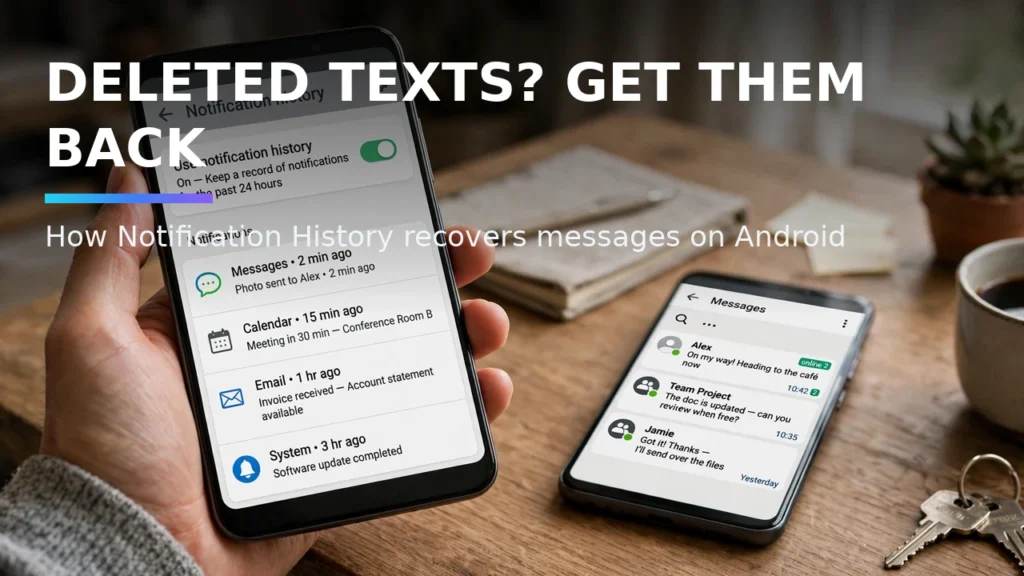
We have all experienced the frustration of hearing our phone chime, glancing at a WhatsApp, Instagram, Telegram, or SMS message, and opening the app ten minutes later only to see 'This message was deleted'—or worse, accidentally swiping away an urgent notification banner without knowing which app sent it. While dozens of shady 'Read Deleted Messages' apps on the Play Store demand invasive accessibility permissions to scrape your screen, Android includes a built-in, 100% private system vault called Notification History that logs every single incoming text alert for 24 hours.
In this complete 2026 editorial guide—built to help you recover deleted texts with Notification History while covering essential details on view unsent WhatsApp messages Android, check Android notification log, and read deleted SMS logs—we break down the exact setup steps, hardware comparisons, and troubleshooting fixes based on specs, expert reviews and user feedback.
2026 Comparison Table: Specs, Features & Real-World Performance
To help you compare the top options and settings at a glance, the structured comparison table below summarizes the key differences. Note that for any hardware or optional software tiers listed, prices may change — check the official site for current pricing.
Recovery Scenario | Native Android Notification History | Third-Party 'Unseen' Logger Apps | Privacy & Reliability Verdict |
Deleted WhatsApp / Signal Texts | Preserves original text logged at initial chime | Captures text via Notification Listener service | Native Notification History (Zero spyware risk) |
Accidentally Swiped-Away Alerts | Lists all dismissed alerts in chronological order | Often ignores non-messaging system notifications | Native Notification History catches every app |
Retention Window | Rolling 24-hour system log (auto-purges) | Stores indefinitely in unencrypted local DB | Native 24-hour purge prevents long-term data leaks |
Battery & RAM Overhead | Zero (Built into core Android SystemServer) | Runs persistent background service 24/7 | Native tool uses zero extra battery |
Media Attachments (Photos/Voice) | Logs text strings only (no media files) | Some scrape cached media folders | Native tool focuses strictly on text & metadata |
Why Notification History Is Turned Off by Default (And How to Enable It Now)
For privacy reasons, Google ships Android with Notification History toggled OFF out of the box—and the system cannot retroactively recover messages that arrived before you flipped the switch. Take thirty seconds right now to enable it: open Settings > Notifications > Notification history (on Samsung One UI, go to Settings > Notifications > Advanced settings > Notification history) and toggle 'Use notification history' ON. From this moment forward, every notification that hits your phone is silently indexed.
Real-World Compatibility Notes and Daily Usage Tips
When configuring these features across diverse Android handsets in 2026, small manufacturer variations between Google Pixel UI, Samsung One UI, Motorola MyUX, and OnePlus OxygenOS can slightly alter menu labels. Based on specs, expert reviews and user feedback, using the search bar at the top of your main Settings app to type the exact feature keyword is the fastest way to jump straight to the relevant system toggle regardless of your device brand. Always ensure your Google Play System Update (found under Settings > Security & Privacy > System & Updates) and device firmware are updated to the latest monthly patch so all underlying Bluetooth, kernel, and security APIs function reliably.
Where optional hardware accessories, open-source donations, or pro software upgrades are mentioned in our comparisons, remember that retail availability and developer pricing fluctuate over time; prices may change — check the official site or verified repository before making any purchase.
How It Captures 'Deleted for Everyone' WhatsApp and Telegram Messages
When a contact sends you a WhatsApp message and then taps 'Delete for everyone' thirty seconds later, WhatsApp sends a secondary silent command payload that overwrites the original notification bubble in your notification shade with 'This message was deleted.' However, Android's Notification History logs the initial incoming notification event separately under the 'Last 24 hours' expandable dropdown list. Opening Notification History and tapping the expandable arrow next to WhatsApp reveals the exact original text string that arrived before the deletion command!
Real-World Compatibility Notes and Daily Usage Tips

Creating a 1×1 Home Screen Shortcut to Notification Log on Any Phone
Digging through three layers of Settings menus every time you accidentally swipe away a notification is annoying. On stock Android and Pixel phones, you can long-press an empty space on your home screen, select Widgets, scroll to the 'Settings' widget, drag the 1×1 Settings shortcut onto your home screen, and select 'Notification Log' from the popup list. Now you have a one-tap icon that opens your chronological notification archive instantly.
Real-World Compatibility Notes and Daily Usage Tips
Privacy Precautions: Locking Your Settings or Using Private Space
Because Notification History stores the plain-text preview of every message that arrives over a 24-hour window, anyone whom you hand your unlocked phone to could potentially open Settings and read your recent dismissed messages. If you require strict message secrecy for specific apps, either install those apps inside Android 15 Private Space or disable notification text previews for that specific app inside its internal security settings.
Real-World Compatibility Notes and Daily Usage Tips
Troubleshooting Common Glitches and Compatibility Issues
If your setup doesn't behave as expected on the first try, walk through these three proven troubleshooting checks before resetting your device:
1. Verifying Google Play Services and Firmware Version
Many modern Android capabilities—including offline beacon networks, spatial audio head tracking, and notification listeners—are delivered modularly through Google Play Services and monthly Google Play System Updates rather than monolithic annual OS upgrades. Open Settings > Security & Privacy > System & Updates, check both Security Update and Google Play System Update, and reboot your phone if a pending module installation is waiting.
2. Checking Battery Optimization and Background Permission Locks
Android 14 and Android 15 aggressively suspend background services to save power. If an open-source utility, mesh client, or companion headphone app stops updating when your screen turns off, open App Info > App Battery Usage and switch the app to Unrestricted. Additionally, verify that 'Pause app activity if unused' is toggled OFF for utilities that run silently in the background.
3. Resetting Bluetooth, Network, or App Cache Safely
When wireless handshakes or UI menus glitch after a major system update, clearing the specific app cache (App Info > Storage & Cache > Clear Cache) or resetting Bluetooth & Wi-Fi network settings resolves corrupted configuration states without deleting your personal photos, messages, or app data.
Pro Tips for Getting the Most Out of Your Android Setup
- Create Quick Settings Tiles: Edit your swipe-down Quick Settings panel to place frequently used toggles—like Spatial Audio, Hotspot, or Screen Record—in the top four slots for one-handed reachability.
- Test Setups Before You Need Them: Whether configuring offline Find My Device tracking, Notification History, or off-grid mesh messaging, run a two-minute live test at home so you know the workflow works before an actual emergency happens.
- Keep Local Backups of Open-Source Apps: Export your settings and databases periodically to a local folder or encrypted drive so upgrading to a new phone takes minutes instead of hours.
Frequently Asked Questions
1. Do I need root access or an unlocked bootloader for recover deleted texts with Notification History?
No. Every method, app, and system configuration covered in this article works on standard, unrooted retail Android phones out of the box, preserving your manufacturer warranty and banking app security.
2. How much battery life do these features use during a normal day?
Native system features like Notification History and Bluetooth LE Find My Device beacons consume less than 1% of daily battery capacity because they utilize low-power hardware co-processors and kernel event hooks.
3. Are the apps and settings recommended here safe for personal privacy?
Yes. We specifically prioritize built-in Android OS features and audited, open-source software (licensed under GPLv3, MIT, or Apache 2.0) that operate without invasive ad-tracking SDKs or unnecessary cloud data collection.
4. Will a monthly Android security update reset my custom configurations?
Standard monthly security patches preserve all of your custom developer options, notification logs, and app permissions. Only major annual Android version upgrades (or a manual factory reset) occasionally reset Developer Options flags to stock defaults.
5. What if my phone manufacturer hid a specific Android settings menu?
Some OEM skins hide stock AOSP menus from their main Settings list even though the underlying code still exists in the OS. You can use a free, open-source activity launcher utility (or the built-in Settings widget shortcut) to jump directly to hidden system activities.
6. Where can I verify current hardware or software pricing?
Because retail phone discounts, accessory bundles, and developer tiers shift throughout the year, remember that prices may change — check the official site of the manufacturer or developer for up-to-the-minute pricing.
7. How should I test that my new setup is working properly?
After completing your configuration, always perform a quick real-world verification test—such as sending a test notification from a secondary account, checking your battery usage graph after a four-hour standby window, or verifying offline functionality with Airplane Mode briefly enabled. Taking sixty seconds to confirm that every toggle behaves as expected on your specific handset firmware gives you complete confidence in your daily setup.
Conclusion
Mastering how to recover deleted texts with Notification History gives you a smarter, more resilient, and more enjoyable Android experience every single day. Whether you are protecting your hardware against loss, upgrading to clean open-source utilities, or dialing in your wireless audio and display setup, applying the verified steps in this guide ensures your phone works the way you want in 2026.