Every time you install a new application on your Android smartphone, you make a implicit trade-off between functionality and personal privacy. Navigation tools request continuous GPS coordinates, messaging applications ask for your contact directory, photo editors demand file system privileges, and voice assistants seek microphone access. Over months of routine usage, an unmaintained device accumulates dozens of dormant applications that silently retain elevated hardware permissions. When left unchecked, intrusive data brokers and third-party advertising SDKs embedded inside otherwise harmless utilities can harvest background telemetry, track your physical movements, and drain battery life while your phone sits idle in your pocket.
Protecting your personal data does not require rooting your device or sacrificing modern convenience. Modern Android releases (including Android 14, 15, and 16) feature comprehensive, enterprise-grade privacy utilities designed to give users granular oversight over their hardware sensors. By learning how to audit Android background permissions, you can systematically revoke unused app permissions, eliminate unauthorized location access while idle Android processes, and leverage the built-in privacy dashboard audit tools to detect suspicious background behavior. This authoritative, step-by-step masterclass outlines the exact security protocols, permission matrices, and investigative techniques necessary to lock down your smartphone in 2026.
Editorial & Security Notice: Menu pathways and permission terminology vary slightly across customized OEM interfaces (such as Samsung One UI, Google Pixel UI, and Xiaomi HyperOS). This guide covers standard Android settings alongside OEM-specific variations. Auditing permissions does not delete user account data or uninstall software; it strictly restricts hardware sensor and database access.
The Anatomy of Mobile Telemetry: How Background Tracking Operates
Mobile permissions are divided into two fundamental operational states: foreground access and background access.
- Foreground Permission: An application accesses hardware components (such as your camera or microphone) only while the app is actively open on your screen and you are directly interacting with its interface. For example, opening Google Maps to navigate a highway route accesses GPS in the foreground.
- Background Permission: An application accesses device sensors, storage records, or network modems while the phone screen is locked or while you are actively engaged in a completely different application. While essential for certain tools (like fitness trackers logging runs or emergency weather alerts), background access represents the single greatest vulnerability for data harvesting.
Independent mobile security telemetry reveals that ad-tech data aggregators frequently bundle free utilities—such as flashlight apps, PDF scanners, and casual puzzle games—with aggressive tracking libraries. These SDKs ping nearby Wi-Fi BSSIDs, Bluetooth beacons, and GPS coordinates every few minutes, assembling a granular behavioral dossier of where you live, work, and commute. Regularly conducting an audit breaks these tracking loops permanently.
Permission Hierarchy Comparison: Sensitive Android Hardware Sensors
Android categorizes hardware permissions based on potential security impact. The table below details the most critical permission categories, their legitimate operational purposes, common misuse vectors, and recommended security configurations based on Android security bulletins.
Permission Category | Legitimate Functional Purpose | Common Telemetry Abuse Vector | Recommended Security Setting | Risk Level |
Precise Location | Turn-by-turn navigation, localized weather, rideshare pickup | Silent geospatial tracking, consumer movement profiling, location resale | Set to "While in use" + Disable "Use precise location" for non-maps | Critical |
Microphone | Voice notes, phone calls, voice search, video recording | Audio fingerprinting, ambient acoustic profiling, ad-matching beacons | Set to "Ask every time" or "Only while using the app" | Critical |
Camera | Photography, video conferencing, QR code scanning | Unauthorized snapshots, physical environment mapping | Set to "Ask every time" or "Only while using the app" | Critical |
Contacts & Call Logs | Dialing friends, syncing address books in email apps | Scraping personal networks, uploading contact databases to ad servers | Set to "Don't allow" unless core function requires address book | High |
Nearby Devices (Bluetooth / Wi-Fi) | Pairing smartwatches, wireless earbuds, smart home IoT | Bypassing GPS restrictions by triangulation against fixed retail beacons | Revoke for all social media and retail shopping apps | High |
Photos & Videos (Media Picker) | Uploading images to social feeds, editing photo files | Scanning entire photo metadata (EXIF GPS coordinates, device timestamps) | Use Android Photo Picker to grant access only to selected photos | Medium |
Physical Activity | Step counting, fitness tracking, fall detection | Inferring whether you are driving, walking, or stationary for targeted ads | Allow only for dedicated health and fitness trackers | Medium |
Step-by-Step: Conducting a Complete Privacy Dashboard Audit
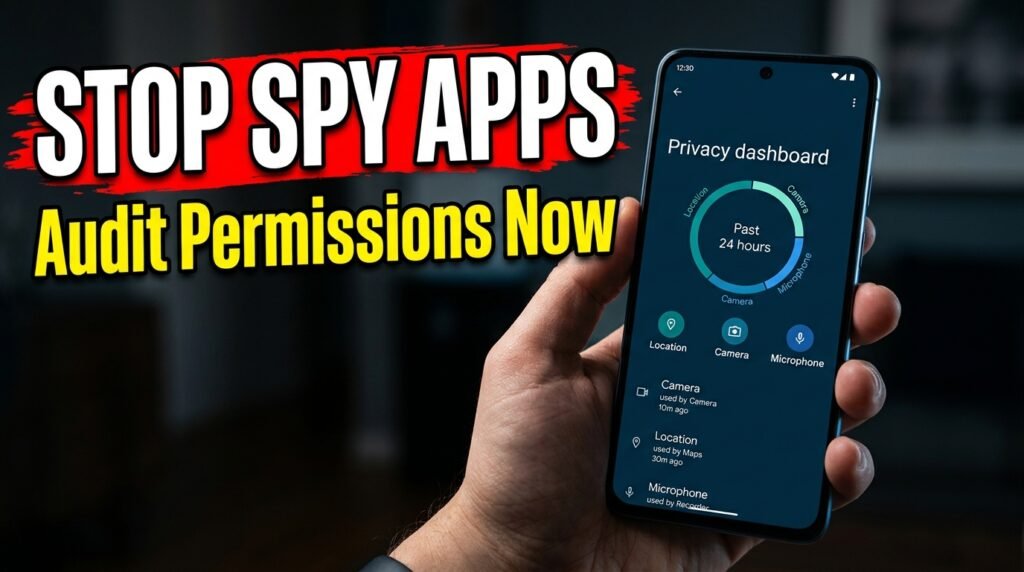
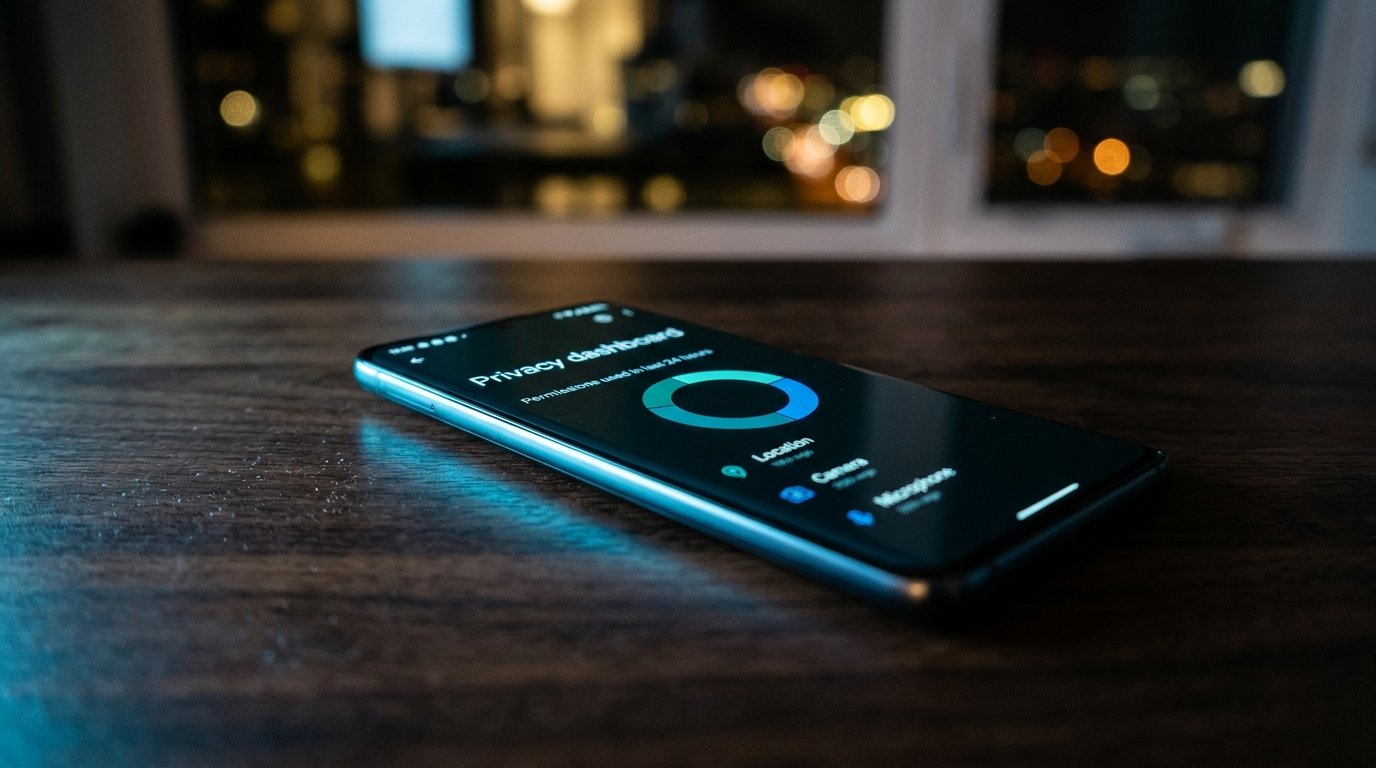
Introduced by Google to provide complete transparency into sensor utilization, the Privacy Dashboard functions as an unalterable flight recorder for your smartphone hardware. It reveals exactly which applications accessed your Camera, Microphone, and Location over the preceding 24 hours to 7 days.
Step 1: Accessing the Privacy Dashboard
- Open your device Settings.
- Scroll down and select Security & privacy (or Privacy on older Android versions).
- Tap Privacy dashboard.
- You will see an intuitive circular chart illustrating access frequency across your camera, microphone, and location sensors.
Step 2: Inspecting Access Timelines
- Tap on Location within the Privacy Dashboard.
- Review the chronological timeline. You will see every app that requested your coordinates, down to the exact minute.
- Look for red flags: did a shopping app or casual game check your location at 3:15 AM while you were asleep? Did an app you haven't opened in three days access your location 40 times yesterday?
- Repeat this chronological review for both Camera and Microphone. If an app accessed your microphone when you were not recording audio or making a call, immediate remediation is required.
Step 3: Revoking Sensor Access Directly from the Timeline
- Tap directly on any offending app listed in your timeline.
- Select Manage permission.
- Immediately change the privilege from "Allow all the time" to "Don't allow" or "Ask every time".
Taming Location Permissions: Precise vs Approximate Tracking
Location is by far the most abused permission in the mobile ecosystem. Android includes a vital privacy feature: the ability to decouple Precise Location from Approximate Location.
How the Precision Toggle Protects You
- Precise Location: Utilizes dual-frequency GPS satellites, cellular towers, and Wi-Fi networks to pinpoint your physical coordinates within 3 to 5 meters. This is necessary for Google Maps, Uber, or DoorDash.
- Approximate Location: Deliberately fuzzes your location, reporting a broad geographic bubble roughly 3 square kilometers wide (about the size of an entire city neighborhood). This gives weather apps, local news portals, and retail search tools enough geographic context to function without revealing your exact home address or office building.
How to Enforce Approximate Location
- Navigate to Settings > Apps > See all apps.
- Select a weather app (e.g., AccuWeather or The Weather Channel).
- Tap Permissions > Location.
- Keep the setting on "While using the app", but toggle OFF "Use precise location".
- The app will now provide accurate regional radar forecasts without knowing which street corner you are standing on.
Enforcing Automatic Revocation for Dormant Apps
One of Android’s greatest modern defensive mechanisms is Auto-Revoke Unused Permissions. When enabled, Android monitors your application usage. If you do not open a specific application for a few months, the operating system autonomously strips away all sensitive permissions (camera, microphone, contacts, storage), deletes temporary cache files, and pauses background notifications until you actively open the app again.
How to Verify and Enforce Auto-Reset Across All Apps
- Go to Settings > Apps > Unused apps (or Permission manager > Unused app permissions).
- Review the list of apps that have had their permissions automatically revoked by the system.
- To ensure this protection is active for critical apps: open any app's info page in Settings, tap Permissions, scroll to the bottom, and verify that "Pause app activity if unused" (or "Remove permissions and free up space") is toggled ON.
Disabling Invasive Special App Access Privileges
Beyond standard runtime permissions, Android contains an advanced tier of "Special App Access" privileges. These permissions can bypass traditional security sandboxes and should be audited with extreme skepticism:
1. Display Over Other Apps (Overlay Permission)
This allows an application to draw visual interfaces on top of other running apps. While legitimate for chat bubbles (like Facebook Messenger) or screen recording utilities, malicious apps exploit overlays to create invisible clickable layers or spoof banking login prompts.
Audit Path: Settings > Apps > Special app access > Display over other apps. Revoke this permission for every utility that does not strictly require floating interface widgets.
2. Usage Access
Usage access permits an application to monitor which other apps you use, how often you launch them, your carrier name, and your device language configuration.
Audit Path: Settings > Apps > Special app access > Usage access. Only system-level digital wellbeing utilities and trusted launcher engines should have this permission enabled.
3. Modify System Settings
Permits an application to change device ringtones, screen brightness, display timeout rules, or toggle network radios.
Audit Path: Settings > Apps > Special app access > Modify system settings. Strip this privilege from all third-party software unless it is a dedicated automation tool like Tasker.

Real-Time Privacy Indicators and Quick Toggles
Modern Android operating systems alert you the instant an application engages your camera or microphone in real time through hardware status indicators:
- Green Privacy Dot: A glowing green dot in the top-right corner of your status bar signifies that an application is actively streaming data from your microphone or camera.
- Quick Inspection: Swiping down once from the top of your display reveals an interactive chip showing the exact app accessing the sensor. Tapping the chip allows you to revoke access on the spot.
- Master Privacy Toggles: You can add Camera Access and Mic Access tiles directly to your Quick Settings panel. Tapping either toggle immediately cuts hardware power to the respective sensor across the entire operating system, creating a software kill-switch that prevents any app—even system apps—from accessing them.
Frequently Asked Questions (FAQ)
Will revoking background permissions break push notifications?
No. Push notifications on Android are managed through Google Play Services and Firebase Cloud Messaging (FCM). An app does not need background location, storage, or microphone access to alert you to an incoming chat message, email, or breaking news story.
Why do some apps demand "Nearby Devices" permission to function?
Starting in Android 12, Google decoupled Bluetooth device scanning from Location permissions. Previously, an app had to request full GPS access just to discover a pair of Bluetooth headphones. "Nearby Devices" allows apps to communicate with local hardware peripherals without granting them access to your geographic location.
How often should I conduct an Android permission audit?
Security professionals recommend conducting a thorough permission audit once every quarter (every 90 days), or immediately following major operating system upgrades. Additionally, you should audit permissions anytime your device exhibits unexplained battery drain or unexpected spikes in cellular data consumption.
Can an app secretly turn on my camera without the green indicator appearing?
No. The green privacy indicator is rendered at the Android system framework level and is protected by Android’s hardware abstraction layer (HAL). Third-party apps running in standard user space cannot suppress, hide, or manipulate the privacy indicator icon.
What is the difference between "Allow only while using the app" and "Ask every time"?
"Allow only while using the app" grants access automatically whenever the application is open on your screen, but revokes access the instant you return home or switch apps. "Ask every time" displays a permission prompt on your screen every single time the app attempts to engage the sensor, providing maximum control for rarely used applications.
Does revoking permissions prevent pre-installed system apps from tracking me?
To a large extent, yes. While certain core system services (such as cellular network telephony) require base permissions to maintain network connectivity, you can safely revoke Location, Camera, and Microphone access from pre-installed carrier bloatware and secondary OEM utility apps.
Conclusion: Establishing Sustainable Digital Hygiene
Your smartphone houses an intimate record of your daily life, relationships, and routines. Allowing unvetted commercial applications to retain permanent, unmonitored background access to your sensors undermines your personal security and diminishes battery performance. By taking twenty minutes to audit Android background permissions using native tools like the Privacy Dashboard, enforcing approximate location boundaries, and stripping unnecessary special access privileges, you take back control.
Proactive digital hygiene ensures that your smartphone remains a powerful, private tool that works exclusively for you—without turning your personal life into marketable telemetry in 2026.