The lock screen is the digital front door to your smartphone. It is the very first interface you encounter dozens—often hundreds—of times every single day. For years, Android lock screens were largely static, utilitarian displays limited to a generic digital clock, standard notification cards, and fixed bottom shortcuts for the phone dialer and camera. If you wanted dynamic typography, contextual weather forecasts, smart home toggles, or personalized shortcuts, you had to install third-party lock screen replacement apps that frequently introduced security vulnerabilities, bypassed biometric hardware, or drained device battery life.
With modern Android releases (Android 14, 15, and 16), Google and major device manufacturers have completely overhauled lock screen architecture. Today, users have unprecedented native authority to customize Android lock screen displays with deep typographic variety, rich interactive widgets, and intelligent color extraction. Whether you want to experiment with artistic Android lock screen clock styles, configure quick-action lock screen shortcut customization icons for flashlights and Google Wallet, or design a cohesive Material You lock screen aesthetic that matches your personal wallpaper, your device holds immense creative potential. This comprehensive, step-by-step master guide walks you through every native customization setting, layout configuration, and power-user tip in 2026.
Interface Compatibility Notice: While Google Pixel, Motorola, and stock Android devices utilize the native Android wallpaper and style picker, Samsung Galaxy devices feature the comprehensive "Good Lock" and One UI Lock Screen engine. Both ecosystems offer profound customization, and this tutorial details specific step-by-step instructions for both stock Android and Samsung One UI platforms.
The Evolution of the Modern Android Lock Screen
Historically, Android separated the lock screen from the home screen wallpaper engine. Customization was rigid to ensure fast, secure unlock times. However, the introduction of modern design languages (Material You / Material 3) merged these environments into a unified visual experience.
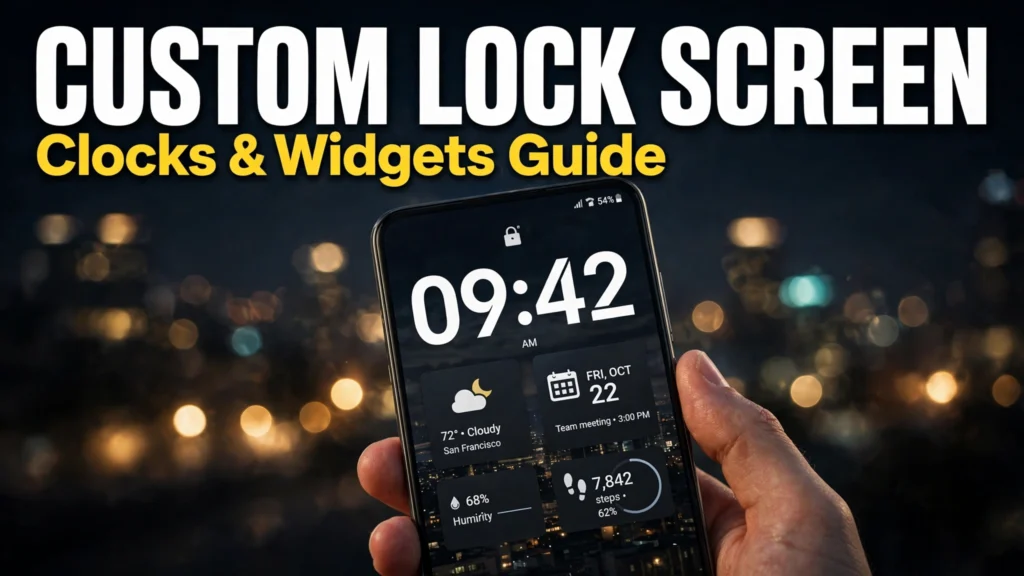
A modern lock screen operates across three interactive layers:
- The Typographical Layer: The clock is no longer a fixed font. Android dynamically resizes, restyles, and colors the clock face based on whether you have unread notifications. When your notifications are cleared, the clock expands into a bold, artistic centerpiece; when notifications arrive, it gracefully contracts to the top corner to preserve screen space.
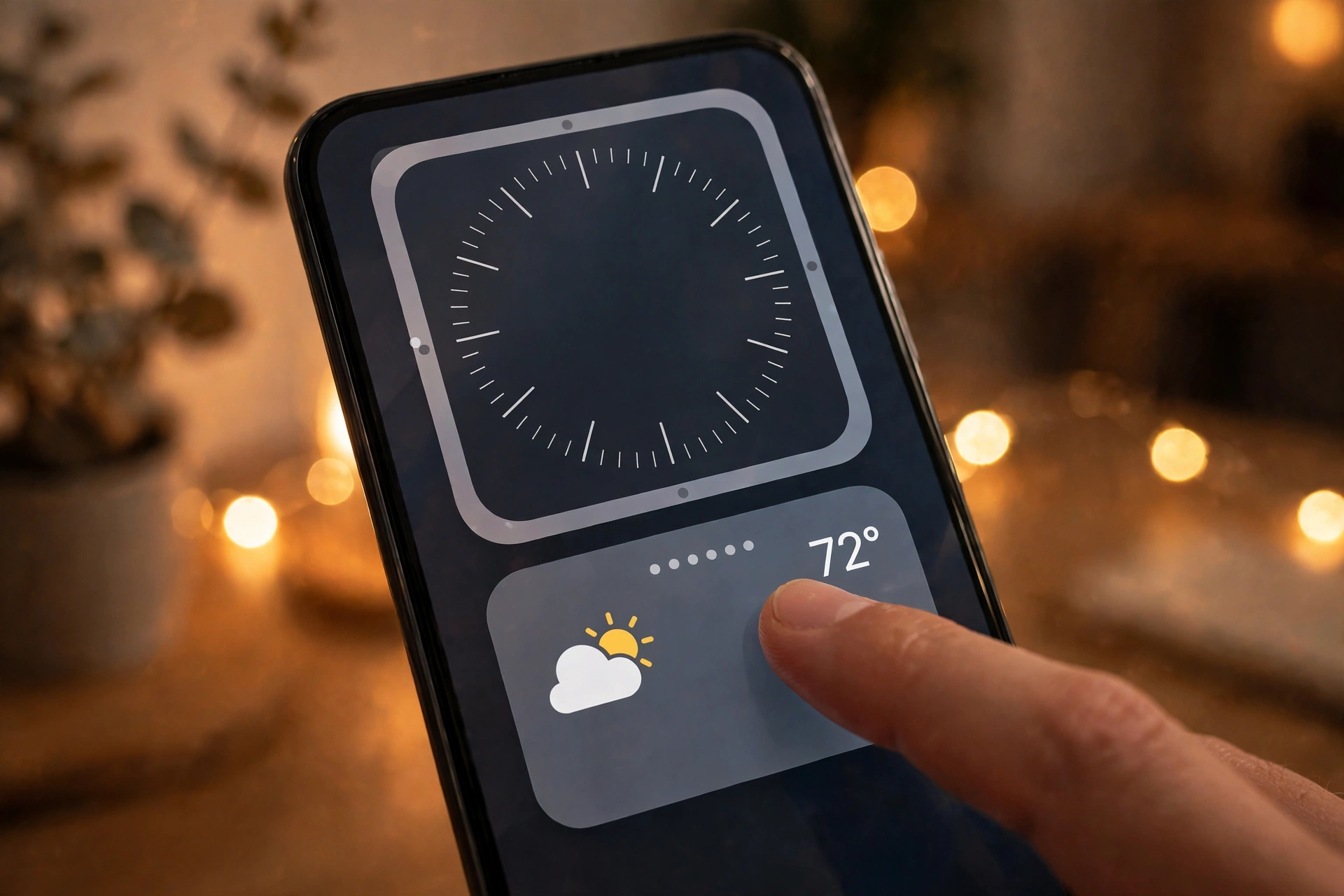
- The Informational Widget Layer: Glanceable widgets sit directly beneath the clock, providing real-time data—such as battery percentages for connected Bluetooth earbuds, upcoming calendar meetings, UV index ratings, or smart home thermostat temperatures—without requiring an unlock.
- The Functional Action Layer: The bottom corners of the display house customizable quick-launch shortcuts, enabling instantaneous one-touch access to tools like the flashlight, QR scanner, camera, Do Not Disturb toggle, or contactless payments.
Lock Screen Customization Features: Stock Android vs Samsung One UI
Device makers approach lock screen customization with distinct design philosophies. The table below outlines how native customization options compare across modern stock Android (Pixel) and Samsung One UI based on manufacturer documentation.
Customization Feature | Stock Android (Pixel / Motorola) | Samsung One UI (Galaxy S / Z Series) |
Clock Typography & Layouts | 8 distinct artistic presets (Analog, Digital, Bubble, Vertical) | Virtually unlimited fonts, custom sizes, analog/digital styles |
Color Engine Integration | Material You dynamic color palettes derived from wallpaper | Dynamic wallpaper colors + custom hex color picker |
Lock Screen Widgets | At a Glance bar + curated system widgets beneath clock | Full One UI widget tray (Battery, Calendar, Weather, SmartThings) |
Bottom Corner Shortcuts | Customizable left & right slots (Flashlight, Wallet, Camera, etc.) | Customizable left & right slots + Good Lock multi-app dock |
Always-On Display (AOD) Transition | Seamless 1Hz transition matching clock font exactly | Custom AOD clock styles, GIFs, stickers, and brightness control |
Notification Presentation | Show all, hide sensitive content, or bubble badges | Icons only, detailed cards, or transparent minimal banners |
Power-User Extension Tool | Native System Settings | Good Lock (LockStar module) for freeform placement |
Step-by-Step Guide: Customizing Stock Android (Pixel & Clean Devices)
If you own a Google Pixel, Motorola, Sony, or any smartphone running stock Android 14, 15, or 16, follow this workflow to build a stunning lock screen:
Step 1: Access the Wallpaper & Style Hub
- Turn on your phone and unlock to the home screen.
- Long-press on an empty section of your home screen wallpaper and select Wallpaper & style from the pop-up menu.
- At the top of the screen, you will see two tabs: Lock screen and Home screen. Tap on Lock screen.
Step 2: Selecting and Sizing Your Clock Style
- Swipe horizontally across the clock preview carousel to browse the eight distinct built-in clock styles. Styles range from sleek minimal Bauhaus typography to retro split-digit numbers and elegant analog dials.
- Tap Clock color & size directly beneath the preview.
- Select Size: choose between Dynamic (which intelligently grows or shrinks based on notification presence) or Small (which keeps the clock permanently anchored in the upper-left corner).
- Select Color: choose an automatic color extracted from your wallpaper, or select a high-contrast custom tint. Drag the Luminosity slider to adjust color saturation and brightness.
Step 3: Customizing Bottom Corner Shortcuts
- Return to the main Lock screen menu and scroll down to Shortcuts.
- Tap Left shortcut and choose from the available actions: Flashlight, Device controls (smart home), Google Wallet (cards), Camera, Do Not Disturb, Mute, QR code scanner, or Video camera.
- Tap Right shortcut and select a complementary utility (e.g., assign Flashlight to the left and Google Wallet to the right).
- How to use on the lock screen: To prevent accidental activation in your pocket, Android requires a deliberate touch-and-hold on the corner icon to trigger the action.
Step-by-Step Guide: Customizing Samsung Galaxy Devices (One UI)
Samsung Galaxy smartphones offer arguably the most flexible lock screen customization engine on any mobile operating system:
Step 1: Entering the Interactive Lock Screen Editor
- Lock your Galaxy phone, then wake the display without unlocking.
- Touch and hold any blank space on the lock screen.
- Authenticate with your fingerprint, face, or PIN. You will enter the interactive visual editor where every single screen element is outlined in a dashed box.
Step 2: Customizing Clock Font, Size, and Position
- Tap directly on the Clock box.
- A customization tray slides up from the bottom displaying dozens of clock layouts (digital cards, circular analog dials, dual-timezone clocks for travel).
- Tap the Fonts row to change the typeface (ranging from classic serif fonts to futuristic bold modern typography).
- Grab the circular corner handles on the clock box to drag and resize the clock to whatever size you prefer, or reposition it higher or lower on the canvas.
- Tap the circular Color palette icon to choose an adaptive font color that automatically contrasts with your wallpaper background.
Step 3: Adding Interactive Lock Screen Widgets
- Directly beneath the clock box, tap the + Widgets area.
- Browse the Samsung widget library:
- Battery: Displays remaining battery percentage for your Galaxy phone, Galaxy Watch, and Galaxy Buds simultaneously.
- Weather: Displays hourly temperature curves, precipitation chances, or air quality.
- Calendar: Highlights your next scheduled appointment or meeting room.
- SmartThings: One-tap buttons to lock smart front doors or trigger automated lighting scenes.
- Select up to four compact widget icons or two wide rectangular cards to dock beneath the clock.
Step 4: Configuring Lock Screen Notifications
- Tap directly on the Notification box in the center of the editor.
- Choose between Icons only (which saves maximum screen real estate) or Details (which shows preview text).
- If you choose "Details," drag the Transparency slider so the notification cards blend elegantly into your wallpaper without creating harsh white boxes.
- Tap Done in the top-right corner to save your masterpiece.
Power-User Optimization: LockStar via Samsung Good Lock
For Galaxy enthusiasts who demand complete creative freedom, Samsung's official Good Lock suite (available via the Samsung Galaxy Store) contains a specialized module called LockStar.
With LockStar enabled, the rigid grid disappears entirely. You can:
- Drag the clock to literally any coordinate on the display (even the bottom center).
- Replace the two standard corner shortcuts with a full horizontal dock housing up to six custom application icons.
- Add third-party widgets from your favorite apps (like Spotify, Todoist, or Google Keep) directly onto the lock screen.
- Change the timeout duration of your lock screen, allowing the display to stay lit for up to 10 minutes when placed on a desk stand.

Privacy and Security Best Practices for Customized Lock Screens
While an informative lock screen is convenient, displaying sensitive data on an unlocked display introduces physical privacy risks. Follow these two mandatory security practices:
1. Hide Sensitive Content on the Lock Screen
You never want two-factor authentication SMS codes, private WhatsApp previews, or banking transaction alerts visible to curious onlookers when your phone is sitting on an office desk.
Configuration Path: Open Settings > Notifications > Notifications on lock screen and select "Hide sensitive content". Your lock screen will alert you that you have an incoming message from WhatsApp or your bank, but will conceal the sender's name and message body until your face or fingerprint unlocks the phone.
2. Disable Control Center & Network Toggles While Locked
If a thief steals your smartphone, their first action is often swiping down the Quick Settings panel to enable Airplane Mode, preventing you from tracking the phone via Google Find My Device.
Protection Path (Samsung): Go to Settings > Lock screen > Secure lock settings and toggle ON "Lock network and security". Your phone will prohibit turning off Wi-Fi, mobile data, or location until a PIN or biometric authentication is provided.
Frequently Asked Questions (FAQ)
Can I set a video or GIF as my Android lock screen wallpaper?
Yes. On Samsung One UI, you can select any video from your Gallery up to 15 seconds long (or trim a longer video) and set it directly as an animated lock screen wallpaper. On stock Android devices, you can utilize Cinematic Wallpapers (which transforms a still portrait photo into a 3D moving parallax image) or generate custom AI wallpapers natively.
Does having widgets on the lock screen drain my battery?
Minimalist system widgets (like battery meters, calendar appointments, and clock displays) consume an imperceptible amount of battery (less than 1% per day). However, live tracking widgets that continuously query GPS or refresh high-frequency financial tickers will cause slight background battery consumption.
Why don't my lock screen shortcuts open immediately when tapped?
Android intentionally requires a "touch-and-hold" (or swipe) gesture on lock screen shortcuts to prevent pocket-dialing. If shortcuts responded to a single instant tap, brushing against the screen while placing your phone in your pocket would constantly turn on the flashlight or launch the camera.
Can I customize the Always-On Display (AOD) independently of the lock screen?
On Samsung Galaxy devices, yes. You can configure the Always-On Display to display a completely different clock face, custom GIF, or calendar view than your main lock screen under Settings > Lock screen > Always On Display. On Google Pixel phones, the AOD is tied directly to your selected lock screen clock font for seamless visual transitions.
How do I restore the factory default lock screen layout?
If you customize your lock screen and decide you dislike the layout, you can quickly reset it. On Samsung, open the interactive lock screen editor and tap the "Reset" or "Revert" button in the upper corner. On Pixel, open Wallpaper & style and reselect the default dynamic clock style.
Can I display emergency medical contact information on my lock screen?
Yes, and it is highly recommended. Navigate to Settings > Safety & emergency > Medical info and enter your emergency contacts, blood type, and allergies. Android adds an "Emergency" button to the lock screen, allowing first responders to access life-saving information without needing your passcode.
Conclusion: Crafting a Lock Screen That Inspires and Informs
Your smartphone is a deeply personal device, and its lock screen should reflect both your functional priorities and your aesthetic style. Spending a few minutes to customize Android lock screen features—selecting an artistic Android lock screen clock style, configuring high-utility corner shortcuts, and implementing sensible privacy safeguards—transforms how you interact with your phone every single day.
Whether you prefer the cohesive, minimalist elegance of Google's Material You lock screen or the boundless modularity of Samsung One UI, taking control of your lock screen ensures your phone greets you with clarity, beauty, and utility in 2026.