Our smartphones serve as intimate digital companions that continuously record our physical movements, archive private conversations, house sensitive financial credentials, and capture personal memories. Because of this unparalleled data density, smartphones have also become prime targets for malicious surveillance. While mainstream cybersecurity media frequently highlights high-profile state-sponsored cyber espionage campaigns, everyday consumers face a far more pervasive, insidious threat: commercial spyware, stalkerware, and hidden surveillance applications.
Stalkerware consists of stealthy monitoring software designed to be installed by an individual with temporary physical access to your device—such as an abusive domestic partner, suspicious spouse, or overly intrusive employer. Once installed, these tools operate in complete stealth: masquerading as innocuous system utilities (like "Device Health" or "System Wi-Fi Service"), hiding their application launcher icons, tracking your real-time GPS coordinates, logging keystrokes, recording phone conversations, and transmitting your camera feeds to remote surveillance dashboards. If you suspect your privacy has been compromised, learning how to identify the subtle warning signs and remove spyware on Android is a vital digital survival skill.
Based on official Android security bulletins, mobile threat intelligence research from organizations like the Coalition Against Stalkerware, and verified cybersecurity incident response protocols, this comprehensive editorial guide explains the exact procedures for stalkerware detection Android users can perform, identifies the physical signs phone is tapped Android devices exhibit, and provides an authoritative framework to eradicate surveillance software permanently.
Editorial Note: TechVantageAPK publishes strictly educational cybersecurity guides. All diagnostic and removal procedures detailed here utilize native Android settings and verified security practices. If you are experiencing domestic abuse or physical stalking, consult secure, unmonitored devices to reach professional support organizations before modifying settings on a compromised phone.
Understanding the Threat: Commercial Spyware vs Stalkerware
To eliminate surveillance software effectively, it is helpful to understand how malicious monitoring tools operate on modern Android platforms.
1. Commercial Stalkerware ("Spousal Spyware")
Stalkerware is commercially marketed software sold online under the deceptive guise of "employee monitoring" or "child safety." Unlike generalized malware that infects devices through random internet downloads, stalkerware is almost universally installed through direct physical access. Someone borrows your phone, unlocks your screen, enables side-loading permissions, and installs an APK package configured to transmit your data to an external web portal.
2. The Privileges Stalkerware Exploits
To operate stealthily on modern Android releases (Android 12 through Android 15), surveillance software must hijack high-level system permissions:
- Accessibility Services: The most heavily abused permission. Originally designed to assist users with disabilities, Accessibility access allows an app to read all on-screen text (including disappearing encrypted Signal/WhatsApp messages), intercept passwords as you type, and simulate screen taps to hide its own presence.
- Device Administrator Privileges: Prevents the user from uninstalling the application through standard Android menus, graying out the "Uninstall" button.
- Notification Listener Access: Intercepts incoming two-factor authentication (2FA) SMS codes and chat previews before you can read them.
Tell-Tale Warning Signs: How to Spot a Tapped or Monitored Phone
While modern spyware attempts to remain invisible, its continuous background recording and data transmission inevitably leave diagnostic physical footprints.
1. Unexplained Rapid Battery Drain and Chassis Heat
Continuous GPS polling, microphone recording, and background video encoding demand substantial CPU processing power. If your smartphone battery suddenly begins depleting twice as fast as normal—and your device feels noticeably warm to the touch even when resting idle on a table—an unmonitored background process is actively consuming system resources.
2. Unusual Spikes in Mobile Cellular Data Usage
Spyware must transmit captured screenshots, voice recordings, and location logs back to an external server. Navigate to Settings > Network & internet > SIMs > App data usage. If an unfamiliar application—or a basic utility like a calculator or flashlight—has uploaded multiple gigabytes of data over mobile cellular connections, you have identified a prime suspect.
3. Persistent Green Sensor Indicators (Camera / Mic)
On modern Android versions, a bright green privacy indicator appears in the top-right corner of the status bar whenever any app accesses your microphone or camera. If you notice this green indicator illuminating while your phone is sitting idle or while browsing basic settings, an active application is eavesdropping on your environment.
4. Bizarre Browser History and Unexplained Activity
Inspect your web browser history and download folders. Stalkerware installations often leave behind traces of download links or installation pages that the perpetrator forgot to delete after configuring the APK.
Phase 1 — Scanning with Google Play Protect
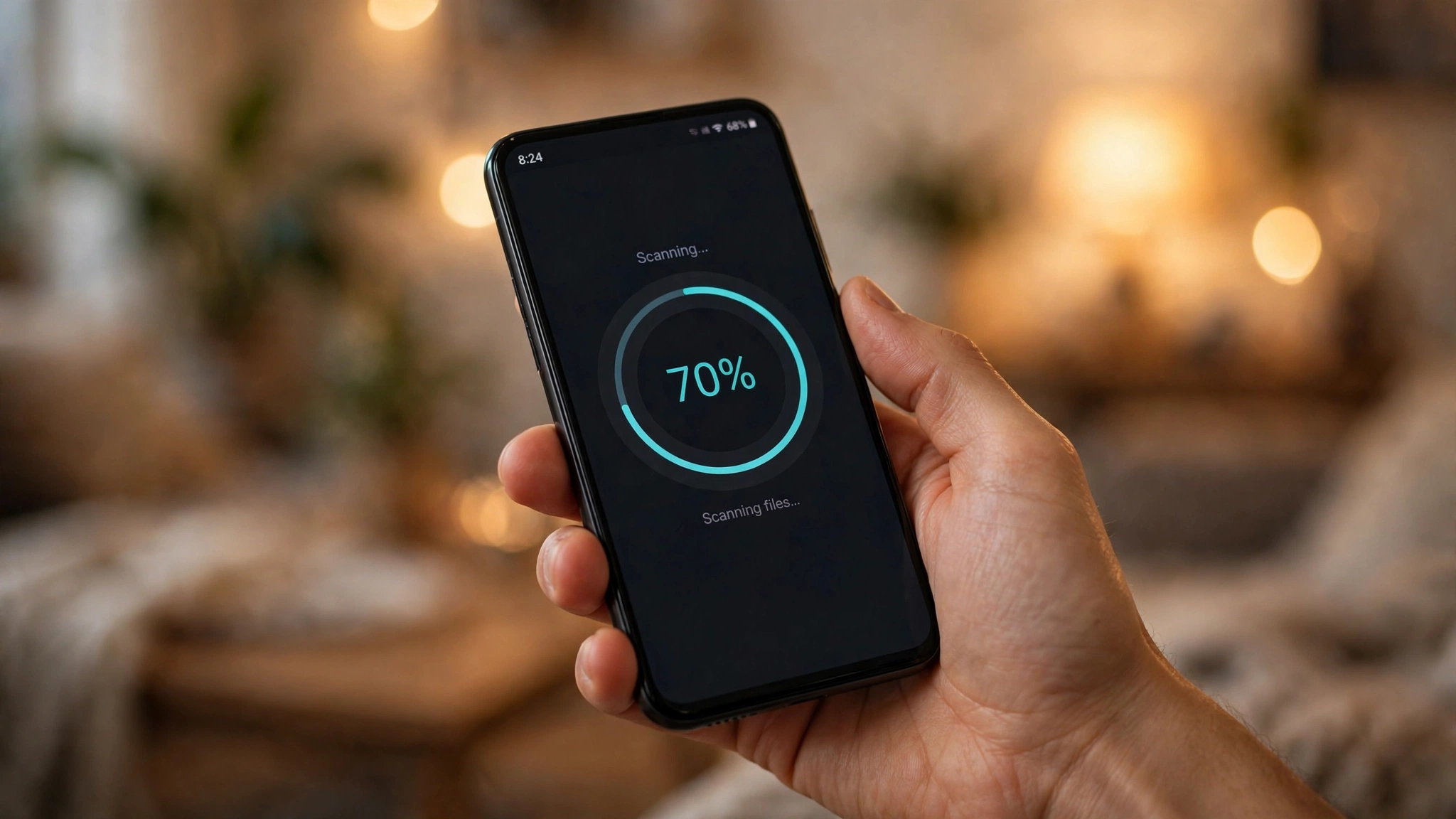
Google Play Protect is Android's native, built-in antivirus and behavioral analysis engine. It scans over 100 billion applications daily across Android devices worldwide and maintains an extensive threat database of known commercial stalkerware signatures.
Executing a Comprehensive Google Play Protect Scan:
- Open the Google Play Store application.
- Tap your profile avatar icon in the upper-right corner.
- Select Play Protect.
- Check the status banner. If the toggle for Scan apps with Play Protect was disabled, that is an immediate red flag—perpetrators routinely disable Play Protect during installation so the system will not flag their surveillance tool.
- Tap the gear icon in the top right corner and verify that both Scan apps with Play Protect and Improve harmful app detection are toggled On.
- Return to the main screen and tap the circular Scan button.
Play Protect will scan all installed application binaries on your device, cross-referencing cryptographic signatures against known stalkerware databases and offering single-tap uninstallation of flagged packages.
Phase 2 — Auditing High-Risk System Permissions
If advanced spyware has disguised its signature to bypass automated scans, auditing high-level administrative permissions manually will expose it immediately.
1. Audit Device Admin Apps
Device Administrator privileges prevent standard app uninstallation:
- Go to Settings > Apps > Special app access > Device admin apps.
- Review every entry. On a standard consumer device, only official utilities (such as Google Find My Device or Samsung Find) should be authorized.
- If you spot an unfamiliar application (e.g., "Device Health", "Wi-Fi Service", or "System Update Manager"), tap the entry and select Deactivate this device admin app. Once deactivated, the application can be uninstalled normally.
2. Audit Accessibility Services
Accessibility access is the primary engine of modern stalkerware:
- Navigate to Settings > Accessibility.
- Scroll down to the Downloaded apps or Installed services section.
- Inspect which applications have active accessibility permissions. As a firm security rule, only trusted accessibility tools (like screen readers) or audited password managers (like Bitwarden) should have access.
- Toggle off any unfamiliar or suspicious service immediately.
3. Audit Notification Listener Access
Notification access allows an app to siphon incoming 2FA codes:
- Navigate to Settings > Apps > Special app access > Notification access.
- Revoke permissions for all non-essential applications.
Phase 3 — How to Remove Spyware Permanently
Once you have identified or suspected spyware, apply these proven eradication methods:
Method 1: Safe Mode Targeted Uninstallation
Malicious applications often utilize background watchdog loops that force the app to restart if you attempt to close it. Booting into Android Safe Mode disables all third-party software, allowing clean, unencumbered uninstallation:
- Press and hold the physical Power and Volume Up buttons to bring up the power menu.
- Touch and hold the on-screen Restart (or Power off) icon until the Reboot to safe mode prompt appears.
- Tap OK.
- When your phone restarts, a watermark in the bottom corner will display "Safe Mode."
- Go to Settings > Apps > See all apps.
- Scroll through the entire application roster. Locate the suspicious application, tap it, and select Uninstall.
- Restart your phone normally to exit Safe Mode.
Method 2: The Nuclear Option — Full Factory Data Reset
If you suspect sophisticated stalkerware has deeply compromised your device, or if you want absolute, 100% mathematical certainty that no hidden monitoring tools remain, a complete factory data reset is the definitive cybersecurity remedy.
- Back up your critical personal photos, contacts, and documents (using the clean backup procedures outlined in our backup guides). Do NOT restore a full system settings image, as this may re-install malicious configurations.
- Go to Settings > System > Reset options > Erase all data (factory reset).
- Confirm and authenticate with your secure lock-screen PIN.
- The operating system will completely reformat internal flash memory, restoring the phone to clean factory firmware and obliterating all third-party software completely.
Phase 4 — Post-Removal Hardening and Digital Hygiene
Eliminating the spyware is only half the battle; closing the security gaps that permitted the initial infection prevents repeat compromises.
1. Change All Master Passwords Immediately
Assume that any password entered on the compromised device has been logged. Using a separate, secure computer (not the compromised phone), change your primary passwords immediately:
- Your primary Google Account password.
- Personal banking and financial investment portals.
- Primary personal email accounts and social media logins.
- Sign out of all active web sessions across all services.
2. Upgrade Your Lock Screen Passcode
Stalkerware requires physical access to install. If someone installed software on your phone, they know your lock screen code. Change your screen lock from a simple 4-digit PIN to a strong, alphanumeric passphrase under Settings > Security > Screen lock. Never share this code with anyone.
3. Block "Install Unknown Apps" System-Wide
Ensure that third-party APK sideloading is disabled:
- Go to Settings > Apps > Special app access > Install unknown apps.
- Ensure every application (browsers, file managers, messaging clients) is set to Not allowed.
Spyware Detection & Eradication Summary Checklist
Diagnostic Step | Settings Navigation Path | Threat Mitigated | Required Action |
Google Play Protect | Play Store > Profile > Play Protect | Known commercial stalkerware signatures | Verify active & execute full system scan |
Device Admin Audit | Settings > Apps > Special app access > Admin | Apps blocking standard uninstallation | Deactivate all unauthorized admin apps |
Accessibility Audit | Settings > Accessibility > Downloaded apps | Keyloggers & on-screen text scrapers | Revoke access for all suspicious tools |
Cellular Data Inspection | Settings > Network > App data usage | Silent background data exfiltration | Identify apps uploading gigabytes of data |
Safe Mode Removal | Power Menu > Long-press Restart | Watchdog loops preventing uninstallation | Uninstall rogue apps while frozen |
Factory Reset | Settings > System > Reset options | Deeply embedded persistent spyware | Erase all data for clean factory baseline |

Frequently Asked Questions (FAQ)
Can someone install spyware on my Android phone remotely without touching it?
For everyday consumers, almost never. High-end zero-click exploits (like Pegasus) cost millions of dollars and are deployed exclusively by intelligence agencies targeting heads of state, diplomats, and investigative journalists. Over 99% of consumer stalkerware and spousal surveillance tools require physical access to your unlocked phone for 5 to 10 minutes to download and configure an APK package.
Does a factory reset completely remove all spyware?
Yes. Commercial stalkerware and consumer spyware reside entirely in user-space partitions. A factory data reset wipes and reformats internal user storage, completely obliterating all third-party software, hidden configurations, and surveillance payloads.
Can anti-virus apps on Android detect stalkerware?
Yes. Reputable mobile security applications (such as Malwarebytes, Bitdefender, and Sophos Intercept X) are members of the Coalition Against Stalkerware. They maintain specialized heuristic threat databases that detect commercial monitoring apps even when they disguise their package names as innocuous system services.
Can someone spy on my phone through WhatsApp Web?
Yes. A common low-tech surveillance tactic is opening WhatsApp on your phone, scanning a QR code, and linking your account to WhatsApp Web on the perpetrator's computer. They can then read all your incoming and outgoing messages in real time. To audit this: open WhatsApp, tap the three-dot menu > Linked devices, and immediately tap Log out on any unrecognized sessions.
What does dialed code *#21# do?
Dialing *#21# on your phone keypad queries your cellular carrier's network to check call forwarding settings. It displays whether incoming voice calls, SMS messages, or data streams are being forwarded to another telephone number. If unauthorized call forwarding is active, dial ##002# to cancel all forwarding rules immediately.
What should I do if I am in immediate physical danger from a stalker?
If you suspect an abusive domestic partner has installed stalkerware and you fear physical retaliation, do not modify or delete the software immediately, as the perpetrator will be alerted that their access has been severed. Use an unmonitored computer at a public library or friend's house to contact domestic violence support resources (in the US: the National Domestic Violence Hotline at 1-800-799-SAFE or thehotline.org) to establish a safe exit strategy first.
Conclusion: Reclaiming Your Digital Sovereignty
Your smartphone is an extension of your mind and personal freedom. Living with the anxiety of suspected surveillance is an intolerable violation of human dignity.
By executing a systematic security audit—scanning with Google Play Protect, revoking dangerous accessibility permissions, auditing device admin apps, and establishing strong alphanumeric lock codes—you break the chains of digital surveillance. Take control of your mobile security today, protect your privacy, and ensure that your smartphone remains a trusted sanctuary for your personal life.