Few mobile malfunctions are more disruptive to personal communication, professional commitments, and daily peace of mind than missing critical notifications. You unlock your smartphone to check the time, only to be flooded by an avalanche of chime alerts: an urgent Slack message from your manager sent three hours ago, a time-sensitive two-factor authentication SMS code that has already expired, an overdue calendar appointment reminder, and multiple missed messages from family. While your phone was resting quietly on your desk, it was not delivering information in real time; it was silently hoarding notifications until the screen was manually illuminated.
This widespread phenomenon—frequently termed "delayed push notifications" or "sleeping app syndrome"—is rarely caused by defective hardware or poor cellular reception. Instead, it is the unintended consequence of aggressive operating system power management. In an ongoing battle to deliver competitive multi-day battery life, Android and custom manufacturer skins (such as Samsung One UI, Xiaomi HyperOS, and OnePlus OxygenOS) employ ruthless background task-killing algorithms. The operating system places communication daemons into deep sleep, severs background data channels, and postpones incoming push alerts until you physically wake the handset. Fortunately, learning how to fix Android notification delays allows you to reclaim timely alerts without sacrificing daily battery longevity.
Based on official Android developer documentation for Firebase Cloud Messaging (FCM), Linux kernel power management standards, and verified device troubleshooting protocols, this comprehensive editorial guide details eight proven methods to eliminate notification lag, resolve issues where push notifications not working Android causes missed messages, and configure a reliable background data sync fix.
Editorial Note: TechVantageAPK publishes strictly educational technical guides. All troubleshooting steps detailed here utilize native Android settings and verified system tools. We do not promote third-party task killer APKs or root modifications, which frequently worsen notification stability.
Understanding Android Push Architecture: FCM, Doze, and App Standby
To fix notification delays effectively, it is helpful to appreciate the mechanics of how alerts travel from remote application servers to your mobile display.
1. Firebase Cloud Messaging (FCM) Priority Channels
Most Android applications rely on Google's centralized notification routing highway: Firebase Cloud Messaging (FCM). When someone sends you a message on WhatsApp or Slack, the service does not maintain an active, battery-draining connection directly between your phone and their server. Instead, their server pings FCM, which sends a lightweight push packet down an open socket managed by Google Play Services. FCM classifies messages into two priority tiers:
- High Priority: Reserved for time-sensitive events (incoming voice calls, direct messages, urgent security alerts). The operating system wakes the device immediately to display the notification.
- Normal Priority: Used for marketing updates, social media likes, and news digests. The operating system bundles these alerts into periodic maintenance batches to preserve energy.
2. The Aggressive Intervention of Android Doze Mode
Introduced in Android 6.0 and intensified in Android 14 and 15, Doze Mode monitors device motion and display state. When your phone sits stationary on a table with the screen off for an extended period, Doze suspends CPU wakelocks, freezes background processing, and closes network sockets. Applications enter "maintenance windows" that open only briefly every 15 to 60 minutes. If an application fails to flag an incoming message with high FCM priority—or if your device manufacturer uses non-standard task-killing software—your alerts sit queued on remote servers until the next maintenance window or until you tap the screen.
3. "Don't Kill My App": Manufacturer Aggression
While Google's stock Android (Pixel) adheres strictly to standard Doze specifications, third-party manufacturers (particularly Samsung, Xiaomi, Vivo, and OnePlus) frequently install proprietary battery-saving software that ignores standard Android APIs. These proprietary services terminate background messaging daemons aggressively, leading to severe notification delays.
1. Disable Battery Optimization for Critical Apps
The single most common cause of delayed alerts is battery optimization delay notifications policies. Switching priority messaging apps from "Optimized" to "Unrestricted" guarantees that the operating system never suspends their background listeners.
Step-by-Step Configuration:
- Launch your phone's Settings app.
- Navigate to Apps > See all apps.
- Select your critical communication app (e.g., WhatsApp, Slack, Gmail, or your primary banking app).
- Tap on App battery usage (or Battery).
- Change the selection from Optimized to Unrestricted.
When placed in the Unrestricted tier, Android exempts the application from background execution throttling, ensuring that incoming FCM push alerts wake the app's notification service instantaneously.
2. Turn Off Adaptive Battery and Sleeping App Lists
Android's machine-learning Adaptive Battery system analyzes how frequently you open apps, categorizing infrequently launched tools into restricted App Standby Buckets. If you launch your banking or home security app only once a week, Adaptive Battery may assume it is non-essential and delay its notifications.
Disabling Global Adaptive Battery:
- Go to Settings > Battery > Battery Saver > Adaptive preferences.
- Toggle off Adaptive Battery.
Removing Apps from Samsung Sleeping Lists (One UI):
Samsung Galaxy devices feature proprietary "Sleeping apps" and "Deep sleeping apps" lists that forcibly freeze background activity:
- Open Settings > Battery > Background usage limits.
- Tap on Never sleeping apps.
- Tap the plus (+) icon in the top right corner and add your critical messaging, email, and security applications to this list.
- Verify that none of your important apps appear inside the Deep sleeping apps list.
3. Ensure Unrestricted Background Data is Enabled
Even if an app has CPU permission to run, if the operating system restricts its access to cellular data while running in the background, notifications cannot download.
Configuring Background Data Access:
- Open Settings > Apps > [Target App] > Mobile data & Wi-Fi.
- Verify that Background data is switched On.
- Toggle on Unrestricted data usage.
Enabling Unrestricted data usage allows the application to exchange network data even when Android's system-wide Data Saver mode is active, preventing missed alerts during travel.
4. Reset and Clear Cache for Google Play Services
Because Google Play Services manages the master FCM push notification socket for virtually every application on your Android phone, corrupted cache or desynchronized network tokens within Google Play Services can break push notifications system-wide.
Clearing Google Play Services Cache:
- Open Settings > Apps > See all apps.
- Tap the three-dot overflow menu in the top right and select Show system.
- Scroll down and select Google Play Services.
- Tap Storage & cache.
- Tap Clear cache.
- Restart your smartphone immediately.
This action forces your device to re-establish a fresh, authenticated push socket with Google's notification servers, resolving system-wide delays.
5. Verify In-App Notification Channels and Priority Settings
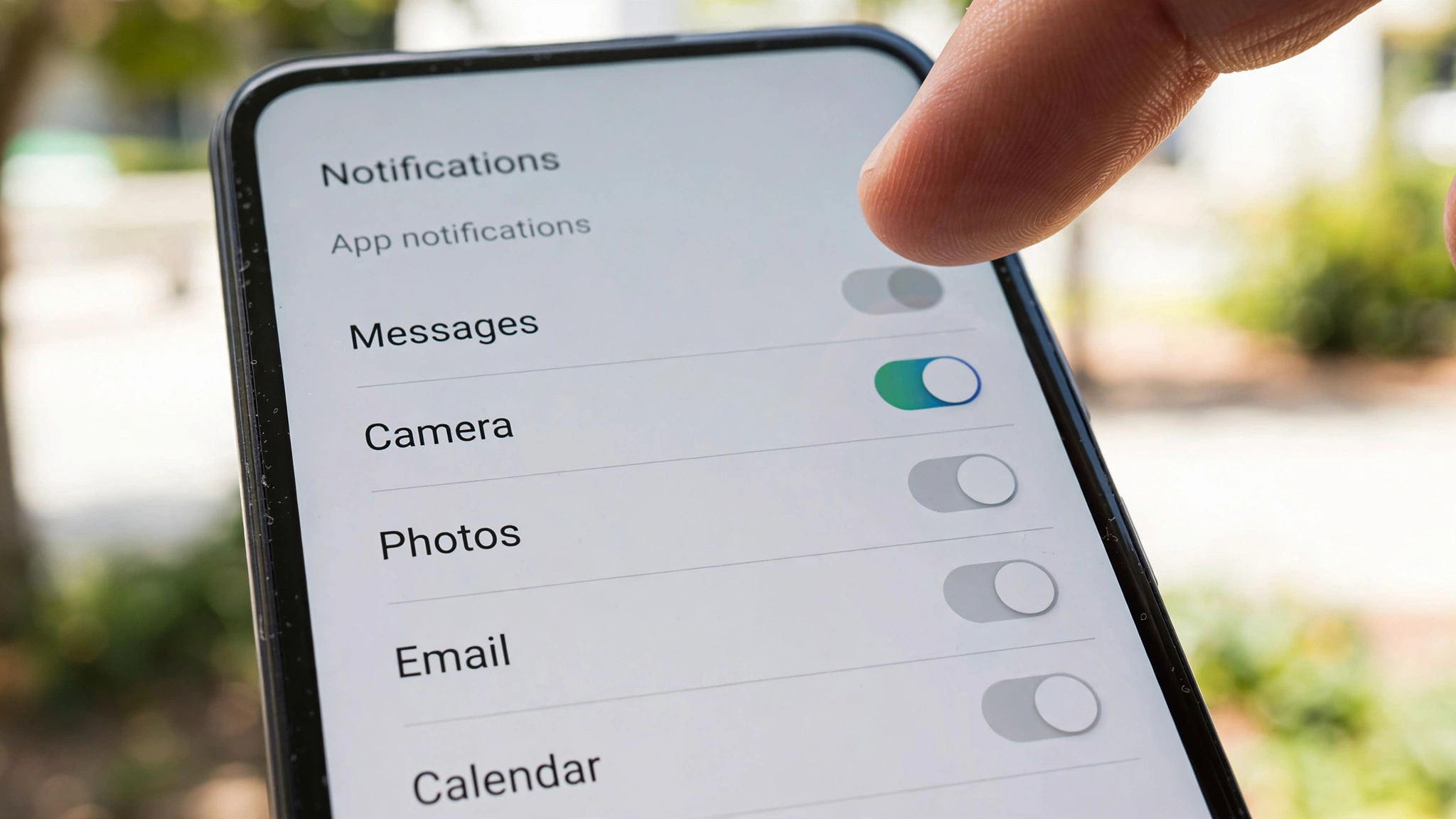
Android utilizes a granular system called Notification Channels, which allows applications to segment different alert types into distinct priority tiers (e.g., separating urgent direct messages from promotional marketing announcements). Occasionally, a specific channel is inadvertently set to "Silent" or "Low Priority".
Auditing Notification Channels:
- Open Settings > Apps > [Target App] > Notifications.
- Ensure the master All [App] notifications switch is turned on.
- Scroll down to inspect individual notification categories (such as Direct Messages, Group Chats, or Account Alerts).
- Tap on a specific category name (not just the checkbox) to open its details.
- Ensure the alert is set to Default (with sound and pop-on-screen alerts) rather than Silent.

6. Disable Wi-Fi and Cellular Power-Saving Optimizations
Modern mobile radios incorporate energy-saving sleep states that can disconnect Wi-Fi and mobile data when the screen is locked.
1. Turn Off "Wi-Fi Power Saving Mode" (Samsung Devices)
On Samsung Galaxy handsets, open Settings > Connections > Wi-Fi, tap the three-dot menu > Intelligent Wi-Fi, and toggle off Wi-Fi power saving mode. This prevents the Wi-Fi modem from throttling background packet inspection while your phone rests.
2. Keep Mobile Data Always Active (Developer Options)
If you experience notification delays specifically when transitioning between Wi-Fi and cellular networks, force your mobile modem to maintain an active standby link: navigate to Developer options, scroll to Networking, and toggle on Mobile data always active.
7. Audit Do Not Disturb and Focus Mode Schedules
Android features automated Digital Wellbeing and Do Not Disturb (DND) profiles that can silence alerts without user awareness.
Checking Automated Schedules:
- Navigate to Settings > Sound & vibration > Do Not Disturb.
- Inspect Schedules to ensure an automated bedtime or work schedule is not actively silencing your device during normal daytime hours.
- Under What can interrupt Do Not Disturb, tap on Apps and add your mission-critical communication tools (Slack, WhatsApp, Phone) to the authorized exception list so their emergency alerts always break through.
8. Re-Authenticate Stale Push Tokens (The Reinstallation Fix)
When an operating system undergoes a major annual upgrade (e.g., upgrading from Android 14 to Android 15), internal push notification registration tokens can become orphaned or invalid. The application believes it is registered with FCM, but the cloud router rejects the expired token.
Executing a Clean Token Reset:
- Ensure your chat histories or data are safely backed up.
- Uninstall the malfunctioning application completely from your device.
- Restart your phone to purge orphaned system caches.
- Reinstall the application fresh from the Google Play Store.
- During initial setup, ensure you explicitly grant the system Notification permission prompt when requested.
Reinstalling forces the application to generate a brand-new cryptographic registration token with Firebase Cloud Messaging, completely restoring real-time delivery.
Troubleshooting Decision Matrix
Observed Notification Behavior | Most Probable Root Cause | Primary Recommended Solution |
Alerts arrive only after unlocking the screen | Aggressive Doze mode / Battery Optimization | Set app battery usage to "Unrestricted" |
Alerts delayed on all apps simultaneously | Corrupted Google Play Services push socket | Clear cache for Google Play Services & reboot |
Samsung phone drops notifications overnight | One UI "Sleeping apps" automated list | Add application to "Never sleeping apps" |
Notifications arrive on Wi-Fi but fail on Cellular | Background data restriction / Data Saver active | Enable "Unrestricted data usage" in app settings |
Specific category alerts silent (e.g. DMs silent) | Misconfigured Notification Channel priority | Audit Notification Channels in App Settings |
Single app completely fails to deliver alerts | Orphaned / Corrupted FCM registration token | Uninstall, reboot phone, and reinstall app |

Frequently Asked Questions (FAQ)
Will setting apps to "Unrestricted" battery drain my battery rapidly?
For standard messaging clients (like WhatsApp, Telegram, or Gmail), setting battery usage to "Unrestricted" results in an almost imperceptible difference—typically less than 1% to 2% additional battery consumption over an entire 24-hour day. However, avoid setting resource-heavy social media feeds (like TikTok or Facebook) to Unrestricted, as their background video pre-loading will noticeably drain power.
Why do iPhones seem to have fewer notification delays than Android?
Apple controls both the iOS operating system and hardware tightly, forcing all developers through Apple Push Notification service (APNs) under uniform background execution rules. In the fragmented Android ecosystem, custom manufacturer battery skins (like Samsung One UI or Xiaomi HyperOS) frequently implement aggressive proprietary task killers that override Google's standard Android APIs, causing erratic delays unless manually adjusted.
Can a third-party battery saver app cause notification delays?
Yes, absolutely. Third-party "task killer" and "battery booster" apps are notorious for forcibly terminating background services. When they kill a communication daemon, push notifications cannot reach your screen until you manually launch the app again. We strongly advise uninstalling all third-party cleaner and battery optimizer apps.
What should I do if Gmail notifications are delayed on Android?
Gmail notification delays are common. To resolve them: open the Gmail app, go to Settings > [Your Account] > Manage labels, tap on Primary, and ensure both Sync messages and Notify for every message are checked. Additionally, set the Gmail app's battery usage to Unrestricted in Android settings.
Does using a VPN or Private DNS delay push notifications?
Generally, no. However, if your VPN service experiences intermittent server dropouts or high packet loss, the persistent TCP socket between Google Play Services and FCM can disconnect, delaying notifications. Temporarily disable your VPN to test whether alert speeds improve.
Does Android 15 have built-in tools to manage notification fatigue?
Yes. Android 15 introduces Notification Cooldown, an intelligent feature that automatically lowers the notification volume and minimizes vibrations if an application sends dozens of rapid alerts in quick succession (such as a busy group chat), preventing audio overload without completely hiding the alerts.
Conclusion: Restoring Reliable Real-Time Communication
Your smartphone is designed to keep you seamlessly connected to the people and projects that matter most. Missing critical business messages or family updates due to overzealous power-saving algorithms compromises the very utility of mobile technology.
By taking ten minutes today to configure unrestricted battery permissions for your core communication tools, whitelisting apps in your manufacturer's background management lists, and ensuring background data channels remain open, you eliminate frustrating notification delays. Take control of your settings today and enjoy the peace of mind that comes with knowing your alerts will always arrive the instant they happen.