In our modern mobile ecosystem, dependable high-speed Wi-Fi connectivity is the invisible foundation supporting virtually every smartphone activity. From streaming high-definition video and conducting uninterrupted remote business meetings to downloading critical system updates and engaging in low-latency mobile gaming, our smartphones rely on stable wireless connections. When that connection falters—exhibiting persistent disconnections, agonizingly slow data throughput, or the infuriating "Connected, no internet" system alert—daily digital routines come to a grinding halt.
Wireless networking issues can stem from a wide array of variables: corrupted local network cache tables, aggressive operating system battery-saving governors, dynamic frequency switching conflicts between 2.4GHz and 5GHz router bands, or flawed DNS resolution handshakes. Fortunately, resolving these issues does not require purchasing a new smartphone or paying for expensive hardware diagnostics. Learning systematic methods to fix Android Wi-Fi issues allows you to isolate the root cause and restore fast, reliable wireless connectivity within minutes.
Based on IEEE 802.11 wireless networking standards, official Android system network architecture documentation, and verified telecommunications troubleshooting protocols, this comprehensive editorial guide details the exact step-by-step methods to resolve wireless connection drops, fix authentication loops, and eliminate network instability on any Android device.
Editorial Note: TechVantageAPK publishes strictly educational technical guides. All troubleshooting steps detailed here utilize native Android settings and standard home networking protocols. We do not promote unauthorized network penetration tools or third-party "Wi-Fi booster" APKs.
Phase 1 — Preliminary Due Diligence: Isolating Phone vs Router
Before modifying advanced settings on your smartphone, execute basic due diligence to determine whether the fault resides in your Android handset or your external Wi-Fi router.
1. The Cross-Device Verification Test
Check another device on the same wireless network (a laptop, tablet, or another family member's phone). If all devices in your home are experiencing disconnections or slow speeds, the issue is rooted in your local internet service provider (ISP) or home router hardware. If other devices are streaming flawlessly while your Android phone struggles, the issue resides locally within your smartphone's wireless stack.
2. The Gold Standard 30-Second Power Cycle
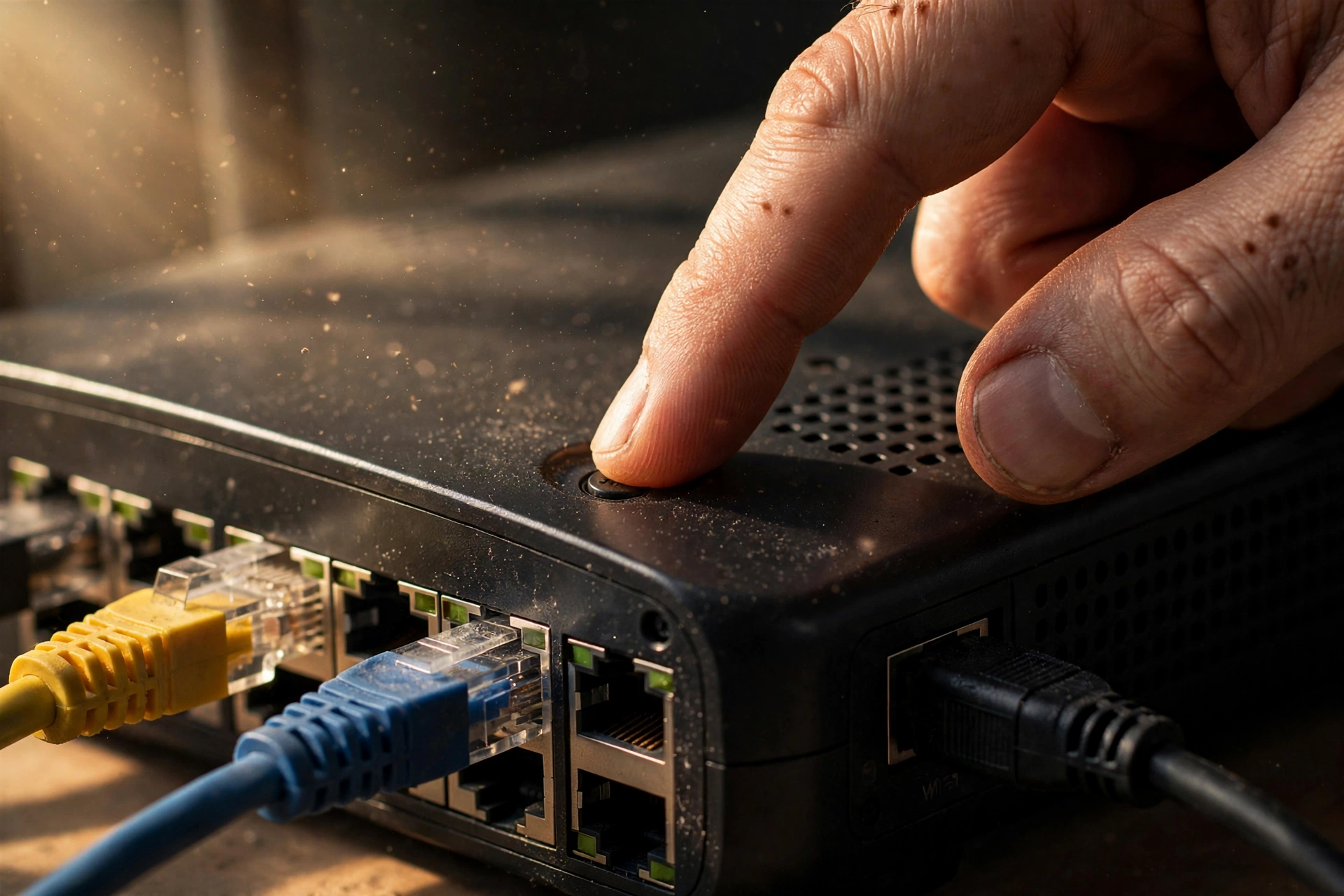
Never underestimate the effectiveness of a complete power cycle. Home routers and modems are essentially compact computers with CPUs, memory, and routing tables. Over weeks of continuous operation, routing memory can fragment. Unplug your router and modem from the physical AC wall outlet, wait thirty seconds to allow internal capacitors to discharge completely, and plug them back in. Allow two to three minutes for the router to establish fresh upstream ISP handshakes.
Phase 2 — Essential On-Device Wi-Fi Troubleshooting Steps
If the router is verified functional, apply these verified on-device corrections in sequential order:
1. Forget and Re-Authenticate the Wi-Fi Network
Over time, saved network profiles can harbor stale IP lease tables, outdated security tokens, or corrupted WPA3 authentication handshakes. Forgetting the network purges these cached parameters:
- Open your phone's Settings app.
- Navigate to Network & internet > Internet.
- Locate your current Wi-Fi network and tap the gear icon next to it.
- Tap the trash-can icon labeled Forget.
- Toggle your phone's Wi-Fi switch off, wait five seconds, and toggle it back on.
- Select your network from the list, carefully re-enter the network password, and reconnect.
2. Adjust Wi-Fi MAC Address Randomization (Device MAC vs Randomized MAC)
Modern Android operating systems utilize randomized MAC addresses by default to protect user privacy on public networks. However, many home routers, mesh Wi-Fi nodes, and enterprise access points use MAC filtering or assign static IP leases based on hardware MAC addresses. A shifting randomized MAC address can confuse the router's DHCP server, causing Android Wi-Fi keeps disconnecting cycles every few hours.
To switch to a stable connection profile on your trusted home network:
- Go to Settings > Network & internet > Internet.
- Tap the gear icon next to your home network.
- Tap on Privacy.
- Change the selection from Use randomized MAC (default) to Use device MAC.
- Your phone will momentarily disconnect and re-establish a permanent, stable link with your router.
3. Disable Aggressive Battery Optimization for Network Services
Android's aggressive background power governors occasionally place the Wi-Fi radio controller into deep sleep when the screen turns off. To prevent the operating system from severing your wireless connection during standby:
- Navigate to Settings > Apps > See all apps.
- Tap the three-dot menu and select Show system.
- Locate Wi-Fi or Network Stack, select it, tap Battery, and set it to Unrestricted.

Phase 3 — Resolving "Connected, No Internet" and DNS Issues
One of the most common and perplexing Android errors is showing a strong Wi-Fi signal icon with an exclamation point accompanied by the status message: "Connected, no internet." This indicates that your phone has established a physical radio link with the router, but cannot resolve external internet domains due to DNS issues mobile Wi-Fi systems experience.
1. Configuring Custom Private DNS
If your internet service provider's default DNS servers are experiencing latency or routing failures, switching to a high-speed, globally distributed encrypted DNS resolver resolves domain lookup failures instantly:
- Open Settings > Network & internet > Private DNS.
- Select Private DNS provider hostname.
- Enter one.one.one.one (Cloudflare) or dns.google (Google Public DNS).
- Tap Save.
This bypasses your carrier or ISP's sluggish DNS servers, encrypting your domain queries over TLS and restoring immediate web connectivity.
2. Switching from DHCP to Static IP Configuration
If your router's Dynamic Host Configuration Protocol (DHCP) server is failing to assign a valid local IP address, assigning a static IP address bypasses the bottleneck:
- Go to Settings > Network & internet > Internet.
- Tap the gear icon next to your network, then tap the pencil (Edit) icon.
- Expand Advanced options and locate IP settings.
- Change DHCP to Static.
- Input your parameters manually:
- IP address: Enter an available local IP (e.g., 192.168.1.185).
- Gateway: Enter your router's IP (typically 192.168.1.1 or 192.168.0.1).
- DNS 1: 8.8.8.8 (Google) or 1.1.1.1 (Cloudflare).
- DNS 2: 8.8.4.4 or 1.0.0.1.
- Tap Save.
Phase 4 — The Comprehensive Solution: Reset Network Settings Android
If you have implemented individual adjustments without success, corrupted system-level wireless network profiles, VPN configurations, or Bluetooth pairings may be conflicting within the Linux network stack. Performing a complete network reset provides a clean, factory-fresh baseline.
How to Reset Network Settings on Android
- Launch your phone's Settings app.
- Scroll down and select System (or General management on Samsung Galaxy devices).
- Tap on Reset options.
- Select Reset Mobile Network Settings or Reset Wi-Fi, mobile & Bluetooth.
- Tap Reset settings and authenticate with your secure lock-screen PIN or fingerprint.
What this resets: This operation purges all saved Wi-Fi networks and passwords, disconnects paired Bluetooth accessories, and resets cellular APN profiles to carrier defaults. It does not touch your photos, contacts, personal documents, or app data. Following the reset, reboot your phone, select your home Wi-Fi network, and enter your password. In over 80% of persistent connection failure cases, this clean reset eliminates stubborn software bugs.
Phase 5 — Router Configurations to Optimize Android Stability
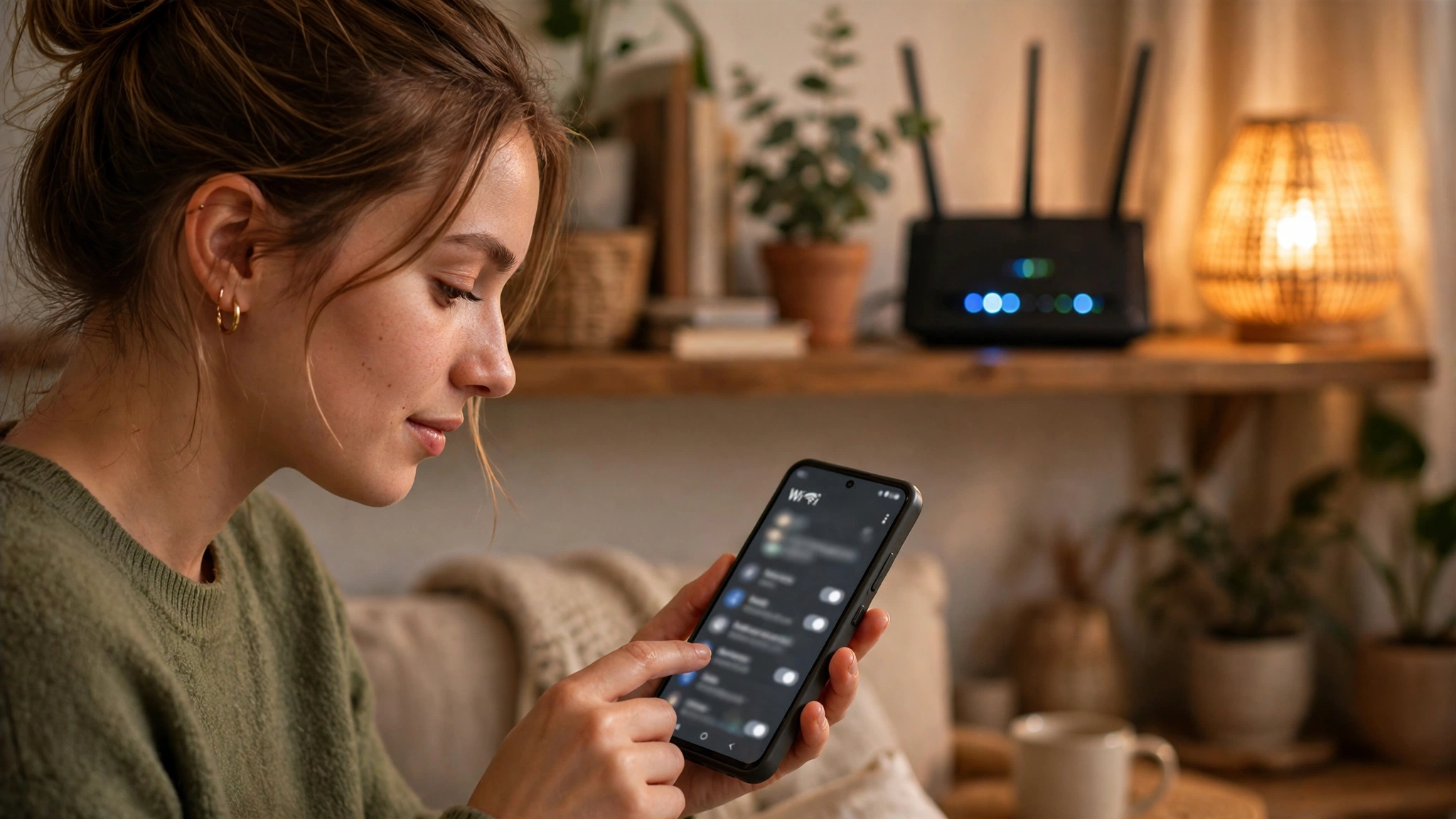
Sometimes the issue is not Android itself, but modern router settings that interact poorly with mobile radio power states.
1. Split 2.4GHz and 5GHz Network SSIDs (Band Steering)
Many modern Wi-Fi 6 and mesh routers combine both 2.4GHz and 5GHz frequencies into a single unified network name, using "Band Steering" to move devices between frequencies. Unfortunately, when your Android phone is on the physical boundary of 5GHz coverage, the router and phone continuously argue over which frequency to use, causing constant micro-disconnections. Log into your router's administrative dashboard, disable band steering, and assign distinct names (e.g., HomeNetwork_5G and HomeNetwork_2.4G). Connect your smartphone to the 5GHz band for maximum speed, or 2.4GHz for maximum range through thick walls.
2. Disable WPA3-Only Security (Use WPA2/WPA3 Mixed Mode)
While WPA3 is the latest security standard, certain older Android chipsets or budget devices suffer from intermittent handshake drops on strict WPA3-Personal networks. Configuring your router to WPA2/WPA3 Mixed Mode provides robust security while ensuring complete hardware compatibility.
Troubleshooting Decision Tree
Observed Symptom | Most Likely Root Cause | Primary Recommended Action |
Wi-Fi disconnects every few hours | Randomized MAC address resetting DHCP lease | Change Wi-Fi privacy to "Use device MAC" |
"Connected, no internet" alert | ISP DNS failure or IP lease conflict | Set Private DNS to one.one.one.one |
Wi-Fi turns off when phone sleeps | Aggressive battery optimization governor | Set Network Stack battery usage to Unrestricted |
Authentication error / Password loop | Corrupted local WPA security tokens | Forget network and re-enter password |
Persistent slow speeds on high-speed internet | Band steering trapped on congested 2.4GHz | Split router bands into separate 5GHz SSID |
Complete wireless failure across all networks | Corrupted system network daemon cache | Execute "Reset Wi-Fi, mobile & Bluetooth" |
Phase 6 — Advanced Radio Diagnosis: Inspecting Channel Congestion and Interference
In densely populated apartment complexes, urban residential towers, and multi-tenant commercial offices, the primary cause of connection drops and packet loss is radio frequency congestion rather than router hardware defects.
Using Wi-Fi Analyzer to Identify Clear Channels
Wireless routers transmit across specific numbered frequency channels. If five of your neighbors' routers are all transmitting across 2.4GHz Channel 6, wireless packets will collide continuously, causing high latency, bufferbloat, and intermittent connection drops. Downloading a verified, open-source diagnostic utility like WiFiAnalyzer (open-source) allows you to visually inspect channel overlap in your immediate physical environment. Access your router's administrative portal and switch from "Auto Channel" to the least congested channel (typically Channel 1, 6, or 11 on 2.4GHz, or non-overlapping UNII-1/UNII-3 bands on 5GHz).
Disabling Power-Saving AP Isolation and IGMP Snooping
Certain modern router firmware implementations feature aggressive energy-saving sleep modes (like WMM Power Save) or AP Isolation that prevent mobile devices from maintaining low-power background connections. Disabling AP Isolation and ensuring Wi-Fi Multimedia (WMM) is enabled ensures your Android phone maintains responsive push notifications while sleeping.
Frequently Asked Questions (FAQ)
Will resetting network settings delete my personal files or photos?
No, absolutely not. Resetting network settings erases only saved Wi-Fi passwords, Bluetooth device pairings, and cellular network preference configurations. Your personal photos, downloaded files, text messages, applications, and accounts remain completely untouched.
Why does my Android phone say "Saved" instead of connecting?
When a network status remains stuck on "Saved" (or "Disabled"), it usually indicates an IP assignment timeout or an incorrect password. Forget the network, restart your phone, and double-check your network password. If the issue persists, reboot your router to clear stale DHCP leases.
Does using a VPN cause Wi-Fi disconnections on Android?
Yes. If you have an active Virtual Private Network (VPN) enabled—especially one with an active "Kill Switch"—any momentary hiccup in the VPN server's connection will immediately sever all internet traffic to your phone, creating the illusion that your Wi-Fi has failed. Temporarily disable third-party VPN apps to verify if they are causing your connection drops.
What is the difference between 2.4GHz and 5GHz Wi-Fi on Android?
2.4GHz Wi-Fi operates at a lower frequency, providing broad geographic range and superior penetration through thick concrete and drywall, but delivers slower throughput speeds (typically 50-100 Mbps). 5GHz Wi-Fi delivers blistering multi-hundred-megabit speeds with minimal interference, but has shorter physical range and struggles to penetrate solid walls.
Can a protective phone case interfere with Wi-Fi reception?
Yes, particularly rugged cases containing metal reinforcement plates, magnetic mounts, or thick carbon-fiber shielding. If your Wi-Fi signal drops dramatically whenever you attach your phone case, the case is physically shielding the internal antenna bands positioned along your phone's perimeter rails.
Why does my phone disconnect from Wi-Fi when I walk into another room?
In homes with mesh Wi-Fi systems or Wi-Fi range extenders, Android may hold onto a weak distant access point rather than transitioning to the closer mesh node. Enabling Fast Roaming (802.11r) on your mesh router helps mobile devices transition between nodes seamlessly.
Conclusion: Reclaiming Seamless Wireless Connectivity
A smartphone that cannot maintain a stable wireless connection is an immense source of daily friction. Fortunately, the overwhelming majority of Android Wi-Fi issues stem from software configuration conflicts that can be systematically identified and resolved.
By following the step-by-step methodologies detailed in this guide—forgetting stale networks, disabling MAC randomization on trusted routers, configuring high-speed Private DNS, and executing network settings resets when necessary—you can eliminate frustrating connection drops and enjoy the fast, uninterrupted wireless performance your Android device was engineered to deliver.