Modern flagship smartphones house computational processing power that rivals dedicated laptop workstations. With high-core-count processors, generous memory configurations reaching up to 16GB of LPDDR5X RAM, and expansive 120Hz OLED displays, our handheld devices possess immense potential for complex simultaneous workloads. Yet, despite holding supercomputers in their pockets, the vast majority of smartphone users interact with Android in a strictly linear, one-app-at-a-time fashion: opening an app, copying a tracking number, closing the app, launching a browser, pasting the number, and constantly bouncing back and forth across disjointed multitasking carousels.
With the release of Android 15, Google has fundamentally modernized mobile workflow velocity. The latest operating system upgrade refines system navigation gestures, introduces permanent home-screen app pairings, elevates tablet and foldable taskbars, and enhances picture-in-picture capabilities. Learning how to master Android 15 multitasking transforms your phone from a basic communication handset into an agile, dual-screen mobile workstation capable of cross-referencing documents, streaming video lectures while taking notes, and executing simultaneous workflows with fluid grace.
Based on official Android developer system documentation, user interface design guidelines, and verified community productivity workflows, this comprehensive editorial guide explains the exact configurations and strategic shortcuts needed to dominate multitasking on Android 15.
Editorial Note: TechVantageAPK publishes strictly educational technical guides. All tips and gestures discussed here utilize native Android operating system features and do not require root access, custom ROMs, or third-party APK installers. Setting names and menu placements may vary slightly across custom manufacturer skins such as Samsung One UI, OnePlus OxygenOS, and Xiaomi HyperOS.
The Evolution of Multitasking in Android 15
Multitasking on mobile screens has historically felt compromised by clunky setup steps and awkward aspect ratios. Android 15 addresses these friction points with three major architectural upgrades.
1. Standardized Native App Pairs
In previous Android versions, configuring a split-screen view required multiple manual taps every single time: opening the recent apps overview, long-pressing an app icon, selecting split-screen, and choosing a secondary app. If you accidentally navigated back to the home screen, the split collapsed. In Android 15, Google has integrated native app pairs shortcut creation directly into the core operating system. You can now permanently save your favorite dual-app combinations (e.g., Google Maps + Spotify, or Slack + Google Docs) as a single composite icon on your home screen, launching both applications side-by-side with a single tap.
2. Predictive Back Navigation Gestures
One of the most frustrating aspects of mobile navigation has been accidentally exiting an active app when attempting to swipe back to an earlier menu. Android 15 introduces system-wide Predictive Back animations. When you begin swiping inward from the edge of the screen, the active app window subtly scales down in real time, revealing a live preview of what lies behind it—whether it is the previous page within the app or your main home screen. This visual confirmation allows you to cancel the swipe gesture if you realize you are about to close an active session.
3. Seamless Desktop-Style Taskbars for Foldables and Tablets
For users operating large-screen devices, foldables, or Android tablets, Android 15 introduces a persistent, pinnable taskbar. Instead of disappearing when an application launches, the taskbar can remain anchored along the bottom bezel, allowing you to drag and drop secondary apps directly into active split-screen windows in milliseconds.
Phase 1 — Mastering Split Screen on Android 15
Running two applications simultaneously is the foundation of mobile productivity. Whether comparing airline flight prices side-by-side or reviewing meeting notes while participating in a video conference, split screen Android 15 makes simultaneous workflows effortless.
How to Launch Split Screen via the Recent Apps Carousel
- Swipe up from the bottom of your screen and pause briefly to open the Recent Apps (Overview) multitasking screen.
- Swipe horizontally to locate the first application you wish to use.
- Tap the small circular application icon situated directly above the app preview window.
- From the popup menu, select Split screen.
- The first app will automatically dock into the top half (or left half in landscape mode) of your display.
- Your recent apps carousel will appear in the lower half; tap the secondary application you want to pair with it.
Creating and Saving Permanent App Pairs
Once you have configured an effective split-screen workspace, save it so you never have to configure it manually again:
- While running two apps in split-screen mode, swipe up and pause to reveal the Recent Apps view.
- The two apps will appear bundled together as a single conjoined card.
- Directly beneath the preview card, tap the button labeled Save app pair.
- An integrated dual-icon shortcut will immediately appear on your home screen.
- Tapping this shortcut anytime instantly launches both applications into your exact configured split ratio.
Adjusting Split-Screen Proportions
Android does not force you into a rigid 50/50 visual split. A thick divider bar sits between the two active windows. Touch and drag the center handle upward or downward to allocate a 70/30 or 30/70 screen ratio. For example, if you are transcribing a recorded lecture, you can allocate 70% of the screen to your note-taking app while keeping the video playback window minimized in the top 30%.

Phase 2 — Fluid Navigation Gestures You Need to Know
Modern Android smartphones have moved far beyond traditional three-button navigation bars. Mastering fluid navigation gestures Android provides unlocks rapid, muscle-memory device control.
1. The Quick-Switch Bottom Bar Swipe
Many users still swipe up to the recent apps screen every time they want to toggle between two apps. There is a dramatically faster method: simply swipe horizontally along the thin navigation bar at the absolute bottom of your display. Swiping from left to right instantly flips to your most recently used application. Swiping back returns you to the first. This gesture allows you to copy a verification code and paste it into a login window in under two seconds.
2. Quick Access to App Actions in Overview
When you enter the Recent Apps overview screen on Android 15, Android provides intelligent optical character recognition (OCR) and image extraction directly from the app preview card without opening the app:
- Select Text: Tap the Select button (or long-press text directly on the app preview card) to highlight, copy, or search text from an app that normally restricts text copying (such as Instagram captions or banking dialogs).
- Screenshot: Tap the Screenshot shortcut button to capture a clean crop of that specific application window without status bar clutter.
3. Activating One-Handed Mode on the Fly
As smartphone screens expand past 6.7 inches, reaching top corner navigation buttons with one hand becomes challenging. Android 15 features a refined One-Handed mode:
- Go to Settings > System > Gestures > One-Handed mode and toggle it On.
- Whenever your thumb cannot reach the top of the display, perform a quick downward flick gesture on the bottom navigation bar.
- The entire upper half of the operating system smoothly slides down to thumb level, allowing effortless one-handed control. Tap anywhere in the empty top space to restore full screen.
Phase 3 — Picture-in-Picture (PiP) and Floating Windows
Not every simultaneous workflow demands a full split-screen partition. For video playback, GPS navigation, and active phone calls, Picture-in-Picture (PiP) provides a non-intrusive floating canvas.
Mastering Picture-in-Picture
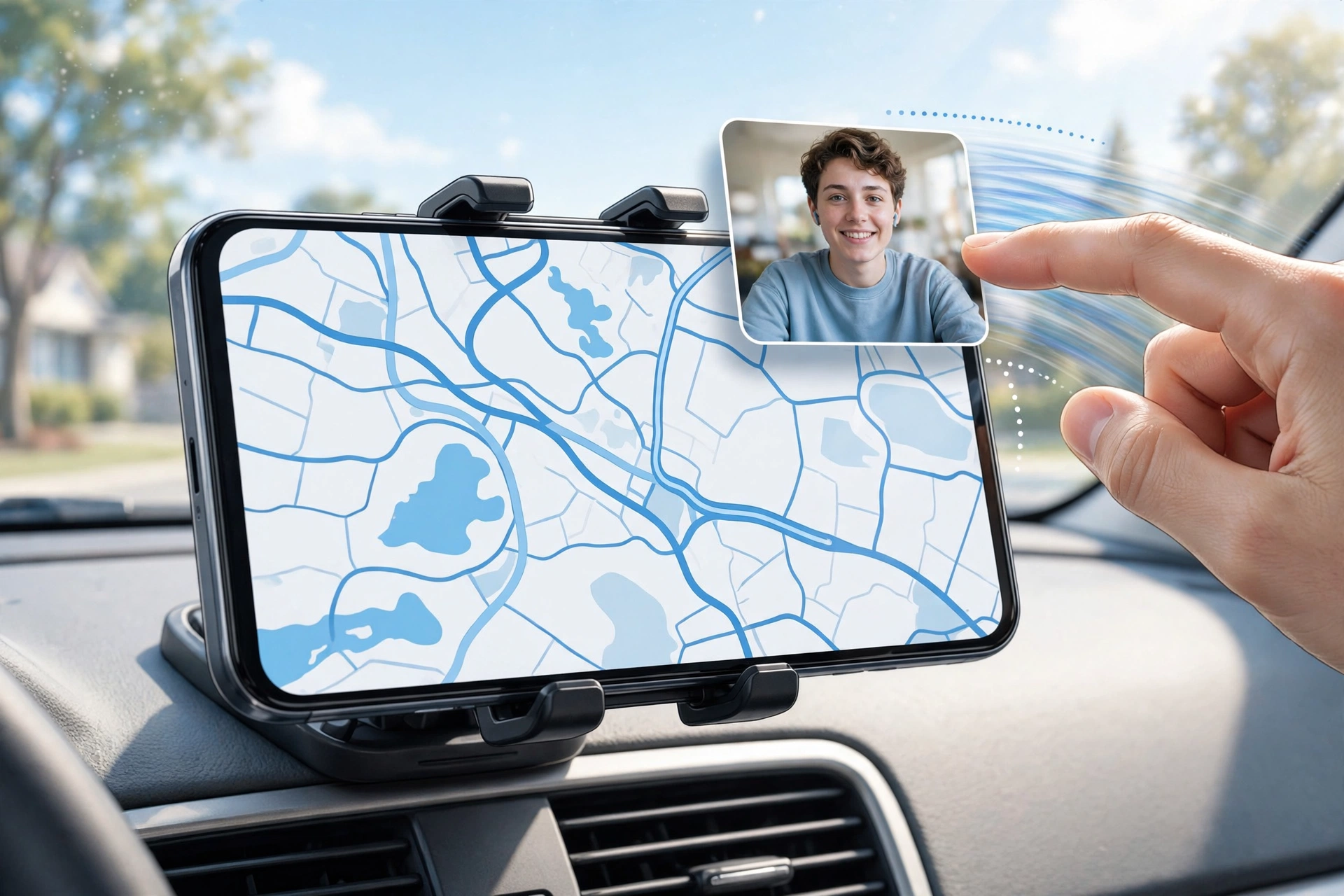
When watching a video in YouTube, Netflix, or navigating in Google Maps, simply swiping up to return to your home screen automatically shrinks the video into a resizable floating PiP window:
- Resizing PiP: Pinch-to-zoom on the floating window to expand or shrink its physical dimensions.
- Stashing: Drag the floating window against the extreme left or right edge of your display. The window will tuck off-screen, leaving a subtle grab tab visible while audio continues streaming—perfect for decluttering your view while typing an urgent email.
Freeform Floating Windows (Developer / Tablet Mode)
On Android tablets and foldables (or by enabling Enable freeform windows in Developer Options on standard phones), Android allows you to break applications out of full-screen confines into floating, movable desktop-style windows complete with minimize and close buttons.
Phase 4 — Best App Pair Combinations for Daily Productivity
To jumpstart your multitasking routine, consider these high-impact App Pair workflows:
App Pair Combination | Primary Screen (70%) | Secondary Screen (30%) | Ideal Use Case |
Commuter Suite | Google Maps (Navigation) | Spotify / YouTube Music | Safe in-car media control and directions. |
Research & Drafting | Google Docs / Notion | Google Chrome | Writing reports while cross-referencing sources. |
Expense Tracker | Mobile Banking / Credit Card | Calculator / Google Sheets | Reconciling monthly receipts and budgets. |
Communication Hub | Slack / Microsoft Teams | Google Calendar | Scheduling meetings while chatting with colleagues. |
Language Learning | Duolingo / Foreign Media | Google Translate | Instant translation of unfamiliar vocabulary. |
Phase 5 — Advanced Multitasking Hardware: Edge Panels and Taskbar Pinning
For users operating Samsung Galaxy devices or modern foldable hardware, manufacturers have introduced specialized secondary multitasking controllers that supplement Android 15's native gesture engine.
Maximizing Samsung Edge Panels
Samsung's Edge Panels feature provides a discreet, translucent handle anchored along the curved edge of your display. Swiping inward reveals a customizable dock of frequently used apps, clipboard history, and tools. When running an active application, dragging an app icon from the Edge Panel directly onto your screen allows you to launch instant split-screen views or floating pop-up windows without entering the Recent Apps overview screen.
Pinning the Taskbar on Large Displays and Foldables
When operating an Android 15 tablet or foldable device (such as the Galaxy Z Fold 6 or Pixel 9 Pro Fold), the taskbar can be permanently pinned to the bottom of the interface. Long-pressing an empty space on the taskbar toggles between an ephemeral taskbar (which hides automatically during app use) and a persistent taskbar. A persistent taskbar transforms large-screen Android devices into true desktop computing environments, allowing drag-and-drop multitasking that rivals traditional desktop operating systems.

Frequently Asked Questions (FAQ)
Do all Android apps support split-screen multitasking?
While the overwhelming majority of modern Android applications support multi-window mode, certain legacy apps, games, and banking portals intentionally disable split-screen to preserve strict security or fixed graphical aspect ratios. However, you can force all apps to support split-screen by enabling Force activities to be resizable under Developer Options.
Does running two apps in split screen drain more battery?
Yes, moderately. Driving two active application rendering threads simultaneously requires higher GPU and CPU computational cycles than running a single app, resulting in roughly 10% to 15% higher battery consumption during active use. However, because you complete dual tasks in half the elapsed time, overall daily battery impact is negligible.
How do I exit split-screen mode quickly?
To exit split screen, touch the thick center divider bar separating the two applications and drag it all the way to the top edge (to keep the bottom app full-screen) or all the way to the bottom edge (to keep the top app full-screen).
Can I use split screen with three-button navigation enabled?
Yes. If you prefer classic three-button navigation (Back, Home, Overview buttons) over gesture bars, you can enter split screen by tapping the square Overview button, tapping the app icon above the preview card, and selecting Split screen.
Why does my video pause when I switch to split screen?
Android features Multi-Resume, which allows multiple apps to run concurrently without pausing. However, certain media streaming apps (like standard free YouTube) pause video playback when focus shifts to another app unless you have YouTube Premium or use an app that explicitly supports background media streaming.
What is the difference between split screen and App Pairs?
Split screen is the active operational mode where two applications share your display simultaneously. An App Pair is the saved home-screen shortcut icon that remembers that specific two-app configuration, allowing you to re-launch the split view with a single tap in the future.
Conclusion: Elevating Your Daily Android Efficiency
Smartphones are no longer simple communication tools; they are the primary digital interfaces through which we manage our professional and personal lives. Continuing to navigate Android in a rigid, single-app workflow leaves tremendous productivity potential untapped.
By integrating Android 15's native app pairs, mastering bottom-bar horizontal swipe gestures, and tailoring split-screen proportions to your daily tasks, you eliminate needless navigation friction. Take five minutes today to create your first App Pair, practice one-handed pull-down gestures, and experience the speed and power of true mobile multitasking.