

How to Hide Apps on Android Without Disabling Them (Samsung, Pixel, OnePlus)
Maybe it is a dating app you would rather keep private, a work app full of sensitive documents, or games you do not want the kids tapping into. Whatever the reason, learning how to hide apps on Android without disabling them is a practical privacy skill — and you do not need root access or shady third-party tools to do it.
In this guide, you will learn how to hide apps on Android using built-in features on Samsung, Pixel, and OnePlus phones, plus universal methods that work on any device. All of them keep the apps fully functional while making them invisible to casual snoopers.
Quick-Start: Hide an App in Under 60 Seconds

Do not want to read the whole guide? Here is the fastest path for how to hide apps on Android on your phone right now:
- Samsung: Long-press home screen > Settings > Hide apps on Home and Apps screens > select apps > Done. (30 seconds)
- Pixel / Android 15+: Settings > Security & privacy > Private Space > Set up, then move apps into it and enable “Hide Private Space when locked.” (2 minutes, but the most secure)
- OnePlus: Open app drawer > swipe right to Hidden Space > tap + and add apps. (30 seconds)
- Any other phone: Install Nova Launcher, set as default, Nova Settings > App drawer > Hide apps > select. (3 minutes)
After hiding, do two things: remove the app’s widget from your home screen if one exists, and silence its notifications (long-press any notification > turn off, or Settings > Apps > select app > Notifications). Those two steps close the leaks that give hidden apps away most often.
Important: Hiding vs. Disabling — Know the Difference
Disabling an app (Settings > Apps > Disable) turns it off completely: no notifications, no background activity, and it vanishes from the app drawer. But disabled apps are easy to spot in Settings, and some system apps cannot be disabled at all.
Hiding, on the other hand, keeps the app working normally — notifications still arrive, widgets still update — while removing it from the app drawer and home screen. That is the goal here, and it is the smarter approach when you want privacy without losing functionality. Every method below explains how to hide apps on Android while keeping them fully usable. Note that some guides suggest “disabling” as a hiding method, but on modern Android you cannot disable most user-installed apps anyway — the Disable button is greyed out for anything you installed yourself, which is exactly why proper hiding techniques matter.
Method 1: Private Space (Pixel and Android 15+)
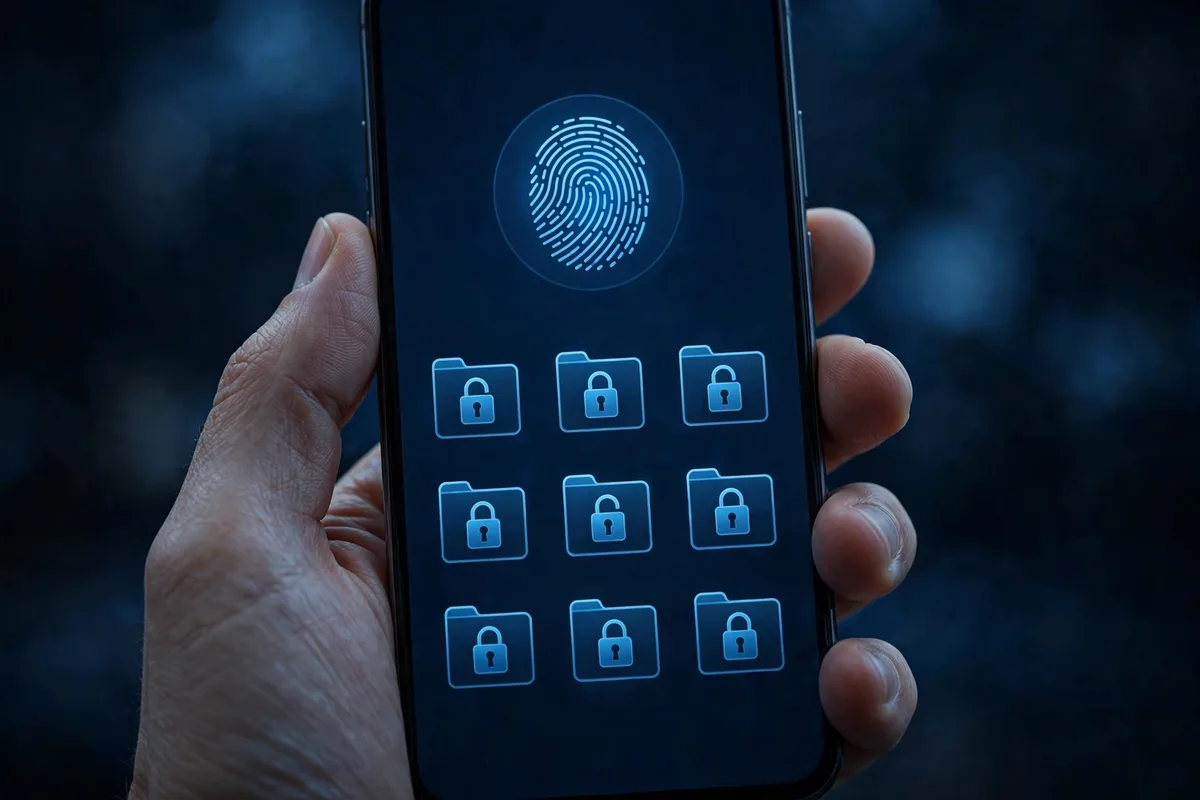
Android 15 introduced Private Space, a locked, hidden section of your phone that works like a second profile for sensitive apps. It is the cleanest built-in answer for how to hide apps on Android on Pixel phones and other devices running Android 15 or later.
How to set it up
- Go to Settings > Security & privacy > Private Space.
- Tap Set up and authenticate with your Google account.
- Choose a lock type — use a different PIN or fingerprint than your main lock screen for real privacy.
- Install apps into Private Space from the Play Store, or move existing apps there (long-press an app > Move to Private Space on supported launchers).
How to hide Private Space itself
By default, Private Space appears at the bottom of the app drawer. To make it vanish:
- Go to Settings > Security & privacy > Private Space.
- Turn on Hide Private Space when locked.
- Now it only appears when you search for “Private Space” in the app drawer search bar and unlock it.
When locked, Private Space apps are paused — no notifications, no background activity — which is actually a privacy bonus. Unlock it when you need those apps, lock it when you hand your phone to someone.
Method 2: Samsung Secure Folder and Home Screen Settings
Samsung phones offer two excellent built-in options.
Secure Folder
Secure Folder (Settings > Security and privacy > Secure Folder) creates an encrypted, separately locked space for apps, photos, and files. Apps inside it run in an isolated Knox container:
- Set up Secure Folder with a separate PIN, pattern, or biometrics.
- Tap Add apps and select the apps to hide.
- To hide Secure Folder itself: open Secure Folder > tap the three-dot menu > Settings and turn off Show icon on Apps screen. Access it afterward via Settings search or the Quick Settings tile.
Hide apps from the Samsung app drawer
For lighter hiding without the Knox container:
- Long-press an empty area of the home screen and tap Settings.
- Tap Hide apps on Home and Apps screens.
- Select the apps to hide and tap Done.
Hidden apps still work and can be found via Settings > Apps. This is quick but not high-security — anyone who knows Samsung phones can unhide them in seconds. For real privacy, use Secure Folder.
Method 3: OnePlus App Locker and Hidden Space

OnePlus (OxygenOS) has its own take on the problem.
Hidden Space
- Open the app drawer and swipe right to reveal Hidden Space.
- Tap the + icon and add apps to hide them from the main drawer.
- To require authentication: open Hidden Space, tap the three-dot menu > Enable password, and set one.
App Locker
Settings > Privacy > App Locker locks apps behind your fingerprint or PIN without hiding them — combine it with Hidden Space for both invisibility and a lock. This layered approach is one of the strongest ways for how to hide apps on Android on OnePlus devices specifically.
Method 4: Third-Party Launchers (Works on Any Phone)
If your phone lacks built-in hiding, a custom launcher solves it universally. Nova Launcher and Niagara Launcher both support hiding apps from the drawer:
- Install Nova Launcher from the Play Store and set it as default.
- Long-press the home screen > Settings > App drawer > Hide apps.
- Select the apps and confirm. Set a Nova password (Nova Settings > lock) so nobody can unhide them.
Launchers change your whole home-screen experience, so try one for a few days before committing. Our comparison of the best Android launchers of 2026 will help you pick. And since hidden apps still request permissions, review what they can access with our guide to managing app permissions on Android.
Method 5: Disable + Alternative Profiles (Nuclear Options)
Two heavier options for special cases:
- Work profile: Apps like Island or Shelter create a work profile that sandboxes apps. Freeze the profile when not in use and its apps vanish entirely — notifications included. Overkill for most people, but the strongest hiding available without root.
- Second user profile: Settings > System > Multiple users lets you create a separate user with its own apps. Switching users is slow, but the separation is total.
How to Hide Apps on Android on Xiaomi, Motorola, and Other Brands
Not on Samsung, Pixel, or OnePlus? You still have options for how to hide apps on Android.
Xiaomi / Redmi / POCO (MIUI and HyperOS): These phones have one of the best built-in systems. Go to Settings > Apps > App lock, enable it, then open the Security app > App lock > Hidden apps tab to hide apps behind a separate gesture. Xiaomi also offers Second Space (Settings > Special features > Second Space) — a completely separate phone environment with its own apps and files, toggled via a different lock-screen password or fingerprint. It is the closest thing to owning two phones.
Motorola: Most Moto phones run near-stock Android with no built-in hiding. Your best bets are Private Space (if updated to Android 15+) or a third-party launcher like Nova. Motorola’s Moto Secure folder exists on some models — check Settings > Security for it.
Nothing Phone: Nothing OS includes an App Locker but no native hiding; use Nova Launcher or Niagara for drawer hiding.
Asus, Sony, and others: Stock-ish Android means Private Space on Android 15+ is your built-in answer; otherwise, launchers.
The pattern is consistent: check for a “Private Space,” “Secure Folder,” or “Hidden Space” equivalent first, fall back to a launcher if your brand skipped the feature.
If Someone Finds Your Hidden Apps: Damage Control
Hiding is a speed bump, not a vault. If someone opens Settings > Apps and starts asking questions:
- Have a boring explanation ready. “I hid the banking app so the kids don’t open it” is true and uninteresting.
- Lock what matters most. Even if the icon is discovered, an app behind App Lock or Private Space still needs your fingerprint. Discovery without access is a minor embarrassment, not a breach.
- Audit notification history. Settings > Notifications > Notification history shows which apps notified recently — clear it after sensitive activity.
- Consider the nuclear option. If someone regularly snoops through your phone, the real fix is a conversation (or a stronger lock screen), not better hiding. Technology cannot solve a trust problem.
How Hidden Apps Behave (What Still Gives Them Away)
Hiding removes the icon, not the footprint. Be aware of these leaks:
- Notifications still appear unless the app is in a locked space (Private Space, Secure Folder) or you silence them per-app.
- Share sheets may list hidden apps as share targets.
- Settings > Apps always shows every installed app — hiding never removes it from there.
- Battery and data usage screens list hidden apps too.
- Widgets from hidden apps can remain on the home screen — remove them manually.
If you need true invisibility from a determined snooper, combine hiding with a locked container (Private Space or Secure Folder) and disable notifications for those apps. For parents, hiding plus Digital Wellbeing parental controls covers both directions: your privacy and their safety.
Google documents Private Space at Android support.
FAQ
Can I hide apps on Android without a third-party app?
Yes. Pixel and Android 15+ phones have Private Space, Samsung has Secure Folder and drawer hiding, and OnePlus has Hidden Space — all built in, no extra downloads needed.
Do hidden apps still send notifications?
It depends on the method. Apps hidden via launcher or Samsung’s drawer-hiding still notify normally. Apps in Private Space or Secure Folder are paused when locked, so they stay silent until you unlock the space.
Will hiding an app delete its data?
No. Hiding only removes the icon from the drawer and home screen. All data, logins, and settings remain untouched — unlike disabling or uninstalling.
Can someone find my hidden apps in Settings?
Yes. Settings > Apps always lists every installed app regardless of hiding method. For protection against that, use Private Space or Secure Folder with a separate lock, which most casual snoopers will not think to check. You can also disable the Settings search suggestions that surface recently used settings screens.
How do I unhide apps on Android?
Reverse the method you used: Private Space (search and unlock), Samsung (Home screen settings > Hide apps > deselect), OnePlus (Hidden Space > remove), Nova Launcher (App drawer > Hide apps > deselect).
Is hiding apps the same as app lock?
No. Hiding removes the icon from the drawer; app lock requires a fingerprint or PIN to open the app. They solve different problems — hiding is about invisibility, locking is about access control. For sensitive apps like banking or messaging, use both: hide the app and lock it, so even if someone finds it, they cannot open it.
Conclusion
The best method for how to hide apps on Android depends on your phone: Private Space on Pixel and Android 15+, Secure Folder on Samsung, Hidden Space on OnePlus, and Nova Launcher everywhere else. For casual privacy, drawer hiding is enough; for sensitive apps, use a locked container with a separate PIN and silenced notifications. Set it up once, and your app drawer shows only what you want the world to see. Revisit your hidden-apps list every few months — apps you no longer use should be uninstalled rather than hidden, since every installed app is still a potential privacy surface.




What do you think?
Share your experience or ask a question. A useful conversation starts with you.
Join the discussion