
One phone, two lives. Your work WhatsApp blowing up during dinner, or juggling a personal and business Instagram on one login screen — the two-phone shuffle is how most people solve it, and it is ridiculous. Android’s built-in cloning features create into a fully separate instance: second WhatsApp, second Facebook, second everything, each with its own login and notifications. Here is how to set it up on Samsung, Xiaomi, OnePlus, and Pixel — because every manufacturer hides it somewhere different.
In this guide, you will learn the built-in cloning tools on Samsung, Xiaomi, OnePlus, and other brands, what to do when your phone lacks the feature, the limitations nobody mentions, and the best third-party alternatives.
Which Phones Have Dual Apps Built In
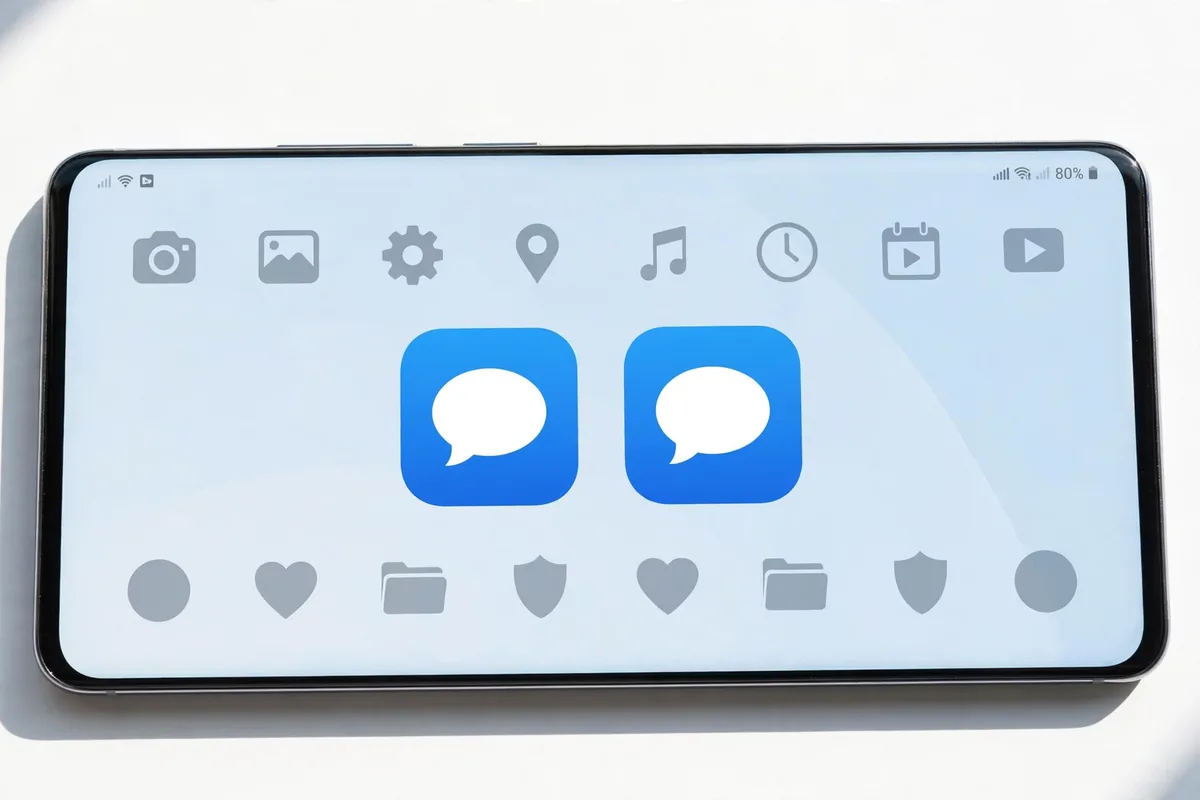
Dual-app support varies by manufacturer, and the feature hides under different names. Samsung calls it “Dual Messenger” (Settings > Advanced features > Dual Messenger) and supports WhatsApp, Telegram, Facebook, Messenger, and a few others — but not every app. Xiaomi, Redmi, and POCO have the broadest support under “Dual apps” (Settings > Apps > Dual apps), covering nearly any installed app. OnePlus calls it “Parallel Apps” with similar coverage, while OPPO and Realme use “App Cloner” and Vivo includes “App Clone” in settings. Google Pixel phones have no built-in cloner at all.
Pixel owners need a third-party cloner like Island (which uses Android’s work profile — clean and system-level) or Parallel Space. The work-profile method is preferable: cloned apps run in a genuinely isolated profile with separate storage, so your two WhatsApp accounts cannot leak data to each other. Whichever method you use, remember each clone doubles the app’s storage footprint and battery usage — cloning five heavy apps can cost 2 to 4 GB of storage and noticeably worse standby drain.
What Are Dual Apps (App Cloning)?
App cloning — called Dual Messenger on Samsung, Dual Apps on Xiaomi, Parallel Apps on OnePlus/Oppo, and App Cloner on Vivo — creates a second, independent copy of an app. The clone:
- Has its own icon (usually marked with a small badge so you can tell them apart).
- Keeps separate data: separate login, separate chats, separate settings.
- Receives its own notifications.
- Can be updated and uninstalled independently of the original.
Common uses: two WhatsApp accounts (personal + business), two Instagram or Facebook accounts, work/personal email in the same app, and dual game accounts. If you have ever logged out and back in ten times a day, you already understand why people want app-cloning features.
Method 1: Samsung Dual Messenger
Samsung’s implementation is the most polished but also the most restricted — it officially supports messaging and social apps.
Setup
- Go to Settings > Advanced features > Dual Messenger.
- Toggle on the apps you want to clone (WhatsApp, Telegram, Facebook, Messenger, etc.).
- Confirm the installation. A second icon appears in your app drawer with a small dual-messenger badge.
- Open the cloned app and sign in with your second account.
Samsung limitations
- Only supported apps can be cloned — Samsung curates the list, and games or banking apps usually are not on it.
- The clone shares the phone’s number for verification-dependent apps; WhatsApp’s clone needs a second phone number to verify (dual-SIM phones solve this elegantly).
- Contacts are shared between both instances.
Method 2: Xiaomi Dual Apps (Most Flexible Built-In)
Xiaomi’s version is the gold standard for how app cloning should work:
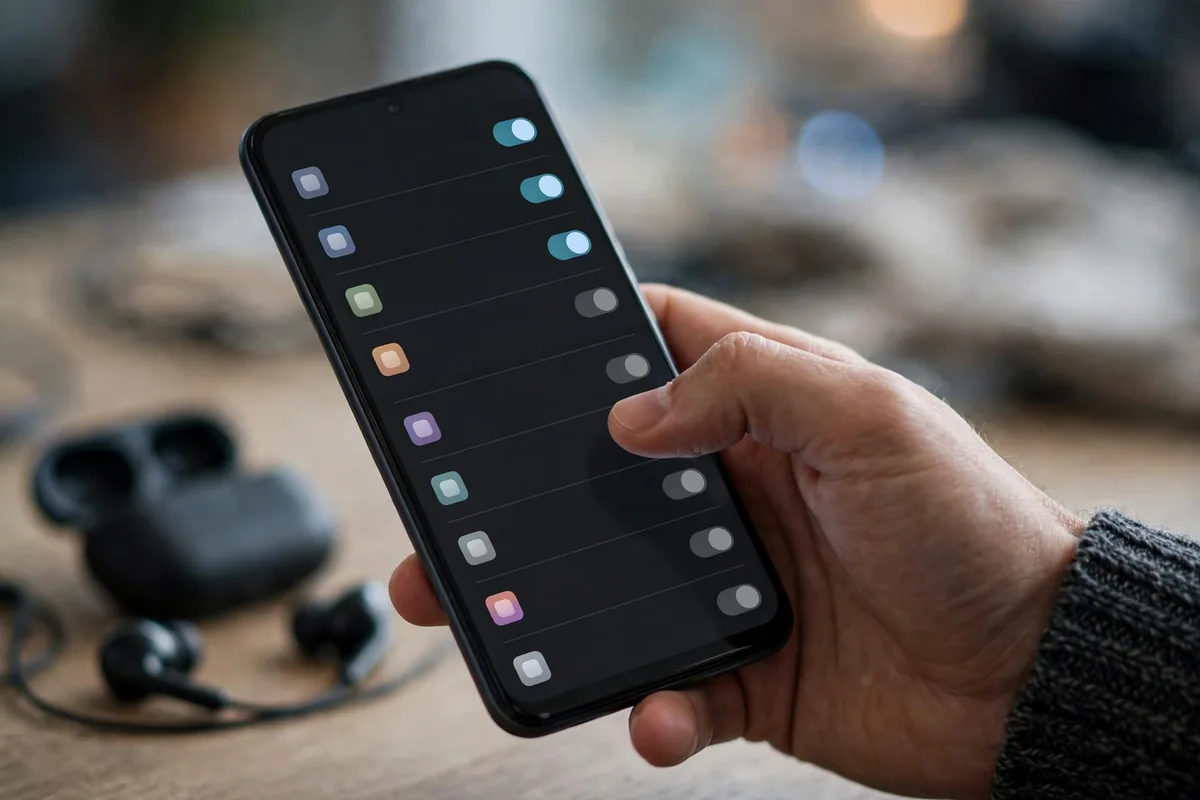
- Go to Settings > Apps > Dual Apps.
- Toggle on any installed app — Xiaomi allows cloning nearly everything, including games.
- The clone appears on the home screen with a small badge.
- Sign in with the second account.
Xiaomi also lets you set separate fingerprints or locks for dual apps and delete all dual-app data at once. If you own a Xiaomi, Redmi, or POCO, you have the best built-in cloner in the business.
Method 3: OnePlus / Oppo Parallel Apps
On OxygenOS/ColorOS:
- Go to Settings > Apps > Parallel Apps (older versions: Settings > Utilities > Parallel Apps).
- Toggle the apps you want to duplicate.
- The parallel copy appears in the drawer with a small indicator.
Like Samsung, OnePlus limits cloning to supported apps — mostly social and messaging. For anything else, see the third-party options below.
Method 4: Other Brands
- Vivo / iQOO: Settings > Apps > App Clone — supports a wide range of apps, close to Xiaomi’s flexibility.
- Realme: Settings > Apps > App Cloner (ColorOS-based, similar to OnePlus).
- Asus / Motorola / Nothing / Pixel: No built-in cloning. Use Private Space (Android 15+) for a second instance of apps, or third-party cloners below.
Method 5: Third-Party App Cloners (Any Phone)
When your phone lacks the feature, these fill the gap:
- Island / Shelter: Create a work profile and install second copies of apps inside it. Free, open-source-ish, no ads — the cleanest method. Slightly technical to set up, but the isolation is genuine Android work-profile sandboxing.
- Parallel Space / Dual Space: The popular commercial cloners. They work, but expect ads and aggressive battery use. Fine for casual use; avoid for banking.
- Multiple Accounts / 2Accounts: Similar category — functional, ad-supported.
Security warning: Cloned banking or payment apps inside third-party cloners deserve extra scrutiny — you are placing financial apps inside another company’s sandbox. For banking, prefer your brand’s built-in cloner or a second user profile over commercial cloning apps. And never clone apps with a cloner that asks for accessibility permission plus contacts and SMS — that combination is a data-harvesting red flag.
Setting Up Dual WhatsApp: The Complete Walkthrough
Dual WhatsApp is the reason most people look up app cloning, so here is the full process end to end:
- Get a second number. Dual WhatsApp requires two phone numbers. Options: a dual-SIM phone with two active SIMs, an eSIM for the second line, or a VoIP number that can receive SMS (Google Voice works for verification in most cases).
- Enable cloning via your brand’s method (Samsung: Dual Messenger; Xiaomi: Dual Apps; OnePlus: Parallel Apps).
- Open the cloned WhatsApp — it launches as a fresh install with the onboarding screens.
- Verify with the second number. Enter it, receive the SMS code on that line, and complete setup. Do NOT use the same number — WhatsApp will log out the other instance.
- Restore or skip backup. The clone can restore from its own Google Drive backup if the second number had WhatsApp before. Otherwise start fresh.
- Differentiate the icons. The clone has a badge, but also give it a distinct chat wallpaper (Settings > Chats > Wallpaper) so you never confuse the two at a glance.
- Set different notification tones per instance — critical for knowing which WhatsApp just pinged.
Common gotcha: WhatsApp Business counts as a separate app, so you can run regular WhatsApp + WhatsApp Business + cloned WhatsApp for three accounts total. Also note that linked devices (WhatsApp Web/Desktop) link per instance — you can have both accounts open in two browser tabs simultaneously.

Dual Apps vs. Multiple Users vs. Work Profile
Cloning is one of three ways to separate app instances on Android. Here is when each wins:
| Method | Best for | Separation strength | Convenience |
|---|---|---|---|
| Dual Apps / cloning | Two accounts in the same app, daily use | Medium — same user, sandboxed data | High — both on home screen |
| Multiple users (Settings > System > Multiple users) | Truly separate phone environments, kids | Very high — separate everything | Low — slow switching, duplicated storage |
| Work profile (Island/Shelter or enterprise) | Work/personal split, IT-managed | High — encrypted container, remote wipe of work side only | Medium — badge icons, separate app drawer section |
For most people, cloning is the right answer: it is the only method that keeps both accounts one tap away. Multiple users suit shared family tablets; work profiles suit employer-managed separation. You can even combine them — Dual Apps inside a work profile for two work accounts plus a personal one.
Limitations to Know
Cloning is not magic. Understand the boundaries:
- Two phone numbers for two WhatsApps. Each WhatsApp instance verifies independently. Dual-SIM phones are the natural fit; otherwise use a second SIM or eSIM.
- Double resource usage. Two instances mean roughly double the RAM and storage for that app. Cloning five heavy apps on a 4 GB RAM phone will cause slowdowns.
- Notifications can double up. If both accounts are in the same group chat, you get two notifications. Manage per-instance notification settings to stay sane.
- Some apps detect cloning. Banking apps and games with anti-cheat sometimes refuse to run in cloned instances. There is no workaround — it is the app’s policy.
- Backups get confusing. Google’s auto-backup may back up both instances; when restoring to a new phone, verify which instance restored correctly.
- Battery impact. Two always-on messaging apps means two persistent connections. Expect a few percent extra daily drain per cloned chat app.
Best Practices for Running Two Accounts
- Label clearly. Rename isn’t possible, but the badge icons help — put originals on one home-screen page and clones on another to avoid opening the wrong WhatsApp at the wrong moment. (Everyone has sent a work message from the personal account at least once. Learn from our pain.)
- Separate notification sounds. Give the work instance a different notification tone so you know which account pinged without looking.
- Use Android’s work profile for actual work. If your employer offers a work profile (Android Enterprise), use it instead of cloning — it separates data properly and your IT department can manage it.
- Review permissions per instance. Each clone requests its own permissions — audit them in our guide to managing app permissions on Android.
- Two-factor authentication: If both accounts use the same authenticator app, label the entries clearly. Better yet, see our guide on transferring Google Authenticator to a new phone before you need it.
Messaging more broadly? Our WhatsApp vs Telegram vs Signal comparison helps you pick the right app for each account, and our new phone setup guide covers getting both accounts running on a fresh device.
Google documents work profiles and multiple users at Android support.
FAQ
Can I clone WhatsApp on Android?
Yes. Samsung (Dual Messenger), Xiaomi (Dual Apps), OnePlus (Parallel Apps), and Vivo all support WhatsApp cloning natively. Each instance needs its own phone number for verification — dual-SIM phones are ideal. On phones without built-in cloning, use Island/Shelter or a third-party cloner.
Is it safe to use Dual Apps for banking?
Built-in cloners (Samsung, Xiaomi) are generally safe since they use system-level sandboxing. Be cautious with third-party commercial cloners for financial apps — you are trusting another app with your banking session. When in doubt, use the bank’s official multi-account support or a separate user profile instead.
How many apps can I clone?
Built-in tools typically allow one clone per app (two instances total). Third-party cloners like Parallel Space sometimes support multiple clones. Practical limit: each clone doubles that app’s RAM and storage footprint, so clone only what you need.
Do cloned apps update automatically?
Yes — clones update through the Play Store like normal apps, independently of the original. On Samsung, update the clone from within Dual Messenger settings if auto-update misses it.
Can I clone games on Android?
On Xiaomi and Vivo, yes — most games clone fine, letting you run two accounts. Note that some games with strict anti-cheat (or server-side account binding) detect cloned environments and refuse to launch or ban the secondary account. Check the game’s terms before investing time in a cloned account.
Will cloning an app log me out of the original?
No. That is the entire point — both instances stay logged in simultaneously with separate sessions. Logging out of one does not affect the other.
Can I move a cloned app’s data to a new phone?
Cloned instances back up like normal apps, but restores can be messy — the new phone may restore only the original instance. Before switching phones, manually back up the cloned app’s data (WhatsApp: Settings > Chats > Chat backup in EACH instance separately), then re-clone on the new phone and restore each backup to its matching instance.
Conclusion
The path is clear: use your brand’s built-in tool first (Samsung Dual Messenger, Xiaomi Dual Apps, OnePlus Parallel Apps), fall back to Island or Shelter on phones without one, and reserve commercial cloners for non-sensitive apps. Two accounts, one phone, zero logout gymnastics — set it up once and enjoy the double life. Start with the app you switch accounts in most often; you will feel the payoff within a single day.



What do you think?
Share your experience or ask a question. A useful conversation starts with you.
Join the discussion