
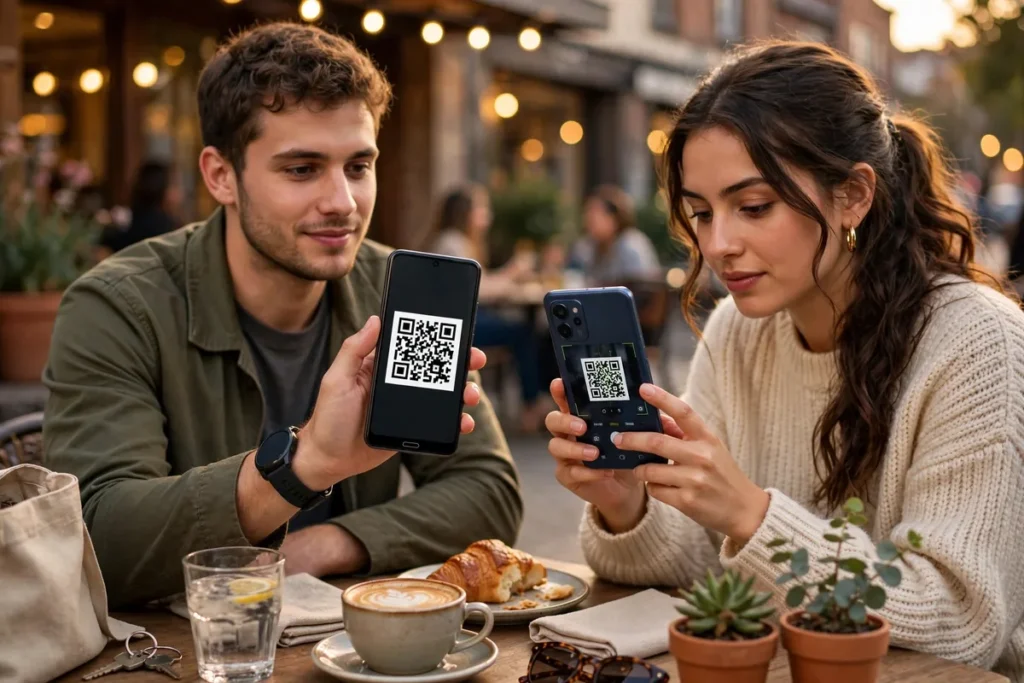
Reading out a 20-character Wi-Fi password letter by letter while someone mistypes it three times is a ritual nobody enjoys. The wifi qr code share android feature eliminates it entirely: your phone generates a QR code encoding your network credentials, guests scan it with their camera, and they are online in seconds with zero typing. These wifi qr code share android tips cover generating codes, sharing securely, guest network best practices, and the edge cases that trip people up. See the Android help center for official documentation.
Whether you host friends, run a small business with customer Wi-Fi, or just want to connect a new device without hunting for the router sticker, this wifi qr code share android guide makes sharing effortless in 2026.
Generate a Wi-Fi QR Code on Android
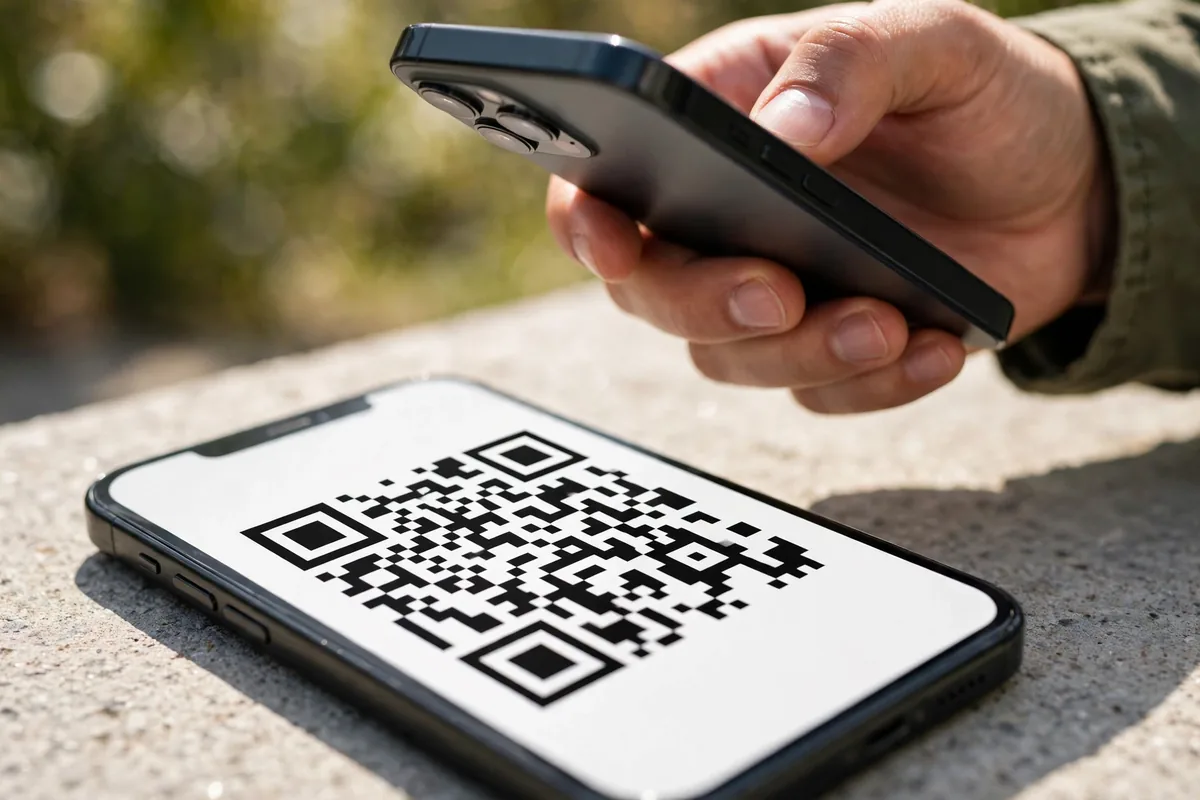
The built-in sharing flow takes seconds and needs no extra apps.
How to Share Your Current Network
- Open Settings > Network & internet > Internet (or Wi-Fi).
- Tap the connected network (the gear icon).
- Tap Share and authenticate with your fingerprint or PIN.
- A QR code appears; anyone can scan it to join.
What the QR Code Contains
The code encodes your network name (SSID), security type, and password in a standard format any modern phone camera reads. iPhones, Androids, and even many laptops join directly from the scan. This is the core wifi qr code share android mechanism, and it works across platforms.
Scan a Wi-Fi QR Code to Join
Joining is even simpler than sharing.
- Open your camera app and point it at the QR code.
- Tap the notification or link that appears.
- Confirm joining the network.
No password typing, no “is that a zero or an O” confusion. Most Android cameras and iPhones handle this natively. If your camera does not detect QR codes, Google Lens or any dedicated QR scanner app works fine.
WiFi QR Code Share Android: Create a Guest Network First
Before sharing widely, consider what you are actually granting: full access to your home network.
Why Guest Networks Matter
- Isolation: guests reach the internet but not your computers, NAS, printers, or smart home devices.
- Bandwidth control: many routers let you throttle guest speeds.
- Easy rotation: change the guest password regularly without disrupting your own devices.
Setup
- Log into your router’s admin page (usually 192.168.1.1).
- Enable the Guest network feature and set a simple password.
- Generate a wifi qr code share android code for the guest network specifically.
Share the guest code freely; keep your main network private. This is the most important security companion to these wifi qr code share android tips.
Print and Display Your Wi-Fi QR Code
For homes and businesses with frequent guests, a printed code beats generating one per visitor.
- Generate the QR code using the steps above.
- Screenshot the code.
- Print it and frame it near the entrance, or save it as your phone’s lock screen wallpaper when expecting guests.
Cafes, Airbnbs, and offices use this constantly. A framed “Scan to join Wi-Fi” sign is more professional than a password scribbled on a napkin, and these wifi qr code share android displays reduce staff interruptions dramatically.
WiFi QR Code Share Android: Quick Comparison Table
| Method | Speed | Security | Best For |
|---|---|---|---|
| QR code scan | Seconds | Good | Guests, visitors |
| Password typing | Minutes | Good | One-time setup |
| WPS button | Seconds | Weak | Avoid if possible |
| Guest network + QR | Seconds | Best | Homes, businesses |
Share Without Revealing the Password
A subtle benefit: QR sharing can connect guests without showing them the actual password.
- Android’s share screen displays the password as text below the QR code, so a savvy guest can read it.
- Printed QR codes alone reveal nothing; the password stays hidden.
- For true secrecy, use a guest network whose password you do not mind being seen.
If password secrecy matters (say, a network you cannot easily change), the printed-code-only approach is the way. These wifi qr code share android nuances separate casual sharing from thoughtful network management.
Connect Smart Home Devices Faster
QR codes are not just for guests; they speed up your own setups.
- New phones: scan your old phone’s shared QR instead of typing the password during setup. Our new phone setup guide covers the full migration.
- Smart speakers and displays: many accept Wi-Fi via QR during their app setup.
- TVs and streamers: photograph the QR with the device’s camera where supported.
Every device you own will eventually need Wi-Fi; the QR code turns each setup from a typing exercise into a scan.
WiFi QR Code Share Android: Troubleshooting
Code won’t scan
Increase screen brightness, clean the camera lens, and hold steady. Printed codes should be at least 2 inches square.
Joined but no internet
The QR code only handles Wi-Fi credentials; captive portals (hotel/airport login pages) still need browser completion afterward.
Wrong network shared
Double-check you are sharing the intended network; Android shares the currently connected one. Switch networks first if needed.
iPhone won’t join
Ensure the QR follows the standard WIFI: format (Android’s generator does). Older iOS versions need the camera pointed longer; iOS 11+ works natively.
Manage Saved Networks and Sharing History
Android remembers every network you join, which is convenient until it is not.
- Go to Settings > Network & internet > Internet > Saved networks.
- Remove old hotel and cafe networks you will never revisit.
- Pruning prevents auto-joining sketchy networks with familiar names (the “evil twin” attack).
Good network hygiene complements these wifi qr code share android practices; share generously but curate what your phone remembers.
WiFi QR Code Share Android: Business and Airbnb Uses
If you host paying guests, Wi-Fi sharing is part of the service.
- Airbnb: include the QR code in your welcome book and as a framed print; guests consistently rate easy Wi-Fi highly.
- Small business: customer Wi-Fi via QR reduces staff interruptions and looks professional.
- Events: display a large QR at registration so hundreds connect without a bottleneck.
For business networks, use a dedicated guest VLAN if your equipment supports it. These wifi qr code share android professional uses turn a convenience into a competitive advantage.
Secure the Network Behind the QR Code
Sharing is easy; make sure the network itself is sound.
- WPA3 or WPA2: never run open or WEP security, even for guests.
- Strong router password: the admin interface needs its own strong, unique password.
- Firmware updates: keep the router updated; most modern routers auto-update.
- Disable WPS: the push-button method has known vulnerabilities.
Our password managers guide helps you generate and store the strong passwords these networks need.
Related Guides
- New Android Phone? 11 Essential Setup Steps
- Best Password Managers for Android 2026: Top 6
- Stop App Tracking on Android: 2026 Guide
WiFi QR Code Share Android: Generate Codes on the Web
Do not want to use your phone’s share screen? Web generators create the same codes.
- Visit a reputable Wi-Fi QR generator site.
- Enter your SSID, security type, and password.
- Download the generated QR image for printing.
Caution
You are typing your Wi-Fi password into a website. Use well-known generators, preferably ones that run entirely in your browser (no server upload). For maximum safety, generate on your phone instead; these wifi qr code share android web tools are convenient but require trust.
Share Wi-Fi During Parties and Gatherings
Large gatherings create a connection stampede; prepare accordingly.
- Display prominently: a big printed QR at the entrance handles dozens of guests without your involvement.
- Dedicated party network: spin up a temporary guest SSID for the event, then disable it afterward.
- Bandwidth planning: if 30 guests will stream and share, ensure your plan and router can handle the load.
Hosts who prepare this in advance get to enjoy their own party instead of playing IT support. These wifi qr code share android event tactics scale from dinner parties to weddings.
WiFi QR Code Share Android: Enterprise and Captive Portals
Business environments add complexity worth understanding.
- Captive portals: hotels and offices often need a browser login after Wi-Fi connection; the QR gets you to the portal faster but does not bypass it.
- Certificate-based enterprise Wi-Fi: WPA-Enterprise networks (common in offices and universities) cannot be shared via simple QR codes; they need per-user credentials.
- QR for the guest tier: most enterprises run a separate guest network precisely so it can be QR-shared freely.
Knowing which network type you are dealing with prevents confusion. These wifi qr code share android enterprise nuances matter most to IT-adjacent users and frequent business travelers.
Teach Family Members to Share Safely
The QR feature is only as secure as the people using it.
- Show, do not just tell: walk less-technical family through generating a code once.
- Guest network rule: teach everyone to share the guest network, never the main one.
- Screenshot caution: explain that QR screenshots contain the password and should not be posted publicly.
A five-minute family tutorial prevents years of insecure sharing. The wifi qr code share android feature is simple, but the habits around it determine whether your network stays safe.
Sharing With iPhone Visitors (It Just Works)
One of the best things about Wi-Fi QR codes is that they end the Android/iPhone divide at your front door. Every iPhone since iOS 11 can join a network from a QR code with zero setup: your guest opens the Camera app, points it at your printed code, and taps the yellow Join network notification that appears. No app to install, no password to spell out loud.
This also works for older relatives who struggle with settings menus. Tape the QR code inside a kitchen cabinet or on the fridge, and “scan the square with your camera” is the entire tech-support script. For Airbnb-style setups, add the network name and a “scan to connect” label under the code so guests do not have to ask.
Rotate Your Guest Password on a Schedule
A QR code makes sharing painless, which means your guest password spreads further than you think: every visitor, contractor, and party guest keeps permanent access until you change it. Rotate it quarterly.
- Log in to your router admin page (usually 192.168.1.1 or 192.168.0.1 in a browser; the default credentials are on the router’s sticker if you never changed them, and you should).
- Open Wireless > Guest Network and change the passphrase to something fresh, 16+ characters.
- Regenerate the QR code on your phone with the new password and reprint it. The whole job takes five minutes.
Keep your main network separate and never QR-share it: the guest network isolates visitors from your computers, NAS, and smart-home gear. Most modern routers (TP-Link, ASUS, Netgear, Eero) support a dedicated guest SSID with client isolation; if yours does not, that is a good reason to upgrade the router rather than work around it.
FAQ
Does wifi qr code share android work with hidden networks?
Yes, the QR encodes the SSID explicitly, so hidden networks join fine. The scanner does not need to discover the network first.
Can I share Wi-Fi with someone far away?
You can send a screenshot of the QR code via messaging; they scan it from their screen. This works, though be mindful you are transmitting your password in image form.
Do QR codes expire?
No. The QR encodes static credentials, so it works until you change the network password. Regenerate and reprint if you rotate passwords.
Is sharing via QR less secure than typing?
The security is identical; the same credentials are transmitted. QR is actually safer against shoulder-surfing than reading a password aloud.
Why does my phone ask for authentication to share?
Android requires biometric or PIN confirmation to display the QR because it reveals your network password. This prevents someone borrowing your phone from silently extracting it.
Can laptops scan Wi-Fi QR codes?
Many can via webcam, though it is clunkier than phones. For laptops, typing the password once (then saving) is usually simpler unless the password is very complex.
What’s the difference between sharing Wi-Fi and sharing a hotspot?
Wi-Fi sharing gives guests access to your existing network; hotspot sharing broadcasts your phone’s mobile data as a new network. Use Wi-Fi sharing at home and hotspot sharing when no Wi-Fi exists, like on road trips.
Can I customize what the QR code looks like?
The code itself must remain scannable, but you can style everything around it: branded frames, your logo beside it, and instructions in your preferred design. Many businesses create attractive table tents with the QR as the centerpiece.
Should I change my Wi-Fi password regularly?
For home networks, changing annually or after guests leave is reasonable. For the guest network specifically, rotating the password quarterly and reprinting the QR keeps old visitors from retaining permanent access.
Conclusion
WiFi qr code share android turns the most tedious part of hospitality into a two-second scan. Generate the code from your Wi-Fi settings, share it freely (preferably for a guest network), and never spell out a password over the phone again. Print it for your home or business, use it to speed up your own device setups, and keep the underlying network secured with modern encryption. These wifi qr code share android tips are small, but they remove a friction everyone has felt, and the best tech is the kind that makes annoyances simply disappear.


What do you think?
Share your experience or ask a question. A useful conversation starts with you.
Join the discussion