
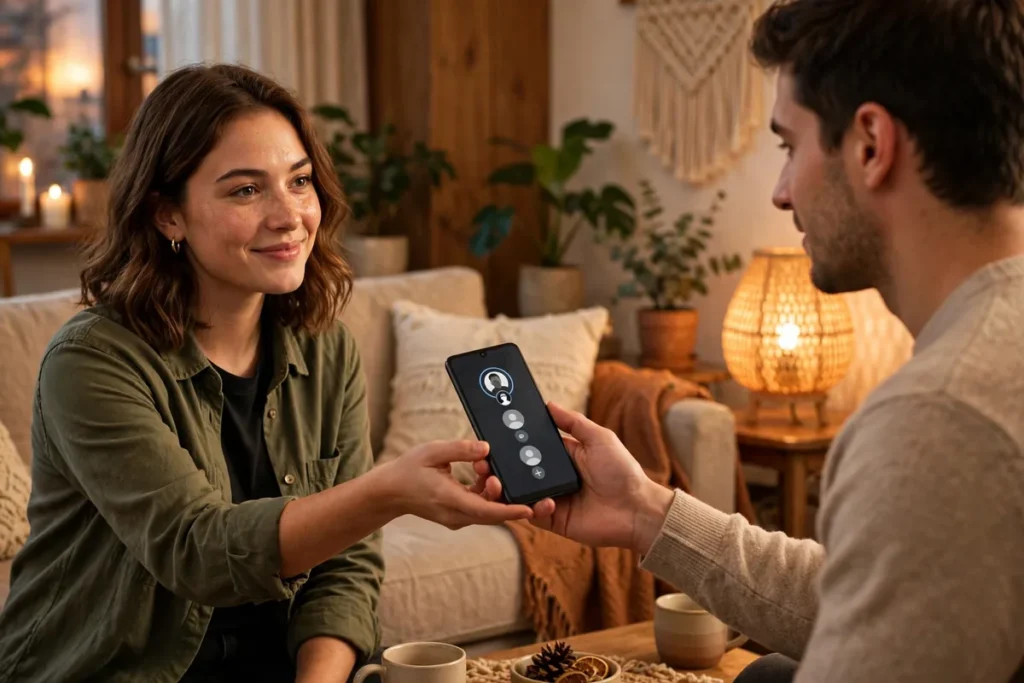
App pinning locks one app; guest mode locks your entire digital life. When you enable guest mode, Android creates a temporary clean profile with no access to your apps, photos, messages, or accounts. The borrower gets a fresh phone experience while your data stays completely private. This guide shows you how to set up guest mode on Android, when it beats the alternatives, and how to clean up afterward. Google documents the feature in the Android help center.
Below: what guest mode is, the two-minute setup, ending a session properly, a head-to-head with app pinning, the situations where it earns its keep, Samsung’s Secure Folder alternative, and troubleshooting.
What Guest Mode Actually Is

Guest mode is Android’s built-in temporary user profile, available on Pixel and stock Android through Settings > System > Multiple users.
How It Works
- Separate profile: guests get a clean Android with default apps only.
- None of your data: your apps, photos, accounts, and files are invisible to the guest.
- Temporary: guest data can be wiped when the session ends.
- Quick switch: toggle between your profile and guest in seconds.
It is like handing someone a brand-new phone — the strongest lending protection Android offers.
How to Enable Guest Mode
- Open Settings > System > Multiple users (on some phones: Settings > Users & accounts).
- Toggle Allow multiple users on.
- Tap Add guest or enable guest mode.
Switch to the Guest Profile
- Swipe down the Quick Settings panel fully.
- Tap the user icon (profile picture).
- Select Add guest or Guest.
The phone switches to a clean profile in a few seconds.
End a Guest Session Properly
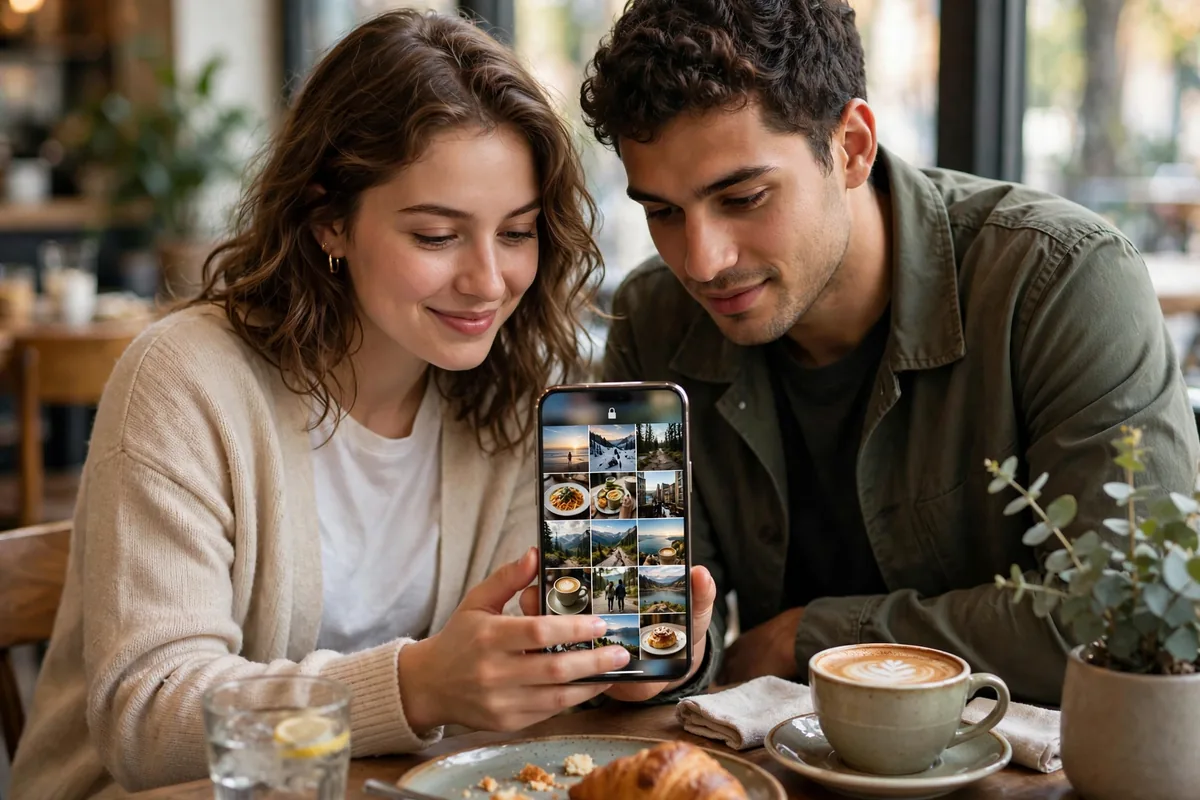
- Switch back to your profile via the user icon.
- Go to Settings > System > Multiple users.
- Tap Guest and select Remove guest to wipe their data.
Always remove the guest after lending; otherwise their downloads and browsing history persist on your phone. Make removal part of the routine of getting your phone back.
Guest Mode vs. App Pinning
| Feature | Guest Mode | App Pinning |
|---|---|---|
| Scope | Entire phone | Single app |
| Your data | Fully hidden | Visible if unpinned |
| Setup time | A couple of minutes | Seconds |
| Best for | Extended lending | Quick tasks |
Rule of thumb: use pinning when someone needs your phone for a two-minute call; use guest mode when they need it for an afternoon.
Guest Mode vs App Pinning vs Samsung Secure Folder: Head to Head
The article already compared guest mode with app pinning; adding Samsung’s Secure Folder completes the picture. Here is all three side by side:
| Guest Mode | App Pinning | Samsung Secure Folder | |
|---|---|---|---|
| What it protects | Your entire profile — apps, photos, messages, accounts | One app at a time | Only the apps and files you move into the Knox vault |
| What the borrower sees | A clean, blank phone | Your phone, stuck in one app | Your normal phone, minus the locked items |
| Setup effort | A couple of minutes | Seconds | A few minutes plus a Samsung account |
| Best for | Lending for hours; strangers and technicians | 30-second shares — a quick call or map check | Quick lends on a Galaxy phone |
| Device availability | Pixel and stock Android; limited on Samsung phones | All Android phones | Samsung Galaxy devices with Knox |
| After the session | Remove the guest to wipe their data | Unpin and you are done | Lock the folder; nothing to clean |
| Borrower’s own apps | Can install with their own Google account | Not applicable | Not applicable — they use your profile |
Many people combine them: Secure Folder as the always-on vault for sensitive items, app pinning for instant shares, and guest mode for the actual lending event.
When Guest Mode Earns Its Keep
Kids and family
Children get a safe environment with no access to your email, banking, or social media — and they cannot accidentally delete your photos. Combine with Digital Wellbeing for screen-time controls when the lending is regular. Hosting playdates works the same way: other people’s children play without touching anyone’s personal apps, and there is no purchase risk since guest mode has no access to your payment methods.
Strangers and repair shops
A stranger who needs to make an emergency call or check a map gets a working phone without seeing your contacts, location history, or saved passwords. The same logic applies to repair technicians: they can run diagnostics in guest mode and actually test functionality, which beats handing over a powered-off phone — though you should still back up before any repair.
Travel companions
Let a fellow traveler navigate or translate without exposing your data, or hand the phone to someone for a photo without granting gallery access. The temporary nature of travel maps perfectly onto a temporary profile.
Workplace sharing
Hand your phone to a colleague for a quick demo without your notifications popping up mid-presentation. For shared demo units at events, guest mode keeps each user’s session clean between handoffs.
Samsung’s Alternative: Secure Folder vs. Guest Mode
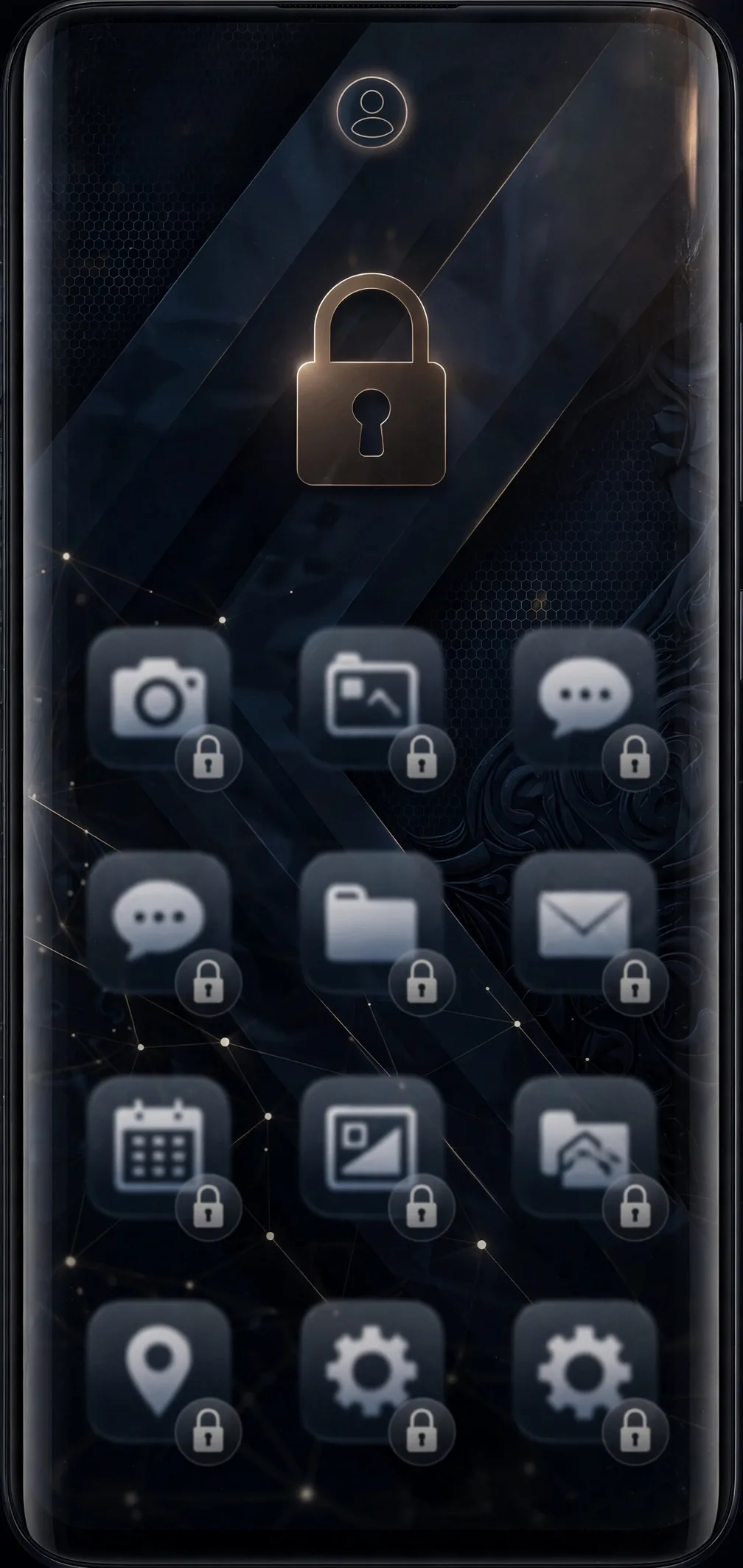
Samsung phone owners have a second, arguably stronger option: Secure Folder, a Knox-encrypted vault inside your own profile. (Note: Samsung supports multiple users on tablets but has historically limited guest mode on phones — check Settings > General management > Users; availability varies by model and region.)
- How it differs: Guest mode gives the borrower a blank phone; Secure Folder keeps your phone as-is but locks your sensitive apps and files behind a separate PIN or biometric. Hand someone your phone with Secure Folder locked, and your banking apps, private photos, and work email are invisible — while everything else works normally.
- Setup: Go to Settings > Security and privacy > Secure Folder, sign in with your Samsung account, and choose a lock type. Then move apps and files into it from the Secure Folder app itself.
- When Secure Folder wins: quick lends where setting up a whole guest profile is overkill — a friend borrowing your phone for ten minutes gets a normal phone, minus your secrets.
- When guest mode wins: longer lends, lending to strangers, or any situation where you want the borrower to have their own clean space (their own browser logins, their own app installs) rather than your profile with holes in it.
Many Samsung owners use both: Secure Folder as the always-on vault for sensitive items, guest mode for the actual lending event.
Troubleshoot Issues
Guest option not available
Enable multiple users in Settings first. Some manufacturers disable the feature; check for system updates.
Guest mode is slow
The first guest setup takes time while Android builds the profile. Subsequent switches are faster. Very old or low-end phones may struggle with multiple profiles.
Can’t remove the guest
Make sure you are signed in as the device owner — only the owner profile can remove guests.
Apps missing in guest mode
Guests see only system apps by default. They can install apps from the Play Store with their own Google account, but those installs are separate from yours.
Battery, Storage, and Performance
Multiple profiles have minimal impact in practice:
- Idle guests: an inactive guest profile uses negligible resources.
- Active use: battery drain depends on what the guest does, not the profile itself.
- Storage: guest apps and data consume storage; removing the guest reclaims the space.
Privacy Limits: What Guest Mode Doesn’t Hide
Guest mode is strong, but honest expectations matter. A guest can still see:
- Device basics: the phone model and Android version are visible, as on any profile.
- Emergency information: medical ID and emergency contacts remain accessible from the lock screen — by design, not a flaw.
- Your network: guests share your Wi-Fi and mobile data connections.
- Installed-by-guest apps: anything the guest installs runs on your hardware. Their apps can’t reach your data, but a malicious app could still abuse the device itself — another reason to always remove the guest afterward.
None of this undermines the core protection — your accounts, files, photos, and messages stay isolated — but knowing the boundaries keeps you from over-trusting the feature.
Guest Mode vs. Separate User Profiles
Android offers both guests and full user profiles. Guests are temporary, easily wiped, and need minimal setup — the right choice for one-time lending. User profiles are persistent and customizable — better for family members who share the device regularly. Both protect your data; they differ in persistence.
When Not to Use Guest Mode
Honest limitations:
- Quick tasks: app pinning is faster for a 30-second share.
- Samsung phones: limited guest-mode support may make Secure Folder the better pick.
- Very old phones: profile switching can feel sluggish on underpowered hardware.
- Focus sessions: some people use the guest profile as a distraction-free space, but it is a sharing feature first — a dedicated focus mode or Digital Wellbeing schedule serves that goal better.
What Guest Mode Can’t Protect
Guest mode is excellent at stopping casual snooping. It is not a vault against every scenario — here is where its protection ends.
An unlocked owner profile
This is the big one: guest mode only protects you if your own profile has a screen lock. Without a PIN, pattern, or biometric, anyone holding the phone can tap the user icon in Quick Settings and switch straight back to your profile — no barrier at all. Before you ever lend your phone, set a screen lock and confirm the guest cannot switch profiles without it.
Incoming calls and messages
The phone keeps working while the guest uses it: incoming calls ring, and caller names can appear on the lock screen. A guest may see who is calling or texting you. If you are expecting sensitive calls, consider Do Not Disturb before handing the phone over.
Shared data and network access
Guests share your Wi-Fi and mobile data connections. An afternoon of video streaming on a capped plan is your bill, not theirs. Saved Wi-Fi networks and paired Bluetooth accessories are also visible from the guest profile.
Device-level misuse
Guests get a working phone, not a supervised one: they can install apps with their own account, change system settings, or use the device in ways you would not. The profile isolation keeps their activity away from your data, but it does not stop them from misusing the hardware — another reason to always remove the guest afterward and glance over your settings.
Not a defense against a determined attacker
Guest mode stops the curious, not the motivated. Someone deliberately trying to compromise the device is a different threat than a borrower peeking at notifications — keep your phone updated, and do not lend it to someone you actively distrust with the hardware itself.
Quick-Start Checklist
New to guest mode? Run through this once:
- Enable: Settings > System > Multiple users > Allow multiple users.
- Test: switch to guest and verify your apps are hidden.
- Lend: switch to guest before handing over the phone.
- Reclaim: switch back, remove the guest, verify your data is intact.
FAQ
Can guests make emergency calls?
Yes, emergency calls work from guest mode and the lock screen. This is a safety requirement, not a privacy hole.
Does guest mode affect my alarms?
No, your alarms still sound. Guest mode doesn’t interfere with the owner profile’s scheduled functions.
Does guest mode work on Samsung phones?
Samsung supports multiple users on tablets but historically limited it on phones. Check Settings > General management > Users; availability varies by model and region. Samsung’s Secure Folder is the usual alternative on Galaxy phones.
Can guests install apps?
Yes, guests can install apps from the Play Store, but they need their own Google account. Installed apps are separate from yours.
Does guest mode hide my notifications?
Yes, your notifications don’t appear in guest mode. The guest sees only their own notifications.
Will it use my mobile data?
Yes, guests share your data connection. Monitor usage if you have a limited plan.
Can I customize what guests see?
Only to a limited degree. For granular control, create a restricted user profile instead of using the basic guest mode.
Does removing a guest delete everything?
Yes, removing the guest wipes all their data, apps, and settings. This is by design for privacy.
Can I set a time limit for guest sessions?
Not natively, but you can use Digital Wellbeing app timers inside the guest profile to limit specific apps.
Can a guest switch back to my profile?
Only if your profile has no screen lock. With a PIN, pattern, or biometric set, switching to the owner profile requires your credentials — which is exactly why a lock is mandatory before lending.
Can a guest see my contacts or call history?
No. Contacts, call logs, and messages belong to your profile and are completely invisible in guest mode. Incoming calls can still ring through, but the guest cannot browse your history.
Related Guides
- Digital Wellbeing: 9 Parental Controls That Work
- Best Password Managers for Android 2026
- Android Accessibility: 12 Features Worth Using
Conclusion
Guest mode is the nuclear option for phone lending: a completely separate, clean profile with zero access to your digital life. It takes a minute to set up and seconds to switch. For any lending longer than a quick call, it’s the right choice — your data stays yours, and the borrower gets a fully functional phone.


What do you think?
Share your experience or ask a question. A useful conversation starts with you.
Join the discussion