
Best Authenticator Apps for Android: 6 Picks
Passwords get leaked, phished, and guessed every single day. Two-factor authentication is the single most effective step you can take to protect your accounts — and an authenticator app is the best way to do it, far safer than SMS codes that can be intercepted. This guide compares the best 2FA authenticator apps Android users can rely on in 2026, covering backups, security models, and ease of use, so you can lock down every account with confidence.
Why You Need a Dedicated Authenticator App
SMS-based 2FA was a good start a decade ago, but SIM-swapping attacks and SS7 interception have made texted codes one of the weakest second factors. Authenticator apps generate time-based one-time passwords (TOTP) directly on your device — six-digit codes that refresh every 30 seconds and never travel over any network. An attacker would need your physical phone, not just your phone number.
A dedicated app also beats the “2FA built into my password manager” shortcut for your most critical accounts. Separation matters: if someone compromises your password vault, you do not want your second factors sitting in the same place. For email, banking, and cloud storage, a standalone authenticator is the pro move. Pair it with one of the best password managers for Android and you have a complete, layered security setup.
If you are new to the concept, Google’s 2-Step Verification help page is an excellent primer on how TOTP fits into the broader picture.
Best 2FA Authenticator Apps Android: What to Look For
The best 2FA authenticator apps Android offers share a few non-negotiable traits. Judge every option on this list against them:
- Encrypted backups: Phones get lost, broken, and replaced. Without a backup, losing your phone means losing access to every protected account. Look for encrypted cloud backup or encrypted local export — never plaintext.
- No account required (ideally): Some top apps work with zero sign-in, which is a privacy plus. Others require an account for sync — acceptable if the sync is end-to-end encrypted.
- Biometric/PIN lock: The app should lock behind your fingerprint or a PIN so a borrowed phone does not hand over your codes.
- Import/export: You should be able to move your tokens to another app. Open standards and export options prevent lock-in.
- Minimal permissions: An authenticator needs the camera (to scan QR codes) and not much else. Be wary of broad permission requests.
- Active maintenance: Security software must be updated. Prefer apps with recent releases and responsive developers.
1. 2FAS — Best Overall
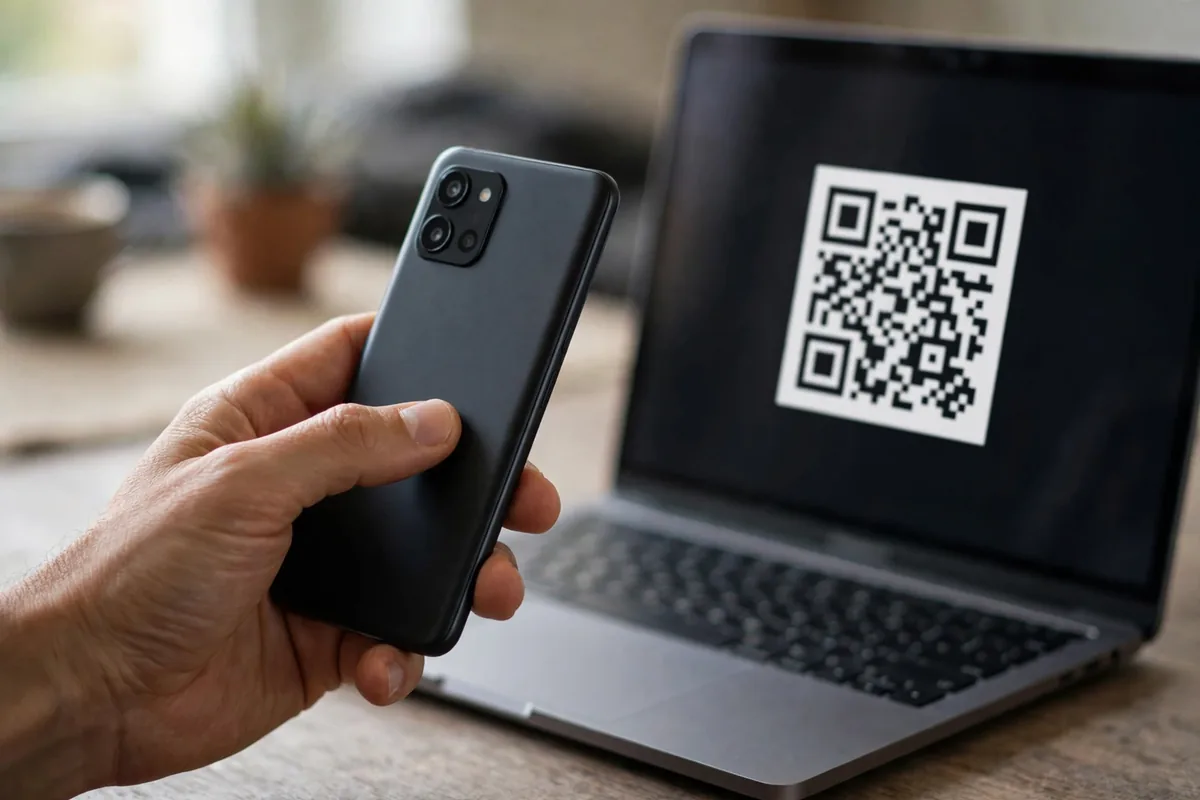
2FAS strikes the best balance of simplicity, security, and backup flexibility. It is free, open-source, requires no account, and supports encrypted backups to Google Drive as well as local encrypted exports. The interface is clean and modern, setup is a two-tap QR scan, and it includes a browser extension for convenient desktop autofill.
What makes 2FAS stand out is that it does the hard things right without asking you to understand them: backups are encrypted with a password you choose, tokens can be organized with icons and groups, and there are no ads or trackers. For most people, this is the one to install first.
Best for: Most users — the best blend of ease and proper backup hygiene.
2. Aegis Authenticator — Best Open-Source Pick
Aegis is the darling of the privacy community: fully open-source, no account, no network permissions at all (it cannot phone home even if it wanted to), and encrypted vaults with strong password-based encryption. It supports importing from other authenticators, custom icons, and biometric unlock.
The trade-off is backup responsibility: Aegis keeps everything local, so you must handle your own encrypted backups (it makes this easy with scheduled encrypted exports — just actually turn them on and store a copy off-device). If you want the best 2FA authenticator apps Android has from a pure trust perspective, Aegis is as transparent as software gets.
Best for: Privacy purists who want zero cloud involvement.
3. Google Authenticator — Best for Simplicity
Google Authenticator is the app most people have heard of, and recent versions finally added what it always lacked: cloud sync tied to your Google account, plus QR-based account transfer between devices. It is dead simple — open the app, see your codes, done — with no settings to get wrong.
The downsides: it is closed-source, backup means trusting Google’s cloud, and it lacks organizational features like folders or icons. But for non-technical family members, “install this, it just works” has real value. Just make sure cloud sync is actually enabled, or a lost phone still means a painful recovery process.
Best for: Beginners and anyone deeply embedded in Google’s ecosystem.
4. Microsoft Authenticator — Best for Work Accounts
If you juggle personal and work accounts, Microsoft Authenticator earns its place. It handles standard TOTP for any service plus push-notification approvals for Microsoft accounts (tap “Approve” instead of typing codes), and backs up to your Microsoft account with encryption. Many employers specifically support or require it.
For purely personal use it is heavier than necessary and requires a Microsoft account for backup, but in mixed work/personal scenarios it reduces the number of security apps you carry. It also includes a solid password autofill feature if you want an all-in-one Microsoft security setup.
Best for: People with work or school Microsoft accounts alongside personal logins.
5. Ente Auth — Best Encrypted Cloud Sync
Ente Auth is the open-source answer to “I want cloud backup I can actually trust.” Your tokens are end-to-end encrypted before they ever leave the device, the code is fully auditable, and it syncs seamlessly across Android, iOS, and desktop. Import from other authenticators is straightforward, and the free tier covers typical personal use.
Ente has built a strong reputation in the privacy space with its photos product, and Auth brings the same philosophy to 2FA. If the idea of Google or Microsoft holding your second factors makes you uneasy, but you still want painless multi-device sync, this is the sweet spot.
Best for: Users who want cloud convenience with verifiable end-to-end encryption.
6. andOTP — Best for Tinkerers (Legacy but Solid)
andOTP is a veteran open-source authenticator with encrypted backups, multiple backup targets, and deep customization. Development has slowed, so we rank it below actively maintained options — security software should be current — but it remains functional and trustworthy for those who already use it.
We include it mainly as a migration note: if you are still on andOTP, export your tokens and move to Aegis or 2FAS. Among the best 2FA authenticator apps Android has, these two make migration easiest thanks to open export formats. Staying on unmaintained security software is a risk you do not need to take when excellent maintained alternatives exist.
Best for: Existing users planning a migration to a maintained app.
Comparison Table
| App | Open Source | Encrypted Backup | Account Needed | Standout Trait |
|---|---|---|---|---|
| 2FAS | Yes | Yes (Drive/local) | No | Best all-rounder |
| Aegis | Yes | Yes (local) | No | Zero network access |
| Google Authenticator | No | Yes (Google cloud) | Simplest | |
| Microsoft Authenticator | No | Yes (MS cloud) | Microsoft | Work accounts + push |
| Ente Auth | Yes | Yes (E2E cloud) | Ente | Trusted cloud sync |
| andOTP | Yes | Yes (local) | No | Migrate away |
Setting Up 2FA the Right Way
Installing the app is step one; configuring it correctly is what actually protects you:
- Start with your email. Your email account can reset almost everything else, so it gets 2FA first. Always.
- Then protect: cloud storage, banking/finance, social media, password manager, and domain/hosting accounts — in roughly that order.
- Scan, don’t type: During setup on each site, choose “authenticator app” and scan the QR code with your app. Verify the first code before closing the setup page.
- Save backup codes. Every service shows one-time recovery codes during 2FA setup. Save them in your password manager or on paper in a safe place. These are your lifeline if the phone dies.
- Test recovery now, not later: Sign out and back in once to confirm the codes work and you know the flow.
One more critical habit: when you upgrade phones, migrate the authenticator deliberately — transfer via the app’s export/QR feature before wiping the old device. “I wiped my old phone and now I’m locked out of everything” is the most common 2FA disaster, and it is entirely preventable.
Backup and Recovery: Don’t Get Locked Out
The unsexy truth about the best 2FA authenticator apps Android users love: they are only as good as their backup story. Decide yours today:
- Cloud backup users (2FAS, Google, Microsoft, Ente): verify the backup actually ran. Open the app’s settings and confirm the last backup timestamp. Write down the backup password somewhere safe — an encrypted backup you cannot decrypt is worthless.
- Local-only users (Aegis): enable scheduled encrypted exports and copy the export file off the phone monthly — to a computer, an encrypted USB drive, or secure cloud storage you control.
- Everyone: print or save the per-service recovery codes. Keep them somewhere physically separate from your phone.
Treat your authenticator backup with the same seriousness as your ID documents. This is where the best 2FA authenticator apps Android users rely on earn their reputation: painless, encrypted recovery when disaster strikes. Ten minutes of setup now saves weeks of account-recovery hell later.
Authenticator Apps vs. Passkeys
You will increasingly see sites offer passkeys on Android as an alternative to authenticator codes. Passkeys are excellent — phishing-resistant and convenient — and you should adopt them where offered. But they do not replace authenticator apps yet: most services still use TOTP as the fallback or primary method, and you will need an authenticator for years to come. Think of it as both/and: enable passkeys where available, keep your authenticator as the universal safety net.
And remember that 2FA is one layer. Round out your defenses with broader privacy hygiene — our guide on how to stop apps from tracking you on Android covers the permission and tracker clean-up that complements account security nicely.
FAQ
Are authenticator apps safer than SMS codes?
Yes, significantly. SMS codes can be intercepted through SIM-swapping (where an attacker convinces your carrier to move your number to their SIM) or SS7 network attacks. Authenticator apps generate codes locally on your device using a shared secret and the current time — nothing travels over the network, so there is nothing to intercept. Every security authority recommends app-based 2FA over SMS.
What happens if I lose my phone with my authenticator app?
If you set up encrypted backups (as all the best 2FA authenticator apps Android users choose support), you install the app on your new phone, restore from backup, and continue. If you have no backup, you fall back to the per-service recovery codes you saved during setup — which is why saving those codes is mandatory, not optional. Without either, you face each service’s manual identity-verification recovery, which can take days or weeks.
Can I use the same authenticator app on two phones?
With cloud-syncing apps (2FAS with Drive backup, Google, Microsoft, Ente), yes — install on both devices and restore/sync. With local-only apps like Aegis, you can import the same encrypted backup file on both phones. Running two devices is actually a smart redundancy strategy: keep a cheap backup phone with your tokens in a safe place.
Do authenticator apps work without internet?
Yes. TOTP code generation is pure math done on-device: the shared secret plus the current time produces the code. No network needed. You only need connectivity for initial setup (scanning the QR code from the website) and for cloud backup/sync operations. In airplane mode on a mountaintop, your codes still work.
Should I switch from Google Authenticator to something else?
Not necessarily — Google Authenticator with cloud sync enabled is fine for most people. Consider switching to 2FAS or Aegis if you want open-source transparency, no Google account dependency, or better organization features. The most important upgrade is not which app, but enabling backups and saving recovery codes, whichever app you use.
Conclusion
The best 2FA authenticator apps Android offers all do the core job — generating secure offline codes — so your choice comes down to backup philosophy and trust. 2FAS is our top pick for most people, Aegis for privacy maximalists, Ente Auth for trustworthy cloud sync, and Google or Microsoft Authenticator for ecosystem simplicity. Whichever you choose, do the unglamorous work today: enable encrypted backups, save your recovery codes, and turn on 2FA for your email first. Future you — the one who drops a phone in a lake — will be very grateful.


What do you think?
Share your experience or ask a question. A useful conversation starts with you.
Join the discussion