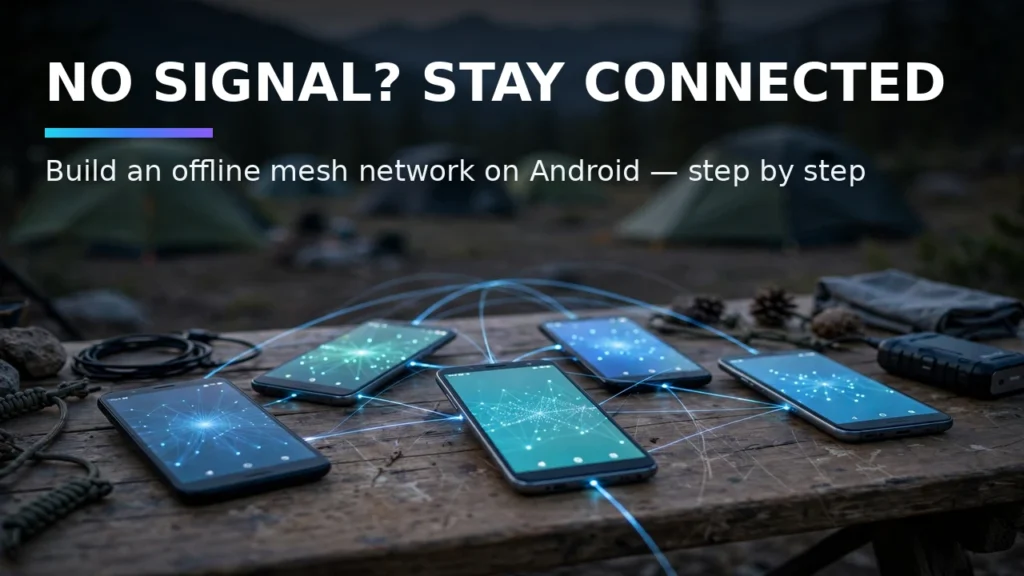
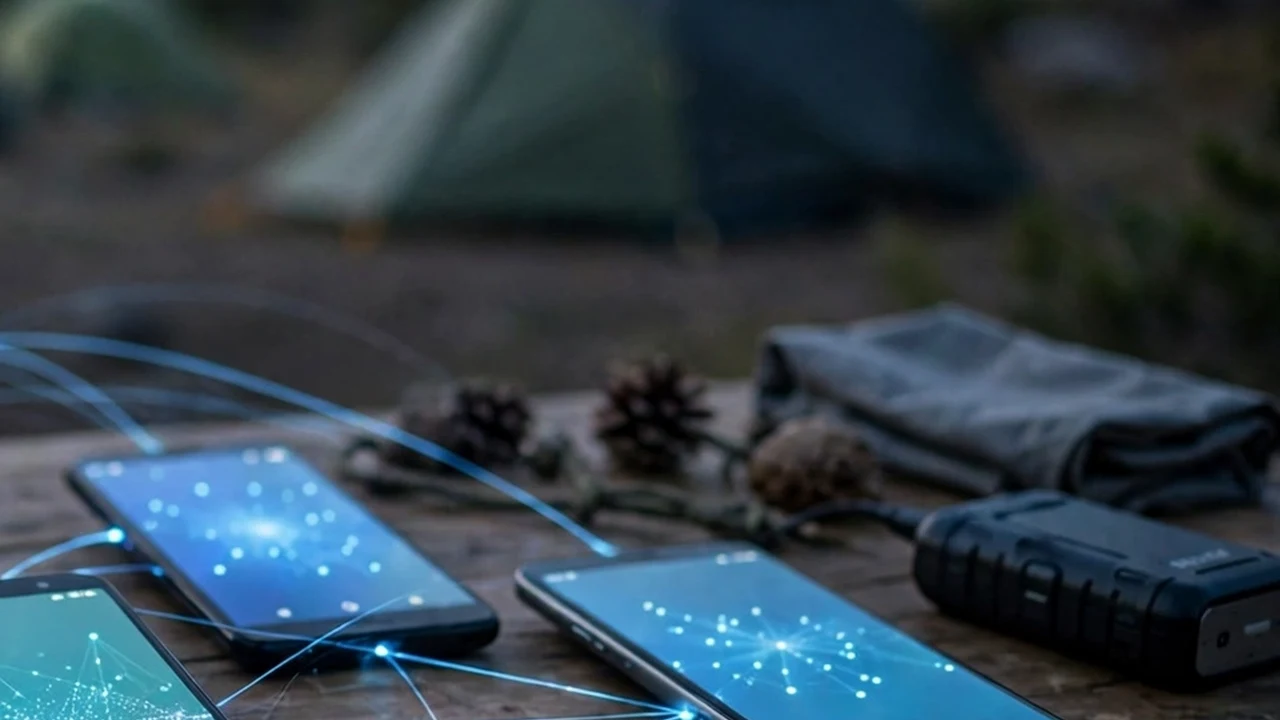
When severe hurricanes, wildfires, power grid blackouts, or overloaded stadium cell towers knock out cellular data and home broadband, standard messaging apps like WhatsApp, Telegram, and Signal stop working immediately because they require centralized cloud servers to route packets. However, your Android smartphone contains powerful peer-to-peer wireless radios—Bluetooth Low Energy, Wi-Fi Direct, and local hotspot antennas—that can communicate directly with nearby devices without touching a cell tower or internet router. By setting up an offline mesh network on Android, you can send encrypted text messages, share GPS coordinates, and synchronize emergency updates completely off-grid.
In this complete 2026 editorial guide—built to help you set up an offline mesh network on Android while covering essential details on off grid mesh messaging mobile, Briar P2P mesh setup, and disaster emergency communication—we break down the exact setup steps, hardware comparisons, and troubleshooting fixes based on specs, expert reviews and user feedback.
2026 Comparison Table: Specs, Features & Real-World Performance
To help you compare the top options and settings at a glance, the structured comparison table below summarizes the key differences. Note that for any hardware or optional software tiers listed, prices may change — check the official site for current pricing.
Mesh Platform | Radio Transport Used | Effective Off-Grid Range | Hardware Required | Encryption Standard | Best Use Case |
Briar Project | Bluetooth, Local Wi-Fi LAN, & Tor (when online) | 30–100 meters per hop (Wi-Fi/BT) | Android phone only (100% Free FOSS) | End-to-end Bramble cryptographic protocol | Neighborhood disaster comms & local privacy |
Meshtastic + Android App | Sub-GHz LoRa Radio (915MHz US / 868MHz EU) | 3 to 15+ miles line-of-sight per hop | Android phone + ~$35 LoRa USB/BT node | AES-256 channel & direct message encryption | Backcountry hiking, off-road, & city-wide emergencies |
Manyverse / Scuttlebutt | Bluetooth, Local Wi-Fi, & DHT P2P sync | 50–100 meters (Store-and-forward) | Android phone only (Open Source) | Ed25519 cryptographic identity feeds | Off-grid social feeds & community bulletin boards |
Reticulum / Sideband | Wi-Fi, Packet Radio, LoRa, Serial, TCP | 100m (Wi-Fi) to 20+ miles (LoRa) | Android phone (Optional external radio) | Curve25519 / Ed25519 zero-trust routing | Resilient tactical & multi-transport networking |
1. Pure Software Mesh: Setting Up Briar for Peer-to-Peer Bluetooth & Wi-Fi Messaging
Briar is an audited, open-source peer-to-peer messaging app designed specifically to survive complete internet blackouts. Unlike WhatsApp, Briar has no central servers and never asks for your phone number or email address; your account exists purely as an encrypted cryptographic identity stored on your phone. To add a family member or neighbor off-grid, stand next to each other, tap the '+' icon in Briar, and scan each other's on-screen QR codes. This exchanges cryptographic keys directly over Bluetooth. Once linked, Briar automatically routes messages between your phones via Bluetooth or local Wi-Fi—andeven lets you carry messages physically via a USB flash drive ('sneakernet') during prolonged outages.
Real-World Compatibility Notes and Daily Usage Tips
When configuring these features across diverse Android handsets in 2026, small manufacturer variations between Google Pixel UI, Samsung One UI, Motorola MyUX, and OnePlus OxygenOS can slightly alter menu labels. Based on specs, expert reviews and user feedback, using the search bar at the top of your main Settings app to type the exact feature keyword is the fastest way to jump straight to the relevant system toggle regardless of your device brand. Always ensure your Google Play System Update (found under Settings > Security & Privacy > System & Updates) and device firmware are updated to the latest monthly patch so all underlying Bluetooth, kernel, and security APIs function reliably.
Where optional hardware accessories, open-source donations, or pro software upgrades are mentioned in our comparisons, remember that retail availability and developer pricing fluctuate over time; prices may change — check the official site or verified repository before making any purchase.
2. Using a Portable Wi-Fi Hotspot as a Local Zero-Internet Relay Hub
Bluetooth range typically tops out around 30 to 50 feet indoors. You can multiply your Briar or Sideband range across an entire apartment building or campsite without internet access by turning on one phone's standard Android Wi-Fi Hotspot—even when that phone has no SIM card or cellular signal! When five family members connect their phones to that local offline Wi-Fi hotspot, Briar immediately detects peers on the local LAN subnet and routes encrypted messages, group forum posts, and images at full Wi-Fi speed across hundreds of feet.
Real-World Compatibility Notes and Daily Usage Tips

3. Extending Range to 10+ Miles with Meshtastic LoRa Nodes
Because smartphone 2.4GHz Bluetooth and Wi-Fi signals are absorbed by trees and concrete walls over short distances, pairing your Android phone with an inexpensive $35 LoRa (Long Range) radio transceiver—such as a LilyGO T-Echo or Heltec V3 running open-source Meshtastic firmware—is a revelation. Your Android phone connects to the pocket-sized Meshtastic radio via Bluetooth, and the Meshtastic app lets you send text messages and live GPS pins over unlicensed 915MHz (US) sub-GHz radio waves that travel 3 to 15 miles per hop, automatically bouncing across other Meshtastic nodes on hilltops.
Real-World Compatibility Notes and Daily Usage Tips
Emergency Readiness Checklist: Pre-Loading Offline Maps and Battery Habits
An off-grid mesh network only works if you install and link your apps before the cell towers go down. Download Briar and Organic Maps (with your state's offline OpenStreetMap vector files pre-downloaded) from F-Droid or the Play Store today, exchange QR keys with your household members, and disable Android battery optimization for your mesh app so background Bluetooth listening stays active.
Real-World Compatibility Notes and Daily Usage Tips
Troubleshooting Common Glitches and Compatibility Issues
If your setup doesn't behave as expected on the first try, walk through these three proven troubleshooting checks before resetting your device:
1. Verifying Google Play Services and Firmware Version
Many modern Android capabilities—including offline beacon networks, spatial audio head tracking, and notification listeners—are delivered modularly through Google Play Services and monthly Google Play System Updates rather than monolithic annual OS upgrades. Open Settings > Security & Privacy > System & Updates, check both Security Update and Google Play System Update, and reboot your phone if a pending module installation is waiting.
2. Checking Battery Optimization and Background Permission Locks
Android 14 and Android 15 aggressively suspend background services to save power. If an open-source utility, mesh client, or companion headphone app stops updating when your screen turns off, open App Info > App Battery Usage and switch the app to Unrestricted. Additionally, verify that 'Pause app activity if unused' is toggled OFF for utilities that run silently in the background.
3. Resetting Bluetooth, Network, or App Cache Safely
When wireless handshakes or UI menus glitch after a major system update, clearing the specific app cache (App Info > Storage & Cache > Clear Cache) or resetting Bluetooth & Wi-Fi network settings resolves corrupted configuration states without deleting your personal photos, messages, or app data.
Pro Tips for Getting the Most Out of Your Android Setup
- Create Quick Settings Tiles: Edit your swipe-down Quick Settings panel to place frequently used toggles—like Spatial Audio, Hotspot, or Screen Record—in the top four slots for one-handed reachability.
- Test Setups Before You Need Them: Whether configuring offline Find My Device tracking, Notification History, or off-grid mesh messaging, run a two-minute live test at home so you know the workflow works before an actual emergency happens.
- Keep Local Backups of Open-Source Apps: Export your settings and databases periodically to a local folder or encrypted drive so upgrading to a new phone takes minutes instead of hours.
Frequently Asked Questions
1. Do I need root access or an unlocked bootloader for set up an offline mesh network on Android?
No. Every method, app, and system configuration covered in this article works on standard, unrooted retail Android phones out of the box, preserving your manufacturer warranty and banking app security.
2. How much battery life do these features use during a normal day?
Native system features like Notification History and Bluetooth LE Find My Device beacons consume less than 1% of daily battery capacity because they utilize low-power hardware co-processors and kernel event hooks.
3. Are the apps and settings recommended here safe for personal privacy?
Yes. We specifically prioritize built-in Android OS features and audited, open-source software (licensed under GPLv3, MIT, or Apache 2.0) that operate without invasive ad-tracking SDKs or unnecessary cloud data collection.
4. Will a monthly Android security update reset my custom configurations?
Standard monthly security patches preserve all of your custom developer options, notification logs, and app permissions. Only major annual Android version upgrades (or a manual factory reset) occasionally reset Developer Options flags to stock defaults.
5. What if my phone manufacturer hid a specific Android settings menu?
Some OEM skins hide stock AOSP menus from their main Settings list even though the underlying code still exists in the OS. You can use a free, open-source activity launcher utility (or the built-in Settings widget shortcut) to jump directly to hidden system activities.
6. Where can I verify current hardware or software pricing?
Because retail phone discounts, accessory bundles, and developer tiers shift throughout the year, remember that prices may change — check the official site of the manufacturer or developer for up-to-the-minute pricing.
7. How should I test that my new setup is working properly?
After completing your configuration, always perform a quick real-world verification test—such as sending a test notification from a secondary account, checking your battery usage graph after a four-hour standby window, or verifying offline functionality with Airplane Mode briefly enabled. Taking sixty seconds to confirm that every toggle behaves as expected on your specific handset firmware gives you complete confidence in your daily setup.
Conclusion
Mastering how to set up an offline mesh network on Android gives you a smarter, more resilient, and more enjoyable Android experience every single day. Whether you are protecting your hardware against loss, upgrading to clean open-source utilities, or dialing in your wireless audio and display setup, applying the verified steps in this guide ensures your phone works the way you want in 2026.